Your AirPods Could Help You Take a Great iPhone Photo


Taking photos can be a fun way to save and share memories, but getting a good picture everyone’s happy with isn’t always easy. Group selfies, for example, might be difficult to get everyone in the shot while still being able to press the capture button on your iPhone. The good news? When Apple released iOS 26 in September, the company made it possible to use your AirPods to take photos, so all you have to worry about is getting everyone’s best angle.

Tech Tips

The iOS 26 update introduced a handful of new features to your iPhone, including call screening and a Liquid Glass redesign. It also introduced Camera Remote for AirPods, which lets you take a photo with a press on your AirPods. But you have to enable this feature and it only works with AirPods that have an H2 chip, such as the new AirPods Pro 3, the AirPods Pro 2 or the AirPods 4.

If you have a pair of compatible AirPods, here’s where to find the Camera Remote option and how to use it.

How to turn on the Camera Remote

1. Connect your compatible AirPods to your iPhone.
2. Tap Settings.
3. Tap your AirPods in the Settings menu. 

The iPhone Settings menu with Zachary's AirPods Pro #2 outlined in red.

Your AirPods will be named something different.

Apple/Screenshot by CNET

4. Tap Camera Remote under Camera Control. 

The Camera Remote option in iOS 26.

Apple/Screenshot by CNET

In the new menu, you can choose either Press Once or Press and Hold. This refers to how you will press the stem on your AirPods to take a picture. Tap whichever you prefer.

The Camera Remote menu.

Apple/Screenshot by CNET

Now you can use your AirPods to snap a picture or shoot a video in Camera. 

What to know about using your AirPods to take a photo

Once Camera Remote is enabled, you can use your AirPods to take a photo or shoot a video with any camera mode, like portrait and time-lapse. 

When you use your AirPods to take a picture in a static mode, like photo or portrait, you will see a countdown from three in the top left corner of your photo’s frame. Your iPhone’s flash will also light up during the countdown to let you know a photo is about to be taken. If you’re taking a selfie, you will only see the numerical countdown on your screen.

The three-second countdown is automatically enabled and I can’t find a way to disable it. You can extend the countdown in your Camera by tapping the grid of dots in the top right corner of your screen, tapping Timer and tapping either 5s or 10s. You can tap 3s, but this won’t change the countdown.

The Camera timer menu outlined in red.

Apple/Screenshot by CNET

When you take a video using your AirPods, you won’t see a timer or anything. Pressing your AirPods is just like pressing the record button on your iPhone. You can then press your AirPods again to stop recording.

It’s important to note that Camera Remote only works when at least one AirPod is connected to your iPhone. The easiest way to do this is to put one AirPod in your ear. If you want to take a photo but don’t want your AirPod to show in the picture, you can activate the photo process with Camera Remote, take the AirPod out of your ear during the three-second countdown and hold it in your hand or pocket until your iPhone takes the photo.

For more iOS news, here’s what to know about iOS 26.4 and iOS 26.3. You can also check out our iOS 26 cheat sheet for other tips and tricks.

Watch this: Secret iPhone Camera Feature: Taking Photos With Your AirPods


Source link

Leave a Reply

Subscribe to Our Newsletter

Get our latest articles delivered straight to your inbox. No spam, we promise.

Recent Reviews


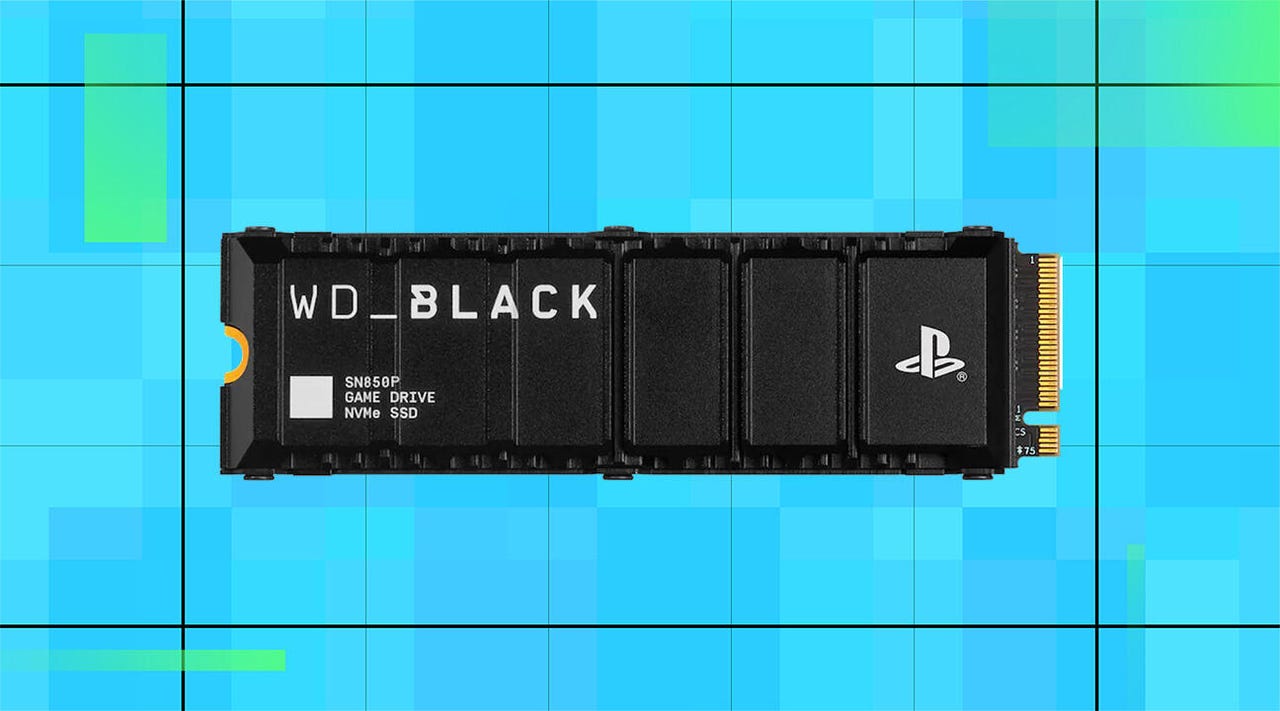
A WD Black SN850P SSD on a blue background

WD/ZDNET

High SSD prices got you down? Right now during Best Buy’s Tech Fest sale, you can save up to $2,800 on the WD Black SN850P storage drive. And while it’s officially licensed for use with PlayStation 5 consoles, it’s easy to reconfigure for use in gaming laptops and desktops for a boost in storage capacity. 

Also: The best Amazon Spring Sale deals: Save on streaming, Apple, Samsung, and more

Available in capacities from 1TB to 8TB, the WD Black SN850P can double, or even quadruple, your available storage space, giving you plenty of room for large game downloads, save files, screenshots, highlight reels, and more. With read and write speeds up to 7300 and 6600 MB/s, respectively, you’ll get much faster loading times than traditional HDDs as well as quicker access to your favorite apps, games, and programs.

Also: SSD vs HDD: What’s the difference, and which should you buy?

The integrated heatsink helps keep everything running at optimal temperatures to prevent data loss or corruption due to overheating. It can also be removed for easier installation in smaller PCs. 

By using flash memory rather than traditional mechanical platters, the WD Black SN850P can provide you with years of reliable data access with much less risk of internal damage due to shocks and bumps.

How I rated this deal 

Prices for RAM and SSD storage drives have skyrocketed as AI companies buy up available stock to power LLMs. And while this particular model is licensed for use with the PS5, you can quickly reconfigure it for use in laptops and desktop PCs. The 2TB model is marked down to $400, bringing it closer to pre-AI pricing, and the 8TB version is almost $2,800 off. While it’s still very expensive, it’s the lowest price I’ve seen on a high-end SSD in a long time. That’s why I gave this deal a 5/5 Editor’s rating.

Deals are subject to sell out or expire anytime, though ZDNET remains committed to finding, sharing, and updating the best product deals for you to score the best savings. Our team of experts regularly checks in on the deals we share to ensure they are still live and obtainable. We’re sorry if you’ve missed out on this deal, but don’t fret — we’re constantly finding new chances to save and sharing them with you at ZDNET.com


Show more

We aim to deliver the most accurate advice to help you shop smarter. ZDNET offers 33 years of experience, 30 hands-on product reviewers, and 10,000 square feet of lab space to ensure we bring you the best of tech. 

In 2025, we refined our approach to deals, developing a measurable system for sharing savings with readers like you. Our editor’s deal rating badges are affixed to most of our deal content, making it easy to interpret our expertise to help you make the best purchase decision.

At the core of this approach is a percentage-off-based system to classify savings offered on top-tech products, combined with a sliding-scale system based on our team members’ expertise and several factors like frequency, brand or product recognition, and more. The result? Hand-crafted deals chosen specifically for ZDNET readers like you, fully backed by our experts. 

Also: How we rate deals at ZDNET in 2026


Show more


Source link