Tesla Plaid Owner Learns The Hard Way It Can’t Keep Up With A Corvette


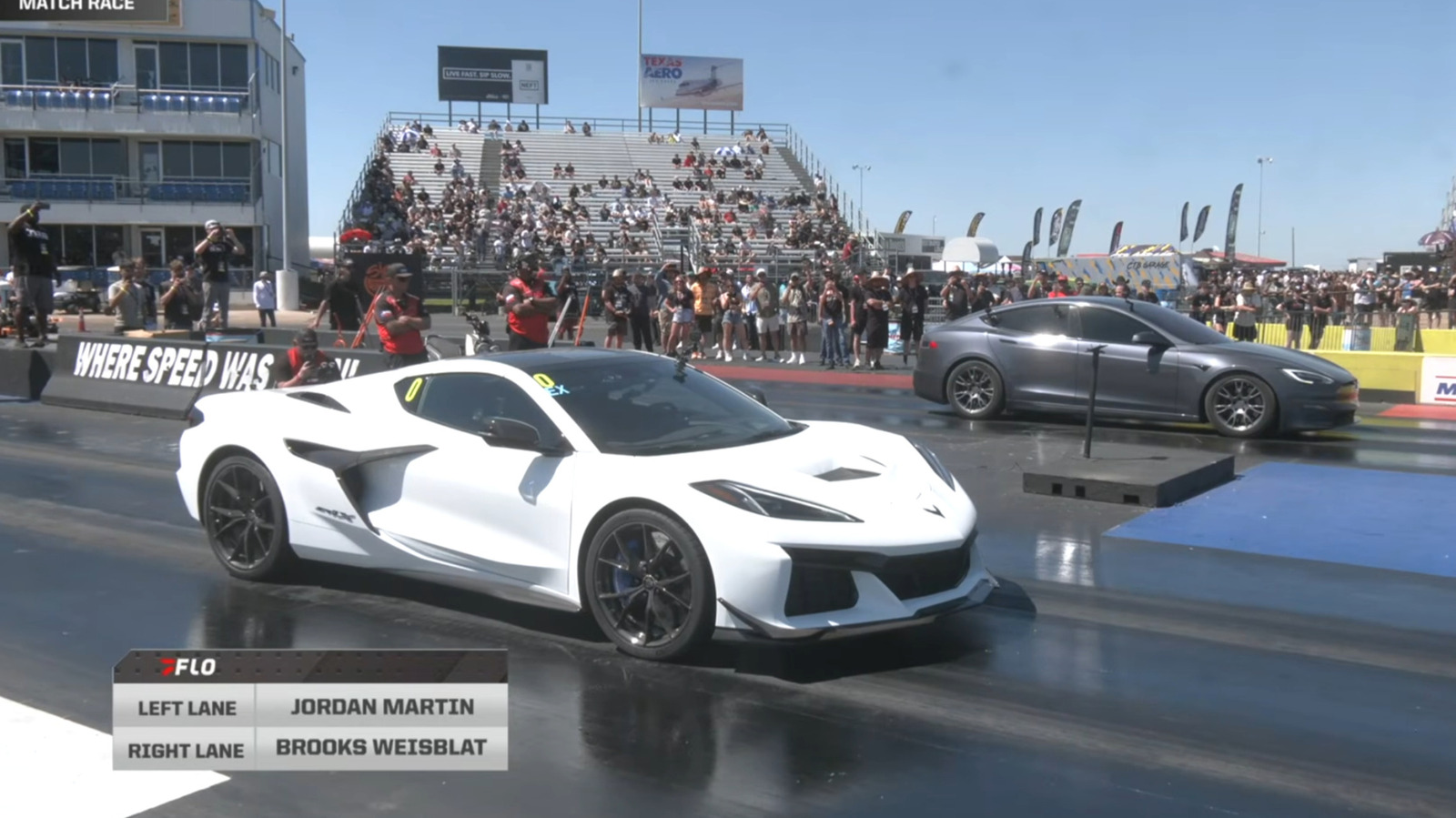
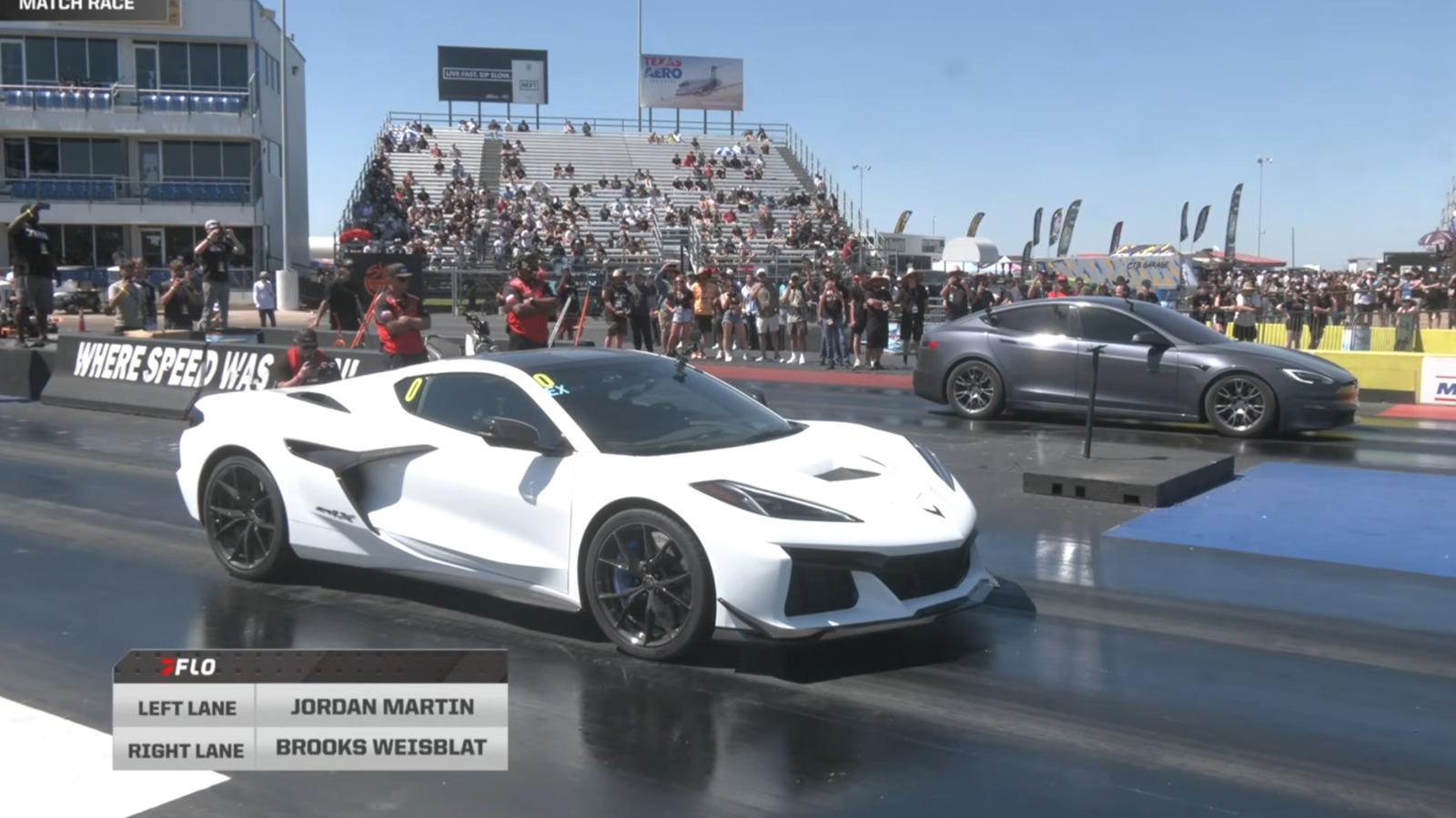
Car enthusiasts love comparing vehicle performance, especially when you can see it play out on a drag strip. A YouTube video recently went viral of a very unlikely matchup: a Tesla Model S Plaid versus a Chevrolet Corvette ZR1X. In the video shared by DragTimes, the ZR1X took on three Model S Plaids in the quarter mile at the TX2K event at Texas Motorplex in Ennis, Texas. 

The first Tesla Model S Plaid driver wasn’t sure if he’d beat the ZR1X, but he felt it would be really close. However, it was clear from the launch that it wasn’t close at all — the ZR1X left the Plaid far behind. The ZR1X was able to get up to 60 miles per hour in 1.95 seconds, beating the Plaid’s 2.26 seconds. The ZR1X finished the quarter mile in 8.92 seconds, hitting nearly 154 miles per hour. The Plaid finished in 9.65 seconds, with a top speed of 140 mph. It was a similar story with the other two Plaids. 

Why is the Corvette ZR1X better than the Model S Plaid on the drag strip?


The Corvette ZR1X and the Model S Plaid that raced that day were both stock with all-season tires, meaning the quarter mile race was a true indicator of the vehicles’ performance without enhancements. To be fair to the Model S Plaid, it beat the Corvette ZR1 in a previous video due to its incredible speed, which is why Brooks Weisblat took out the ZR1X, which pairs the twin-turbo 5.5L LT7 V8 engine with a front-axle electric motor for 1,250 horsepower. That’s more than the Plaid’s tri-motor setup, which produces 1,020 hp. The Plaid is also 4,802 pounds (about 1,000 more than the ZR1X).

With more horsepower and a lighter weight, it’s no surprise that the ZR1X had a faster launch. The Plaid still impressed since it had 70,000 miles on it and 85% battery. EVs slightly slow down over time. 

The Tesla Model S Plaid has a top speed of 163 mph without the added $20,000 Track Package while the ZR1X can reach 225 mph. With the ZR1X already ahead, it’s no surprise that it was able to remain far ahead of the Plaid as they raced down the track. While the Plaid is so fast that it was previously banned from NHRA races, the Plaid was no match for what Corvette considers a track-focused “hypercar.” 


Source link

Leave a Reply

Subscribe to Our Newsletter

Get our latest articles delivered straight to your inbox. No spam, we promise.

Recent Reviews


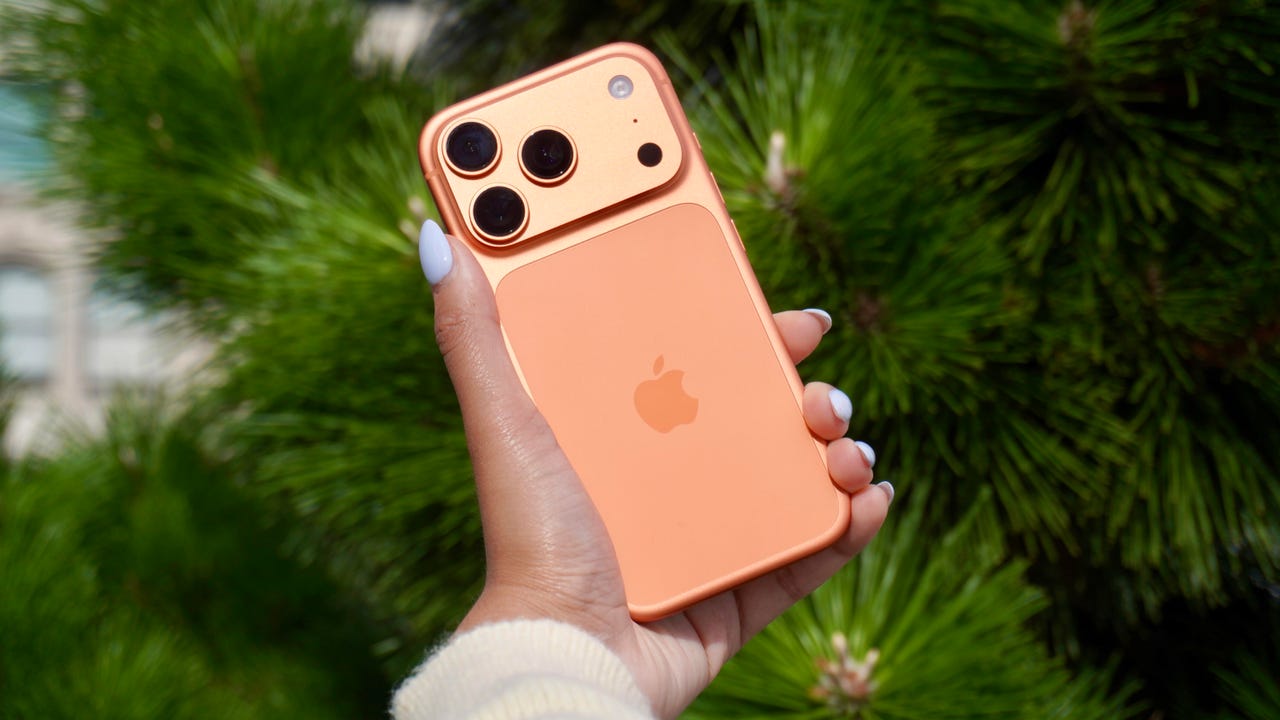
iPhone 17 Pro

Kerry Wan/ZDNET

Follow ZDNET: Add us as a preferred source on Google.


ZDNET’s key takeaways

  • Back Tap lets you trigger actions with double or triple taps.
  • You can customize it to open apps, controls, or shortcuts.
  • It works on most iPhones and even through many cases.

The iPhone has a button on its back. You can’t see it, but with a double or triple tap on the Apple logo, you can open an app, access a system menu, or launch a shortcut. This feature is called Back Tap, and it’s actually been available since iOS 14. The best part is it’s completely customizable. You can set it to do whatever you want, and change it at any time.

I first tried Back Tap years ago, and it quickly became one of those features I use every day. Instead of swiping through menus or hunting for apps, I just tap the back of my phone. It’s one of the fastest ways to get things done.

How to use Back Tap on iPhone

What you’ll need: An iPhone 8 or newer running the latest version of iOS.

1. Go to Accessibility in Settings

Elyse Betters Picaro / ZDNET
2. Open the Touch menu

Elyse Betters Picaro / ZDNET

Scroll to the bottom and select Back Tap. Now you can start customizing the back button on your iPhone.


Show more

3. Select Back Tap

Elyse Betters Picaro / ZDNET

You’ll see two options: Double Tap and Triple Tap. You can use one or both, and assign different actions to them.


Show more

Choose Double Tap or Triple Tap

Elyse Betters Picaro / ZDNET

There should be a long list of actions available under Double Tap and Triple Tap, including system controls, accessibility features, and even some apps. Pick one, and it’ll instantly be active. Just tap the back of your phone to trigger it.

Tip: Tap directly on the Apple logo (or near the center of the back of your phone if you’re using a case), and be quick and deliberate with your taps.


Show more

5. Assign an action

Elyse Betters Picaro / ZDNET

What can I do with Back Tap?

Back Tap supports a wide range of actions, but the best setup really depends on how you use your phone.

At a basic level, you can control system features, like opening Control Center and Notification Center. You can also trigger a screenshot, lock rotation, or adjust volume. Accessibility features are available as well, including VoiceOver, Zoom, AssistiveTouch, and Background Sounds. Popular apps are supported, too, including ChatGPT, Snapchat, Amazon, and more.

Also: Your iPhone’s USB-C port is so versatile – 14 features beyond charging

The most powerful option is probably Shortcuts. If you create a custom shortcut, Back Tap can run it instantly. That means you can combine multiple actions into one tap. For example, you could open ChatGPT and start a voice session, or take a screenshot and save it to a specific folder. This is where Back Tap goes from convenient to genuinely useful and fun to customize.

You get both double tap and triple tap, so you can use them differently. For example, you might use double tap for something you do constantly, like opening Snapchat, and triple tap for something less frequent, like triggering a shortcut.

Back Tap shortcuts

Elyse Betters Picaro / ZDNET

Will Back Tap work with the case on my iPhone?

Yes. It works through most cases, including thicker ones, though sensitivity can vary slightly. If you have a PopSocket or another grip covering the back of your phone, however, you likely won’t be able to trigger Back Tap.

Also: How to turn on Lockdown Mode on iPhone

Why is Back Tap not working for me?

Your taps need to be quick and deliberate. Slower taps, or tapping too lightly, can prevent Back Tap from triggering.

Is there any feedback when Back Tap activates?

There is no haptic feedback, but you can enable a banner notification in the Back Tap menu to confirm it has been triggered.

Also: How to free up your iPhone storage almost immediately

How do I turn Back Tap off?

Go back to the Back Tap menu in Settings and set both Double Tap and Triple Tap to “None.”


Show more


Source link