5 Simple Table Saw Jigs Any DIY Woodworker Can Use


We may receive a commission on purchases made from links.

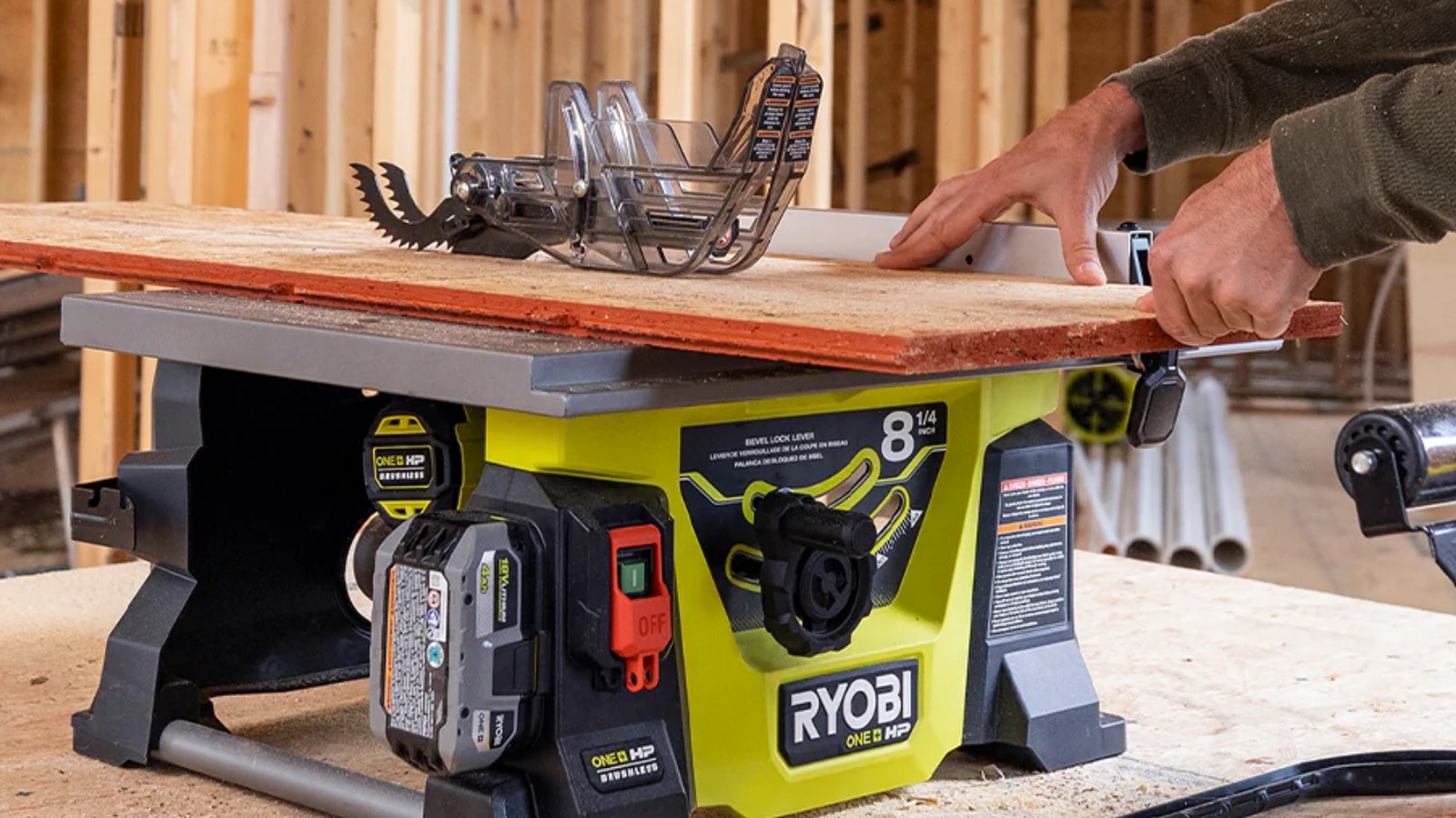
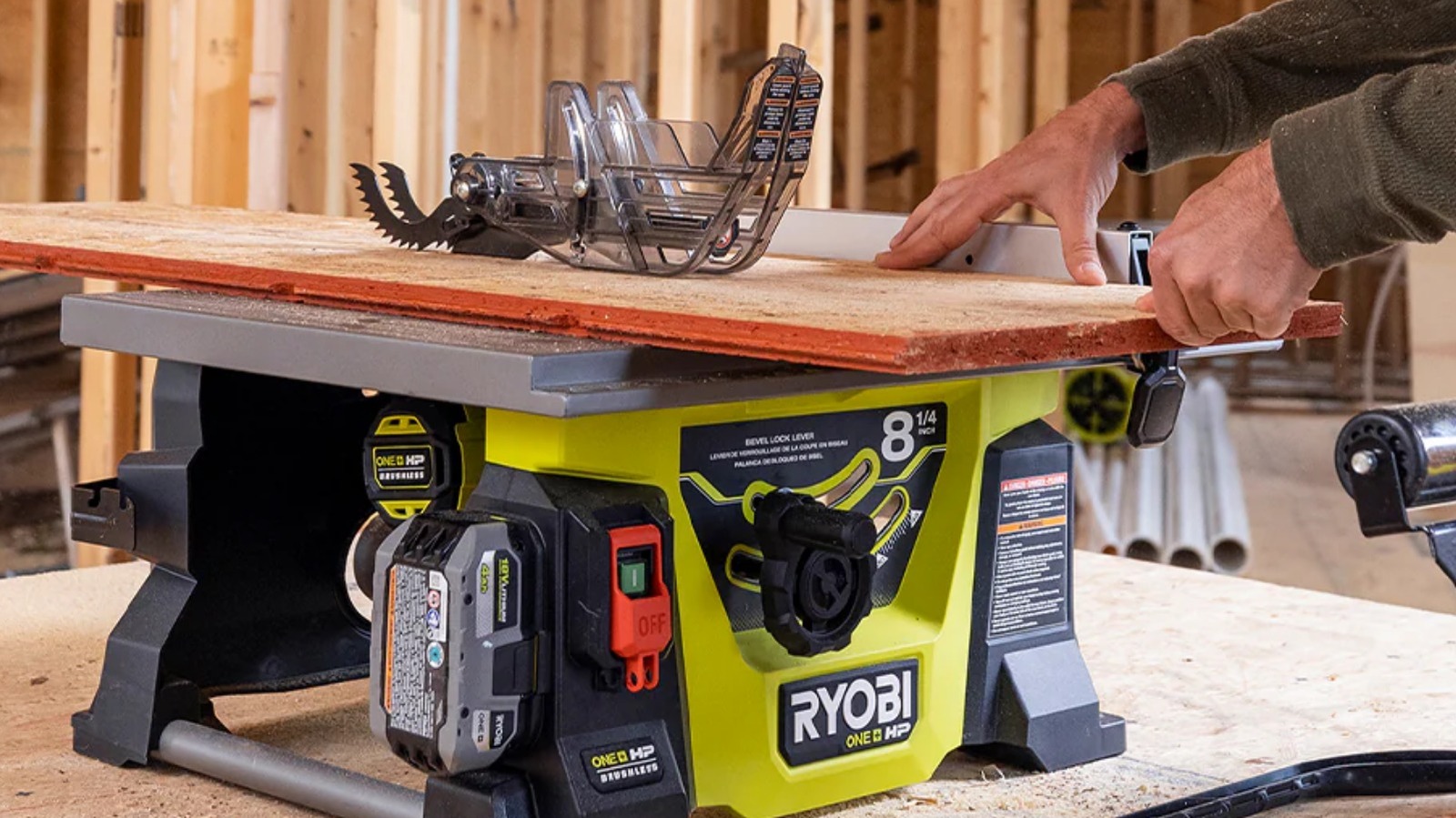
A good table saw is an essential tool for fine woodworking. It’s one of the only saws that can perform rip cuts, cross cuts, miter cuts, bevel cuts, and compound cuts, as well as the various types of more delicate cuts required for joinery techniques. Having a fixed blade with fences, miter gauges, and other accessories helps achieve smooth, accurate cuts that would be far harder with a handheld power tool.

A table saw provides a stable foundation to add all kinds of wooden jigs that can take the tool’s versatility even further. Some of these jigs allow you to make unique cuts that you wouldn’t have been able to make with the standard accessories alone, while others can add a higher degree of precision than what you’d get with a standard miter gauge, or else take complicated cuts that would take a long time to set up and make them easily repeatable. 

Some jigs can be quite complex, involving serious geometry to get them just right. Many others are fairly simple. What’s more, these can often be made using bits of scrap wood, so the cost of production is next to nothing. In any case, it’s worth investing in a good table saw from a major brand.

Miter sled

There are a lot of clever DIY jigs that can expand what your tools can do out there, but arguably the most useful and versatile is the miter sled. This is a flat piece of plywood with runners on the bottom that are made to fit in your saw’s tracks and a solid wooden back that serves as a stop for the pieces that you’re looking to cut. As a rule, miter sleds tend to be much more accurate than miter gauges for basic cross cuts. They are more stable and keep the piece being cut on a fixed surface with support on both sides, rather than trying to pin and slide the piece across the tabletop. You also have the option to attach additional holders to the sled that can allow for repeatable, complex cutting angles.

There are several different miter sled designs out there that require varying levels of complexity to create. Some, like the model designed by How I Do Things Woodworking, are a little more complex in their initial design, but the result is a modular sled system with swappable jigs that can be used to make all kinds of different cuts. Others, like the one designed by Casual DIY, are simpler in their overall utility, but are much easier for beginners to make. In fact, this model is designed to work in concert with the miter gauge that came with your table saw, saving you from many of the complexities that come with creating a perfectly square stop wall.

If you’re willing to spend a bit of money, you can also upgrade many of these DIY designs with metal runner slide bars, T tracks, and flip stops.

Jointer jig

Wood doesn’t always want to be as straight and even as we’d prefer. Even boards that started straight can bend and warp over time, especially when exposed to moisture. One of the main tools used for getting these boards nice and straight again is called a woodworking jointer. Unfortunately, they can be quite expensive, such as a jointer jig. These allow you to straighten a live or crooked edge on your table saw, even if it won’t sit flush against a fence. Then, once you have one straight edge, you can use the table saw’s regular fence to clean up the other side.

You don’t have to buy a jointer jig — you can make one with two pieces of plywood. One serves as a base, and the other as a back fence. You simply glue and screw the back fence to one edge of the larger board and then attach hold-down clamps to the fence to pin your piece to the base. This can then be run along your table saw’s fence with the live or warped edge hanging just off the edge of the base.

Sawdust and Stuff made a design for one of these and noted that you want to make sure the back fence is tall enough that the levers for the hold-down clamps can depress without hitting the table saw’s fence. You’ll also want to ensure that the grips on the clamps you purchase for the jig are adjustable, so that they can clamp down with full force on boards of various thicknesses.

Tapering jig

Tapering cuts are difficult to perform safely on a table saw. This is when you cut an angle along the length of a board, like you would to make a furniture leg. It’s a long, narrow cut that would be extremely dangerous to attempt freehand. That’s where a tapering jig comes in.

A tapering jig is constructed from two pieces of plywood with routed slots. A wider piece serves as the base, while a narrower piece can be adjusted along the routed tracks with bolts to make a custom angled fence that holds your piece in place while the jig moves along next to the saw. You can also add fixed hold-down clamps that will help hold the piece to the jig during the cut. This can be designed to slide against your table saw’s fence, but a better solution is to add a runner to the base, as you would with the sled. But the best thing about any sort of tapering jig is that it keeps your fingers far away from the saw blade.

Fanger Woodworking has a beginner-friendly version of this that requires a table saw and a router to make. Not everyone has a router table, however, and some people are uncomfortable using routers in general. That’s okay, though. Tamar from 3×3 Custom designed a similar model, and also showcased how you can make the channels using a drill and a jigsaw rather than a router. It’s not quite as clean and requires you to attach a little more material on the outside of the board to create the bolt groove, but it’s a good workaround nonetheless.

Box joint jig

Joinery is the cornerstone of fine woodworking, and one of the first joints people learn after a basic butt joint is a box joint (also called a finger joint). This doesn’t involve complex mitered or compound cuts, so it’s fairly beginner-friendly. You simply cut out a series of ‘boxes,’ leaving interlocking ‘fingers’ that can slot into an opposing pattern on a connecting board. It might not be the most complicated joinery method, but it’s very sturdy and adds an element of style to a piece, particularly when you choose to interlock boards with two different kinds of wood.

Making a box joint jig for your table saw is pretty easy. You simply need to cut a plywood platform to serve as the base with two runners for your table saw tracks that go on the bottom, and a pair of fence boards that go at the back (one behind the base that is of equal length and a longer one that goes on top of it for setting clamps). You then attach the fences, set the jig in the tracks, double-check that everything is square, and run the entire jig across a set of dado blades to make the preliminary cut.

Woodworking with Wes has an excellent video demonstrating how to construct one of these. He also showcased how to make a backstop with a space built-in so that it’s easy to get perfectly spaced box joints every time. He also demonstrates how to cut the joints into interlocking pieces of wood and assemble the boards once they’re done.

Thin rip cutting jig

Cutting thin strips of wood on your table saw can be useful for several different projects. You can use them to serve as dividers in a jewelry box, design custom lattices, and make your own shims and edge banding for plywood. Unfortunately, trying to cut these with just a fence can very easily cause kickback, which will damage the piece. What’s more, the gap around the blade is often wide enough that slender strips of wood can fall inside. A thin rip cutting jig makes this significantly easier and safer. There are a few premade thin rip cutting jigs available online, but you can also make one yourself.

There are several designs available. Fanger Woodworking has one that functions as a sliding pointed outer fence, for instance. But one of the simplest and most effective models that we’ve found was designed by Paw Paw’s WorkShop

He started by cutting a wide piece of plywood that serves as the base that fits over the blade, and drew a line down the middle. He made a taper (using a tapering jig like the one we looked at earlier) and glued it on one side of the line. He also attached a wooden fence to one side of the base so that the jig could be clamped to the table saw’s fence and locked in place. He also created an adjustable fence that attaches to the jig’s base to guide the workpiece along. In practice, thin strips of wood can be shaved off the side of a straight board and then peeled away from the blade by the taper.


Source link

Leave a Reply

Subscribe to Our Newsletter

Get our latest articles delivered straight to your inbox. No spam, we promise.

Recent Reviews


There are a ton of laptops on the market at any given moment and almost all of those models are available in multiple configurations to match your performance and budget needs. If you’re feeling overwhelmed with options when looking for a new laptop, it’s understandable. To help simplify things for you, here are the main things you should consider when you start looking.

Price

The search for a new laptop for most people starts with price. If the statistics that chipmaker Intel and PC manufacturers hurl at us are correct, you’ll be holding onto your next laptop for at least three years. If you can afford to stretch your budget a little to get better specs, do it. That stands whether you’re spending $500 or more than $1,000. In the past, you could get away with spending less upfront with an eye toward upgrading memory and storage in the future. Laptop makers are increasingly moving away from making components easily upgradable, so again, it’s best to get as much laptop as you can afford from the start.

Generally speaking, the more you spend, the better the laptop. That could mean better components for faster performance, a nicer display, sturdier build quality, a smaller or lighter design from higher-end materials or even a more comfortable keyboard. All of these things add to the cost of a laptop. I’d love to say $500 will get you a powerful gaming laptop, for example, but that’s not the case. Right now, the sweet spot for a reliable laptop that handles average work, home office or school tasks is between $700 and $800 and a reasonable model for creative work or gaming is upward of about $1,000. The key is to look for discounts on models in all price ranges so you can get more laptop capabilities for less.

Operating system

Choosing an operating system is part personal preference and part budget. For the most part, Microsoft Windows and Apple MacOS do the same things (save for gaming, where Windows is the winner), but they do them differently. Unless there’s an OS-specific application you need, get the one you feel most comfortable using. If you’re not sure which that is, head to an Apple store or a local electronics store and test them out. Or ask friends or family to let you test theirs for a bit. If you have an iPhone or iPad and like it, chances are you’ll like MacOS, too.

In price and variety (and PC gaming), Windows laptops win. If you want MacOS, you’re getting a MacBook. Apple’s MacBooks regularly top our best lists, the least expensive one is the M1 MacBook Air for $999. It is regularly discounted to $750 or $800, but if you want a cheaper MacBook, you’ll have to consider older refurbished ones.

Windows laptops can be found for as little as a couple of hundred dollars and come in all manner of sizes and designs. Granted, we’d be hard-pressed to find a $200 laptop we’d give a full-throated recommendation to but if you need a laptop for online shopping, email and word processing, they exist.

If you are on a tight budget, consider a Chromebook. ChromeOS is a different experience than Windows; make sure the applications you need have a Chrome, Android or Linux app before making the leap. If you spend most of your time roaming the web, writing, streaming video or using cloud-gaming services, they’re a good fit.

Size

Remember to consider whether having a lighter, thinner laptop or a touchscreen laptop with a good battery life will be important to you in the future. Size is primarily determined by the screen — hello, laws of physics — which in turn factors into battery size, laptop thickness, weight and price. Keep in mind other physics-related characteristics, such as an ultrathin laptop isn’t necessarily lighter than a thick one, you can’t expect a wide array of connections on a small or ultrathin model and so on.

Screen

When deciding on a screen, there are a myriad number of considerations, like how much you need to display (which is surprisingly more about resolution than screen size), what types of content you’ll be looking at and whether you’ll be using it for gaming or creative work.

You really want to optimize pixel density; that is, the number of pixels per inch the screen can display. Although other factors contribute to sharpness, a higher pixel density usually means a sharper rendering of text and interface elements. (You can easily calculate the pixel density of any screen at DPI Calculator if you don’t feel like doing the math, and you can also find out what math you need to do there.) I recommend a dot pitch of at least 100 pixels per inch as a rule of thumb.

Because of the way Windows and MacOS scale for the display, you’re frequently better off with a higher resolution than you’d think. You can always make things bigger on a high-resolution screen, but you can never make them smaller — to fit more content in the view — on a low-resolution screen. This is why a 4K, 14-inch screen may sound like unnecessary overkill but may not be if you need to, say, view a wide spreadsheet.

If you need a laptop with relatively accurate color that displays the most colors possible or that supports HDR, you can’t simply trust the specs — not because manufacturers lie, but because they usually fail to provide the necessary context to understand what the specs they quote mean. You can find a ton of detail about considerations for different types of screen uses in our monitor buying guides for general purpose monitors, creators, gamers and HDR viewing.

Processor

The processor, aka the CPU, is the brains of a laptop. Intel and AMD are the main CPU makers for Windows laptops, with Qualcomm as a new third option with its Arm-based Snapdragon X processors. Both Intel and AMD offer a staggering selection of mobile processors. Making things trickier, both manufacturers have chips designed for different laptop styles, like power-saving chips for ultraportables or faster processors for gaming laptops. Their naming conventions will let you know what type is used. You can head over to Intel or AMD for explanations so you get the performance you want. Generally speaking, the faster the processor speed and the more cores it has, the better the performance will be.

Apple makes its own chips for MacBooks, which makes things slightly more straightforward. Like Intel and AMD, you’ll still want to pay attention to the naming conventions to know what kind of performance to expect. Apple uses its M-series chipsets in Macs. The entry-level MacBook Air uses an M1 chip with an eight-core CPU and seven-core GPU. The current models have M2-series silicon that starts with an eight-core CPU and 10-core GPU and goes up to the M2 Max with a 12-core CPU and a 38-core GPU. Again, generally speaking, the more cores it has, the better the performance.

Battery life has less to do with the number of cores and more to do with CPU architecture, Arm versus x86. Apple’s Arm-based MacBooks and the first Arm-based Copilot Plus PCs we’ve tested offer better battery life than laptops based on x86 processors from Intel and AMD.

Graphics

The graphics processor handles all the work of driving the screen and generating what gets displayed, as well as speeding up a lot of graphics-related (and increasingly, AI-related) operations. For Windows laptops, there are two types of GPUs: integrated (iGPU) or discrete (dGPU). As the names imply, an iGPU is part of the CPU package, while a dGPU is a separate chip with dedicated memory (VRAM) that it communicates with directly, making it faster than sharing memory with the CPU.

Because the iGPU splits space, memory and power with the CPU, it’s constrained by the limits of those. It allows for smaller, lighter laptops, but doesn’t perform nearly as well as a dGPU. There are some games and creative software that won’t run unless they detect a dGPU or sufficient VRAM. Most productivity software, video streaming, web browsing and other nonspecialized apps will run fine on an iGPU.

For more power-hungry graphics needs, like video editing, gaming and streaming, design and so on, you’ll need a dGPU; there are only two real companies that make them, Nvidia and AMD, with Intel offering some based on the Xe-branded (or the older UHD Graphics branding) iGPU technology in its CPUs.

Memory

For memory, I highly recommend 16GB of RAM (8GB absolute minimum). RAM is where the operating system stores all the data for running applications and it can fill up fast. After that, it starts swapping between RAM and SSD, which is slower. A lot of sub-$500 laptops have 4GB or 8GB, which in conjunction with a slower disk can make for a frustratingly slow Windows laptop experience. Also, many laptops now have the memory soldered onto the motherboard. Most manufacturers disclose this but if the RAM type is LPDDR, assume it’s soldered and can’t be upgraded.

Some PC makers will solder memory on and also leave an empty internal slot for adding a stick of RAM. You may need to contact the laptop manufacturer or find the laptop’s full specs online to confirm. Check the web for user experiences because the slot may still be hard to get to, it may require nonstandard or hard-to-get memory or other pitfalls.

Storage

You’ll still find cheaper hard drives in budget laptops and larger hard drives in gaming laptops. Faster solid-state drives have all but replaced hard drives in laptops and can make a big difference in performance. Not all SSDs are equally speedy, and cheaper laptops typically have slower drives. If the laptop only comes with 4GB or 8GB of RAM, it may end up swapping to that drive and the system may slow down quickly while you’re working.

Get what you can afford and if you need to go with a smaller drive, you can always add an external drive or two down the road or use cloud storage to bolster a small internal drive. The exception is gaming laptops: I don’t recommend going with less than a 512GB SSD unless you really like uninstalling games every time you want to play a new game.


Source link