
Follow ZDNET: Add us as a preferred source on Google.
ZDNET’s key takeaways
- Most of the Windows apps you use are in the Store or the WinGet repository.
- UniGetUI is a free, open-source app that’s easy to use.
- It’s also a great way to back up and transfer a collection of apps.
If you want to keep your Windows PC safe from malware, spyware, and ransomware, you should stop downloading random installers and only use digitally signed packages from trusted sources.
That’s what every security expert on the planet says, but I can hear the screams of protest. Your apps come from everywhere, and you have a carefully curated collection of EXE files that you guard like the crown jewels. You tried the Microsoft Store years ago, found it useless, and haven’t been back since. And there’s no way you’re going to find your apps in some Microsoft-managed repository. Right?
Also: How to check your Windows PC for expiring security certificates – a big one ends in June
Oh, do I have good news for you. Most of the Windows apps you’re using today are already available through either the Microsoft Store or the WinGet package repository. Using those sources is both safer and more reliable than fetching random EXEs from developer websites.
Best of all, I’ve found a marvelous free, open-source app that can help you install, manage, and update all those apps and more. It’s called UniGetUI, and it’s a game-changer.
Put those two pieces together, and you’ve solved the biggest problem with the Windows ecosystem. And, of course, it’s in the Microsoft Store. From Windows 11, type “unigetui download” in the search box, and you’ll get this link to install it directly.
UniGetUI is available from the Microsoft Store. Or from the Winget repository. Or as a download. Take your pick.
Screenshot by Ed Bott/ZDNET
Most of your Windows apps are already in a trusted repository
Executable installers are the top malware delivery vector on Windows. Even legitimate developer sites get compromised, and ad-supported download mirrors sometimes inject unwanted add-ons into their packages.
Several years ago, Microsoft opened the Microsoft Store to third-party apps, and since then, the collection has grown impressively. These are the same Win32 packages you’d find on the developer’s website, but they’re vetted, signed, and ready to install with a single click.
Also: After setting up Windows 11, these 9 steps are non-negotiable for me
And for those apps that aren’t in the Store, there’s the WinGet package repository, a massive, community-curated catalog of Windows software hosted on GitHub. It contains tens of thousands of manifest files that describe how to safely install and update applications from their original publishers. The WinGet client uses these manifests to fetch software directly from trusted sources without exposing you to potentially compromised installer packages.
The sheer volume of good stuff in those two locations is mind-blowing:
- Every Microsoft-published app
- Most major commercial apps, like Google Chrome, Zoom, Dropbox, 1Password, Adobe apps, and even Spotify and iTunes
- A gazillion open-source apps, including Rufus, VLC, 7-Zip, and Notepad++
- All the developer tools you could ask for, like Git, Python, and Docker
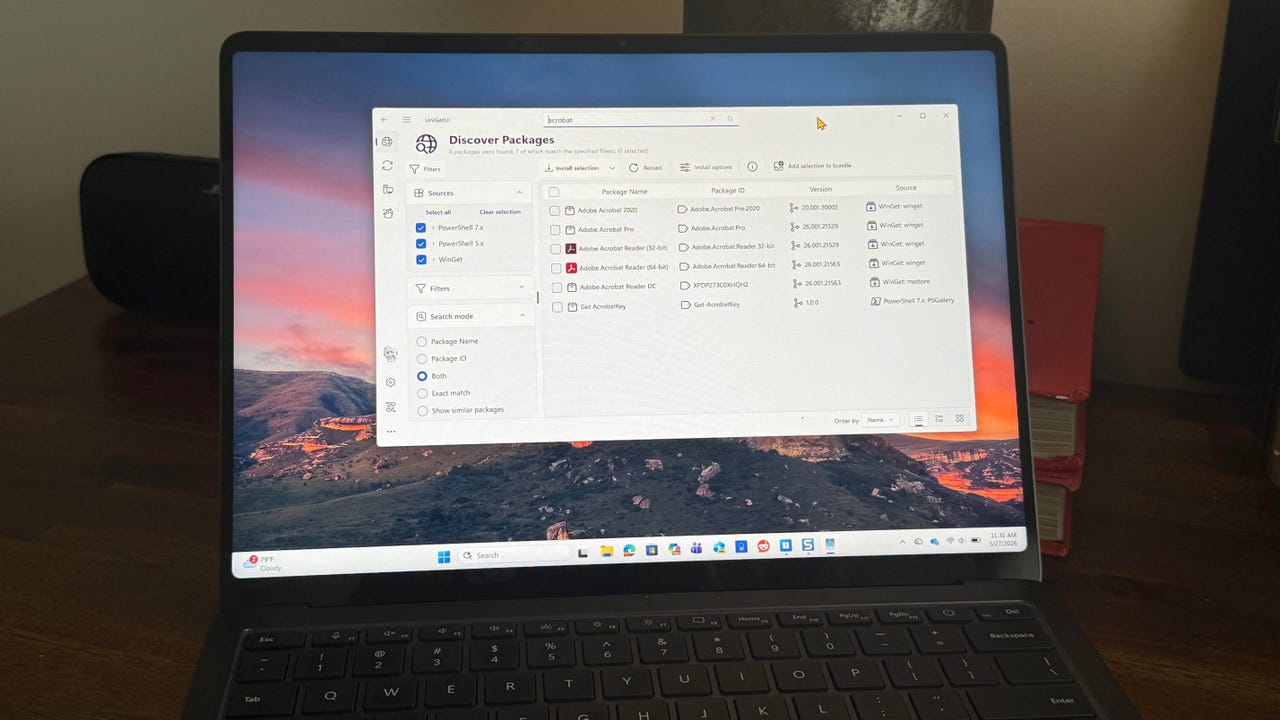
Here’s what you get, for example, when you search for Adobe Acrobat:
Use the search tools to find an app and install it without any extra steps.
Screenshot by Ed Bott/ZDNET
Click, install, done.
UniGetUI takes away the command-line pain
I’ve been using the Windows Package Manager, Winget, to download and update apps on my Windows PCs for years. But I freely admit that using Winget is a PITA.
It’s a command-line tool. It isn’t exactly user-friendly. Even if you’re a PowerShell guru and know exactly what you’re looking for, finding the right package and getting it installed can be a challenge. And good luck keeping those packages up to date.
Also: 5 Windows apps I always install first on a new PC – and they’re free to download
The Microsoft Store is easier to use, but it’s still tedious to search for apps and install them one by one.
That’s where UniGetUI comes in.
On the PC I’m using to write this post, I have more than 200 apps installed. About half of the apps were either preinstalled on the PC, as part of Windows, or by the OEM that made the PC, Dell. Only two were downloaded from the developer’s website. Everything else came via UniGetUI.
Only two apps (out of 200) on my main PC are from downloads. The rest came via a package manager.
Screenshot by Ed Bott/ZDNET
Back up your apps and clone them from one PC to another
Yesterday, I set up a new PC. In olden times, as part of that tedious process, I would painstakingly install a folder full of EXE files after first checking for the latest version.
This time, I went to the PC to be replaced, ran UniGetUI, picked the apps I wanted on my new PC, and created a bundle — a single file with the details of all those apps.
Create bundles of apps as backups or to clone a collection from one PC to another.
Screenshot by Ed Bott/ZDNET
On the new PC, I installed UniGetUI, opened that tiny bundle file, clicked Install, and watched as everything downloaded and installed automatically. I had to remain present to click a series of permission boxes to allow the UniGetUI Elevator to do its job, but that was the extent of my involvement. The whole process took a few minutes.
Also: Windows 11’s new Low Latency Profile may give your PC the speed boost it deserves
UniGetUI also handles packages from other repositories, including Scoop, Snap, Chocolatey, Pip, and Npm. If you’re a developer, you know what a big deal that is.
Keep all those apps up to date
The app keeps track of every app on your PC, not just those it installed. You can use its list to uninstall any app you don’t need. Want to ditch those annoying preinstalled Microsoft apps, like News and Weather? No problem.
It also automatically keeps track of updates and offers to install them as needed. That list includes the many libraries and runtime packages required by third-party apps.
These notifications allow you to update a group of apps with one click.
Screenshot by Ed Bott/ZDNET
As I finished typing that last sentence, I was informed that an update was available for seven apps, including the Microsoft Visual C++ 2015-2022 Redistributable. One click in the pop-up, and that task was complete.
Also: How to upgrade your ‘incompatible’ Windows 10 PC to Windows 11 – for free
UniGetUI was originally a labor of love by developer Martí Climent. Earlier this year, an enterprise software maker, Devolutions, took over the project, pledging to “preserve its open-source foundation while reinforcing its long-term stability, security, and capacity for continued growth.”
If you consider yourself a Windows power user, you need this tool.