
Follow ZDNET: Add us as a preferred source on Google.
ZDNET key takeaways
- Zorin OS is one of the best Linux distributions available.
- There is an endless array of potential customizations.
- These are the settings that I believe are a must.
I’m a big fan of Zorin OS. I’ve compared the operating system to the likes of Linux Mint and AnduinOS and always found that it comes out on top. In short, 10 out of 10; would recommend.
Out of the box, Zorin OS looks and behaves great, but there are always tweaks and customizations to make the desktop OS better suited to your aesthetic or your workflow.
I want to show you the Zorin OS settings I always tweak for every installation.
Also: 8 most Windows-like Linux distros – if you’re ready to ditch Microsoft
Do note that these modifications are a matter of taste. What I enjoy might not perfectly align with your requirements. However, I’m confident you’ll want to use at least some of these tweaks.
With that said, let’s get to it.
1. Zorin Layout
One of the coolest tools found in Zorin OS is the Appearance tool. With Zorin Appearance, you can quickly change the desktop layout. The free version provides four layouts, and the Pro version ($47.99) gives double that.
But even the available options can be tweaked. For instance, you can take the default GNOME layout and easily turn it into a MacOS-like desktop. Each layout can be customized, so choose one and start tinkering until you get it exactly how you want.
The Zorin Appearance is one of the first tools I use.
Screenshot by Jack Wallen/ZDNET
If you’re like me, you’ll wind up changing the layout several times.
2. Zorin Dash
In every desktop I use, there’s a dock at the bottom of the screen. I find docks incredibly efficient, and they also align with my aesthetic. Whether I’m on Linux or MacOS (sorry, Windows), there’s a dock, and I use it extensively.
On Zorin OS, you can enable the Dash, which is similar to GNOME’s Dash To Dock extension.
Also: I’ve tested so many Linux email clients – why I’m recommending Aerion above all else
With Zorin Dash, you can customize the dock in multiple ways to make it unique and effective. The Zorin Dash is also quite elegant and can be given a transparent look with ease.
Zorin Dash is a must for anyone who wants a dock on their desktop.
Screenshot by Jack Wallen/ZDNET
To enable Zorin Dash, open the Extensions app, scroll down, and click the On/Off slider associated with the feature until it’s in the On position.
3. Online Accounts
With the Online Accounts feature, I can associate any number of my online accounts (such as Google) with the desktop. With this feature, I can integrate my Google Calendar, Gmail, Contacts, and much more into the various apps (such as the calendar and email apps) found on the desktop or in the desktop menu.
By connecting an online account, I don’t have to worry about configuring each app to connect with those services.
Also: How I speed up my Linux system for free while RAM prices are out of control
Online accounts make this task quite easy.
Online Accounts makes it easier to integrate various accounts into your desktop.
Screenshot by Jack Wallen/ZDNET
To access Online accounts, open Settings and click Online Accounts in the left sidebar. You can then select the account you want to add and follow the wizard for that account.
4. Jelly Mode
I love Jelly Mode. Essentially, this feature wobbles the windows as you move them. No, Jelly Mode won’t make you more productive or a better Linux user, but it sure is fun. This effect is one of the first I enable on Zorin OS, simply because it makes me smile.
To enable Jelly Mode, open Zorin Appearance, click Effects, and move the On/Off slider for Jelly Mode to the On position.
5. Desktop Cube
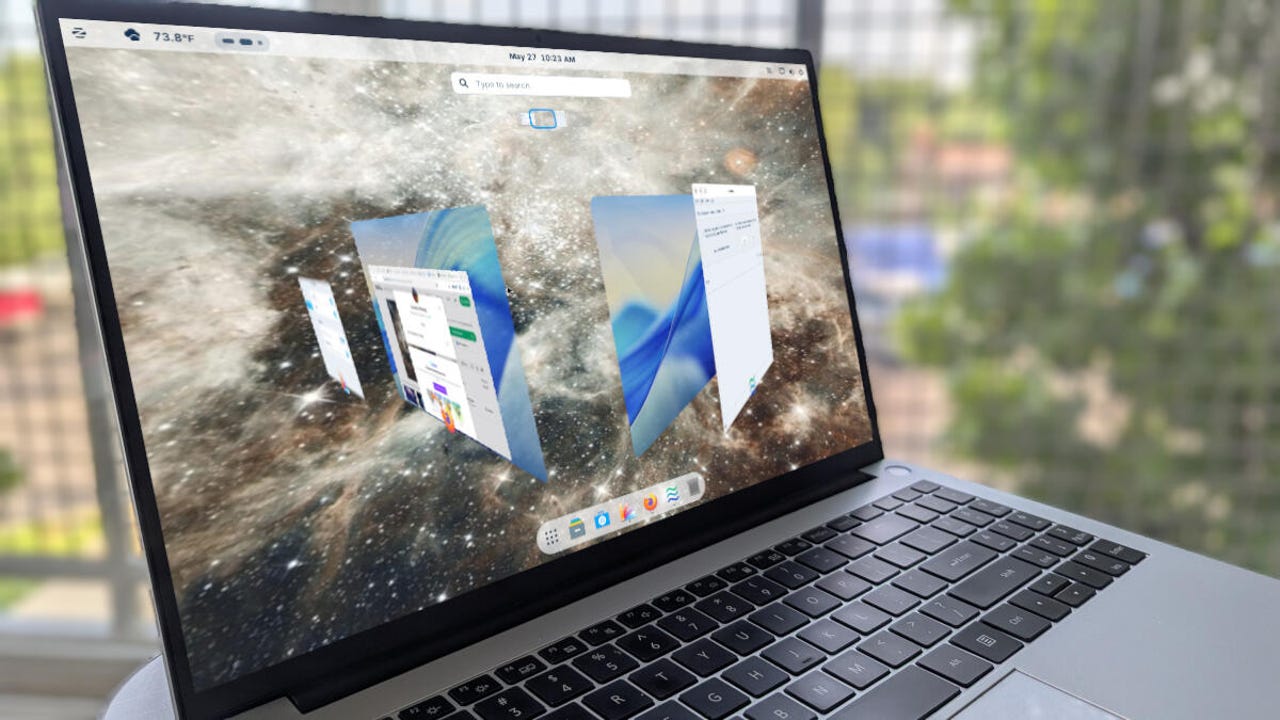
Desktop Cube takes me way back to the days of the window manager, Compiz. With Desktop Cube, you can navigate the desktop (and its various virtual desktops) by clicking the Overview button (the ellipse that appears in the panel), clicking your left mouse button, and dragging the mouse around.
Desktop Cube gives you a 3D representation of your desktop and its layout. The feature creates an amazing effect that I love to show off to those who’ve yet to experience the power and awe of Linux.
Also: The best Linux distributions for beginners: Expert tested and reviewed
Desktop Cube will take you back to the good ol’ days of Linux.
Screenshot by Jack Wallen/ZDNET
To enable the Desktop Cube, open Zorin Appearance, go to Effects, and move the On/Off slider to the On position.
6. Icons on Desktop
I hate icons on the desktop. I know most people like them because they make it easy to access applications, files, or bookmarks, but I think they instantly ruin the look of a desktop that I’ve tuned to my aesthetic.
I get rid of desktop icons immediately.
Screenshot by Jack Wallen/ZDNET
To that end, I always disable icons on the desktop. With Zorin OS, that task is completed in Zorin Appearance > Desktop > Icons on Desktop.
7. Zorin Tiling Shell
The more I use tiling window managers, the more I like them, as they are the most efficient way of placing windows on the desktop.
Also: I’m a Linux power user, and this distro made me rethink what an operating system can be
Zorin OS ships with Advanced Window Tiling within Zorin Appearance > Windows > Advanced Window Tiling.
Once you’ve enabled the feature, you can click and drag a window to the top and then select the position you want. Or, you can drag a window to an area to place it.
I do love a good tiling window manager.
Screenshot by Jack Wallen/ZDNET
Within Settings, you can customize elements, such as Show Indicator, gaps, threshold, animations, and the tiling behavior.
8. Secure Shell Access
Zorin OS makes it easy to enable Secure Shell (SSH) access to the desktop. All you have to do is open Settings and go to System > Secure Shell. Once there, click the On/Off slider for Secure Shell until it’s in the On position.
Secure Shell is a must for me.
Screenshot by Jack Wallen/ZDNET
One thing to keep in mind is that Secure Shell will give the command to access the desktop, but it uses the hostname. You’ll need to locate your desktop’s IP address to SSH into it.
Also: Bash vs. Fish? I’ve tried both Linux shells, and one makes using the command line much easier
You can locate the IP address by opening a terminal app and issuing the command:
ip a
And those are my favorite Zorin OS settings. Give each of these a try and see if one or more of them make Zorin OS even better for you.