
Stay ahead of tech news with Tech Today, delivered to your inbox every morning.
Welcome to Prompt of the Day, where we show you an AI prompt you can use for work, play, or anything in between, sourced from our community of AI experts and professionals.
Also: Compare new models with our AI Model Release Tracker
Struggling to use AI image generators? Today’s prompt comes from ZDNET contributor Lance Whitney, who suggests letting a chatbot design the perfect image-creating query for its corresponding generator.
Prompt:
I would like to create an image of a sunflower made of sheet metal in a pencil drawing style. Generate a prompt that I can use to request this image from [Nano Banana or ChatGPT Images].
The process is simple: “In my prompt, I supply just the basic details of what I want and then ask the AI to generate a full prompt based on that,” Whitney said. Another benefit: When chatbots design their own image prompts, they avoid including language that the generator might flag or refuse, which makes your querying process smoother.
I tested it out with Gemini and ChatGPT for their respective image generators, Nano Banana and ChatGPT Images.
|
AI Tool |
Difficulty |
Who it’s for |
Prompt Author |
|
ChatGPT, Gemini |
Beginner |
Anyone; Marketing/Design |
Lance Whitney, ZDNET contributor |
Example #1: Gemini
Gemini returned:
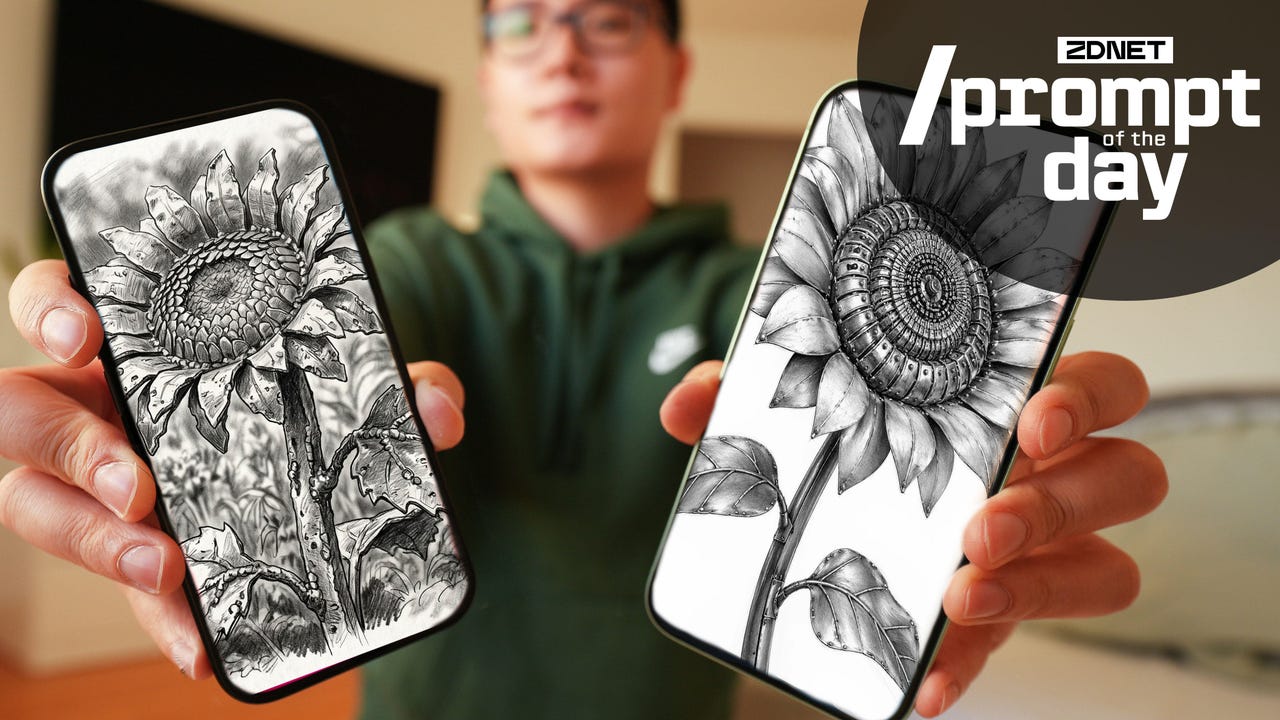
A pencil drawing of a metal sunflower. The flower, its petals, the leaves, and the stem are composed of sculpted pieces of metal sheet. The texture of the metal is clear, with imperfections and visible welds. The drawing is detailed, with shading that creates depth and texture, emphasizing the three-dimensional nature of the sculpture. The pencil lines are visible. The flower stands in a garden with other blurry plants in the background.
Gemini suggested more detail than I would have known to add on my own prompt. The description might’ve been kind of a tall order, but when I used it in Nano Banana, it gave me a decent image of a metal-ish sunflower.
Example #2: ChatGPT
ChatGPT returned:
A detailed pencil drawing of a sunflower constructed from sheet metal. The petals are shaped from thin, slightly curved metal plates with visible seams, rivets, and subtle bends. The center of the sunflower is composed of layered metal textures resembling industrial components, yet arranged organically. The stem and leaves are also metallic, with etched vein details and light wear. Rendered in a realistic graphite pencil style with fine linework, cross-hatching, and soft shading. High contrast between light and shadow, emphasizing texture and depth. Minimal background (white or lightly sketched), with the focus entirely on the metallic sunflower. Artistic, precise, and slightly surreal.
Again, tons of helpful detail, ostensibly written for what ChatGPT Images will specifically respond to, which yielded a very successful image.
If the prompt the chatbot gives you is too long, Whitney advises you to just ask for a shorter option, which usually works.
Got a prompt?
Have a prompt you recommend? Submit it here to be featured in this series.
Will this prompt work with every chatbot?
Prompt results vary across AI tools. While we’ll always give you as much detail as possible about the tools and specific models authors used for these prompts, companies are constantly updating and replacing models, which can impact responses. Stay up to date with each new release and where it stands relative to its predecessors through our AI Model Release Tracker.
Where can I use AI-generated images?
If creating AI images for work, be sure to check your company’s policy on AI-generated content. With copyright law surrounding AI image generators still in flux, many companies may not allow any use of AI image generators. If you’re using this prompt to mock up an internal presentation, though, that should be fine.
Are AI image generators safe to use?
As a reminder, you share personal data with AI companies every time you use a chatbot or other AI tool, though there are ways to limit that data exposure by adjusting your settings for certain chatbots. You can also try encrypted or otherwise privacy-first chatbot options, though they may not have all of the same features or capabilities as more popular options.
Check out these other helpful guides for using AI: