
Follow ZDNET: Add us as a preferred source on Google.
ZDNET’s key takeaways
- Microsoft AI launched several new models at Build.
- One of them is the company’s first reasoning model.
- A new image model appears competitive with Nano Banana Pro.
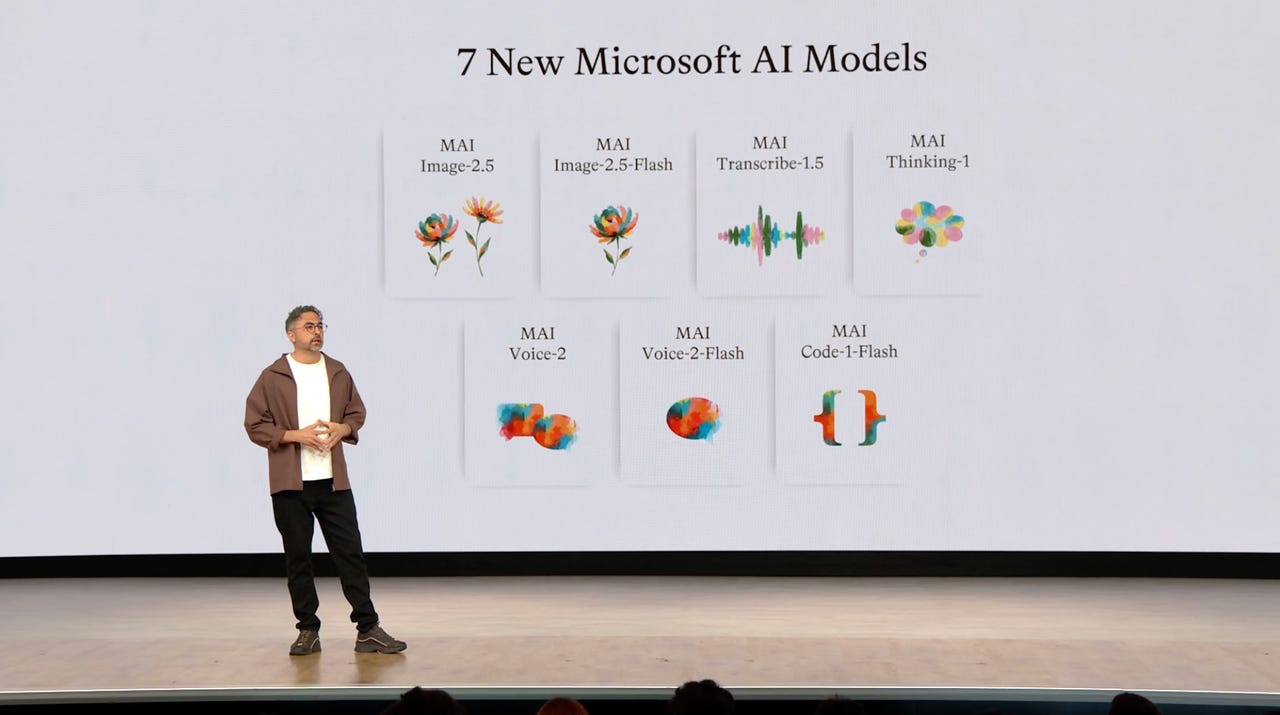
Microsoft kicked off its annual Build developer conference today with a keynote, during which the company announced seven new AI models, including its very first reasoning model. During the keynote, Microsoft AI CEO Mustafa Suleyman reiterated the lab’s “humanist superintelligence” framing when introducing the new models.
Here’s what each model can do.
Also: Why I ditched Copilot for Claude in Word, Excel, and PowerPoint – and how you can, too
MAI-Thinking-1
Microsoft AI’s first reasoning model, MAI-Thinking-1, was trained on “enterprise-grade, clean and commercially licensed data,” the company said in the blog announcement. Given mounting concerns (and active lawsuits) about copyright and AI use, calling this out up top will be important for Microsoft’s customers, but it’s not the first company to make such a promise.
Microsoft said that the 35-billion-parameter model beat Anthropic’s Sonnet 4.61 when evaluated by independent reviewers in a blind test, and that it aligns with Anthropic Opus 4.6 in its SWE Bench Pro benchmark score for coding. In keeping with the agentic craze gripping all AI labs at the moment, MAI-Thinking-1 is designed for multi-step tasks, and is available in Microsoft Foundry in private preview for now.
Also: Canonical’s approach to AI is refreshingly thoughtful – Microsoft should take note
Also joining the Microsoft AI family (and the overall race to build the top coding model on the market) is MAI-Code-1, which the company described as “ultra-efficient” and “tuned for GitHub.” MAI-Code-1 is coming to Copilot and VS Code today.
New voice and image models
MAI-Image-2.5, alongside its flash equivalent, is Microsoft’s first model for text-to-image and image-to-image tasks. According to the company, it outperformed Nano Banana Pro on ELO, a rating system adapted from chess that measures relative skill. The MAI-Image-2.5 models are live now in PowerPoint and Foundry and are rolling out in OneDrive. As Suleyman announced it during the keynote, it had already hit the third spot on the LM Arena Leaderboard, just under Nano Banana.
Also: I tested ChatGPT Images 2.0 vs. Gemini Nano Banana to see which is better – this model wins
MAI-Transcribe-1.5 “combines state-of-the-art accuracy across 43 languages, with streaming coming soon,” Microsoft said. The company also released MAI-Voice-2 and its flash sidekick, which comes in 15 more languages than its predecessor, MAI-Voice-1. Microsoft released the earlier generations of these models in preview just two months ago, demonstrating again how rapid the launch cycle for new AI models has become this year.
“Everything is watermarked from scratch,” Suleyman emphasized of the new models’ security frameworks. He also mentioned cost efficiency improvements across each model, some as high as 10x compared to similar competitor models. All the new MAI models will be available on Fireworks AI, which is now generally available on Foundry, the company said, as well as Baseten and Open Router.
A new medical partnership
Suleyman closed his AI model announcement by introducing a collaboration with Mayo Clinic to develop a new frontier model for healthcare. The project joins the growing number of health-specific AI applications from companies including OpenAI and Google. Microsoft already offers Copilot Health. Still, data privacy, security, and hallucinations are still concerns when it comes to medical AI.