
ZDNET key takeaways
- Your Android phone keeps deleted files longer than you want.
- Those files will be purged after 30 days, but don’t wait.
- There’s a simple way to manually delete those files.
When was the last time you checked your Android recycle bin? What might be in that location housing deleted files? Photos? Files? Videos? A combination of the three?
You might be thinking, “Big deal, the files are automatically and permanently deleted after 30 days anyway.” Although that is true, leaving it up to Android when to sweep those files out of existence might not be the best idea. After all, you want to keep your Android device as secure as possible. Let me set the stage.
Also: 7 apps I use to lock down, encrypt, and store my private files – and most are free
You’ve gone through Google Photos and deleted a ton of images and movies. Most of those images are innocuous, but a handful might contain sensitive information. For example, you might have taken a photo of the back of your router so you have access to its login information and don’t have to squint to read it. You might have also taken photos of your home, which include location data. There might be photos of contracts or a W-2 form, all of which contain information you certainly don’t want to get out in the wild.
Those images are deleted, but they are still hanging out in the “recycle bin” until they reach the 30-day threshold. Should someone gain access to your phone, which you could accidentally leave unlocked, they could go through your recycle bin, discover that data, and use it for nefarious purposes.
It happens more often than you might think.
What can you do? You can manually purge those files from the recycle bin. Unfortunately, you cannot change the 30-day threshold or configure the file manager app to automatically purge files as soon as you delete them, because that would be too easy.
Also: Your Android phone is getting agentic powers with Gemini Intelligence – here’s how and when
The good news is that it’s not hard to do this. The added bonus is that you also clear up space on your device, which can be a big deal if your phone is constantly running out of storage space.
How to empty the recycle bin on Android
I’m going to demonstrate this on a Pixel 9 Pro, where the official name of the recycling bin is “Trash.”
As long as you are using the My Files app as your file manager, the process for this should be the same. Some file managers, such as Material Files, do not have a Trash bin, as some apps delete files permanently and immediately. But given that Files, also known as My Files, is the default Android file manager, I’ll stick with that.
If your device doesn’t have the official Files app by Google, I recommend that you install it from the Google Play Store.
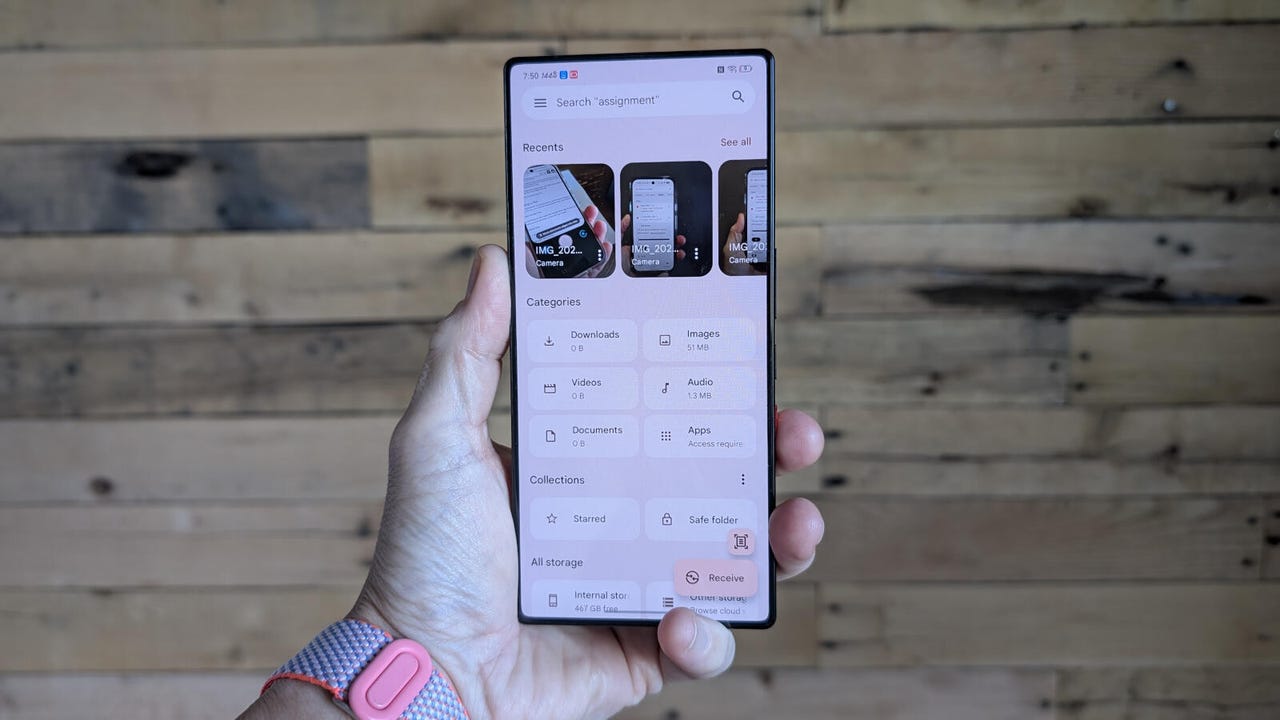
The first thing to do is open the file manager app, which will be labeled “Files” in your App Drawer.
The file manager you’re looking for should be named “Files.”
Jack Wallen/ZDNET
At the top left corner, you’ll see a three-line menu button. Tap that button to reveal the sidebar.
The menu button is also referred to as the “hamburger.”
Jack Wallen/ZDNET
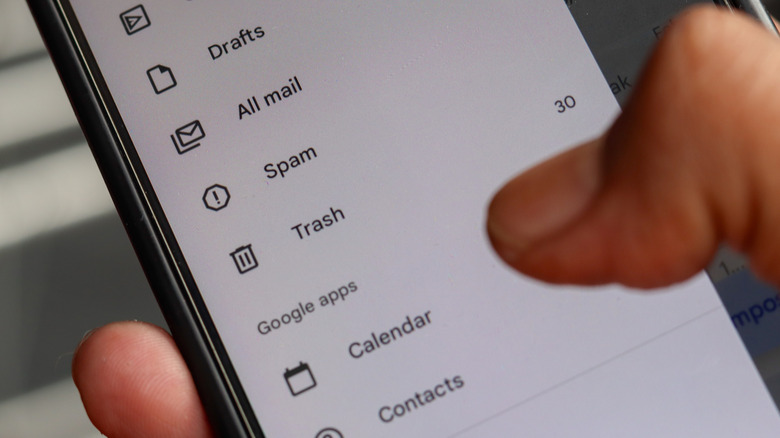
From the sidebar, tap the Trash listing, which will also indicate how much space the files in Trash are taking up.
You can also access the Clean feature of the file manager app to delete screenshots, unused apps, large files, and more.
Jack Wallen/ZDNET
If this is the first time you’ve opened Trash, you’ll see a warning at the top proclaiming that any file left in Trash for 30 days will be automatically deleted. You can dismiss that warning by tapping “Got it.”
Also: Google quietly confirms ChromeOS-Android merger – here’s what it means for you
Until you tap “Got it,” this warning continues to bug you.
Jack Wallen/ZDNET
You can do this three different ways: scan through the entire list of files and select the ones you want to delete manually, select only the photos associated with a certain time period, such as 28 days left, or tap the select all button at the top to select all of the files.
Once upon a time, I used to review a lot of earbuds.
Jack Wallen/ZDNET
Once you’ve made your selection, the Delete button will no longer be grayed out at the bottom right corner. Tap that, and the selected files will be purged.
You’ve successfully prevented anyone from “accidentally” stumbling upon photos or information they should not see, and you’ve cleared space on your device.
Also: I still prefer my Google Pixel 9 Pro over the expensive flagships – and it’s not even close
And that’s all there is to it. I recommend that you make a habit of doing this daily or weekly, as you do not want to leave such information available for prying eyes to see.