Xfinity Is Giving 2026 World Cup Fans an Interactive, Bilingual Experience


Fans ready to watch FIFA World Cup 2026 — undoubtedly the biggest TV sports event of the summer — have plenty of ways to keep up with the tournament from home. Xfinity is offering its customers a slate of FIFA-ready features, Fox One access and the ability to watch matches in English and Spanish, Comcast announced Tuesday. The soccer event will run from June 11 through July 19, with more than 104 matches and 48 teams from around the globe. 

Are you a Xumo Stream Box customer? You can now use the Fox One app, which is the streaming platform carrying every single World Cup game. The service has now been integrated into Xumo, but you’ll still need a paid subscription to watch.   

For Xfinity X1 customers, the home page will light up with World Cup action in the Sports Zone hub, where customers will find upcoming live matches, stats, clips (the platform’s short-form vertical videos) and ways to follow individual teams. If you saw all the Winter Olympic events this past February, you may already be familiar with X1’s RealTime 4K technology, Fan View, AI-powered DVR and tweakable, DIY Multiview feeds.

CNET had a look at a demo of the layout for the World Cup, noting that all these features are available during the tournament, and additionally, Spanish and English voice commands that summon FIFA-related content are built into the experience. Say “Copa Mundial” into your voice remote, call out a team name like “World Cup Argentina,” or speak other phrases to find what you want. You can even open Peacock with a voice command to stream its Telemundo matches in Spanish. 

tv display showing soccer player in a short-form clip on Xfinity platform

Xfinity’s Clips — vertical videos — will be available in Spanish.

Comcast/Xfinity

All 104 World Cup matches will stream in RealTime 4K in English, along with one select Spanish-language game of the day from Telemundo. The platform’s 4K feed during the Super Bowl and the Winter Olympics was only “17 seconds behind the action on the field,” said Kelly Wright, Comcast’s director of sports product and strategy.

With the AI-assisted DVR function, playback will include marked highlights like saves, goals and penalty kicks. Multiview is customizable and lets you zoom in on a single screen, switch the audio among feeds, or rotate which screen you want to expand. And if you also have an Apple TV subscription, you’re able to add live F1 races to your four-screen feed if you want — as you simultaneously stream FIFA matches or any other live sports event. A fifth panel on the right shows you up-to-date sports stats. The Fan View feature not only lets you keep up with stats and standings, but also lets you set it to follow different countries during the World Cup or take a shortcut to Xfinity’s clips feature. 

tv display showing soccer players on field using multiview feature

Pick your own multiview feeds, whether it’s a World Cup game or other live sports event.

Comcast/Xfinity

To help curb potential glitches, Comcast is planning to launch what’s called smart boost Wi-Fi, a new feature that lets internet customers prioritize where Wi-Fi juice flows. If you have multiple devices connected — smart TVs, gaming consoles, phones, computers and so on — you can select where to give the signal an extra boost. 

“It takes the Wi-Fi device that you’re watching the game on — watching in RealTime 4K — and it says, ‘hit OK to get the smoothest Wi-Fi if this gets busy,’ and then it will prioritize the traffic to that device for the next five hours,” explained Wright.

Look for this right around the time FIFA kicks off, and if you’re interested in learning more about Xfinity’s TV packages, we’ve got you covered here. World Cup matches and coverage will be broadcast across Fox networks and platforms, including Tubi and Fox One.  


Source link

Leave a Reply

Subscribe to Our Newsletter

Get our latest articles delivered straight to your inbox. No spam, we promise.

Recent Reviews


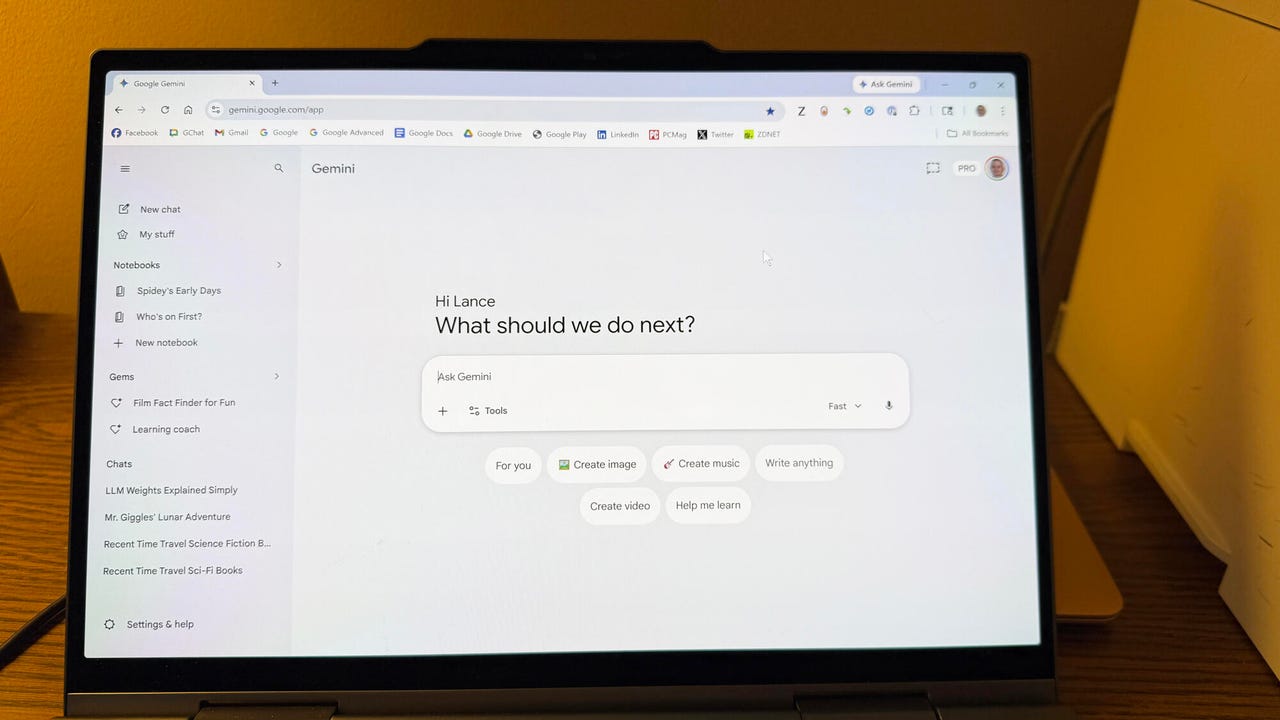
Google Gemini

Lance Whitney/ZDNET

Follow ZDNET: Add us as a preferred source on Google.


ZDNET’s key takeaways

  • Google is downloading a 4GB file to the PCs of many Chrome users.
  • The file is harmless and is used for the Gemini Nano on-device LLM.
  • You’ll see it if you’ve opted into the on-device AI setting in Chrome.

Google is silently saving a Chrome-related file to many computers. That’s nothing earth-shaking. But this file is a hefty 4GB in size, which has caught the attention of some Google watchers. What is the file, why is it being installed, and how can you check for it?

Also: I let Chrome’s AI agent shop, research, and email for me – here’s how it went

In a new blog post, computer scientist Alexander Hanff, aka the Privacy Guy, pulled back the curtain on this mysterious file. Named weights.bin, the file is being downloaded deep within the user data folder of many Chrome users. The file itself is related to Gemini Nano, which Google is using as the on-device AI model for Chrome users.

If you delete the file, it comes back

Though there’s nothing risky or dangerous about the file, Hanff and others have expressed concerns that it’s being downloaded without users’ knowledge or permission. And if you delete the file, it eventually comes back, Hanff said. That by itself is hardly alarming; that’s part of any software update. Rather, some of the criticism centers on the file’s size. If you have ample hard disk space, then 4GB is likely not a big deal. But if you’re running low, that big a file might chew up space you can’t spare.

Traditionally, AI models like Gemini use the cloud to interact with you. Submit a request, ask a question, or kick off a conversation, and the AI taps into its online data and resources to respond. But that method can be slow and naturally requires that you be connected. By traveling between your device and the cloud, your data can also be exposed.

A trend has emerged in which companies are experimenting with locally stored LLMs (large language models). That not only speeds up the process, but it also means you can use the AI offline and more securely. Gemini Nano has already been in play on Google’s own Pixel phones.

That explains why the file is so large; it has to pack in a lot of data. In this case, a weights file contains numbers that measure the level of importance an AI model assigns to your input. The AI uses these values to determine what should come next. For example, let’s say you start typing the phrase “Why did my new phone cost me an arm and a…” at the prompt. The AI assigns weights to your input to help it predict that the next word would be “leg.”

Also: This powerful Gemini setting made my AI results way more personal and accurate

How can you tell if the file has been downloaded to your PC? First, open Chrome, go to Settings, and select System. On the System screen, check whether the On-device AI option is turned on. If so, then you probably have the file or will soon get it.

To double-check, you’ll have to navigate to the user folder on your PC. That location varies based on your operating system. On my Windows 11 PC, I ran a search in File Explorer for weights.bin. The search took a long journey through the following path: C:\Users\lance\AppData\Local\Google\Chrome\User Data\OptGuideOnDeviceModel\2025.8.8.1141. At that final location, the weights.bin file appeared, measuring 4GB.

Since the file is downloaded again if you simply delete it, you’ll have to take an extra step to get rid of it permanently. After you delete the file, go back to Settings in Chrome and select System. Then  turn off the switch for On-device AI.

But as long as you have enough disk space (and if you can’t spare 4GB, then it’s time to clean up your drive), the file is little cause for concern. Just forget about it, especially if you’re keen to try on-device AI, and we’ll see what the future holds for Gemini Nano.


Source link