I ‘upgraded’ to Gemini for Home, but wish I hadn’t bothered


After finishing up the Amazon Alexa+ review, I suddenly had an email that Google Gemini for Home was ready.

I fished my Google Nest Hub (2nd gen) out of the drawer where it’s been languishing, upgraded and then set about performing some simple tasks.

Could Gemini convince me to move away from Alexa?

Not a chance. In fact, it’s terrible in a lot of ways. Here are just a few things that it gets completely wrong.

It can’t change alarms

As I was writing this column at 4:30pm, I thought I’d try something simple. “Hey Google, set alarm for five fifty,” I said. The screen changed and the alarm had been set for 17:50. I was aiming for a morning alarm, but didn’t clarify that, so my bad. So, I asked Gemini to change the alarm to 5:50am.

Advertisement

The screen updated and showed the correct time. Job done, I thought. But, as this was a test, I didn’t really want the alarm. So, I asked Gemini to cancel it, and it came back telling me I’d got two alarms: one for 5:50am and one for 5:50pm.

The context of the conversation was clearly lost there. Amazon Alexa+ can deal with these requests, in this order, and get the correct outcome.

It can’t deal with PDFs and has an odd response

I can send PDFs to Alexa+ and have it strip out detail and meaning from them, such as calendar invites or to-do action points. I asked Gemini if it could do the same, and it said no, but it said that I could ‘paste in the text’.

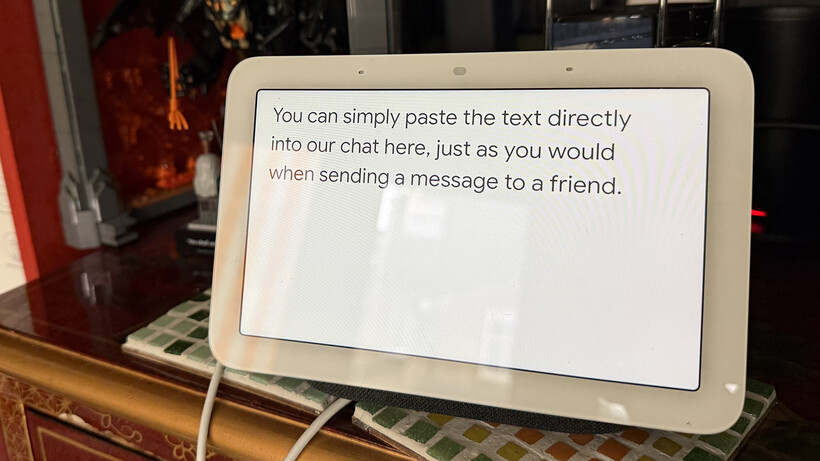
As I was talking to a smart display, I asked how I could paste the information, and the response said, “You can simply paste the text directly into our chat here, just as you would when sending a message to a friend.”

Gemini for home just paste some text
Image Credit (Trusted Reviews)

Only, I can’t, because there’s no option and the Nest Hub can’t open PDFs for me to even copy any text.

Advertisement

It gets caught out by simple questions

I next went for a simple question, one that AI can struggle with: how many of the letter S are there in the word across?

I could see my prompt appear properly on screen, but Google Gemini told me, “There is only one ‘e’ in the word across.”

I tried again but asked how many letters’ S ‘ there are, and this time Gemini told me there were three of the letter ‘S’.

Gemini for Home can't count

Alexa+ gets this question right.

There’s often nothing useful on-screen

Ask Alexa+ something on a smart display, and the screen will often show snippets of information or links to recipes. Do the same thing on a Nest Hub and you just get a page of black text on a white background. It makes it look like a work in progress.

Advertisement

Even worse, in some cases, I’ve had the screen go blank. When asking for a recipe recommendation, Google Gemini just spoke a stir-fry recipe at me with nothing on screen.

Ask about the weather and its just text on screen, with none of the niceness of Alexa+’s weather icons. Well, I say that, but if I ask, “OK Google, when’s a good time to have a BBQ?”, the answer page shows weather icons for the next good day, along with the voice response.

It doesn’t always get complicated commands

I’ve got a light around my desk, called Desk Strip. “Hey Google, turn on desk strip and then turn it off in five minutes,” I said. That seemed to work, the light came on and a timer appeared on the screen. However, when the timer ran out, the Nest Hub sounded an alarm.

To be fair, Alexa+ can struggle with these commands, and often creates a routine that does what you want, but named after the full command that you’ve asked for. However, with Alexa+, you can say, create a one-time routine first and then it does what you want (with a one minute delay).

Both systems can at least follow a single command, such as, “Turn of desk strip in five minutes.”

Advertisement

Some things are improving

When I first used Gemini for Home at the start of May, I started by asking it to remember that my wife’s a vegetarian. This information was logged, but when I then asked for a chicken recipe for my wife and me, Gemini suggested roast chicken.

Doing the same thing on Alexa+ came back with vegetarian options, along with a reminder that my wife is a vegetarian.

However, since then, Gemini for Home has been updated, and it now remembers the information and will give vegetarian options when asked (or at least recipes where meat could be added to one portion later).

It’s not as good as the competition

Amazon Alexa+ feels a long way ahead of Gemini for Home. And, Amazon’s app and hardware are also better. It feels as though Google has a long way to go if it wants people to switch back to its platform. For now, I’m sticking with Alexa+ for voice.


Source link

Leave a Reply

Subscribe to Our Newsletter

Get our latest articles delivered straight to your inbox. No spam, we promise.

Recent Reviews


How to get Siri AI - join the waitlist today

Apple / Elyse Betters Picaro / ZDNET

Follow ZDNET: Add us as a preferred source on Google.


ZDNET’s key takeaways

  • Siri AI requires the iOS 27 developer beta and a waitlist.
  • A free Apple Developer account is enough to install the beta.
  • Apple says Siri AI will launch in beta later this year.

Apple finally gave Siri the major update everyone has wanted for years, moving it from the voice assistant era to the intelligent AI era.

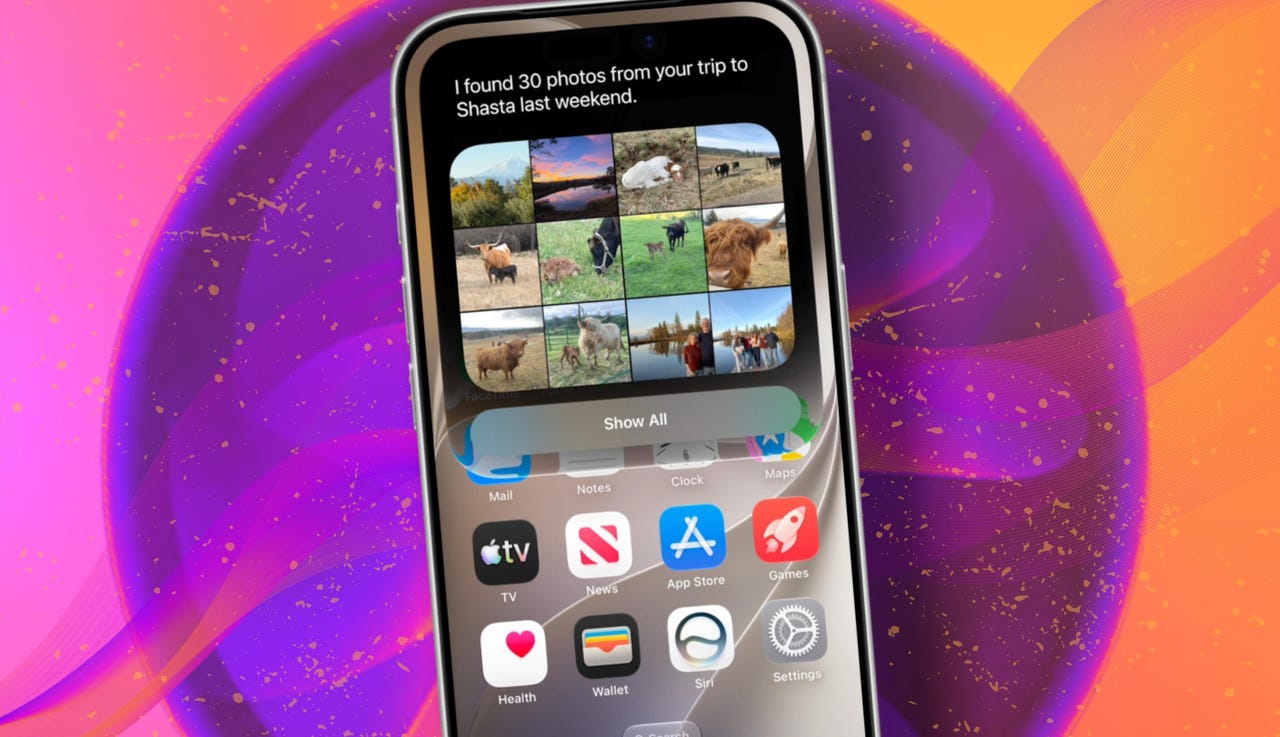
At WWDC 2026 in June, the company introduced Siri AI, a new version of Siri “powered by Apple Intelligence.” Apple said Siri AI is more conversational, understands personal context, can answer broader questions, and can take action across apps. It can also use my information from messages, emails, photos, notes, and the screen itself to get more done on my behalf.

Also: The two biggest iOS 27 features at WWDC for me had nothing to do with Siri AI

The catch? (There’s always one, right?) The iOS 27 developer beta needs to be installed first, and even then, there is a waitlist.

How to get Siri AI

What you’ll need: An iPhone 15 Pro or Pro Max, any iPhone 16 model, or any iPhone 17 model running the iOS 27 developer beta.

Install the iOS 27 developer beta on a secondary device, but be sure to back it up first. Remember, developer betas are unfinished software. Apps can crash or glitch, battery life can drain, and features can disappear.

The good news is Apple no longer requires a $99-a-year Apple Developer Program membership just to get access to beta software. A free Apple Developer account is enough. To join, if you haven’t before, simply go to Apple’s Developer website or use the Apple Developer app, sign in, and agree to the developer terms.

Also: 3 new MacOS 27 features make it worth upgrading right away for me – Siri included

Once that’s done, any new developer beta will automatically appear for the iPhone associated with that Apple Account. To check for iOS 27 and install it now, open Settings > General > Software Update > Beta Updates. From there, select iOS 27 Developer Beta, go back to the Software Update screen, and install the update.

Need help? Check out ZDNET’s guide on installing the iOS 27 developer beta.


Show more

Install the iOS 27 developer beta

Elyse Betters Picaro / ZDNET

After the iOS 27 developer beta is installed, the iPhone will reboot, but Siri AI will not automatically be available to try. Apple is using a waitlist. To join it, open the Settings app, go to Apple Intelligence and Siri, and select “Try New Siri.” Follow the prompts to opt in. Once a spot opens, a notification will appear saying New Siri is available.

Also: Getting real about WWDC and Siri AI – Video

Apple has not confirmed how long the wait will take, but it has said Siri AI will be available in beta “later this year.”


Show more

Join the Siri AI waitlist

Elyse Betters Picaro / ZDNET

Should you wait to try Siri AI?

Maybe. The iOS 27 developer beta is the only route to Siri AI right now. But it’s meant for developers testing apps and APIs, not for most people who need a stable daily phone. Only install it on an iPhone that’s not used every day, or wait for the iOS 27 public beta. That’s expected in July and is easy for anyone to try. An official release for the general public isn’t expected until this fall.

Also: How Data Can Improve Your Health and Wellness

As for me? I joined. I have a spare iPhone running the iOS 27 developer beta right now, and the first thing I did was get on the waitlist to try Siri AI. But that’s because I’m usually excited to try AI tools, and I want to play with the new Siri and be able to write about it. 

Should you join Siri Ai waitlist?

Elyse Betters Picaro / ZDNET

What can Siri AI do?

Apple said the new Siri AI is “a dramatically more capable and conversational assistant” that can help you “find information and get things done throughout the day.” That’s nice, but what, specifically, can it do? According to Apple, the new Siri AI can:

Also: Will your iPhone support Siri AI? The answer is complicated

  • Access “broad world knowledge for up-to-date answers” on any topic.
  • Provide “detailed responses” and “natural back-and-forth conversation.”
  • Use “personal context” in messages, emails, and photos to help find what you need.
  • Find details like restaurant tips, hotel confirmations, and trip photos.
  • Understand what’s on screen and answer questions about it.
  • Use “Visual Intelligence” in Camera and screenshots.
  • Take actions across apps, including drafting emails and editing or sharing photos.
  • Let you ask about images, files, and text from context menus.
  • Generate, rewrite, and proofread text systemwide.
  • Match punctuation and tone in Mail and Messages based on how you usually write.
  • Save “conversation history” in a dedicated Siri app.
  • Offer more expressive voices and better dictation.
  • Help split bills with Apple Cash.
  • Run across iPhone, iPad, Mac, Apple Watch, CarPlay, AirPods, and Vision Pro.
  • Work from Spotlight on iPad and Mac.

When will Siri AI be available?

Apple said it will be available in beta “later this year,” starting in English.

Which iPhone models support Siri AI?

The answer is complicated, but here’s my best guess:

  • iPhone 15 Pro and iPhone 15 Pro Max
  • All iPhone 16 models
  • Any later iPhone models

Apple hasn’t provided a supported device list, but its iOS 27 page shows Siri AI requires “an Apple Intelligence-enabled device.” Apple’s support page for Apple Intelligence also lists “iPhone 15 Pro models, and iPhone 16 models or later.” Apple’s iOS page uses similar wording for Apple Intelligence in iOS 27, as well: “all iPhone 16 models and later, iPhone 15 Pro, iPhone 15 Pro Max.”

There are also regional limits. Apple said Siri AI will “not initially” be available in the EU on iPhone and iPad.


Show more


Source link