
Follow ZDNET: Add us as a preferred source on Google.
ZDNET’s key takeaways
- Zorin OS can be made to look like the MacOS desktop.
- You can purchase a Pro license and do it the easy way.
- You can also achieve this via the free version.
The MacOS UI is pretty sweet. And, yes, I am a fan of Liquid Glass… so there.
If you’re a fan of the way the MacOS UI looks and feels, but you’re about to make the jump to Linux, consider Zorin OS as your landing spot.
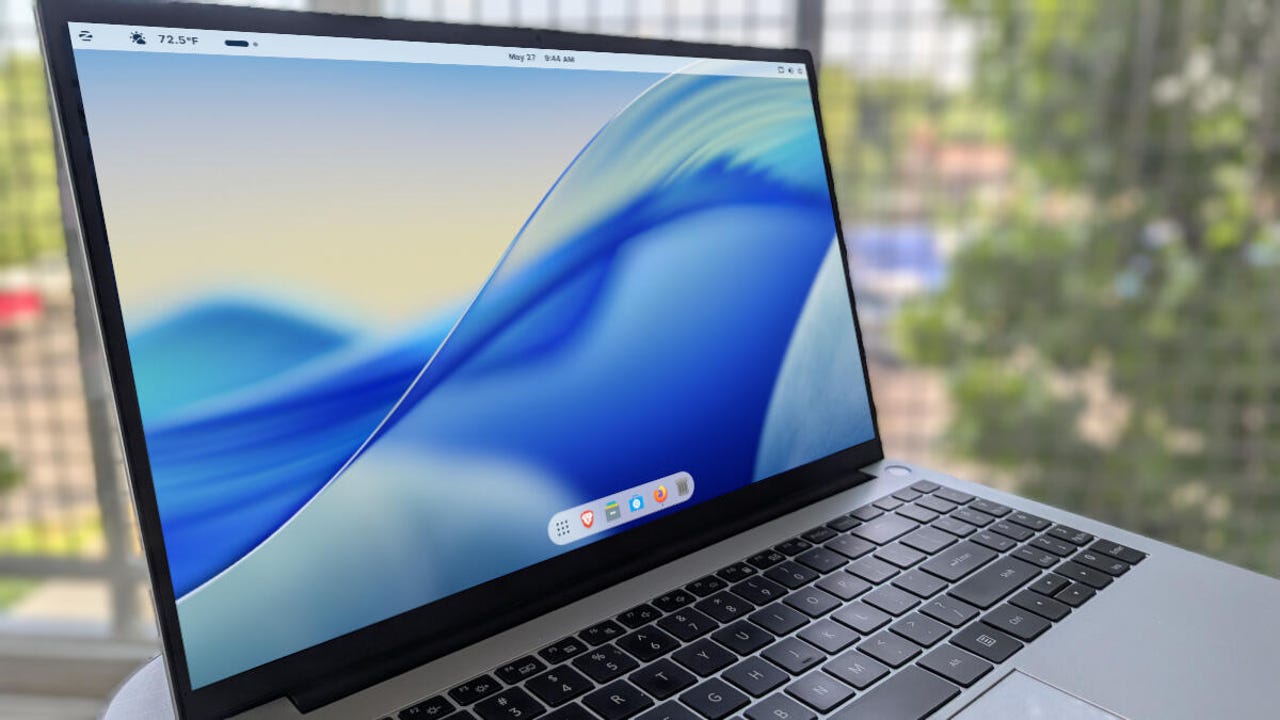
With just a few quick tweaks, you can make the Zorin OS UI look quite similar to MacOS.
Also: Linux Mint vs. Zorin OS: I’ve tried both Windows alternatives, and here’s my winner
There are two ways to do this. The first (and easiest) is to purchase a Zorin OS Pro license. The big downside of the Pro version is that you’ll have to purchase a license with each major upgrade, as the Pro license for Zorin OS 18 will not transfer to version 19 (when it’s released). If you plan on sticking with one release for its full support cycle (five years), that’s great. However, if you like to install the latest/greatest OS, you’d have to purchase a new Pro license ($47.99) with every major release.
With the Pro version, all you have to do is open Zorin Appearance and select the MacOS layout.
With Zorin OS Pro, getting a MacOS layout is simple.
Screenshot by Jack Wallen/ZDNET
If you’re on a budget and still want to get the MacOS-like layout, you’re in luck, because I’m going to show you how. You’ll be surprised how easy it is.
Select the layout
The first thing to do is download a Zorin OS ISO, create a live USB drive, boot from it, and install Zorin OS. After that task is completed, boot the OS and log in. If the Zorin Appearance app doesn’t appear, open it from the desktop menu.
Also: Zorin OS vs. AnduinOS: How to pick the right Windows-like Linux distro for you
In the Zorin Appearance app, select the GNOME layout, which displays a single top bar.
The GNOME layout is the best starting point.
Screenshot by Jack Wallen/ZDNET
Next, in the Appearance app, click on Windows and switch Titlebar Buttons from right to left.
Those wacky Apple titlebar buttons.
Screenshot by Jack Wallen/ZDNET
Now, we’re getting somewhere!
Add a dock
You’ll obviously want a dock, and Zorin OS has one built in (it’s just not enabled by default).
To enable the dock, open the Extensions app and locate Zorin Dash. Click the On/Off slider until it’s in the On position.
The built-in Zorin OS Dash extension is the best way to get a dock.
Screenshot by Jack Wallen/ZDNET
Once the Dash is enabled, click the three-dot vertical button for Zorin Dash (in the Extensions app), then click Settings.
Also: 8 most Windows-like Linux distros – if you’re ready to ditch Microsoft
In the Settings window, you’ll want to shrink the Icon size limit (on the Position and size tab), as the default is fairly large.
You probably don’t want to stick with the default massive dock size.
Screenshot by Jack Wallen/ZDNET
On the Appearance tab, you can enable “Shrink the dash” to give it a smaller size (you’ll want to play with it to get it just right), and you can also enable the Floating rounded theme.
I always like a nice floating dock.
Screenshot by Jack Wallen/ZDNET
Add an app menu
Next, you need to add an app menu. You can’t really approximate the top-bar menu on MacOS, but you can add a menu that does a pretty good job.
To do this, go back to the Extensions app and locate Zorin Menu. Click the On/Off slider for that until it’s in the On position.
The Zorin OS Menu extension is my favorite.
Screenshot by Jack Wallen/ZDNET
You should now see the Zorin app menu on the left edge of the top bar.
Almost done.
Also: I joyfully reunited with my first Linux distro at the Virtual OS Museum
Grab a wallpaper
Finally, search for MacOS wallpapers and grab the one that suits your fancy. Once you’ve saved the wallpaper, right-click on the desktop, select Change Background, click Add Picture, and locate the wallpaper you just downloaded.
Voilà, your Zorin OS desktop now looks very much like the MacOS desktop you just migrated from. Congratulations on Mac-ifying Zorin OS.