
The best way is to use a USB-C to Ethernet adapter.
Adrian Kingsley-Hughes/ZDNET
Follow ZDNET: Add us as a preferred source on Google.
ZDNET’s key takeaways
- An Android phone can help keep your home network online.
- Router-level backup keeps more devices connected during outages.
- You can avoid changing Wi-Fi settings on every device.
The weather’s been a little warm here in the UK, and by a little warm, I mean record-breaking temperatures, where the mercury hit 99.1°F/37.3°C. Not only is this the sort of temperature that’s risky for the elderly, young children, or those doing heavy physical work, it’s hard on physical infrastructure like power and phone lines. The cables above ground get hot, expand and sag, get caught on stuff or cross over, and bad things happen.
And that’s exactly what I’ve been seeing — a lot of power outages and downed phone lines. I’ve had my power station out and working more in the past few days than over winter. And I suspect that I’ll need it more over the coming months and years.
Also: Years of living with solar power taught me these 12 myths are simply wrong
One solution that I’ve been working on is a backup for when my internet goes down. Sure, I have my hard-working SpaceX Starlink dish, and plenty of phones — both old and new — that I could put into service as hotspots, but I’ve been looking for something that my router can fall back on when the phone line goes dead.
And I have a good reason why hotspotting doesn’t work. All the gadgets and gear that’s connected to my Wi-Fi and relies on an internet connection also go dark and stop working as they should. And I don’t know about you, but I don’t want to be changing a whole bunch of Wi-Fi credentials in countless devices.
As a sidenone here, I wish more networked devices would allow you to enter the details for a secondary Wi-Fi connection for such scenarios.
Now, I could set up my hotspot with the same SSID and password credentials as my main home/office Wi-Fi network, but then I’d have to mess around if both are running at the same time.
What I need is a way to connect an active smartphone to my router, and have it work reliably.
Believe it or not, there are three options. I’ll save the best of these for last.
Option 1: USB tethering
Look on the back of your router. Can you see a USB port? If so, this technique could be an option for you. You’ll take a USB-A-to-USB-C cable and connect the Android smartphone to the USB port (since most routers still use the USB-A port).
Most routers have a USB-A port you can use.
Adrian Kingsley-Hughes/ZDNET
Now go to your smartphone, tap Settings, then Network & internet, followed by Hotspot & tethering. There you should see USB tethering.
Toggle the option on, and the handset will share its mobile data connection over USB.
Toggling USB tethering in Android.
Adrian Kingsley-Hughes/ZDNET
Many internet routers will auto-detect a USB-tethered Android device as an Ethernet connection on the WAN port. However, budget routers and those supplied by your ISP might not, so the only way to be sure is to log in to the router’s admin panel and check that the WAN/internet status shows connected.
Also: Years of living with solar power taught me these 12 myths are simply wrong
A good way to unlock advanced features on a basic router is to install third-party firmware like OpenWrt or DD-WRT. If your router is supported (see more information here and here), this technique is a good way to turn a basic router into a super internet hub.
Option 2: Wi-Fi hotspot
If you’re annoyed because I said I wouldn’t bring up hotspotting, you can chill out, because I’m not talking about just turning off your router and hotspotting directly to your smartphone the traditional way. No, this technique is about connecting your router to the smartphone’s Wi-Fi hotspot, keeping your router as the main router.
To use this tactic, your router has to support a feature called WWAN, an acronym for Wireless Wide Area Network (sometimes referred to as WAN over Wi-Fi, Wi-Fi as WAN, WISP, Wi-Fi tethering, or a myriad of other terms).
Also: Chrome’s next update will kill your adblocker – and make the web less safe
Now, here’s the rub with this method — there aren’t many routers that support this feature. To find out if yours does, you’re going to have to prod in the admin panel, find the manual and read it, or search the web. This approach is definitely one of those methods where you’ll be looking at your router’s admin control panel a lot.
Become friends with your router’s admin panel.
Adrian Kingsley-Hughes/ZDNET
Travel routers, such as those by GL.iNet (including the Beryl AX, Slate 7, Mango, and others), are great because they inherently support this feature. Some Draytek and Ubiquiti UniFi routers also support the feature.
However, this capability is not all that common.
One of the best ways to try to get WWAN support is to install OpenWrt or DD-WRT and see if you can get the feature to work.
Option 3: Ethernet tethering
This approach, in my opinion, is the best option because it’s the most widely supported and easiest to use because it works with any router with a WAN port, which is pretty much every router out there.
For this technqiue, you’ll need a WAN port.
Adrian Kingsley-Hughes/ZDNET
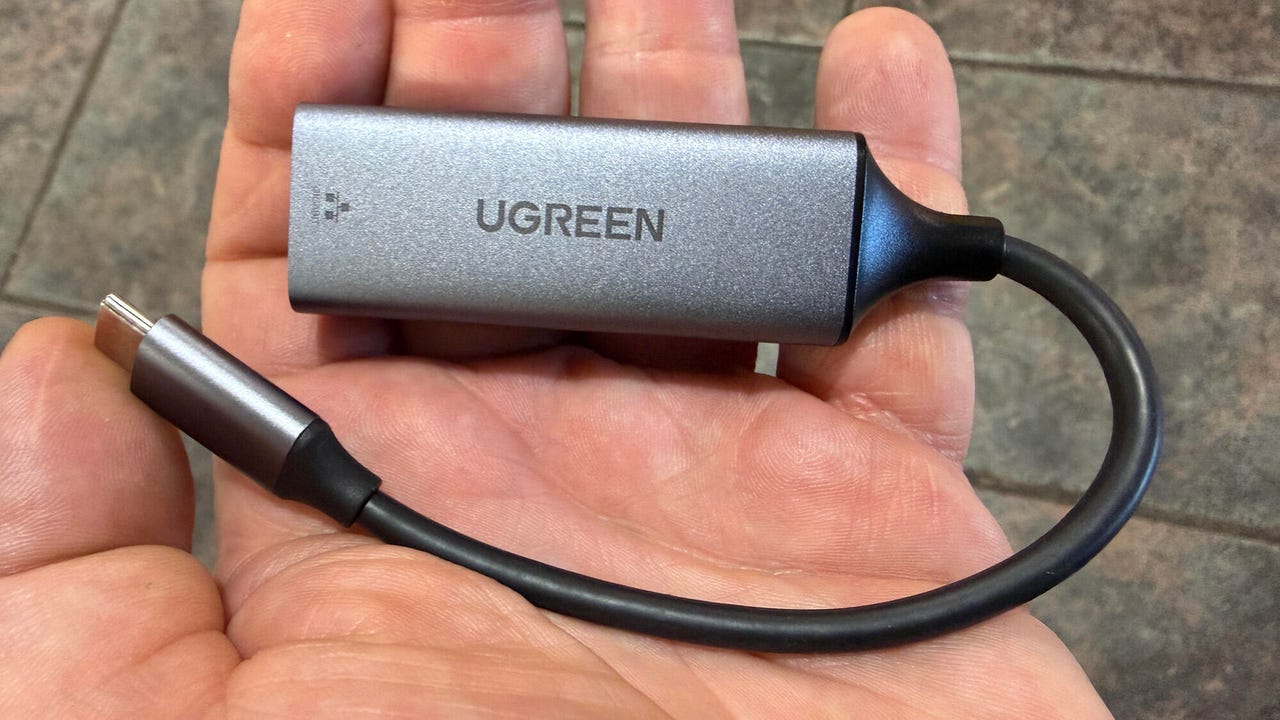
First, you need a gadget. You’ll need a USB-C-to-Ethernet adapter and a short piece of Ethernet cable. While most USB-C-to-Ethernet adapters will work, some — especially the super-cheap ones — won’t. I’ve used adapters from Anker, Ugreen, and Plugable with no issues at all. Adapters powered by ASIX AX88179 or Realtek RTL8153 chipsets seem to be OK, but it can be hard to find an adapter with those chipsets.
The USB-C-to-Ethernet adapter is a reliable way to connect to the router.
Adrian Kingsley-Hughes/ZDNET
My advice here is to stick to adapters in the $10 to $20-plus price range, and avoid the super-cheap sub-$10 adapters from no-name brands. Better ‘buy once, cry once’ than ‘buy cheap, buy twice.’
Also: Why your RAM options cost 4X more now than last year – even legacy tech prices aren’t immune
The process is simple. Connect the adapter to the Android smartphone’s USB-C port. Android should automatically detect the adapter. Next, connect a bog-standard Ethernet cable between the adapter and the WAN/internet port on the router (the port should be marked differently to any other ports on the router).
Now go to your smartphone, tap Settings, then Network & internet, followed by Hotspot & tethering. There you should see Ethernet tethering.
Enabling Ethernet tethering in Android.
Adrian Kingsley-Hughes/ZDNET
Toggle the option on, and the handset will share its mobile data connection over Ethernet.
Don’t mix these steps or you’ll have problems.
And that’s it. No extra configuration is usually needed to get this approach to work.
Also: Thermal cameras can spot problems you can’t see
One rub with this method that you might have already figured out is that if you’re using a USB cable to connect the smartphone to the router, or you’re using the Wi-Fi version, the handset should charge over the USB cable, or it’ll be available for charging. However, the handset won’t charge with an Ethernet adapter connected. This issue means you must schedule some downtime to charge the handset regularly (turning off Wi-Fi and Bluetooth will make the battery last longer).
Alternatively, you can use a USB-C multi-port hub as your adapter.
A USB-C multi-port hub will also work.
Adrian Kingsley-Hughes/ZDNET
Again, chipset matters here (not all will work), and the device absolutely needs to be a PC or Power Delivery hub; otherwise, the phone will also have the extra workload of powering the hub, which drains the battery even faster. This issue means you’ll need another cable and a nearby charger to keep the hub powered and the phone charged.
What about iPhone?
You had to ask. And because it’s Apple, things get complicated.
USB tethering works… sort of. The iPhone has no problem sharing its cellular data over USB when Personal Hotspot is enabled, and a cable is plugged in.
However, an iPhone uses a proprietary Apple protocol, so the router needs to support iPhone tethering. In my experience, GL.iNet routers have no problems, but many others do. My advice is to check your router’s manual for ‘iPhone tethering support’ rather than just ‘USB tethering.’
Also: I tested a $15 smart switch and uncovered a $1,500-a-year energy waste in the kitchen
Having a router running OpenWrt or DD-WRT helps, but only if you’re experienced using the software. You have to install additional packages and go through a one-time pairing every time your phone is rebooted. Also, if your iPhone is locked when the router reboots, it won’t automatically connect.
The Wi-Fi method should work, and any router that supports WWAN should work in the same way.
As for Ethernet tethering, that’s a big no for the iPhone.
The bottom line
An old Android phone is a great way to maintain network continuity if your main internet connection goes down. You will need to have an active data plan on that phone, but it’s not hard to grab a data SIM card for the job.