
Follow ZDNET: Add us as a preferred source on Google.
ZDNET’s key takeaways
- System76 has created a brilliant system monitor.
- This tool is built specifically for the COSMIC Desktop.
- With the perfect amount of information, this monitoring tool is ideal.
Linux users love to view the processes running on their machines. They like to make sure the system is running as expected, see how many system resources an app is consuming, view network traffic in and out, get information about GPUs, and more.
To that end, there are several GUI and command-line tools for not only locating that information but also managing the processes that might be causing problems. There’s GNOME System Monitor, Plasma System Monitor, MATE System Monitor, Mission Center, Conky, Resources, Stacer, Htop, Glances, and more.
Also: I’ve tested many portable Linux distros, but PorteuX is the one I keep on my USB drive
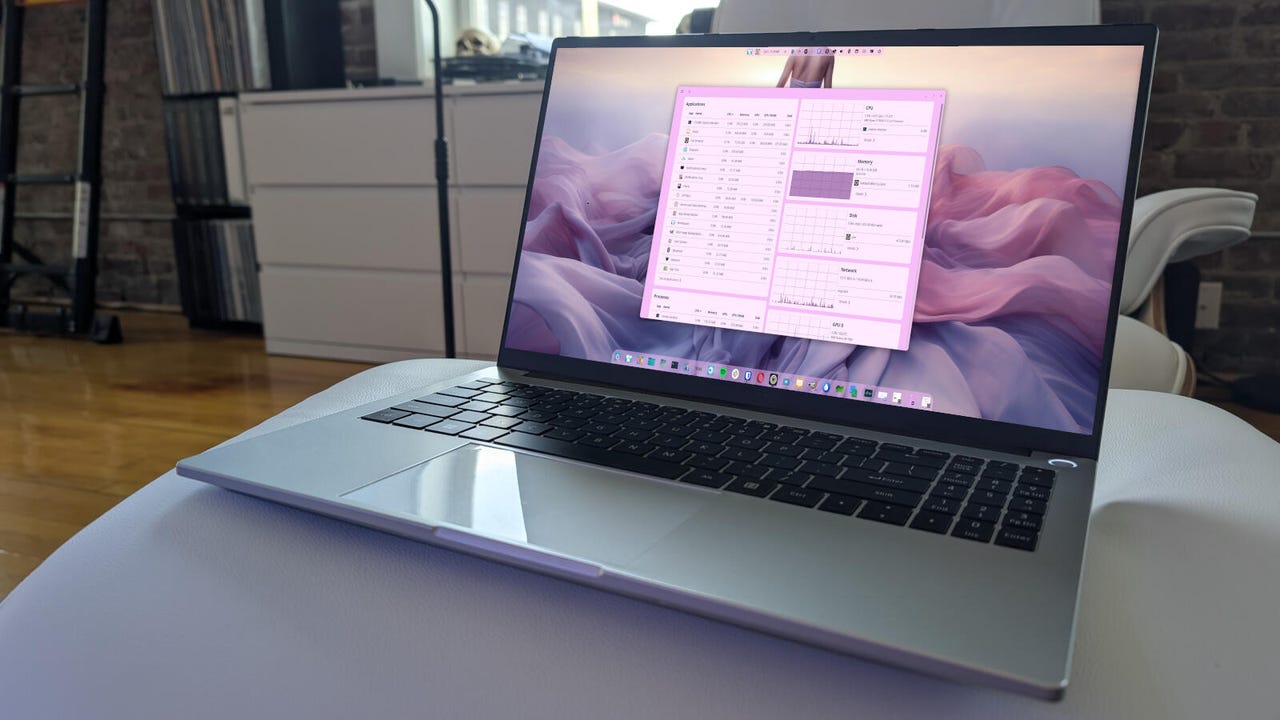
And now there’s COSMIC System Monitor, a lightweight system monitoring tool that integrates with the COSMIC Desktop. The app displays real-time system metrics for users who want to keep track of system performance without using slow, bulky, or cluttered apps.
COSMIC System Monitor is very much in line with the desktop it represents: it’s faster than the competition, well-designed, and gives you all the information you need.
As the name implies, however, COSMIC System Monitor was designed specifically for the COSMIC Desktop, so if you want to use it, you’ll need to use COSMIC. Yes, you can install it on other distributions, but the process is not exactly easy. You have to install Rust, cargo, just, and several development libraries, clone the repository, and then build and install. It’s not worth the trouble.
What COSMIC System Monitor monitors
COSMIC System Monitor monitors everything you’d expect it to, including applications, processes, process utilization per core, CPU usage, memory usage, disk usage, network download/upload speeds, GPU, and temperature. You can also click on a feature to expand the view.
Also: Why Déjà Dup and these 4 other tiny Linux tools have become essential to my daily routine
For example, by default, you’ll see a widget displaying CPU usage. If you click Details in that widget, it expands to give you even more information, such as process utilization per core.
Look at all of the information you get.
Screenshot by Jack Wallen/ZDNET
Click on Memory, and you can also see swap usage.
If you need to see how much memory is being consumed, here’s where to look.
Screenshot by Jack Wallen/ZDNET
Other information you’ll see in the Details section for each widget includes:
- Receiving and sending usage for all attached network cards in Network.
- Read/write speeds, processes, and temp in Disk
- GPU Utilization, GPU VRAM, and processes in GPU
- PID, CPU, Memory, GPU, GPU VRAM, Disk, and Priority in Processes
- User, CPU, Memory, GPU, GPU VRAM, and Disk in Applications
Also: The first 5 Linux commands every new user should learn
If you want to kill a process (such as those associated with an application), you click Details in the Processes widget, locate the process you want to kill, and then click either Quit or Force Quit (if Quit isn’t working).
Force Quit is a powerful tool, but you should use it only when you’re certain a process needs to go away.
Screenshot by Jack Wallen/ZDNET
COSMIC System Monitor is designed and built so well that it makes viewing system resource information and managing processes easy enough for anyone.
Although there is a Settings feature in COSMIC System Monitor, you can only customize the theme, which lets you choose from “Match desktop,” Dark, or Light.
I’ll admit that I’m not the process/data fanatic that I once was. I used to keep Conky running on my desktop, so I could quickly view system resources. Nowadays, I really only need to use a system monitor when something goes wrong, which is not very often.
Also: Got a spare PC? How to open-source your smart home – for free
However, should something go wrong, I’ll be glad to have COSMIC System Monitor at my fingertips. If I wanted, I could even leave the app open on a secondary monitor. Since the app honors the system theme I’ve created in COSMIC, it fits right in. In fact, since I started testing COSMIC System Monitor, I’ve done just that, so if I need to know what’s going on under the hood, all I have to do is turn my head to the left, and all the information I need is staring right back at me.
If System76 continues creating apps this helpful and elegant, I can’t imagine ever leaving Pop!_OS and COSMIC Desktop.