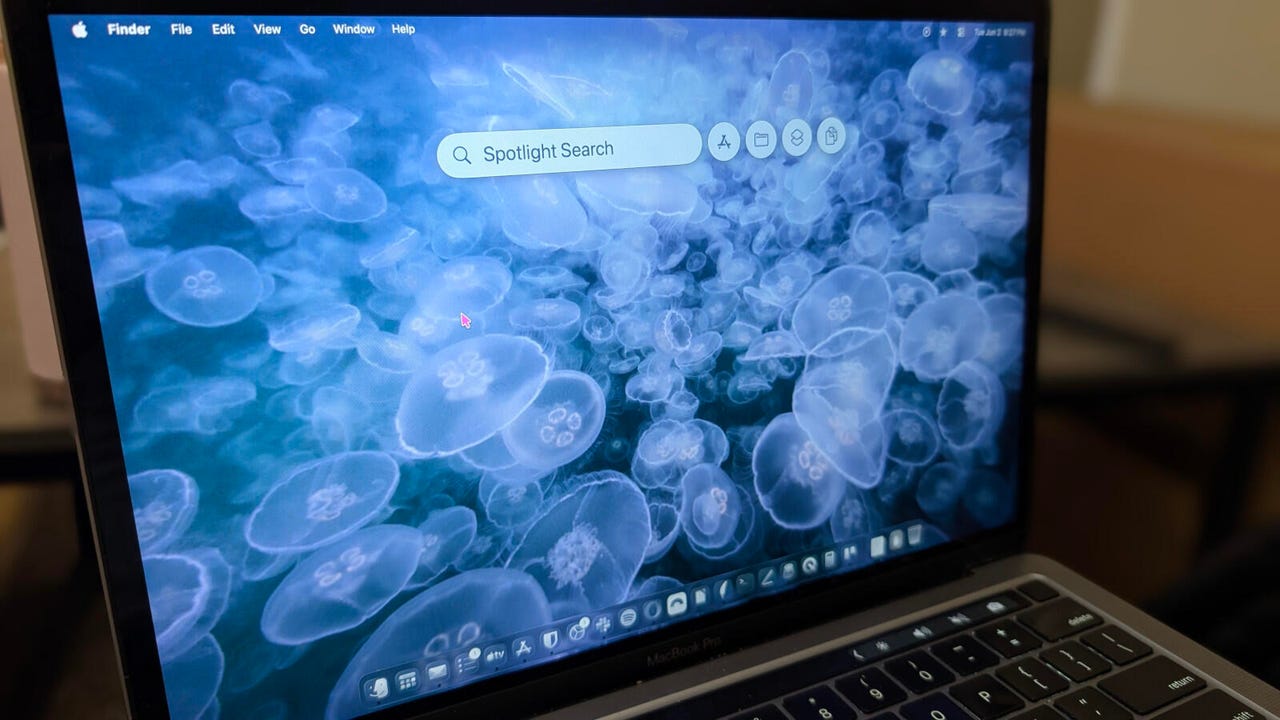

ZDNET’s key takeaways
- MacOS Tahoe Spotlight takes the search tool to new heights.
- The new Spotlight tool can do much more than you think.
- By using Spotlight, you’ll work smarter and not harder.
Prior to MacOS Tahoe, Spotlight was a search tool. You could call it up with the Cmd+Space keyboard shortcut, type whatever it was you were looking for, and there it was. Before Tahoe was released, I was using a tool called Alfred because it was more like the tools I’d been accustomed to, and the previous version of Spotlight couldn’t hold a candle to those apps.
That was then, but Spotlight in the here and now is a very different beast. Since the upgrade to Tahoe, Spotlight has fallen in line with what are usually called keyboard launchers.
Also: How to make any MacOS app start at login – to save you time and clicks
I’ve been using keyboard launchers on the Linux desktop for some time, and I find them an invaluable means of making my work far more efficient. You see, keyboard launchers are much, much more than desktop search tools, although they do that as well.
Think of keyboard launchers as a special menu for actions that might normally take multiple steps to achieve.
Here’s an example I use almost daily.
On my network, I have a few Samba (SMB) servers to which I can connect and save files to and from whatever machine I happen to be using. Prior to Tahoe, to do that, I would have to open Finder, hit the Cmd+K keyboard shortcut, type the IP address, and hit Enter. It’s not a terribly lengthy process, but when I’m in a hurry, it can be a bit of a hassle.
With Tahoe, I open Spotlight, type smb://192.168.1.176 (or whichever IP address I need to use), and hit Enter. That process is considerably faster than how I used to take care of the task.
Essentially, what you’re missing out on by not using Spotlight is efficiency and simplicity. After all, isn’t the goal to work smarter, not harder? That’s what Spotlight does for you.
Here’s another thing I do that never fails to raise my eyebrows. Say I know I wrote a document (of which I obviously do… a lot), but I can’t remember the file name.
I can, however, remember a specific phrase I wrote in the document. Let’s say the phrase is “of which I obviously do… a lot,” and I need to open the document containing that phrase. All I have to do is open Spotlight (remember, Cmd+Space), type Finder, hit Tab, and then type the phrase. Hit Enter, and almost immediately, the file in question will open.
Yeah, it’s kind of scary.
Also: The 4 best MacOS text editors, and why you should be using one
In fact, if you can think of it, Spotlight can probably do it. For example, I use timers a lot for various reasons. If I want to set a 60-minute timer, I open Spotlight and type start timer, hit Tab, type 60, and hit Enter. That process is much faster than opening the Clock app, going to the Timer tab, and then setting one for 60 minutes.
Spotlight does things fast and with a simplicity you wouldn’t believe.
From Spotlight, you can send emails or messages, toggle system settings, quickly launch apps, do math, view items in your clipboard, execute third-party workflows, run deep file and context searches, create new documents, and so much more.
I could even interact with AI. For example, I can type Ask Perplexity, hit Tab, type my query, and hit Enter.
I could even interact with AI. For example, I can type Ask Perplexity, hit Tab, type my query, and hit Enter.
Also: How I changed my default apps in MacOS – and you can too, in seconds
Or maybe I want to view my clipboard history and copy something I’d previously copied. For that, I open Spotlight and then hit Cmd+4, locate the item I want to copy, and click the associated copy icon.
Who’d have thought things could be so easy?
Everything you do with Spotlight is faster and more effective; so much so, the more you use Spotlight, the more you’ll feel like you need to use it. To me, that’s the mark of a good feature. Apple took something fairly innocuous and made it feel necessary. To that end, I use Spotlight throughout the day, and it has made my time on MacOS so much more efficient.
If you’re not using Spotlight yet, it’s time you abandon those old ways and start working more efficiently. You’ll save time and start to get the most out of MacOS.