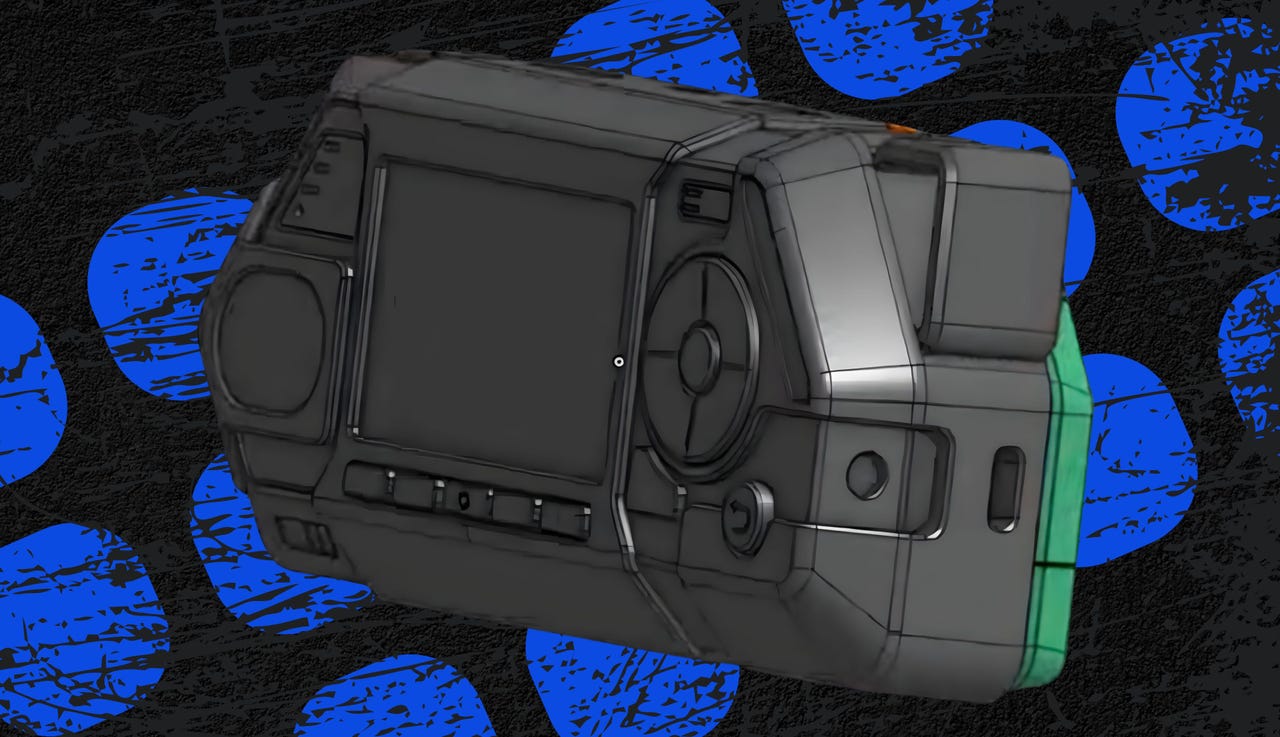

Render of the Flipper One case, as shared by Pavel Zhovner, the founder of Flipper Devices.
Flipper One / ZDNET
Follow ZDNET: Add us as a preferred source on Google.
ZDNET’s key takeaways
- The Flipper Zero is a versatile, beginner-friendly hacking tool.
- The Flipper One adds power and Linux for more advanced use.
- Wi-Fi is built in, but NFC, RFID, and sub-GHz are removed.
Without doubt, my favorite gadget from the past few years has been the Flipper Zero — a pocket-sized Swiss Army knife that grants its owner access to a digital world otherwise off-limits.
Also: My 6 favorite Bluetooth gadgets that make life easier (and are worth every penny)
By using its cutesy pixel-art dolphin interface, even complete newbies to hacking can immediately start reading, copying, and even emulating RFID, NFC, radio remotes, iButtons, and digital keycards. It even includes its own GPIO interface for direct, wired access to devices, and an IR emitter to interface with devices that use remote controls.
With some extra modules, you can even start exploring things like Wi-Fi hacking.
Image of the Flipper One, posted by the founder of the company.
Pavel Zhovner
I love the Zero — not just as a serious tool that I keep in my toolbox, but also as a great educational gadget, offering youngsters (and even older enthusiasts) a fantastic starting point for subjects like cybersecurity and wireless technologies.
While some of the buzz around this tool was undoubtedly fueled by social media videos that exaggerated what it could do — no, it couldn’t change prices at gas pumps or unlock modern vehicles — for $199 (plus an additional $35 for a Wi-Fi dev board for those looking to expand its capabilities, but it never got close to what a dedicated security tool like the Wi-Fi Pineapple could do), it was an incredible tool for the right job.
Also: Flipper Zero: ‘Can you really hack Wi-Fi networks?’ and other questions answered
While I could — and have — put together systems that can do what the Zero can do using things like Raspberry Pi and mini PCs (and these would be more powerful), none approaches the neatness or ease of use of the Zero. My attempts at “Franken-Zeros” were bigger, bulkier, or cluttered with an array of additional bits and bobs hanging off them.
Which is why I’ve been closely following the development of the Flipper Zero’s successor — the Flipper One. So far, it seems like this new iteration will take the project in a much more serious direction.
Render of the Flipper One case.
Fit-Note7659/Reddit
Hardware and software upgrades
One of the biggest differences between the One and the Zero is that, while the Zero ran on custom open-source firmware and scripts (which spawned a thriving community of third-party firmware platforms and scripts), the One will run the Linux Debian operating system with proper software capabilities. There was talk in the beginning that the One would use Kali Linux, a Debian-based Linux distro aimed at security professionals, but rumors suggest this plan has now been dropped in favor of vanilla Debian.
To achieve the enormous performance boost needed to run a full-blown operating system, the STM32 microcontroller found in the Zero has been replaced with a dual-processor setup. One of these processors is an octa-core Rockchip RK3567 — a chip commonly used in devices like interactive flat panels, digital signage, and single-board computers (SBCs).
Also: Flipper Zero: How to install third-party firmware (and why you should)
This chip handles the heavy workload of running Linux, while a secondary RP2040 — a chip more commonly powering Raspberry Pi boards — manages tasks like the user interface.
The display also gets an upgrade. The original 1.4-inch, 128 x 64-pixel monochrome LCD display has been replaced by a 2.39-inch, 256 x 144-pixel color panel. Additionally, the One will come equipped with dual Ethernet ports, dual USB-C ports, USB-A, and a 24-pin GPIO interface. Wi-Fi and Bluetooth will also be built into the One, doing away with the need for a separate dev board.
Inside the device is an M.2 Key-B slot, and while you might be forgiven for thinking this is for an SSD, it’s more likely for cellular modems, a costly but undeniably practical add-on.
That’s a lot of hardware, so the package size has also grown — from something the size of a small toy or game to a device closer in size to a chunky smartphone. There are renders of what it might look like, and I have to say it looks the part.
Features: What’s missing?
But there’s more — well, less, actually.
One of the things that made the Zero so interesting was its ability to work with RFID, NFC, infrared, and even sub-GHz radio signals right out of the box. However, these features also raised eyebrows with some governments, leading to the Zero being banned from importation into Canada and Brazil, prohibited from being sold on Amazon.com, and even reportedly seized by airport security staff.
The built-in support for RFID, NFC, and sub-GHz made the Flipper Zero a convenient choice (but it did lack built-in Wi-Fi support).
Adrian Kingsley-Hughes/ZDNET
Making these modules optional might help circumvent similar blanket bans in the future. The same applies when it comes to omitting a modem.
Also: 7 useful things I can do with my Flipper Zero
Ask the developers when the One will be out, and you’ll get the official line that it’s “still experimental, and there’s no official release date yet.” However, dig around a bit and you’ll find clues pointing to a summer release. As for price, no one is talking about this, but I can’t see this coming in for less than the Zero.
Flipper Zero vs. Flipper One
As much as it feels like the Flipper One would be an upgraded Flipper Zero, it feels more like a completely different device with a totally different audience. A full operating system is a game-changer in terms of power and flexibility, but it comes at the cost of a tight, efficient, and simple custom platform.
The reliance on modules for tasks that the Zero can do with built-in hardware is also a double-edged sword — yes, it will bring more power, performance, and flexibility, but at a price that will need to be paid in dollars and in climbing the learning curve.
Final thoughts
Would I want a Flipper One? Hell yes! Would I still keep my Flipper Zero? You bet!
Also: 3 tiny gadgets I trust to block electrical surges, data-stealing software, and more
That’s because no matter how much I like the idea of a more powerful, more flexible, and customizable system, it’s hard to beat the convenience of an all-in-one digital Swiss Army knife, and for that reason, I hope that the Flipper Zero continues to be offered alongside the Flipper One, as I think it will be a better choice for hobbyists, tinkerers, and those wanting an easy-to-use tool for getting started.