Fixing Your Slow SSD Might Be Easier Than You Think


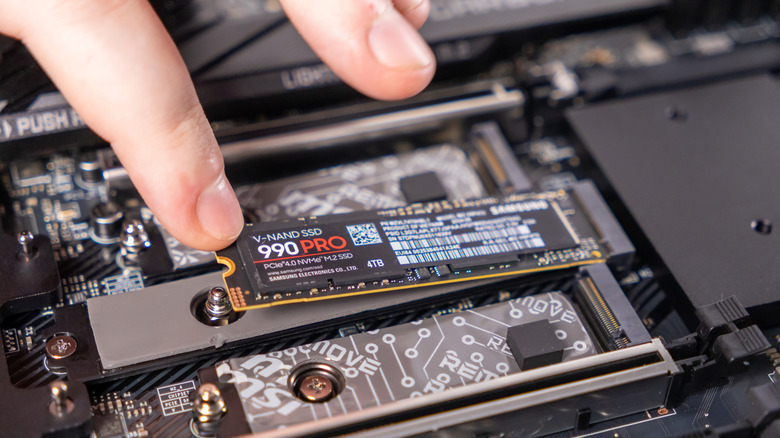
Solid-state drives have completely changed the game for storage on computers and laptops. No moving parts, no RPM (revolutions-per-minute) to worry about, and lightning-fast read and write speeds. Even early SSDs were impressive, but once the M.2 format hit the market, things got even better. While SSDs are currently monstrously expensive, pretty much every modern desktop and laptop uses them, mostly due to the demands of modern software, video games, and operating systems.

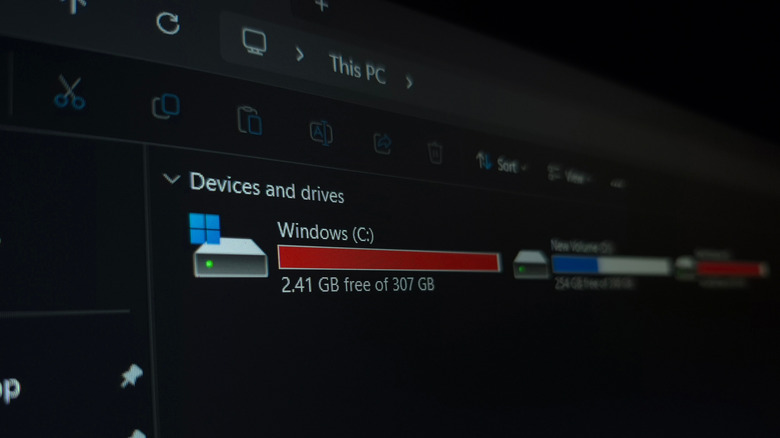
Here’s the thing, though. Even though modern SSDs are super fast, and they will last a lot longer than most hard drives due to their lack of moving parts, they can still slow down. As you fill them up with data, which can happen very quickly if it’s a smaller SSD, that advertised speed of several thousand megabytes per second goes down fast. 

Fortunately, modern operating systems like Windows support a standard hardware command to help you solve this issue, with a very fitting name: TRIM. TRIM cleans up so-called blocks of data so that the SSD knows which ones to use, making it more efficient and increasing its lifespan.

Why should you use TRIM?
Although it has a much cooler name, TRIM is essentially the modern equivalent of disk defragmentation, which Windows can still do. Defragmenting old hard drives brought all the data closer together in a more accessible spot, allowing the hard drive to cycle through the data more efficiently and make it faster. TRIM doesn’t work on the same principle as defragmentation, as SSDs and HDDs store data in different ways, but TRIM does serve a similar purpose. It increases your SSD’s efficiency and lifespan by clearing up empty blocks of data that are no longer in use.

Recent releases of Windows run this process automatically in the background, and you can check this through the drive’s properties from inside This PC on your computer. If the scheduled optimization (which you can find inside of Properties > Tools > Optimize) is set to On, then Windows runs TRIM for you on a weekly basis. 

Another way to check if TRIM is on is through PowerShell. Simply run PowerShell with administrator privileges. Next, type “fsutil behavior query DisableDeleteNotify” without the quotes, then hit Enter.
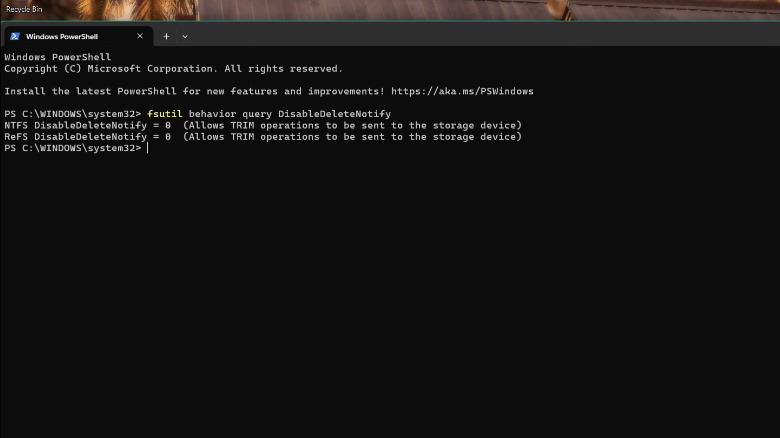
If both values are zero, then TRIM is on, and you don’t need to worry about it. We would not recommend disabling it, as in this era of highly unpredictable SSD prices and the importance of keeping our data safe and secure, it’s always a good idea to keep your SSD on its best behavior, and TRIM definitely helps out with that.


Source link

Leave a Reply

Subscribe to Our Newsletter

Get our latest articles delivered straight to your inbox. No spam, we promise.

Recent Reviews


Follow ZDNET: Add us as a preferred source on Google.


It’s officially springtime, which means we’re due for another Amazon Big Spring Sale. Ahead of the deal event, which starts on March 25, several robot vacuums are on sale, including top-end modelds from brands like Ecovacs, Dreame, Roborock, and more. 

Also: I’ve tested dozens of robot vacuums. These are the three I recommend most to family and friends

We’ve tested several of the latest robot vacuums, bringing them into our homes and letting them tackle the messiest of messes from kids, pets, muddy shoes, and more. You can expect more deals on this list as we get closer to the sale, so be sure to check back for updates. In the meantime, these are the best deals you can shop.

Best early Amazon Spring Sale robot vacuum deals

  • Current price: $540 (10% off)
  • Original price: $600

Dreme’s high-end vacuum is over half off its original price, and it’s still one of our favorites. Thanks to its strong 12,000Pa suction, high performance on carpet and hard floors, and exceptional object avoidance, it’s one of the best robot vacuums you can buy.

Review: Dreame X40 Ultra


Show more

  • Current price: $1,100 (31% off)
  • Original price: $1,600

This robot vacuum is adept at navigating complex spaces in your home and mopping hard-to-reach corners. It uses rotating mop pads instead of rollers. 

Review: Roborock Saros 10R


Show more

  • Current price: $1,293 (19% off)
  • Original price: $1,599

If you’re looking for an alternative to mainstream brands, the Mova Mobius 60 delivers. Its intuitive mop features automatically employ one of three mops to properly clean tough stains and messes. 

Review: Mova Mobius 60


Show more

  • Current price: $700 (30% off)
  • Original price: $1,000

This robot vacuum features 20,000Pa suction, intuitive object avoidance, and impressive mopping capabilities. At this sale price, it’s the best time to buy.

Review: Eufy Omni E28


Show more

  • Current price: $679 (48% off)
  • Original price: $1,300

This Ecovacs robot promises 16,600Pa suction, an independent mop, side brush, and main brush lift system, and simultaneous carpet cleaning and drying. 

Review: Ecovacs Deebot X9 Pro Omni


Show more

When is Amazon’s Spring Sale? 

Amazon’s Big Spring Sale begins on Wednesday, March 25, and ends on Tuesday, March 31, 2026. 

How did we choose these early Amazon Spring Sale deals?

ZDNET only writes about deals we want to buy — devices and products we desire, need, or would recommend. We’ve thoroughly tested every robot vacuum on this list, letting them into our homes and tackling life’s biggest messes. 


Source link