I tried Google Photos’ new AI Enhance tool: How it crops, relights, and fixes your shots – sometimes


How Google's AI Enhance tries to fix and improve your photos with one tap

Lance Whitney / Elyse Betters Picaro / ZDNET

Follow ZDNET: Add us as a preferred source on Google.


ZDNET’s key takeaways

  • AI Enhance aims to improve the lighting, color, and framing of a photo.
  • The goal is to reduce the manual steps you may take to fix a bad photo.
  • Unveiled last year, the tool is rolling out to all Android users worldwide.

I sometimes struggle trying to fix a photo with dark lighting, off colors, or poor framing. I might fiddle with the controls for brightness, contrast, color, cropping, and more. And even then, I still might not achieve the results I want. Now, Google Photos offers an option for all Android users also trying to improve a bad photo.

Also: How I ditched Google Photos for my own private self-hosted alternative – for free

AI Enhance is an editing tool in Google Photos that uses AI to try to enhance your photos. The goal is to balance both the lighting and the color of a photo so you don’t have to tweak each one individually. But it doesn’t stop there. This tool also aims to crop and straighten the photo, as well as sharpen a cropped area.

The feature popped up last year but now is rolling to all Android users around the world, a post from the Google Photos account announced on Monday.

How to try Google AI Enhance

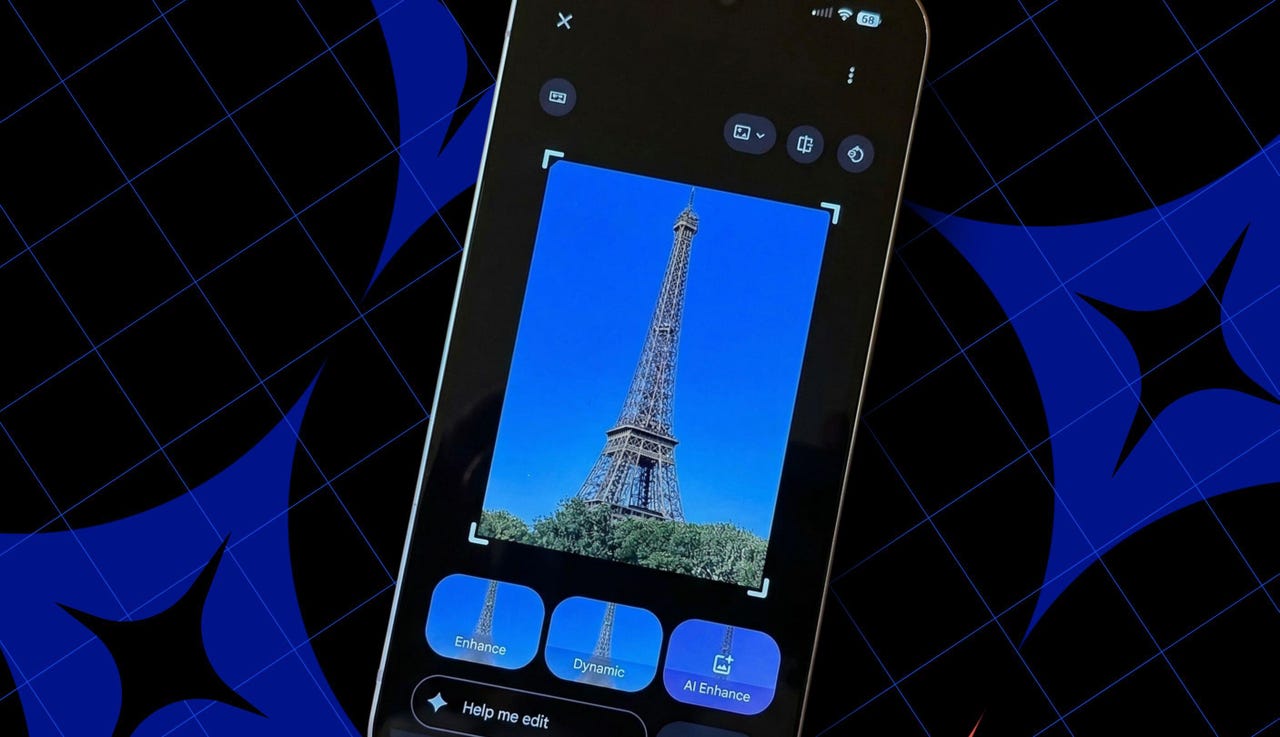
To try it, first make sure you’re running the latest version of the Google Photos app on your Android device. Open the app and tap a photo that you’d like to fix or improve. Tap the Edit icon at the bottom, and you should see a button that says AI Enhance.

If you don’t see it, make sure you’ve updated Google Photos on your phone. You may also need to restart your device. I initially found it only on my Google Pixel phone and not on the Motorola or Samsung devices that I use for testing. But after updating and restarting them, the AI Enhance button finally appeared.

Also: 10 must-try Google Photos tips and tricks – including a new AI editor

Tap that AI Enhance button and wait a few seconds for the tool to do its stuff. Your image is regenerated with the lighting, color, framing, and cropping all potentially adjusted. To give you a few choices, the app displays three enhanced images, all with different color and cropping changes. You can easily crop any of them directly.

Tap each of the three to see which you prefer. Tap the last one you selected to go back to your original photo. You can then compare and contrast the original with the three modified images by tapping each one individually.

Also: I captured 1,000 photos with the Google Pixel 10 Pro in Hawaii, and it set a new standard for me

Select one of the enhanced versions, and a Save as Copy button appears at the top. Tap that button to save the new version as a copy, so you won’t lose the original. You’re then able to better compare the original with the new one by swiping between them. You can always delete the one you don’t want to keep.

My results

I took AI Enhance for a spin and generally was happy with the results. In most cases, the changes did improve the overall quality of the photo. In other cases, though, the adjustments didn’t work as well. That was especially true with the cropping. The AI typically wants to tighten the framing of the photos, but that sometimes eliminated peripheral elements that I wanted to keep.

Also: Your Pixel phone hides a free Google Photos AI tool that’s pure magic – how it works

Of course, this is always the case with generative AI, especially when working with your photos. In this instance, I may want the framing or the lighting in a particular photo to look unusual or artistic, while the AI is focused on creating a generically perfect image. But that’s why you still have manual controls.

The Photos app offers Enhance and Dynamic options that can improve the lighting of a photo without cropping it. And you can still turn to the individual controls to sharpen or crop an image, and the always handy Magic Eraser to remove unwanted elements.





Source link

Leave a Reply

Subscribe to Our Newsletter

Get our latest articles delivered straight to your inbox. No spam, we promise.

Recent Reviews


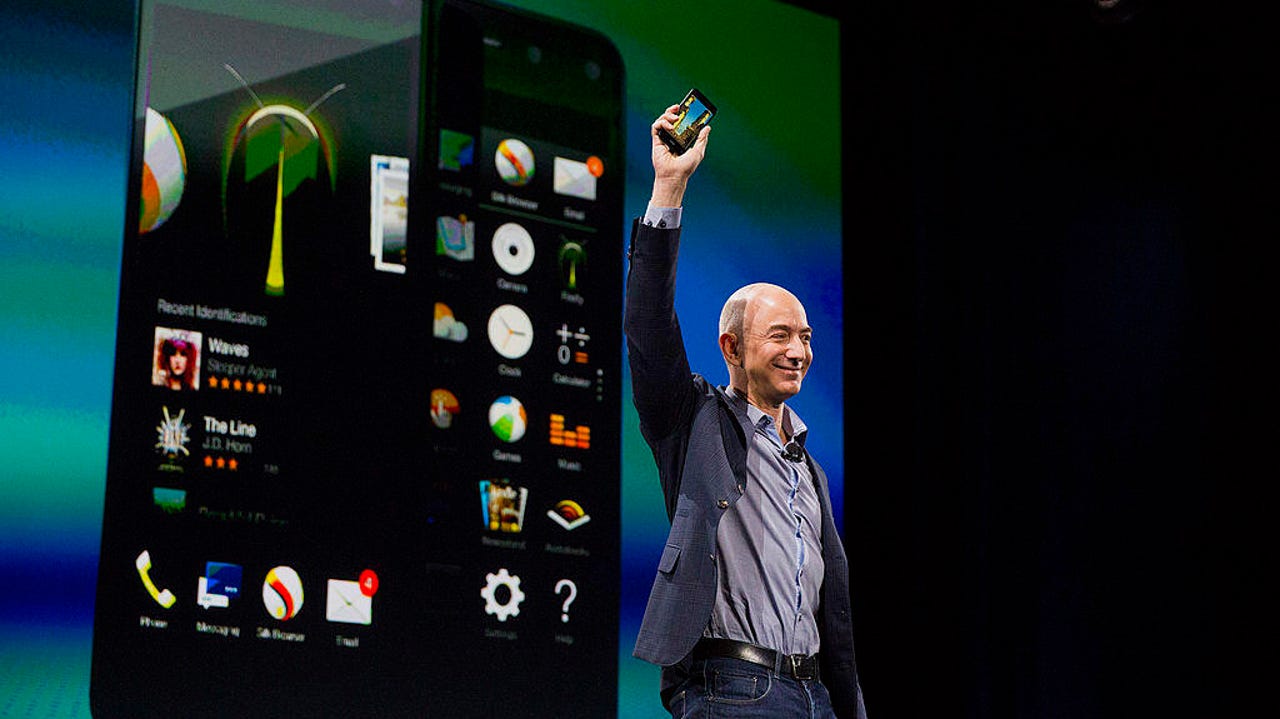
Amazon Fire Phone Jeff Bezos

Bloomberg / Getty Images

Follow ZDNET: Add us as a preferred source on Google.


ZDNET’s key takeaways

  • Amazon is reportedly developing a new Fire Phone.
  • The previous model had several issues, including an inferior app store experience.
  • Under new supervision (and with more experience), Amazon can do better this time.

Well, I don’t know about you, but I certainly didn’t have “new Amazon smartphone” on my 2026 bingo card. As it turns out, according to Reuters, the retailer may be developing a new smartphone, internally known as “Transformer.” 

Those familiar with the industry will instantly draw parallels to Amazon’s previous smartphone effort, the Fire Phone from 2014. Appropriately, that phone ended up as part of a fire sale about a year later.

Now, in 2026, with no fewer than five phone brands in the US — Apple, Samsung, Google, Motorola, and OnePlus — Amazon faces a lot of competition. In fairness, it also has two fewer platforms to compete against. In 2014, Windows Phone and BlackBerry were still very much part of the smartphone conversation; these days, not so much.

The AppStore problem

But there’s one mistake Amazon made in its first effort that will absolutely torpedo its chances at succeeding — the Amazon AppStore and specifically the decision to forego Google Play services. Google is simply too valuable in too many lives to not support the platform. Oh, and the Amazon AppStore is terrible.

Also: What’s right (and wrong) with the Amazon Fire Phone

It has admittedly been a few years since I last inventoried the Amazon AppStore, but when I last checked, the Amazon AppStore was a wasteland of half-supported or unsupported apps, with two notable exceptions. Finance, home control, and communication apps were either absent or had not received updates for years prior.

The only apps in the Amazon AppStore that remained up to date were productivity apps (largely powered by Microsoft) and streaming apps. Those two categories work very well on the cheap, underpowered hardware that Amazon usually launches, and that’s fine. A coffee-table tablet is a nice thing to have lying around.

A spark of hope

Amazon Fire Phone

Liam Tung/ZDNET

But a phone is another animal entirely. If a tablet is a device to entertain, a phone is a device for everything else. One of the key reasons Windows Phone failed was its lack of an app ecosystem. The Senior Vice President of Devices and Services,  Panos Panay, is very familiar with that saga, so I’m hopeful that he will make the same arguments to the powers that be at Amazon. 

Honestly, if there is anyone who I think can pull off an Amazon phone revival, it’s probably Panay, who understands design and product development better than most, and to be perfectly honest, he’s my absolute favorite product presenter.

Also: Amazon Fire Phone review: Not a great smartphone

Of course, all of this is early days. This phone is being worked on internally, and even Reuters reports that it could get the axe long before it sees the light of day. Personally, I’m intrigued by the idea, but I sincerely hope that Amazon doesn’t make this the shopping phone it tried to build in 2014. 

If Amazon just wants to make a nice, well-built smartphone, with a skin that pushes Amazon content to the fore, I’m fine with that. But leaving Google behind is a mistake that Amazon cannot afford to make again. Fool me once, and all that.

So, if this phone is to have a chance at success, it needs to embrace Google services so it can be a phone that everyone can use. Amazon has the brand power to make a phone like this work, even up against juggernauts like Apple and Samsung, but it needs to approach this correctly, lest it end up in yet another Fire phone fire sale.


Source link