NordVPN’s Browser Extension Will Flag Suspected AI Voices


In the never-ending battle of figuring out what’s real and what’s created by artificial intelligence, NordVPN has a new browser tool that can help you separate human voices from fakes. 

NordVPN’s new tool listens to audio from your open browser window and alerts you if it detects a human or AI-generated voice. The feature is currently only available in NordVPN’s Chrome browser extension, and you’ll need to enable the tool to start detecting voices on websites in real time. 

It isn’t clear when the tool will roll out to other extensions, such as Firefox and Edge, or which plans include the AI Voice Detector. NordVPN didn’t immediately respond to CNET’s request for comment. In the meantime, here’s what we know about the tool and how it works. 

How NordVPN’s AI Voice Detector works 

AI Atlas

NordVPN partnered with NordLabs’ cybersecurity experts and tested both real and AI-generated audio. The tool uses an AI model to distinguish between the two types of voices, according to Thursday’s announcement. 

Here’s how it works. You’ll enable the feature in your Chrome extension, and the AI voice detector will run in the background on the tab you have open. You’ll receive an update on the voice detector’s results in the extension, and a pop-up that will display one of three colors from the sound:

  • Green: It’s a human voice. 
  • Amber: It could potentially be AI-generated. 
  • Red: It’s an AI-generated voice.

NordVPN’s announcement says that the detector cannot hear what’s being said and that it only analyzes acoustic characteristics. The tool isn’t capable of understanding, recording or interpreting conversations. You’ll hear the sound as normal while NordVPN’s detector analyzes it. If you stop the detection or close your active tab, NordVPN says all audio buffers will be discarded. Nothing will be stored.

NordVPN also called out the tool’s security measures, including not collecting your identity, browsing history, cookies or account information. All of this makes me wonder about the false positive rate, given that NordVPN is analyzing sounds, not conversations. 

Watch this: AI Is Indistinguishable From Reality. How Do We Spot Fake Videos?

How useful is an AI voice detector? 

There are several AI detectors online, but some of them are trash. They can produce false positives (saying something is AI when it’s not) or false negatives (saying something is human when it’s AI) due to their inherent limitations. 

In most cases, there are no foolproof watermarks or signatures to indicate that something is AI-generated. Some tools, like Copyleaks’ AI detector, build more trust by showing their work, indicating which red flags they base their conclusions on.

NordVPN’s tool might at least bring more skepticism and transparency for users, says CNET Senior Editor Moe Long.

“There’s a lot of AI audio out there, and some of it may be increasingly difficult to identify by the human ear,” Long says. “NordVPN’s AI audio detector seems helpful because it can assist folks in determining whether certain audio is AI-generated or not, which could provide various benefits, from offering transparency about voiceovers in YouTube videos and on social media sites to avoiding scams.” 

Read more: AI Slop Is Destroying the Internet. These Are the People Fighting to Save It

AI-generated voices are increasingly used in predatory ways, like creating deepfakes of people for scams. Even a hint that not every voice you hear on the internet is genuine can help you spot fraud.

Long also likes that NordVPN’s AI voice detector appears to offer safeguards that analyze audio while still maintaining privacy.

NordVPN scores highly for CNET, earning an 8.8 out of 10 on its CNET Score. The VPN company gets praises for its speed, helpful privacy features and large international server network. However, it falls short in renewal pricing and limited split-tunnel control for Android devices


Source link

Leave a Reply

Subscribe to Our Newsletter

Get our latest articles delivered straight to your inbox. No spam, we promise.

Recent Reviews


Gemini on Android Auto

Kerry Wan/ZDNET

Follow ZDNET: Add us as a preferred source on Google.


ZDNET’s key takeaways

  • Gemini is now widely available in Android Auto.
  • It can integrate with Google services and other apps.
  • The AI answered both simple and complex, multi-step questions. 

Despite Google’s insistence on packing artificial intelligence into nearly every conceivable product, I haven’t really found too much day-to-day use for it. That might change now. 

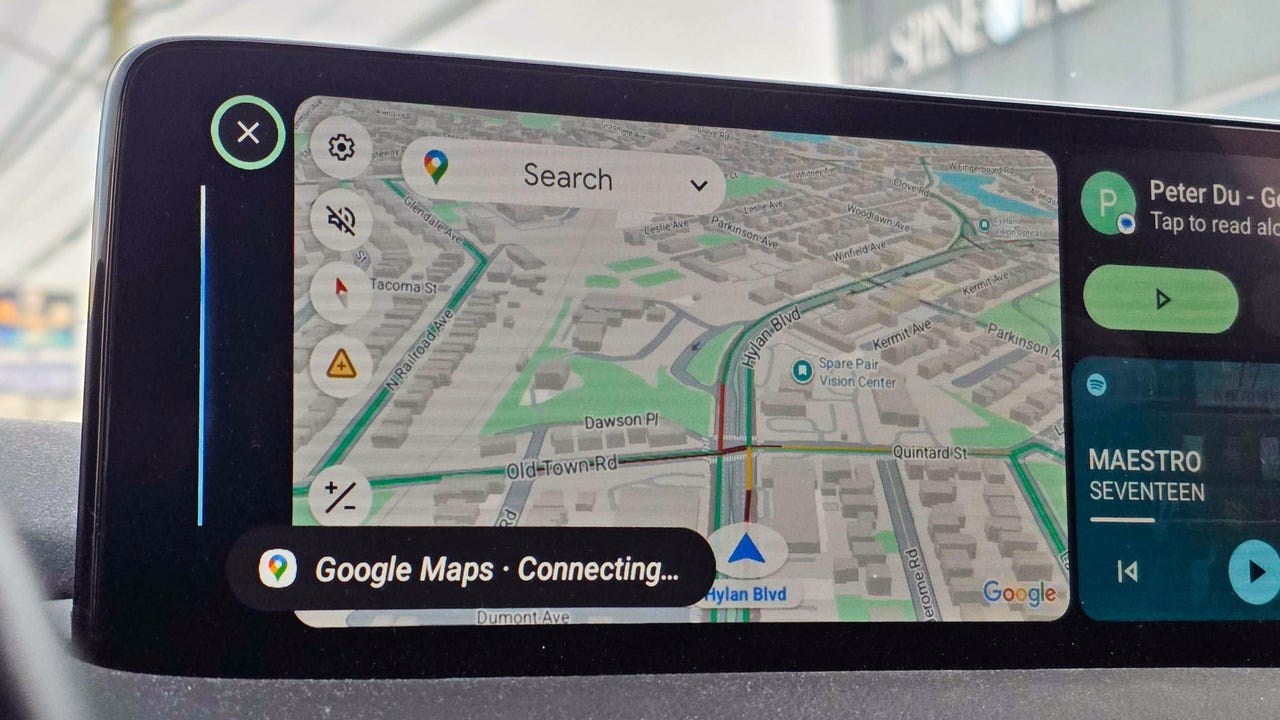
Over the weekend, I noticed my Android Auto had updated to include Gemini. I decided to give it a quick test, and it deftly answered my questions. When I started to dive deeper, though, I was surprised by just how much it could do and how easily it handled what I thought were more complex asks.

Also: Your Android Auto just got 5 useful upgrades for free – and Google isn’t done

Here are some of the best ways I’m using the new Gemini integration. To get started for yourself, you can either use the mic button on your steering wheel or say “Hey Google.” 

1. Finding hours or other information about local businesses

When using my phone in the car, most of the time I’m checking hours for a local business or researching nearby restaurants or stores. I found that Gemini is perfect for quick, simple questions like, “What time does Tony’s Ice Cream close?” But it’s also great for diving a little deeper.

I’m the type of person who likes to do a lot of investigating when I’m trying to find a new restaurant. I like to know what makes each one special and what people recommend — before I decide. Gemini does very well in situations like this. 

Also: Google just gave Android Auto its most significant update yet – and we tested it on the road

I asked for the best local spots to find ice cream. Instead of just showing a list, Gemini began detailing each spot, noting that the number one recommendation was “a legendary local spot with more than 100 years of history scooping up happiness.” It went down the list, offering up recommendations about each option, and then it even asked which one I wanted to navigate to.  

2. Tracking down info deep in your email

My wife and I had tickets to a show this weekend, and while I knew where I was going, I decided to see if Gemini would help. Without mentioning the theater or the show’s name, I just asked, “What’s the address for the show tonight?” Gemini thought for a few seconds and then replied that my confirmation email didn’t mention an address before asking, “Do you want me to find that information online?” When I said I did, it quickly found the address and offered to start navigation.  

I asked Gemini several other email-specific questions like “What’s coming in the mail today?” (thanks to USPS Informed Delivery) and even some vague ones like “When is that thing I ordered from the TikTok shop arriving?” or “I remember a coupon for a haircut in my email, when does that expire?” It handled each one perfectly.

Also: How to clear your Android phone cache – and why it greatly improves performance

Instead of opening my Gmail app, scrolling to find what I need or searching, and then opening the message, I can now get this info quickly with Gemini’s help.

3. Getting answers on the go, and keeping the conversation going

I’m the type of person who immediately looks up the answers to random questions that pop in my head — things like, “Where is the Australian Shepherd dog breed from,” “How do I make polymer clay earrings?” (my wife had seen some at a vendor fair), or “How do I make an electromagnet for an elementary school science project?”

Instead of Googling these queries, I asked Gemini. I wasn’t surprised to get a response, but I was surprised by how Gemini offered to keep things going. Every time Gemini offered an answer, it would ask if I wanted to talk more. I found myself having a conversation about my dog and why he doesn’t shed nearly as much as my other one, about the best way to present my son’s electromagnet, and even about different ways to make clay earrings and which option was best. 

4. Saving reminders and notes

I live by my Google Calendar, and if I don’t have something saved there, there’s a good chance I’ll forget it. The same goes for my reminder list in Google Keep. Quite often, while I’m driving, I’ll have a thought I want to remember later. Gemini, through Android Auto, was able to add things to my Keep lists and add things to my Calendar. It also gave me a rundown of what’s on my calendar and even asked if I wanted help getting ready for a meeting tomorrow (which was actually my wife’s event on our shared calendar). 

Also: The best AI chatbots: Expert tested and reviewed

5. Picking the perfect playlist

When it comes to the radio in my car, I’m constantly bouncing between podcasts, the song that got stuck in my head because it was viral on TikTok, whatever my kids request, or a huge variety of other songs. That means I’m often bouncing between Spotify, YouTube, and my XM radio. 

I often want to hear a specific song or album, and I was able to get Gemini to pull up specific songs using Spotify and YouTube and to stick to songs from that album. When I was in a more general mood, I got Gemini to tune to a specific XM station for me. 

I haven’t stumped AI yet

Overall, I’m finding that Gemini can handle at least 90% of tasks I’d otherwise pick up my phone for, from basic questions to more in-depth, multi-level questions. It was able to integrate with Google services like Gmail and apps, but also several other apps. 

Also: Google’s Gemma 4 model goes fully open-source and unlocks powerful local AI – even on phones

The basic questions are more common, but the ones that require research are where Gemini shines. I kept trying to think up new things to ask, and I had trouble finding something that would genuinely stump the AI. If, like me, you haven’t really embraced Gemini yet, Android Auto might just be your ticket in. 


Source link