What is Google Health Coach? The premium AI fitness tech explained


Alongside Google’s long-awaited Fitbit Air announcement, the brand unveiled its newly revamped health app.

Coined Google Health, the app has replaced the old Fitbit app and houses the new AI-powered Health Coach. Built with Gemini, Health Coach promises to offer genuinely personalised training plans that are designed specifically for individuals, rather than offering a one-size-fits-all policy. But how does Google Health Coach really work and where can you find it? Will you need to splurge to benefit from the feature?

We explain everything you need to know about Google Health Coach including what it really is, where you can find it and how much it’ll set you back.

For more on Google’s recent announcements, visit our Fitbit Air vs Whoop, Fitbit Air vs Charge 6 and Fitbit Air vs Oura Ring 4 guides. Alternatively if you’d prefer more of an overview, our best fitness trackers and best smartwatch guides lists our favourites from the past year.

What is Google Health Coach?

Google Health Coach sits within the new Google Health smartphone app, but specifically behind the Google Health Premium subscription. This means to access Google Health Coach, you’ll need to be signed up to the monthly or annual plan – which will set you back $9.99 a month or $99.99 a year.

Advertisement

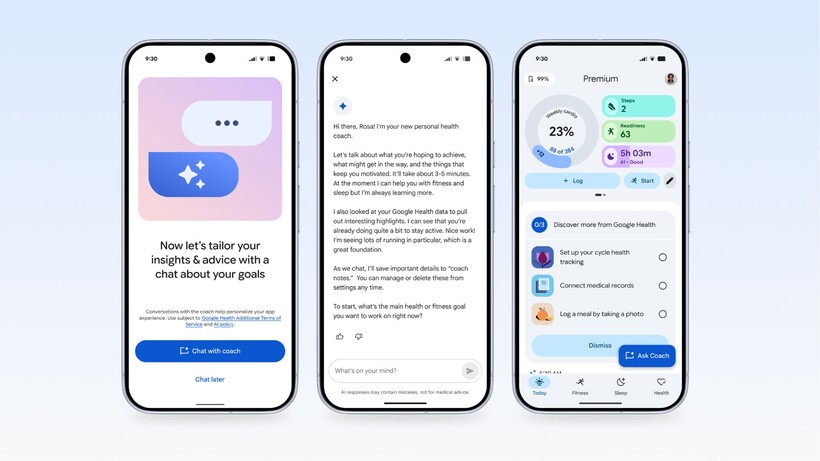
Google Health Coach is built with Gemini and is designed to provide users with the “most personalised, holistic, adaptive coaching possible”. When you first sign up, you’ll have an “onboarding conversation” which allows you to share specific goals, details about your daily routine, the type of equipment you have access to and other general lifestyle context that might be relevant with the Coach.

Onboarding conversation with Google Health Coach on the Google Health smartphone app
Onboarding with Google Health Coach via Google Health. Image Credit (Google)

Then, according to Google, the Health Coach will take these details and provide you tailored guidance and insights. Plus, Health Coach can update routines and plans according to your preferences too. 

Aside from sitting across the Google Health app, the Coach is available at any time to answer questions, much like a typical AI-powered chatbot.

How much does Google Health Coach cost?

As mentioned earlier, Google Health Coach is part of the Google Health Premium subscription, and will cost either $9.99 a month or $99 a year. However, at the time of writing, all Fitbit Air purchases will come with three months of the subscription free.

In addition, Google AI Pro and Ultra subscribers will benefit from Google Health Premium at no additional cost too.

Advertisement

Fitbit Air
Fitbit Air. Image Credit (Google)

How can I find Google Health Coach?

Google Health Coach sits within the Google Health app, and can be found across the Today, Fitness, Sleep and Health tabs. Google explains the Today tab acts as the home for Coach’s insights, and provides an overview on your fitness and sleep metrics from the past day, alongside nutrition and cycle tracking and even environmental context like location and weather too. 

Google Health Coach screenshots
Image Credit (Google)

The Fitness tab will house your tracked workouts and step count, but will also offer tailored workout suggestions and the ability to create entirely custom workouts via the Coach.

As its name suggests, the Sleep tab will explain your sleeping habits and help you understand your sleep consistency while offering advice on how to make improvements. 

Advertisement

Coach within the Health tab can provide summaries of your personal health records and make them “easier to digest”. However, at the time of writing, only users in the US will be able to share their medical records with the Coach. 

Finally, the Coach is launching first for eligible Fitbit and Pixel Watch users from May 19 to May 26, coinciding with the launch of the Fitbit Air. However, Google has promised that support for other devices is “coming soon”, though no firm date has been provided just yet.


Source link

Leave a Reply

Subscribe to Our Newsletter

Get our latest articles delivered straight to your inbox. No spam, we promise.

Recent Reviews


The Windows Insider Program is about to get much easier

Ed Bott / Elyse Betters Picaro / ZDNET

Follow ZDNET: Add us as a preferred source on Google.


ZDNET’s key takeaways

  • Microsoft is making the Insider Program less complicated.
  • Beta channel will be a more reliable preview of the next retail release.
  • Other changes will allow testers to quickly enable/disable new features.

Last month, Microsoft took official notice of its customers’ many complaints about Windows 11. Pavan Davaluri, the executive vice president who runs the Windows and Devices group, promised sweeping changes to Windows 11. Today, the company announced the first of those changes in a post authored by Alec Oot, who’s been the principal group product manager for the Windows Insider Program since January 2024.

Those changes will streamline the Insider program, which has lost sight of its original goals in the past few years. (For a brief history of the program and what had gone wrong, see my post from last November: “The Windows Insider Program is a confusing mess.”)

Also: If Microsoft really wants to fix Windows 11, it should do these four things ASAP

If you’re currently participating in the Windows Insider Program, these are meaningful changes. Here’s what you can expect.

Simplifying the Insider channel lineup

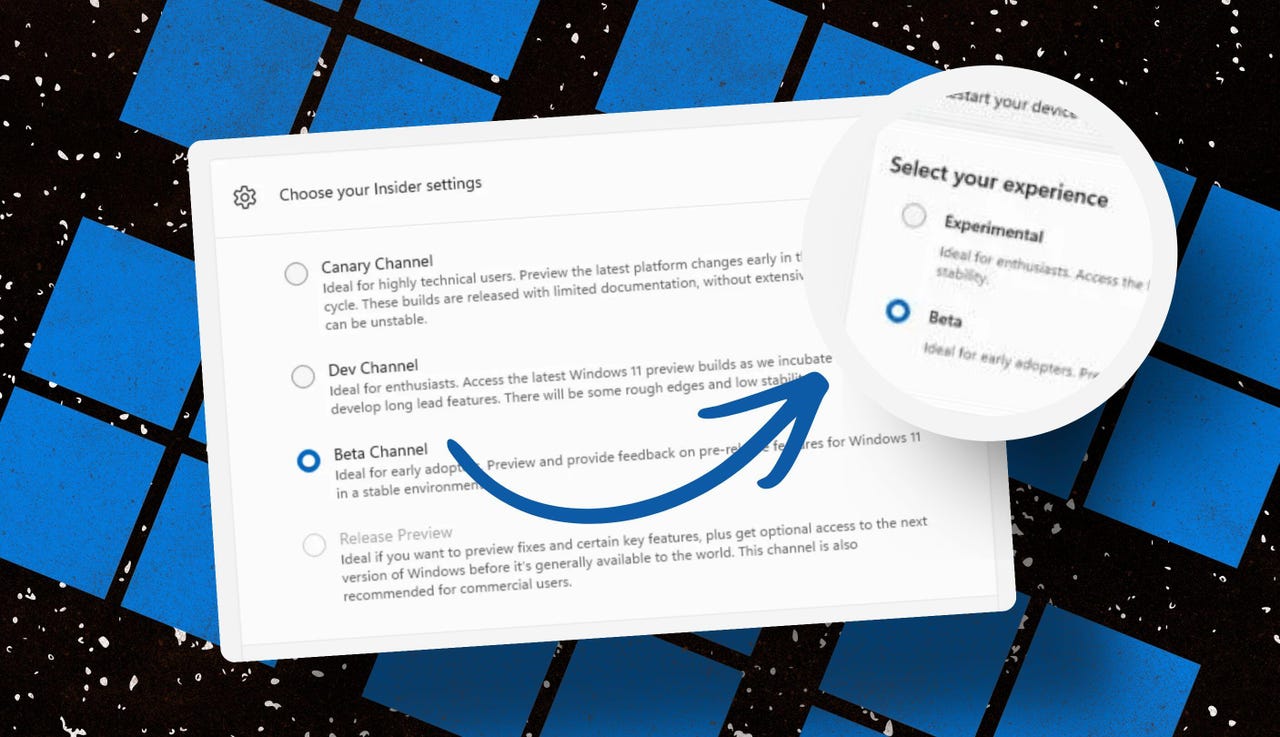
Throughout the Windows 11 era, signing up for the Insider program has required choosing one of four channels using a dialog in Windows Settings. Here’s what those options look like today on one of my test PCs.

insider-program-channels-lineup-old

The current Insider channel lineup is confusing, to say the least.

Screenshot by Ed Bott/ZDNET

Which channel should you choose? As the company admitted in today’s post, “the channel structure became confusing. It was not clear what channel to pick based on what you wanted to get out of the program.”

The new lineup consists of two primary channels: Experimental and Beta. The Release Preview channel will still be available, primarily for the benefit of corporate customers who want early access to production builds a few days before their official release. That option will be available under the Advanced Options section.

windows-insider-channel-lineup-new

This simplified lineup is easier to follow. Beta is the upcoming retail release, Experimental is for the adventurous.

Screenshot courtesy of Microsoft

Here’s Microsoft’s official description of what’s in each channel now, with the company’s emphasis retained:

  • Experimental replaces what were previously the Dev and Canary channels. The name is deliberate: you’re getting early access to features under active development, with the understanding that what you see may change, get delayed, or not ship at all. We’ve heard your feedback that you want to access and contribute to features early in development and this is the channel to do that.
  • Beta is a refresh of the previous Beta Channel and previews what we plan to ship in the coming weeks. The big change: we’re ending gradual feature rollouts in Beta. When we announce a feature in a Beta update and you take that update, you will have that feature. You may occasionally see small differences within a feature as we test variations, but the feature itself will always be on your device.

These changes will apply to the Windows Insider Program for Business as well.

Offering a choice of platforms

For those testers who want to tinker with the bleeding edge of Windows development, a few additional options will be available in the Experimental channel. These advanced options will allow you to choose from a platform that’s aligned to a currently supported retail build. Currently, that’s Windows 11 version 25H2 or 26H1, with the latter being exclusively for new hardware arriving soon with Snapdragon X2 Arm chips.

Also: Microsoft account vs. local account: How to choose

There will also be a Future Platforms option, which represents a preview build that is not aligned to a retail version of Windows. According to today’s announcement, this option is “aimed at users who are looking to be at the forefront of platform development. Insiders looking for the earliest access to features should remain on a version aligned to a retail build.”

windows-insider-advanced-options-new

The Future Platforms option is the equivalent of the current Canary channel

Screenshot courtesy of Microsoft

Minimizing the chaos of Controlled Feature Rollout

Last month, I urged Microsoft to stop using its Controlled Feature Rollout technology, especially for builds in the Beta channel. Apparently, someone in Redmond was listening.

One of the most common questions we receive from Insiders is “why don’t I have access to a feature that’s been announced in a WIP blog?” This is usually due to a technology called Controlled Feature Rollout (CFR), a gradual process of rolling out new features to ensure quality before releasing to wider audiences. These gradual rollouts are an industry standard that help us measure impact before releasing more broadly. But they also make your experience unpredictable and often mean you don’t get the new features that motivated many of you to join the Insider program to begin with.

Moving forward, Insider builds in the Beta channel will no longer suffer from this gradual rollout of features. Meanwhile, the company says, “Insiders in the Experimental channel will have a new ability to enable or disable specific features via the new Feature Flags page on the Windows Insider Program settings page.”

windows-insider-feature-flags

Builds in the Experimental channel will include the option to turn new features on or off.

Screenshot courtesy of Microsoft

Not every feature will be available from this list, but the intent is to add those flags for “visible new features” that are announced as part of a new Insider build.

Making it easier to change channels

The final change announced today is one I didn’t see coming. Historically, leaving the Windows Insider Program or downgrading a channel (from Dev to Beta, for example) has required a full wipe and reinstall. That’s a major hurdle and a big impediment to anyone who doesn’t have the time or technical skills to do that sort of migration.

Also: Why Microsoft is forcing Windows 11 25H2 update on all eligible PCs

Beginning with the new channel lineup, it should be easier to change channels or leave the program without jumping through a bunch of hoops.

To make this a more streamlined and consistent experience, we’re making some behind the scenes changes to enable Insider builds to use an in-place upgrade (IPU) to hop between versions. This will allow in most cases Insiders to move between Experimental, Beta, and Release Preview on the same Windows core version, or leave the program without a clean install. An IPU takes a bit more time than your normal update but migrates your apps, settings, and data in-place.

If you’ve chosen one of the future platforms from the Experimental channel, those options don’t apply. To move back to a supported retail platform, you’ll need to do a clean install.

Also: Apple, Google, and Microsoft join Anthropic’s Project Glasswing to defend world’s most critical software

The upshot of all these changes should make things a lot clearer for anyone trying to figure out what’s coming in the next big feature update. Beta channel updates, for example, should offer a more accurate preview of what’s coming in the next big feature update, so over the next month or two we should get a better picture of what’s coming in the 26H2 release, due in October.

When can we start to see those changes rolling out to the general public? Stay tuned.


Source link