
ZDNET’s key takeaways
- Microsoft will finally let you move the Windows 11 taskbar.
- Changes to the taskbar are rolling out to Windows 11 insiders.
- Microsoft also promises several tweaks to the Start menu.
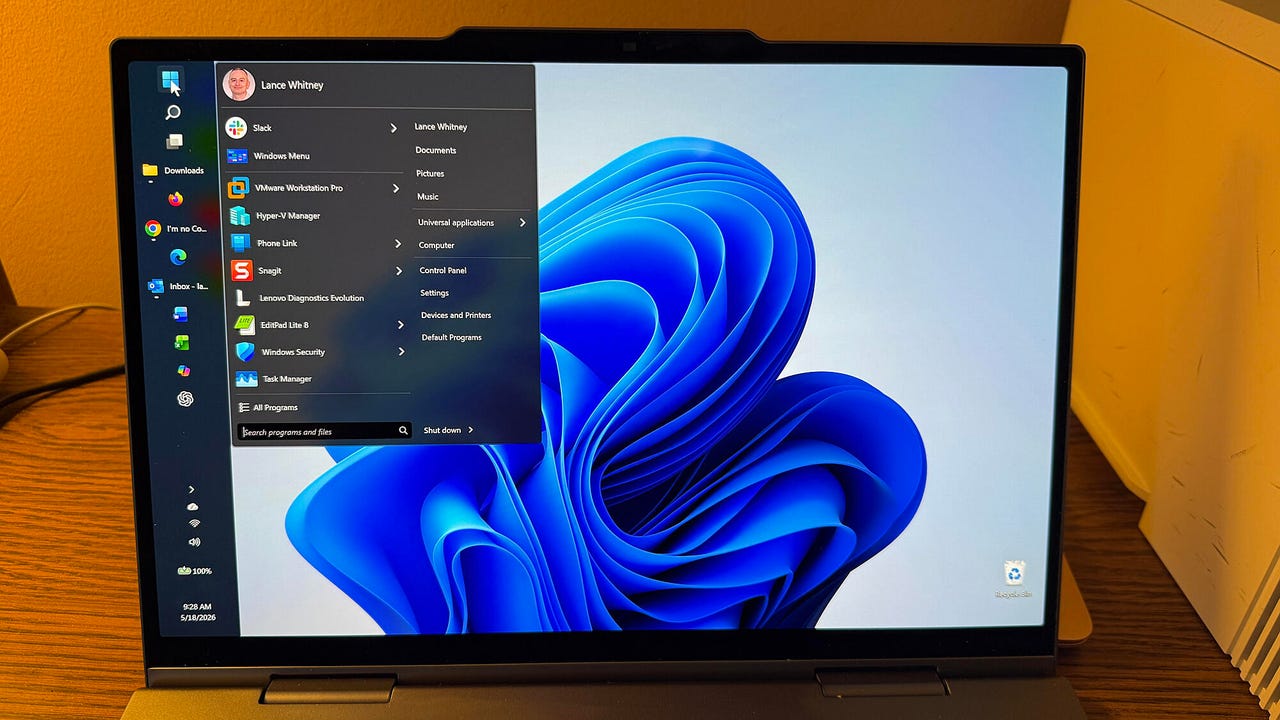
Windows 11 users who have long wanted to move the taskbar to any edge of the screen are now being granted their wish. With the latest update rolling out to Windows insiders, you’ll be able to position the taskbar at the top, bottom, left, or right.
Yep, just like in Windows 10.
Also: How I made my Windows 11 widgets truly useful: 8 simple tweaks to try before you hide them
To achieve this feat, you’ll need to be running the latest experimental build of Windows 11. Even then, you may have to wait a while for the capability to pop up. I updated one of my Windows 11 VMs with the latest insider build, but I don’t yet see the option to move the taskbar. Once the change arrives, here’s how it works.
Windows 11 users can finally move the taskbar
With the latest insider build installed, right-click on the taskbar and select Taskbar settings. Click the setting for Taskbar behaviors. You’ll see a new option for Taskbar position with four possible locations: Bottom, Top, Left, and Right. Select your favorite spot, and your taskbar will jump to that position.
“For people who value vertical screen space, like developers who want to see more of their code at once, moving the taskbar to the side can help reclaim precious room on the screen,” Microsoft Design Director Diego Baca said in a new blog post.
Also: Windows 11 Home vs. Windows 11 Pro: I found the differences that truly matter
“If accessibility or ergonomics make the top of the screen easier to reach, you can place the taskbar there. If you rely on the taskbar to keep track of your work, a vertical layout with ungrouped icons can help you stay organized. The choice is yours.”
More changes
With the new location option comes a few other tweaks.
You can still choose how the Start button is aligned depending on the location of the taskbar. If the taskbar is on the top or bottom of the screen, you’re able to switch between left-aligned and centered. If the taskbar is on the left or right of the screen, you can opt for top-aligned or centered.
Taskbar icons such as Start and search will fly out based on the position of the taskbar. If the taskbar is at the top, the Start menu will open from the top.
You’ll still be able to see the name of each open window as it appears on the taskbar. For that, make sure the option for “Combine taskbar buttons and hide labels” is set to Never or When taskbar is full. This setting makes it much easier to switch between windows by viewing and clicking the taskbar icon.
Also: Windows changes are coming: Here’s how to get a sneak peek at what’s next
Further, Microsoft has enhanced the option to shrink the size of the taskbar. To check this out, go back to Taskbar behaviors under Taskbar settings. Click the drop-down menu for “Show smaller taskbar buttons” and set it to Always. Both the icons and the taskbar height become smaller with no restart or sign-out needed.
There are a few limitations, for now
The auto-hide and tablet-optimized taskbar settings aren’t yet supported in alternate top, left, or right positions.
Touch gestures for these alternate spots are also a work in progress. Search boxes aren’t yet supported in these other positions and will appear as icons for the time being. Further, Microsoft is looking into other features such as different taskbar positions per monitor and dragging and dropping icons onto the taskbar in an alternate spot.
Start menu changes
But wait, there are more changes in store, namely four tweaks to the Windows 11 Start menu reaching Windows 11 insiders over the next few weeks.
Also: I tried this free Windows cleanup tool to see if it’d speed up my PC – and it worked
First, you’ll be able to separately show or hide the Pinned section, the Recommended section, or both of them in one shot.
Second, turning off the option to “Show recommended files in Start, recent files in File Explorer, and items in Jump Lists” currently affects all three. With an upcoming change, you’ll be able to disable file recommendations in the Start menu without affecting recent files in other places.
Third, the Start menu currently changes its size based on your display. Instead, you’ll be able to manually choose the size yourself, either Small or Large. Your choice then stays consistent.
Fourth, you’ll be able to hide your name and profile picture in the Start menu if you want to remain private when sharing your screen or displaying a presentation. And there are a few more changes.
The Recommended section in the Start menu is being renamed to Recent to more accurately reflect its goal. Recently installed apps will remain visible. The recent files you see also promise to be more relevant based on your work.
How to try
To try the new taskbar and Start menu changes, you need to be enrolled in the Windows Insider Program and running the latest Experimental Windows 11 build. (If you don’t see the option yet, Microsoft may not have rolled it out to your PC.) The Start menu changes are also expected to roll out to Windows 11 insiders over the next few weeks.
When will these latest updates reach all Windows 11 users? That’s difficult to say. Since the changes are still in the new Experimental channel of the insider build, they need to transition to the Beta channel once they’re more stable. From there, they can then roll out to to the general public. Normally, that entire process can take anywhere from a few months to a year. But with Microsoft keen on cleaning up Windows 11, I think the company will try to expedite these and similar updates.
A more user-friendly Windows 11
Windows 11 users have been complaining that Microsoft has been focusing too much on AI and not enough on fixing the many flaws and quirks in the OS. In response, the company has vowed to address some of the long-standing problems in an attempt to make Windows 11 more reliable and user-friendly.
Also: If Microsoft really wants to fix Windows 11, it should do these four things ASAP
The Start menu and taskbar are certainly areas in need of much improvement. That’s especially true since those two features have been less effective and less customizable in Windows 11 than in its predecessor. Now that Windows 10 is no longer supported, Microsoft needs to focus on these and the many other issues that still affect Windows 11.