You can play Angry Birds on Android Auto, plus 4 more popular games – here’s how


angry-birds-android-auto

Artie Beaty/ZDNET

Follow ZDNET: Add us as a preferred source on Google.


ZDNET’s key takeaways

  • Several mobile games are compatible with Android Auto.
  • The games all have simple touch-screen controls.
  • These are slow-paced, short-burst games. 

If you spend downtime in your car waiting for school pickup or during a lunch break, there’s a good chance you pass the time with mobile games. Here’s what you probably didn’t know: You could be playing some of those games on your car’s screen instead. A handful of popular mobile games are compatible with Android Auto, meaning you can play them in your car.  

Also: 4 Android Auto developer settings that make driving so much easier – how to enable them

You might have browsed your Android Auto apps and already seen the Gamesnacks app, which hosts several dozen light games that are not unlike early internet flash games. However, these games are more robust; they’re the same games you’d play on your phone, just on a bigger screen.

The catalog of Android Auto-compatible games isn’t huge, but it’s worth a look. None of these titles has complex controls or a steep learning curve, and all are perfect for short sessions. 

How to get started

To play on your car’s screen, you will need to install these games on your phone and have your vehicle in park. The good thing is, though, when you’re connected to your car and open the app on Android Auto, you can still use your phone for other things. This is ideal when you have a child in the car with you and need to pass the time, but don’t want to hand over your phone. 

Also: 4 Android Auto apps I highly recommend for your next road trip – beyond Maps and Spotify

I tried a quick run-through of the available games; while they didn’t run as smoothly as on my phone, they’re enough to play comfortably. Here’s a rundown of my favorites.

angry-birds-android-auto

Artie Beaty/ZDNET

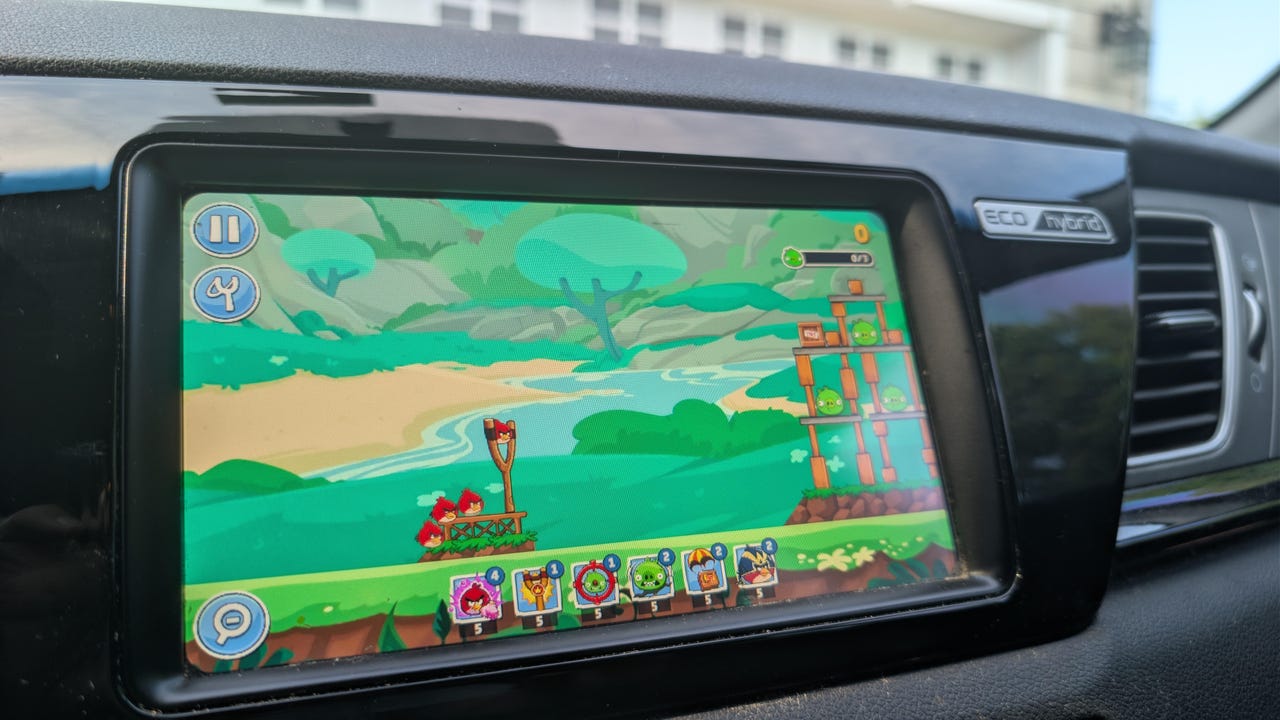
Angry Birds Friends: I hadn’t played Angry Birds in years, but the slingshot-style gameplay was easy to pick back up. It works well on a car touchscreen, and the levels go by quickly. Since the game is actually on your phone, your progress saves, so you can keep going across multiple sessions. I enjoyed not just beating levels, but immediately replaying a level I had just beaten to get a higher score. 

beach-buggy-racing

Artie Beaty/ZDNET

Beach Buggy Racing (1 and 2): Both versions of this cart-racing game feature colorful racers with very simple controls, making them the perfect games to kill 5 or 10 minutes. The tracks are filled with powerups, shortcuts, and other racers to beat (computer players, not online). I feel like this game takes more advantage of the bigger screen than any other on this list, and it’s the one that feels most like a “real” video game.

candy-crush-android-auto

Artie Beaty/ZDNET

Candy Crush Soda Saga: I’ve never been a fan of Candy Crush or its many versions or clones, but this is probably the most popular game available for Android Auto. The match-three gameplay is easy to pick up and play in short bursts, and it is relaxing to just zone out for a few minutes. Since the action is slower, it’s easy to play on a car screen than are games that require more movement.

farm-heroes-android-auto

Artie Beaty/ZDNET

Also: I saw the future of Android Auto, and now Google has me dreading my own car

Farm Heroes Saga: This game is from the same developers as Candy Crush and functions the same way, you’re just matching fruit, vegetables, and water instead of candy. This game goes a bit beyond the standard match-three format, as it sometimes requires you to collect a specific number of a particular piece. I still enjoyed this game, I just gave the more popular name the nod first.




Source link

Leave a Reply

Subscribe to Our Newsletter

Get our latest articles delivered straight to your inbox. No spam, we promise.

Recent Reviews


Google is experimenting with a new policy restricting the amount of free storage provided to some accounts. New Google accounts (including new Gmail accounts) created in certain regions will be limited to 5GB of free storage when they’re first set up. That’s only one-third of the amount of storage that has been typically offered. There is a way of increasing the amount of free storage you get when setting up a new account, though: you can unlock it by linking your phone number.

When approached for comment by Android Authority, a Google spokesperson confirmed that the new policy was being tested to “help us continue to provide a high-quality storage service to our users, while encouraging users to improve their account security and data recovery.” The statement didn’t clarify which regions the policy is being tested in, nor for how long the testing period will last.

Notably, a Google One Help support page about account storage has been updated to state that each Google account contains “up to 15 GB of storage”, as noted by 9to5Google. Previously, the page didn’t say “up to”; it simply stated that accounts come with 15 GB of storage. So far, the experiment doesn’t appear to stretch to pre-existing accounts.

Per a screenshot shared by Reddit user Sungusungu on R/DeGoogle (a subreddit dedicated to finding alternatives to Google services and products) Google is collecting phone numbers to make sure that the full 15 GB of storage is only redeemed once per person. Of course, that’s easily evaded by using a burner phone to set up multiple accounts, should you want to. The pop-up directs users to a webpage to learn more about storage management. However, at the time of writing, the link redirects to the help center landing page instead.

How to link your Google account with a phone number

If you’re in the process of setting up a new Google account in an impacted region, then you might be prompted with the option of unlocking an extra 10 GB of storage using your phone number via a simple pop-up menu. If so, you can go ahead and follow those steps. However, if you want to link your phone number with a pre-existing Google account, then here’s what you need to do. Using your computer, you need to:

  1. Open your browser and head to myaccount.google.com, then navigate to “Security and sign in” on the left-hand toolbar. This should open a list of security options.

  2. Select “Use your phone to sign in” and then “Set it up”. 

  3. Add a phone number using the “Recovery phone” option.

  4. Follow the on-screen steps to verify your number and finish linking it to your account.

Your options might look a little different if you already have a recovery number set up with your account.

Alternatively, you can connect a phone number to your Google account from your Android device, iPhone, or iPad. Much like on a computer, you connect your number by adding it as a recovery phone. First, head over to myaccount.google.com. Then select “Personal info”, followed by “Phone”. From there, you should be able to add or edit your phone number by navigating to the “Recovery phone” section.


Source link