
Follow ZDNET: Add us as a preferred source on Google.
ZDNET key takeaways
- Both Linux Mint and RefreshOS are great for all users.
- Each distro takes a different route, but arrives at the same place.
- Only one can claim the title of best distro for new Linux users.
For years, Linux Mint has been one of the most widely recommended Linux distributions for those considering the open-source operating system. There are good reasons for this: Linux Mint is incredibly easy to use, highly secure and stable — and it has a friendly and welcoming community.
Although I’ve never adopted Mint as my default, I’ve used it plenty of times over the years and regularly tested it against itself (previous releases) and other Linux distributions. I know Linux Mint, and I get why so many stand firm that it’s the best distro for new users.
Also: 7 things every Linux beginner should know before downloading their first distro
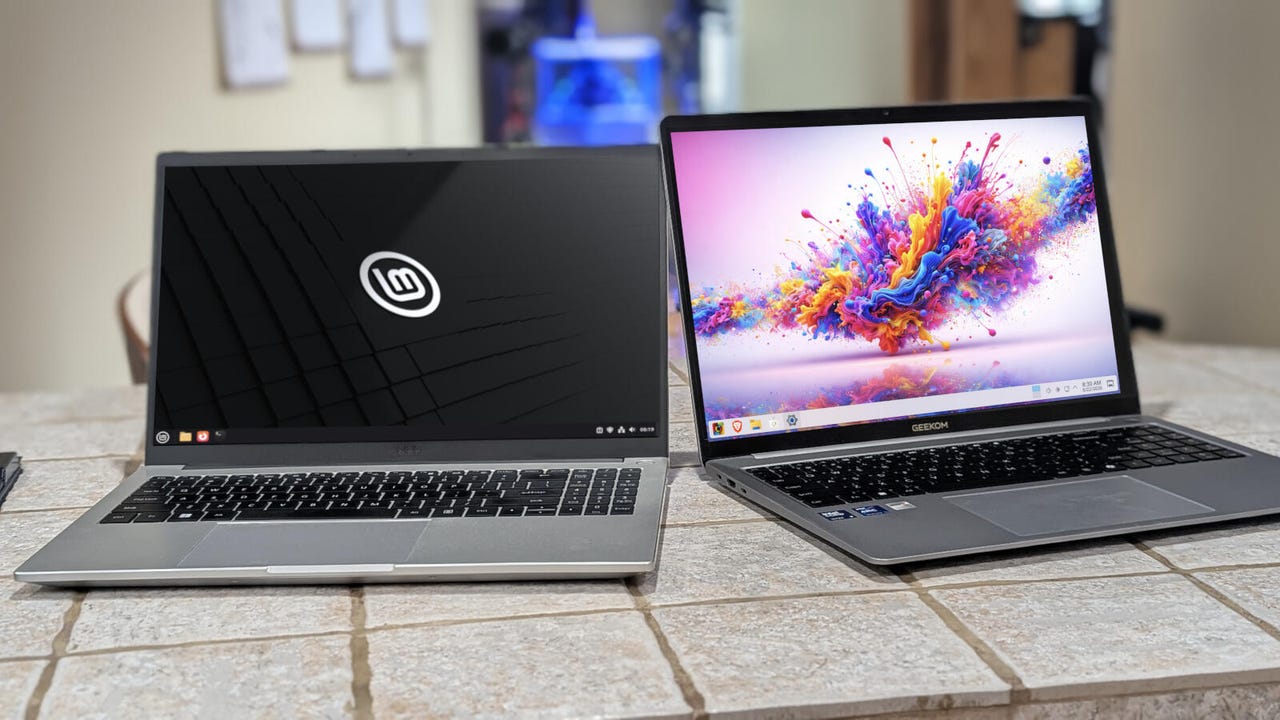
However, I reviewed RefreshOS recently and pronounced it a top contender for new Linux users. Shortly after that review, I decided to pit the fresh contender against the undisputed leader of Linux distributions for new users. How did RefreshOS stand up against Linux Mint? Read on to find out.
Linux Mint: Who is it for?
Linux Mint opts for a more traditional look and feel.
Screenshot by Jack Wallen/ZDNET
To say that Linux Mint is only for new Linux users would be a grievous error. After all, if Mint is good enough for my esteemed colleague, Steven Vaughan-Nichols (who claims the latest release is a masterclass in polish and quality-of-life fixes), it’s good enough for anyone.
To that end, it’s fairly easy to conclude that Linux Mint is the best of the best. For anyone looking to adopt an operating system that not only “just works” but “just works better than most,” Linux Mint is the way to go.
Also: You can try Linux without ditching Windows first – here’s how
But what makes Linux Mint so special? One might say the distro’s success begins with its Ubuntu-based foundation. Or maybe it’s the Cinnamon desktop, which sticks to the standard desktop metaphor of a panel, start menu, system tray, and clickable icons. Cinnamon is immediately familiar, no matter what desktop you’ve previously used.
I would argue, however, that Linx Mint’s specialness starts with the Welcome app. The Mint Welcome app walks users through the first steps of choosing desktop colors, setting up system snapshots, installing any additional drivers, introducing the update manager and system settings, quickly accessing the software manager, and even setting up the firewall. The same app also gets you quick access to documentation, help, and a way to contribute. It’s one of the best onboarding apps available. Period.
The Linux Mint Welcome app is the best of the best.
Screenshot by Jack Wallen/ZDNET
Linux Mint throws no surprises your way. It’s as straightforward as it gets. That simplicity permeates the entire OS, meaning Linux Mint is a viable option for anyone, regardless of Linux experience. Linux Mint has been this way for years.
Also: The best Linux distributions for beginners: Expert tested and reviewed
Linux Mint also includes all of the software you need to hit the ground running, including LibreOffice, Firefox, multimedia players, a fingerprint configuration tool, and much more. If you don’t find what you’re looking for, open the Software Manager and search for it. And because the Flatpak universal package manager is installed, you can install one of thousands of apps, including proprietary software like Spotify and Slack.
There are tons of apps to install for Linux Mint.
Screenshot by Jack Wallen/ZDNET
Although Mint doesn’t include the latest Linux kernel, it performs well. This capability can be partially attributed to the lightweight Cinnamon desktop environment. No matter the reason, you’ll enjoy a zippy experience, even if you’re running Linux Mint on older hardware.
Also: The 6 Linux distros I expect to rule 2026 – and why
Simply put: Linux Mint is for everyone.
RefreshOS: Who is it for?
The RefreshOS light theme is beautiful.
Screenshot by Jack Wallen/ZDNET
And now we have a relative newcomer to the world of Linux: RefreshOS. This Debian-based distribution recently released version 3.0, which added serious polish while keeping the KDE Plasma desktop (version 6.3.6).
That polish gives the RefreshOS desktop one of the most elegant looks I’ve used in a while. This elegance is especially strong when using the RefreshOS Light theme. In fact, the developer even included an excellent hybrid theme that combines dark (for panel, menu, and window decorations) and light (for apps).
Also: The latest KDE Plasma 6.7 surprised me with features I didn’t expect from a point release
I’ve proclaimed KDE Plasma one of the finest desktop environments in all of computer-dom several times over the years, and I still stand by that claim. When you combine the stylish global themes from RefreshOS with KDE Plasma 6.3.6, you get a desktop that could easily stand toe-to-toe with the most beautiful environments on the market.
But beauty isn’t enough to lift RefreshOS over Linux Mint. The distro has to be as simple to use as it is elegant. Does RefreshOS pull off such a feat? For the most part, yes. My slight hesitation stems from the lack of a particular app.
Although RefreshOS does present the KDE Plasma Welcome app, the distro does not have a welcome app of its own. That omission shouldn’t hinder anyone, as the desktop is designed so that anyone can figure it out. It might be nice, in future releases, if a user-friendly welcome app were created to give new users a bit of hand-holding through the first steps. But the lack of this app doesn’t detract from the ease of use.
As I mentioned in my latest review, RefreshOS switches the default KDE Plasma desktop menu to the Reload Menu, so you can pin the menu to keep it open. This is a handy feature when you need to open multiple apps and don’t want to go through extra clicks. Just open the menu, click the pin icon to the right of the search, and the menu remains open until you unpin it.
Don’t be fooled, the Reload Menu does have categories for your apps, and all you have to do is click All Apps to see them. You can also pin apps to the Favorites section, which greets you when you first open the menu.
Also: My 11 favorite Linux distributions of all time, ranked
You get the usual contingent of preinstalled apps, with a small change. Instead of Firefox as the default browser, you get Brave. If you’re a fan of privacy, you’ll happily welcome this change. You also get LibreOffice, GIMP, Thunderbird, multimedia viewers, sound and video editors, and more. As with Linux Mint, you also get Flatpak preinstalled and configured for KDE Plasma, so installing apps is as easy as point-and-click.
I’m a big fan of KDE Discover.
Screenshot by Jack Wallen/ZDNET
In other words, you get more preinstalled apps with RefreshOS than you do with Linux Mint.
RefreshOS performance is on par with Linux Mint, thanks to KDE Plasma. And because RefreshOS is based on Debian, you get a level of stability that many operating systems can’t match.
The big question: Which distro is best for new users?
So, which distro wins the battle for new users? I’m going to make a bold claim here that many in the Linux community will balk at: RefreshOS gets the nod, even if only barely.
Trust me, this was a tough call because Linux Mint is hard to beat. The reason I gave RefreshOS the win is KDE Plasma’s ability to be everything to all people. If you’re new to Linux, KDE Plasma makes it easy to adopt the open-source OS. If you’re a seasoned Linux user, KDE Plasma allows you to customize it to your heart’s content.
Also: I tried AnduinOS 2.0, and it may be the easiest way to ditch Windows for Linux
On top of that, RefreshOS is just gorgeous. And although some would argue that aesthetics should not be a consideration for the best distro for new users, I would say, “Why not?” Both Microsoft and Apple go out of their way to create desktop interfaces that are both modern and effective, so why can’t Linux developers?
The choice was very close, but I didn’t want to rest on reputation. Yes, Linux Mint has been everyone’s top choice for a long time. But in the world of Linux, there’s always something new on the horizon, and I believe RefreshOS looms large.