
ZDNET key takeaways
- There are networks out there you should not connect to.
- You could even mistakenly connect to a fake cell tower.
- Android 17 has a feature that alerts you, so you can stay safe.
When you’re on the go, there may be times when you absolutely have to connect to a network. Maybe you’re in a location where cellular speeds are too slow to transfer a file, or maybe you’re simply concerned about something gobbling up too much of your data plan.
Regardless of the why, the important thing here is this: What network are you connecting to?
Are you connecting to a network at your favorite coffee shop (the one that isn’t protected by a password)? Maybe you’re shopping, and the store you’re currently perusing has a Wi-Fi network. Your gym? A hotel? The list of networks you should not randomly connect to goes on and on.
Also: How to turn on Android’s Private DNS mode – and why you should ASAP
But what if you’re not sure about the security level of a network? Do you just automatically default to “I won’t connect to that network”? That’s the safest bet, but not always the most practical.
Fortunately, Android 17 can help you out because there’s a new addition to network security that can help protect you. Along with the Identity Check and Advanced Protection features added in Android 16, this new feature should help lock down your device.
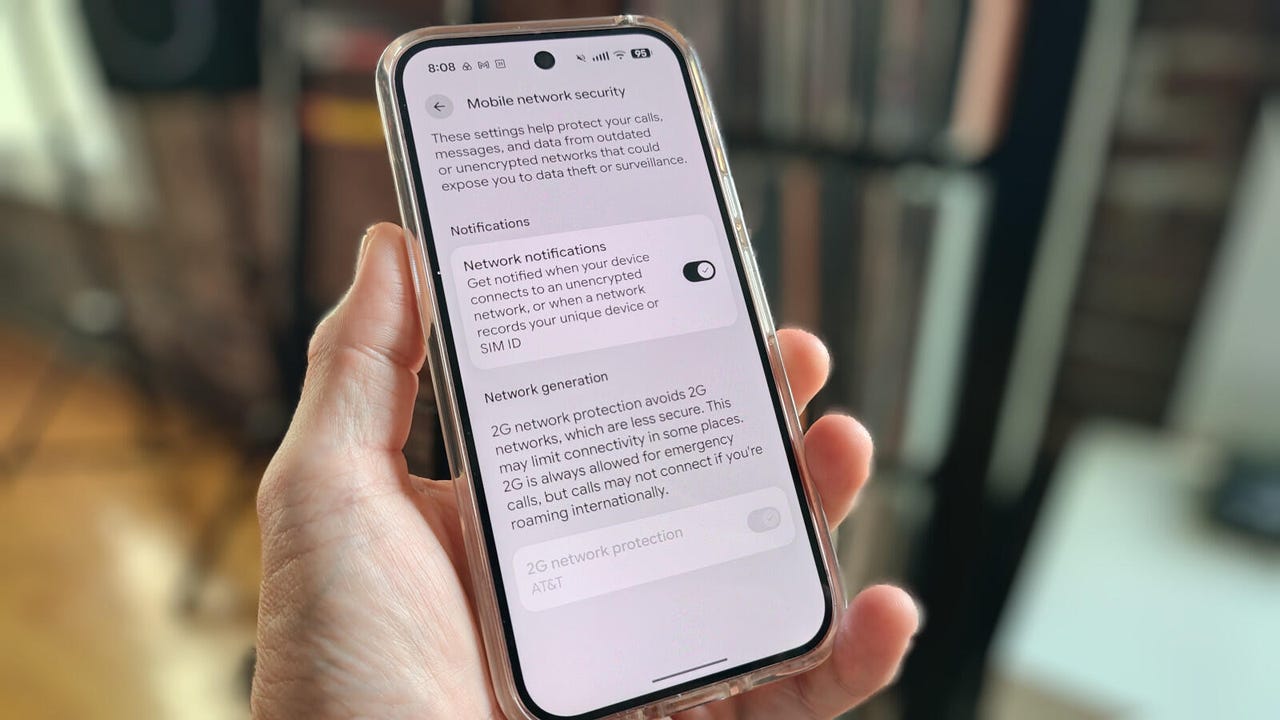
This feature is called “Network notifications.” According to the settings option, you’ll get notified when your device connects to an unencrypted network or when a network records your unique device or SIM ID.
That’s important because you may not know if you’ve connected to an encrypted network. Don’t be fooled. Just because you have to enter a password to join a network doesn’t mean it’s encrypted. A malicious actor could set up a Wi-Fi network, make it seem like it belongs to your favorite coffee shop, keep it open (no password), and wait for you to connect. If that malicious actor sets that network up as unencrypted, they can easily read your data.
And that, my friends, is why it’s important for you to enable Android’s new feature. Because Android is smarter than we are at detecting if a network is unencrypted, this feature is a no-brainer. It’s also very easy to use. I’ll demonstrate on my trusty Pixel 9 Pro.
How to know when you’ve connected to a bad network
Now that you know the “why,” let’s talk about the “how.”
You might think this would be a challenging task, but it’s far easier than you think. All you have to do is tap an on/off slider and, boom, your Android phone will inform you if your phone or tablet connects to an unencrypted (aka “bad”) network. Here’s how.
Also: Your Android phone’s most powerful security feature is off by default and hidden – turn it on now
Open the Settings app and navigate to “Network & internet” > “Mobile network security.”
This page should look familiar to anyone who’s ventured into the realm of networking on their Android device.
Jack Wallen/ZDNET
On the Mobile network security page, find the Network notifications entry (it should be at the top). Tap the on/off slider until it’s in the on position.
The Network generation option should be enabled and grayed out. If it’s disabled and you can enable it, do so immediately.
Jack Wallen/ZDNET
You’ll also notice there’s an entry labeled “Network generation” that is permanently enabled. This option prevents you from connecting your device to a 2G network, which is often used to spoof cell towers using 3G/2G IMSI catchers. If you were to connect to an IMSI catcher, it could be used for intercepting your mobile phone traffic and tracking you.
Also: Your Android phone just got a powerful anti-theft upgrade. Here’s what’s new
This is a very simple thing that every Android user should enable (if it’s available). If you don’t find the “Network notifications” section in the location as directed above, search for it in your Settings app. If it’s not there, make sure to check and see if the version of Android on your device can be upgraded.