
Why GPS Hasn’t Completely Replaced Paper Maps


Modern technology didn’t just spring up overnight; it often has roots reaching far into the past. The history of GPS navigation actually began during the cold war, marking several milestones in the subsequent decades. In terms of automobiles, GPS didn’t break out of its niche status until the 2000s. 

In a significant moment for consumer GPS, Google Maps debuted in 2005 in the U.S., though there are now several Google Maps alternatives on Android. The navigation process couldn’t be simpler, you search for a business name or enter an address, and a route is calculated with step-by-step instructions. However, you might be surprised to learn that not only are paper maps and atlases still around, but they’ve actually experienced a bit of a renaissance in the last decade.

Vice president of Rand McNally, Kendra Ensor told USAToday that by 2015, the map making company began to see increases in the sale of Road Atlases. In the U.K., map maker Ordnance Survey saw a 144% uptick in custom paper map sales in 2020, then another 28% rise in 2021. Both AAA and Rand McNally continue to offer updated physical maps, with the former still making TripTik route books, which include custom printed directions. Lost signals and a more active navigation experience are just a few of the reasons why would anyone opt for this old-school approach.

A paper map can’t lose signal

Travelers have relied on physical maps for thousands of years, but GPS has become the dominant option in the 21st century. According to a UTires.com survey, certain parts of the country, such as Bakersfield, CA, have more than 55% of respondents declaring they’re extremely reliant on the technology. The problem is, while convenient, GPS requires you have a signal, whether it be through a mobile carrier or satellite. You can utilize offline GPS apps, however that’s dependent on you downloading the information beforehand, when internet is available. It’s also noteworthy that most navigation software, like Google Maps, downloads an entire route when you first start navigating, so if you lose signal along the way, you can keep going. But if you need to start navigating without internet, that’s when you run into trouble.

In early 2026, those residing in Moscow and St. Petersburg, Russia faced intermittent and even failing mobile internet across major swaths of the cities for days. Suddenly, smartphones couldn’t access or run applications properly, with navigation being one of them. As a result, demand tripled for atlases and paper maps of these areas.

In another more anecdotal instance, a couple traveling from Canada to North Carolina found themselves amidst the chaos of Hurricane Helene which knocked out several services including internet. Fortunately, they were able to navigate and guide several travelers out of the affected area using physical paper maps.

GPS navigates for you, and can limit perspective

One of the issues with a navigation app, is that it largely does the thinking for you. After selecting a destination, your role in the navigation process is simply following on-screen prompts. Conversely, a physical map keeps you more active in the navigation process and aware of your surroundings. 

In addition, research has shown that the sensory experience of using a paper map helps the brain create a mental picture of the surrounding environment. Old school maps also provide a much greater overall perspective, reaching well beyond your selected route.

This “big picture” view can often be lost when using GPS in the car, which typically displays only the immediate area around your vehicle. If you must adjust your route using GPS, it can be more challenging on the go, as you may not understand where you’re located in relation to other landmarks or your destination. Miller Edwards, a retired detective, explained to CBS News with regard to printed maps, “They give me a general idea of a larger area that I need to go to see. They have different cities and different points of view.”


Source link

Leave a Reply

Subscribe to Our Newsletter

Get our latest articles delivered straight to your inbox. No spam, we promise.

Recent Reviews


Google Drive Organize My Files

Elyse Betters Picaro / ZDNET

Follow ZDNET: Add us as a preferred source on Google.


ZDNET’s key takeaways

  • Gemini can suggest Drive file moves and new folders.
  • Organize My Files requires Workspace or Google AI access.
  • The tool is useful but still feels limited and unfinished.

I’m an Apple person. I’ve owned an iPhone since 2007 and a Mac since before that, so of course I’m also a longtime user of iCloud Photos and iCloud Drive. I pay $10 a month for the 2TB iCloud+ plan because I have 488GB of data sitting there, including nearly 40,000 photos. Don’t judge me. The real problem is that I’m also a heavy Google user, specifically Workspace apps.

Also: I tested ChatGPT Plus vs. Gemini Pro to see which is better

After 14 years of using Google Drive, I have 340GB of data stored there from all the Google Docs, Sheets, Slides, and Gmail messages I’ve created, not to mention file uploads. So I pay $20 a month for Google AI Pro, which gives me 5TB of storage and access to Gemini AI. And because, apparently, I need all the subscriptions, I also pay $20 a month for ChatGPT Plus.

I need to cut subscriptions

I know… I need to cut subscription costs somewhere. I’ve wondered whether I should cancel ChatGPT or somehow, some way, reduce my Google usage enough to stop paying for extra Drive storage. Realistically, I do not think I could ever get my data down to the 15GB Google gives me for free. My Drive has become so daunting that I’ve mostly stopped trying to manage it.

The funny part is that I am hyper-organized. My pantry has coordinated glass jars with labels. My daughter’s toy room has a place for everything. My Google Drive, though? A dumping ground. What can I say? Pre-parenthood Elyse was not so organized.

Also: Tired of AI Overviews? I found 9 Google Search alternatives

Because my Drive has never been in a good place, I have let files, photos, screenshots, PDFs, tax documents, drafts, downloads, and random digital debris accumulate with no real oversight for years. I keep putting off cleaning it.

Recently, I had the idea that some AI service could connect to my Drive and help me quickly organize it with a few clicks. Then I remembered my Drive includes things like my house deed, a copy of my will, and my LLC business details, and suddenly giving a random third-party company broad access to my personal data felt like too much to bear.

So here we are. My Drive is still messy, and my subscriptions are still multiplying. Joy. I sure do love that in this economy.

Can ‘Organize My Files’ declutter my Drive?

But today I spotted a quiet little launch from Google: its “Organize My Files” feature is now available. Can Gemini actually, truly help me declutter, organize, and simplify my Drive now? Apparently, it uses Gemini AI to suggest moving loose files in Drive into existing folders or creating new folders for related files. And I get to review everything before anything moves.

Also: I tried Gmail’s new Gemini AI features, and I want to unsubscribe

If this works, maybe one day I can move my data out of Drive and cancel my Google AI Pro plan for good. Maybe. One day.

How Organize My Files works

What you’ll need: A Google account with a messy-as-hell Drive. Oh, and Google’s “Organize My Files” feature is currently limited to Google Workspace and Google AI subscribers. Workspace smart features must also be enabled for it to appear in Drive.

Open Google Drive

Elyse Betters Picaro / ZDNET

Look toward the top of the file and folder list in My Drive for a new button called “Suggest File Moves.” Google said it will appear in My Drive as well as in parent folders in Drive. 

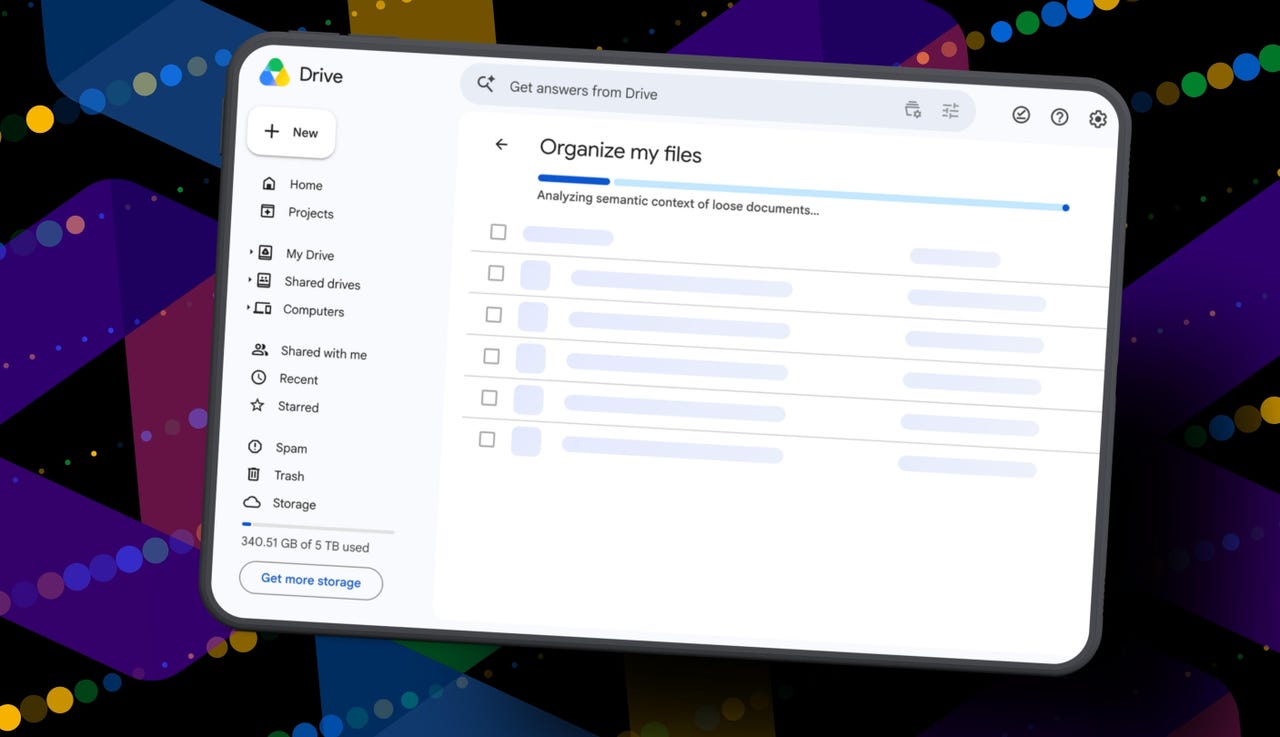
Clicking Suggest File Moves opens a new Organize My Files window, where Gemini will begin analyzing loose files and suggesting ways to clean them up.

Also: This Gemini setting made my AI results way more personal


Show more

Click Suggest File Moves

Elyse Betters Picaro / ZDNET

After a minute or so, Gemini serves up recommendations to review. They’re divided into two main types:

  • Gemini may suggest moving files into existing folders in Drive.
  • Gemini may suggest creating new folders for related groups of files.

All files and folders can be previewed through hovercards or opened in a new tab for a closer look.

Also: Is Google’s AI Ultra plan worth $100/month?


Show more

Review Gemini's suggestions

Elyse Betters Picaro / ZDNET

It’s time to use the checkboxes to select or deselect any file or folder that Gemini served up. 

Also, if a suggested folder name is weird, just rename it. Check destinations for folders, too. If they aren’t right, change the target. Once the suggestions do look right and you’re happy, approve the changes.

Gemini will then perform the file or folder moves in one batch and return to My Drive.

Also: I used Nano Banana 2 to make perfect sketchnotes: 5 lessons


Show more

Approve the changes

Elyse Betters Picaro / ZDNET

My result

After all that, Gemini suggested 19 moves for me. Nineteen. And it mostly surfaced recent files I had created or uploaded.

Some of the suggestions made sense. Gemini wanted to move my resume and a couple of resumes I had helped family members create into an existing resume folder. It also suggested creating a new Family and Real Estate folder for house deed documents, plus a Travel Planning folder for upcoming summer trip itineraries I have stored in Drive. But one of the files it grouped under Travel Planning was literally called “Delete,” because it’s a doc I want to delete. Gemini did not realize that, nor did it suggest deleting it.

To be clear, I have hundreds of gigabytes of data and years of clutter sitting in Google Drive.

Also: How I unlocked another 15GB of Gmail storage for free

Still, I approved the changes Gemini recommended. For the heck of it, I ran the tool again. In about 30 seconds, it suggested the same thing: the same file moves, the same new folders, and the same changes it had just made. This feels half-baked.

It’s not at all the sweeping cleanup assistant for Drive that I was hoping for and need. Maybe it will get better over time. It did just come out of beta, and it’s possible Google will improve how Gemini scans Drive, prioritizes older files, recognizes obvious trash, and surfaces deeper organization suggestions. I just don’t want to have to click it 500 times, hoping it finds something new each time.

Looks like I’m still stuck with a messy Drive and a $20 AI Pro subscription… for now.


Source link