Here’s A Reason Why Speed Limits May Not Be Showing Up On Google Maps For You


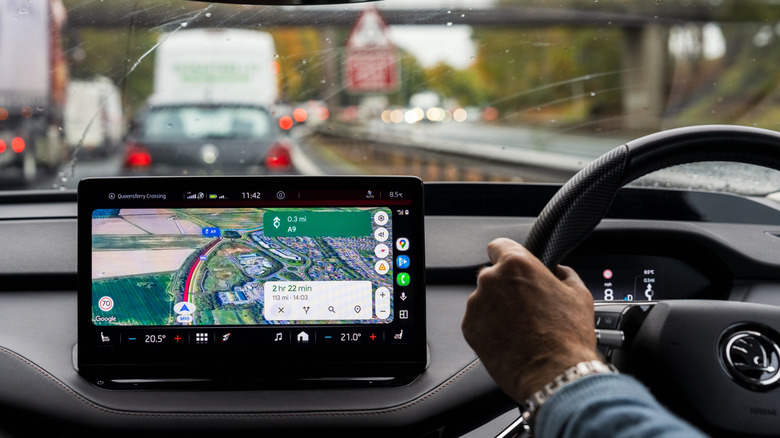
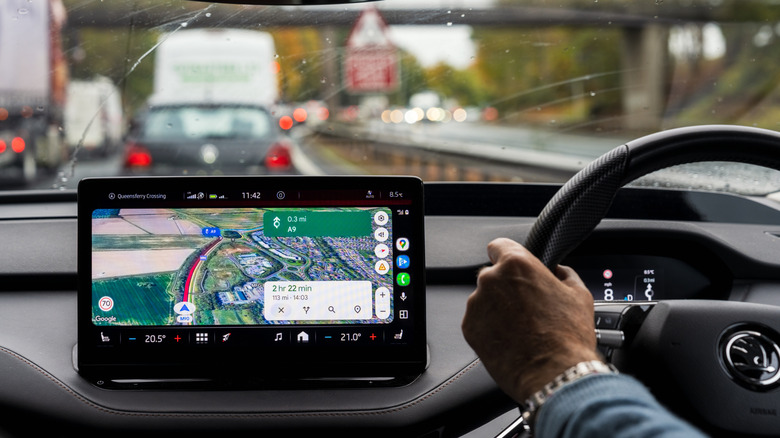
Staying under legal speed limits is one of the most basic things that drivers learn to do. However, there are times when there are no speed limit signs around, which can cause problems. That’s because the absence of a sign doesn’t mean there’s no speed limit. Thankfully, apps like Google Maps show speed limits, which can help keep you from getting fined when driving in new areas. The problem is, sometimes that feature doesn’t show up. 

There are several reasons why the speed limit option might be missing from Google Maps. First, it’s possible the country you’re in doesn’t support this feature yet. While it’s highly likely you’ll be able to get it in some major cities, there’s a chance you won’t see it if you’re traveling to rural locations. Second, you might be using an older version of Google Maps that doesn’t have this feature. To solve this, all you have to do is update your app. Third, it’s possible Google Maps has not accurately mapped the area, making speed limit data hard to get, even within the same jurisdiction. With some cities using strange signs, like those with decimal points, things can get confusing. Lastly, maybe you just haven’t enabled this feature or other related speed features on your device. If the latter is the problem, here’s how you can do it.

How to enable speed limits on Google Maps

If you haven’t enabled the speed limit option on Google Maps, all you need to do is open the app, then tap your profile picture in the upper right corner of the screen and select Settings. Under Getting Around, tap Navigation. Lastly, toggle the button next to Show speed limits. Besides the speed limit, you can also turn on the speedometer function to compare your speed to the posted limit while driving. To do this, scroll down from the Navigation tab. Under the Map display, toggle the button next to Show speedometer. Just make sure you don’t treat it as definitive, since it may not always match your vehicle’s speedometer.

Keep in mind that Google Maps isn’t a perfect solution, especially since its accuracy depends on a lot of factors. Google’s Roads API documentation says, “The accuracy of speed limit data returned by the Roads API cannot be guaranteed. The speed limit data provided is not real-time, and may be estimated, inaccurate, incomplete, or outdated.” As of June 2026, it lists more than 40 countries and regions, which it says have good data quality and availability under its coverage details. And that doesn’t guarantee that the data will remain accurate forever. 

Tips for staying under the speed limit
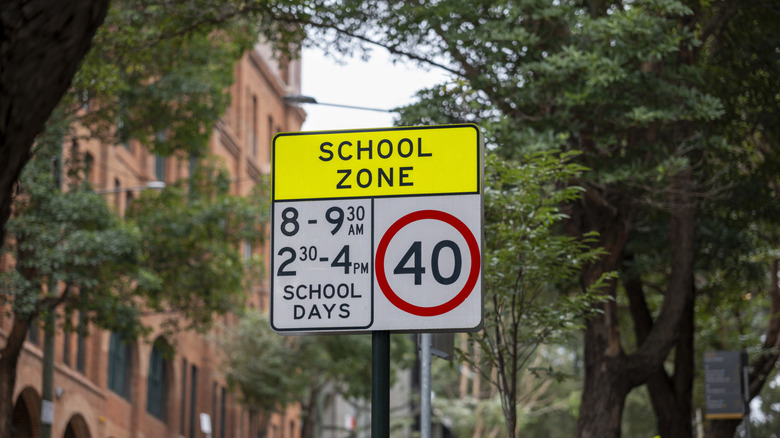
One way to make sure you’re under the speed limit is to do your research, especially if you know the Google Maps speed limit feature doesn’t work where you’re going. If you’ll be driving through multiple countries, take note of local regulations, especially when driving on highways or in residential zones. It’s also good to be alert, since some speed limits change depending on the time of day. For example, school zones may have a different speed limit during pickup and drop-off times. It can even be more challenging if you’re traveling to countries like France, where some speed limits change based on the weather. You should also pay attention to construction sites and animal crossings, which may require you to slow down and won’t always show up in apps like Google Maps. 

That said, if you’re already planning to use Google Maps for an upcoming cross-country road trip, other tips you need to know that can come in handy. For example, you can download offline maps for areas with poor data connections or add multiple stops to make your route more exciting. You can even make use of live traffic updates to avoid unexpected delays from accidents or closures.


Source link

Leave a Reply

Subscribe to Our Newsletter

Get our latest articles delivered straight to your inbox. No spam, we promise.

Recent Reviews


evergreen-deals-imagery

Hisense/ZDNET

Follow ZDNET: Add us as a preferred source on Google.


Whether you’re looking to upgrade your main TV to set up the ultimate home theater, or you’re just looking for a high-quality second screen for your home, you’d be hard-pressed to find a better option than the Hisense U6 Pro. And just in time for the FIFA World Cup, you can pick up the 75-inch Hisense U6 Pro for just under $850 at Amazon — a nearly 40% discount.

Also: TCL vs. Hisense

The Mini LED panel is Pantone Validated for color accuracy, which means you’ll get some of the best picture quality outside of ultra-premium OLED and Micro RGB models. It’s also backed up by a 144Hz refresh rate, making it perfect for smoother motion while watching live sports, streaming, and console gaming. 

Speaking of gaming, the dedicated picture mode supports AMD FreeSync Premium Pro VRR to help prevent screen tearing. There’s also an AI Sports mode that automatically detects when you’re watching a live match and adjusts the refresh rate, sound, and picture settings for the best experience, making it a fitting choice for soccer fans ahead of the World Cup.

Also: The best Hisense TVs of 2026: Expert tested and reviewed

You’ll get audio to match with support for Dolby Atmos virtual surround sound and a built-in subwoofer for deep bass tones that make movie soundtracks and your favorite music more impactful. If you prefer to have more control over your sound, you can set up home audio equipment with either the HDMI eARC connection for near-perfect video and audio syncing or via Bluetooth for a fully wireless setup. And if you’ve set up a security camera system, you can show feeds from up to four cameras at once on your Hisense U6 Pro to keep an eye on your home.

How I rated this deal 

The Hisense U6 Pro is a great midrange Mini LED TV that offers a 144Hz refresh rate, Dolby Vision IQ HDR, Dolby Atmos virtual surround sound, and built-in Alexa voice controls. The Pantone Validated panel gives you incredibly accurate colors for more lifelike images. And at a discount of nearly 40% on the 75-inch model, you’re getting an excellent value for your next home theater upgrade or second-screen addition. That’s why I gave this deal a 4/5 Editor’s rating.

Deals are subject to sell out or expire anytime, though ZDNET remains committed to finding, sharing, and updating the best product deals for you to score the best savings. Our team of experts regularly checks in on the deals we share to ensure they are still live and obtainable. We’re sorry if you’ve missed out on this deal, but don’t fret — we’re constantly finding new chances to save and sharing them with you at ZDNET.com


Show more

We aim to deliver the most accurate advice to help you shop smarter. ZDNET offers 33 years of experience, 30 hands-on product reviewers, and 10,000 square feet of lab space to ensure we bring you the best of tech. 

In 2025, we refined our approach to deals, developing a measurable system for sharing savings with readers like you. Our editor’s deal rating badges are affixed to most of our deal content, making it easy to interpret our expertise to help you make the best purchase decision.

At the core of this approach is a percentage-off-based system to classify savings offered on top-tech products, combined with a sliding-scale system based on our team members’ expertise and several factors like frequency, brand or product recognition, and more. The result? Hand-crafted deals chosen specifically for ZDNET readers like you, fully backed by our experts. 

Also: How we rate deals at ZDNET in 2026


Show more


Source link