Here’s How to Use Your iPhone’s Hidden Document Scanner, Just in Time for Tax Season


It’s pretty easy to digitally sign important documents these days from your computer or phone. But sometimes they’re handed to you as physical paper, and it’s up to you to sign it, scan it and send it over email. When you just have to put your signature on a real-life document, but you don’t have a standalone scanner handy, the easiest method to do it is right in your pocket — using your iPhone to turn images into PDFs.

Yes, your iPhone doubles as a document scanner. It may not produce images as sharp as a dedicated scanner would, but it does a respectable job, even when the phone is positioned at odd angles, trying to capture text. iPhones have had this hidden feature since iOS 11 launched in 2017, but as the cameras built into Apple phones have improved, so has their ability to take decent scans of documents and turn them into PDFs you can email. 

You won’t need to download additional software or pay for a third-party app — Apple’s Notes app that comes preinstalled on iPhones does the trick. The good news is that it’s quick and easy to scan a document, save it, and send it wherever it needs to go. If you’ve kept your phone upgraded to the latest version of iOS 26, it’s easy to use this feature. Keep in mind that the process will be different if you haven’t upgraded past iOS 17, but we’ll walk you through it.  

Here’s how to scan a document with your iPhone.

Using an iPhone as a document scanner

James Martin/CNET

Scan a document with your iPhone or iPad

To scan a document with your iPhone or iPad, first place the document on a flat surface in a well-lit area. 

Open up the Notes app and either open an existing note or start a new one by tapping the New Note button in the bottom right corner (pencil-in-square icon). On iOS 17 versions and older, tap the Camera button at the bottom of the screen (or if you’re editing a note, the same Camera icon will be above the keyboard) and tap Scan Documents. If you’re on iOS 26, instead of a Camera icon, you’ll tap the Attachments button (the paperclip icon) and likewise tap Scan Documents.

This will open a version of the Camera app that just looks for documents. Once you position your iPhone over the document that needs scanning and in view of the camera, a yellow rectangular layer will automatically appear over the document, showing approximately what will be captured. Hover over the document for a few seconds, and the iPhone should automatically capture and scan the document, but you can also tap the Shutter button in the bottom center. You can scan multiple documents at once if you’d like, and when you’re done, tap the yellow checkmark button in the top-right corner. 

Using an iPhone as a document scanner

James Martin/CNET

Sign, share or save your scanned document

Once you’ve captured a document, you can tap it, and others you’ve captured in the same session, to edit them before saving them. You can also tap Retake in the top right corner to start again.

When you edit the document, you can re-crop it from the original photo captured (if you need to tweak its edges), switch between color filters (color, black and white, grayscale or the unedited original photo). Then you can save the scanned document.

Once it’s saved into a note, you can tap the Markup button (circled pen icon) at the bottom to sketch or scribble with different colors. If you tap the Add button on the bottom right (plus sign icon), you can add text, your signature, shapes or even stickers. Once you’ve added a signature, you can tap it to bring up a menu,  then tap the diagonal line to edit its thickness and color. You can tap and hold the signature to move it around.

There are also AI tools for adding and rewriting text, though they aren’t helpful for signing documents. To use them, tap the button in the center that looks like a diagonal pencil stylus surrounded by a circle of loops. 

To send or locally save the document, tap Share button at the top (the square-and-arrow icon) to send it via Messages or apps, copy it, save it locally to the Files app, print it out via linked printer or other options.

How to export your scanned document as a PDF

Understandably, you may want to send your scanned document as a PDF. Tap the Share button at the top (the square-and-arrow icon) and scroll down below the contact and app roulettes to the additional list of options. 

The easiest way to send your scanned document as a PDF is a bit convoluted: among the aforementioned list, tap Print and then tap the Share button at the top (square-and-arrow icon) once more — this will share your PDF-converted document. Then pick your share method of choice, most easily via email, though you can also upload it to cloud storage or send it via text message if you want.

You can also use a third-party app to convert your document to PDF if you so choose. Scroll down past the Print button to find your app of choice. For instance, if you have the Adobe Acrobat app downloaded to your device, you can select Convert to PDF in Acrobat to do so — though you’ll need to wade past several screens attempting to upsell you on Adobe subscriptions first. 

Why can’t I find the camera button to scan documents?

If you’re running iOS 26, the Camera button has been replaced with an Attachments button (paperclip symbol). It should function just the same: Tap it and choose Scan Documents from the dropdown menu

If you can’t see the Camera or the Attachments button, check to see if you’ve opened the note in either the iCloud section or the On My iPhone section — you’ll only be able to scan documents and save them in either of these places. If you can’t tell, tap Folders in the top left corner of the Notes screen and select either iCloud or On My iPhone. 

The document scanner is just one of many unnoticed iPhone features that come prepackaged in Apple’s handsets, often nested in the apps that come with your phone. Some hidden iOS 26 features add even more surprising capabilities already on your iPhone. But you can also find ways to do other tasks, like making a GIF on your iPhone, using third-party apps and through your browser.

Watch this: 26 More Things Hidden in iOS 26


Source link

Leave a Reply

Subscribe to Our Newsletter

Get our latest articles delivered straight to your inbox. No spam, we promise.

Recent Reviews


We may receive a commission on purchases made from links.

Michelin is a French multinational company that many consumers consider to be one of the most satisfying major tire brands. This firm makes several tire models that offer comfort, performance, all-terrain prowess, and everything in between — including cutting-edge products like the $42,000-per-set Michelin Pilot Sport PAX that it developed specifically for the Bugatti Veyron. Aside from its own tires, Michelin also owns other tire brands that you might be familiar with, including BFGoodrich, Achilles, and Corsa.

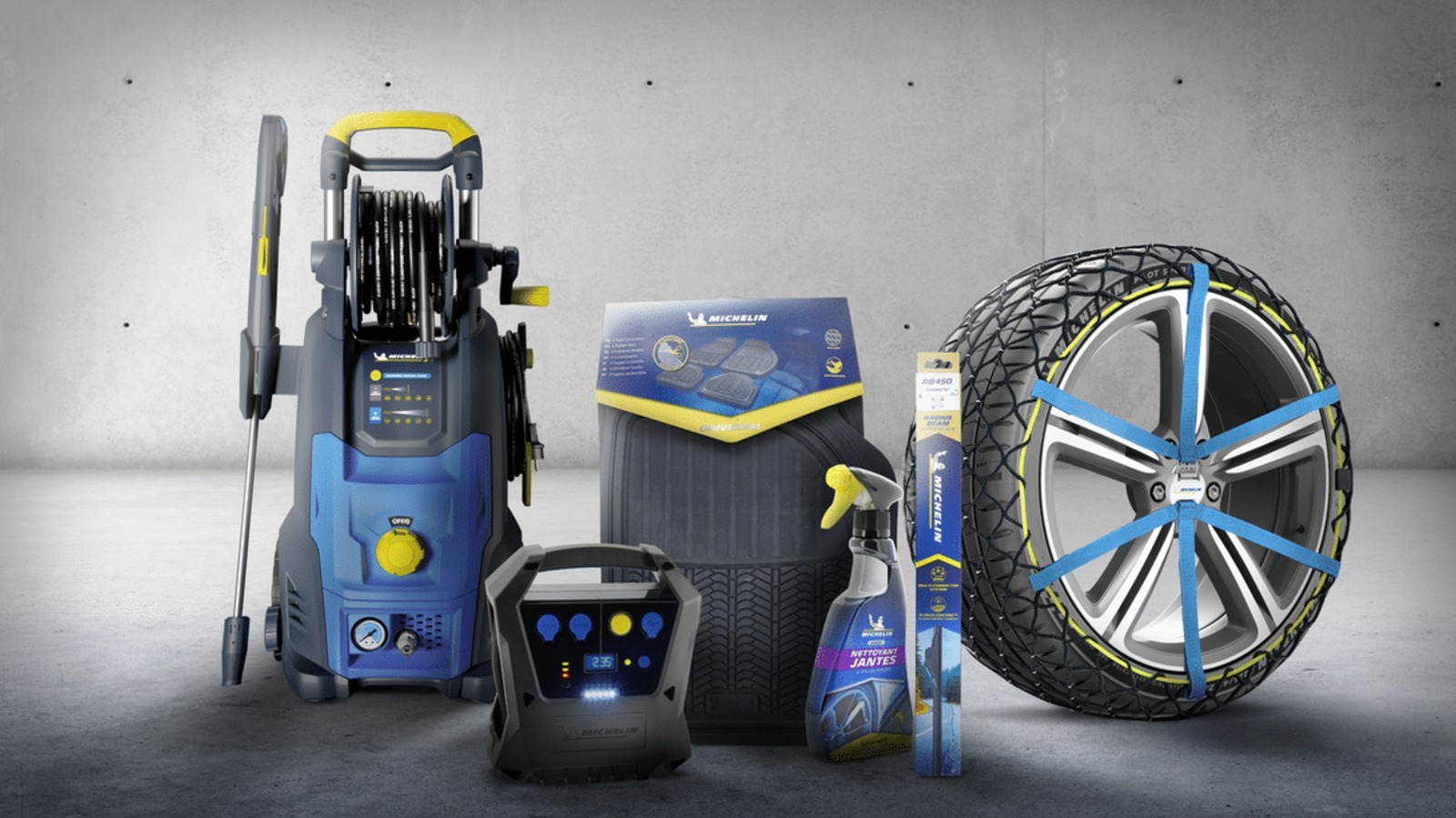
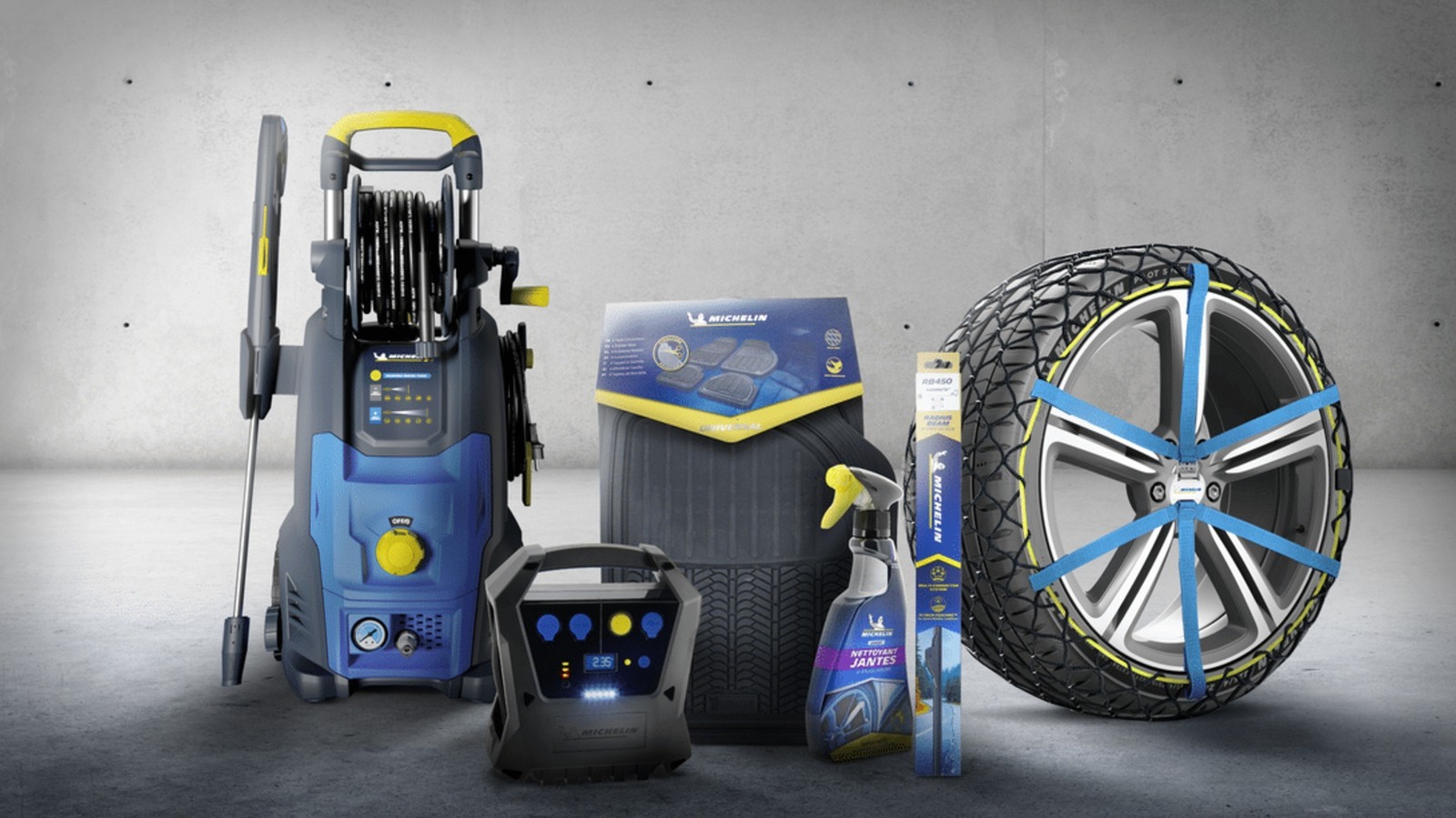
While tires are what Michelin is known for, the company has put its name to more than the rubber that wraps around your car’s rims. In fact, the company sells several other products that aren’t tires. So, we’re listing a few Michelin-branded items that you can buy online and in retail stores. While they might not all be made of rubber or even related to vehicles, these tools and accessories can come in handy when keeping your car — and even yourself — in good shape.

Michelin tire inflator

Since Michelin is primarily known for its tires, it makes sense for the company to sell a Michelin-branded tire inflator as well. That way, if you get a flat on one of the Michelin tires on your car or want to regularly top up your car’s tire pressure to maintain optimum performance, you can use a Michelin-branded pump to fill up your tires. The company actually sells several types of inflators on its Amazon page, but it only offers a single motorized unit — the Michelin Micro Tyre Inflator, which is available on Amazon for $98.99.

This little device is only slightly wider than an iPhone 17 and weighs about 400 grams, or 14 ounces. This means it’s easy to store in your car and to move to whichever tire needs topping up. More importantly, it takes power from a 12-volt socket, allowing you to run it using your car’s battery. It also has a USB port for charging your phone (or any other USB device) in case of an emergency.

Some users say that the device is slow, taking about 12 minutes to bring a tire from 10 to 32 PSI, but that’s not unexpected given its small size. Still, it should be good enough for regular weekly maintenance if you know your car’s proper tire pressure, or in case of an emergency. Its biggest downside is that you need a power source to run it, but having a dead battery and a flat tire simultaneously is likely a rare occurrence in many modern cars.

Michelin mini fridge

Taking a road trip during the summer can get you thirsty, and there’s no better way to quench that thirst than by drinking a cool can of soda (or your beverage of choice). If you want to ensure that you’ll always have a cold drink ready while you’re driving on the freeway, Michelin’s mini fridge will help you with that. This nifty little refrigerator is available on Amazon for just $99.99 and can be connected to either 110V AC or 12V DC power, ensuring that it will work on both your desk and in your car.

The mini fridge measures 6.9 x 9.45 x 10 inches (17.5 x 24 x 25.4 cm), meaning it can easily fit on a garage shelf or office desk. It should also be small enough to put on the floor of your car. Despite that relatively small size, it’s large enough to fit six 350-ml cans or four 500-ml bottles, and it will keep these items at a chilly 32 degrees Fahrenheit or 18 degrees Celsius. It also has an LED light on the door, so it can double as a night light if necessary.

Aside from keeping your drinks (and other food items) below room temperature, it also has a few other creature comforts. These include a removable shelf and door basket for flexibility and easy cleaning, as well as a retractable carry handle and a self-locking door to make transportation easier.

Michelin car floor mats

Heavy-duty car floor mats are often made from rubber for durability and water resistance, and since Michelin is in the business of rubber, it makes sense for the company to offer exactly that. So, if you want to protect your vehicle’s floor from dirt, dust, and mud, the company can help you with its Michelin all-weather car floor mats. This four-piece package is available on Amazon for $49.99 and comes in either black or tan.

The surface of these floor mats is specially designed to trap debris, snow, and water, preventing them from ruining the carpet on your vehicle. The mats have a cleat backing that grips your car’s floor and prevents them from slipping. The front row mats also come with what Michelin calls a Gripclip Retention System, allowing them to clip into your vehicle’s safety clips and adding even more reassurance that they won’t accidentally slip while you’re driving and pose a hazard to your safety.

These mats are universal and will work in most vehicles. However, they’re also easy to customize: If you find them a bit too large for the footwell of your tiny hatchback, you can use a pair of scissors to trim the edges for a perfect fit.

Michelin Stealth Ultra wiper blades

While Michelin’s Stealth Ultra wiper blades aren’t generally considered among the best windshield wipers, they appear to be a pretty good choice given their four-star rating on Amazon. These wipers cost $49.99 and are available in various size combinations for all sorts of cars. This ensures that no matter what vehicle you’re driving, you can probably find a set that will fit your needs.

These Michelin wipers are curved to conform to the shape of your windscreen for a clean, streak-free wipe. The company’s Amazon listing claims that these are designed to “withstand rain, wind, snow, mud, dust, or any other debris that might hamper your windshield’s visibility.” While you might think that windshield wipers are pretty simple items, and that you can just purchase any generic wipers off the internet, you must remember that they’re essential so that you have the best visibility possible during inclement weather. So, for your safety, consider investing in a set from a reputable brand like Michelin.

Michelin work boots

Michelin is known for making rubber tires to put on your car’s “feet,” but did you know it also makes shoes for the driver’s feet? The company makes sports & outdoor footwear, as well as shoes for work and safety. For this example, we have the Michelin HydroEdge Steel Toe waterproof work boot, listed for $210 on Amazon and at Georgia Boot. This shoe is available in U.S. sizes from 7.5 up to 14, ensuring that no matter what size you wear, you can get a Michelin work boot for yourself.

As the name suggests, this pair of shoes has steel toes to protect your feet from accidental impacts and is fully waterproof to help keep your feet dry, even in supposedly severe conditions. It also meets ASTM F2413 standards for electrical protection, meaning it has fully insulating soles to protect you from electrical hazards at work. Michelin also added what it calls an Advanced Rear Suspension system to its heel, ensuring proper shock absorption when you walk.


Source link