How I made my Windows 11 widgets truly useful: 8 simple tweaks to try before you hide them


The Widgets pane in Windows 11

Lance Whitney/ZDNET

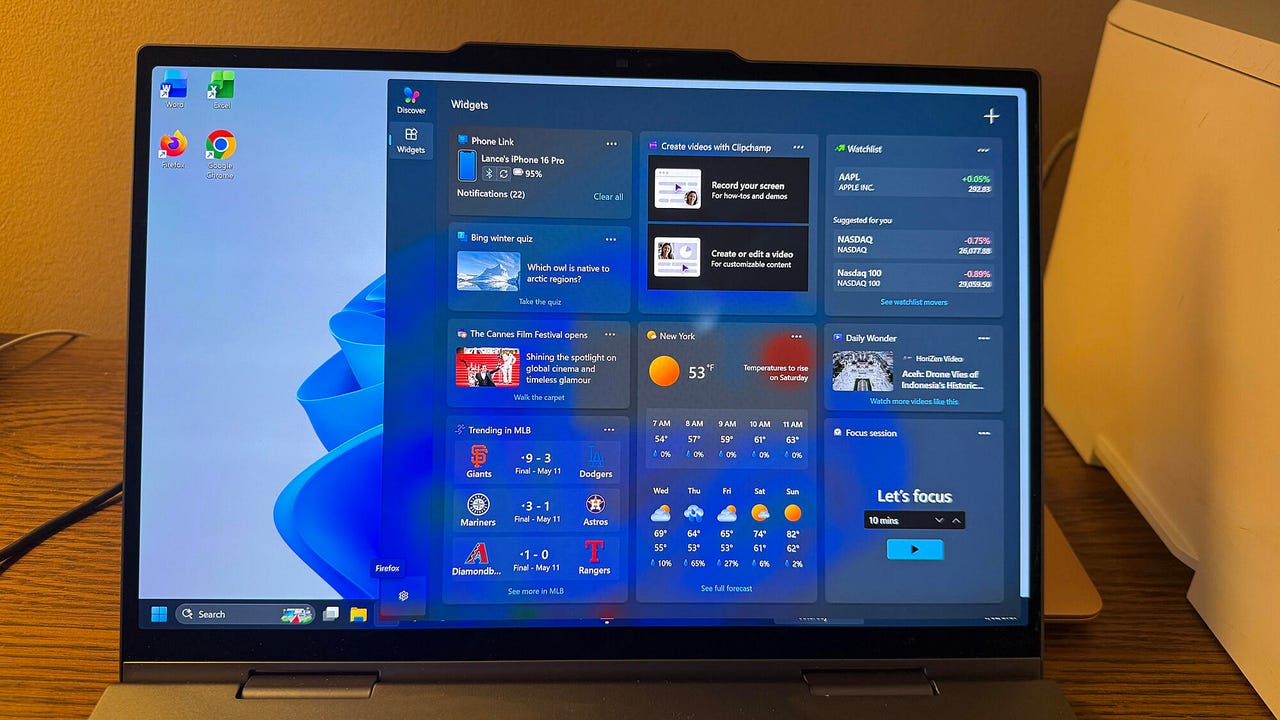
The Widgets pane in Windows 11 has been a contentious feature from the get-go. That’s partly due to the content it offers but also because of how easy it is to accidentally trigger it. By default, just hovering over the Taskbar icon causes the Widgets pane to fly out, interrupting whatever you’re doing.

Also: Microsoft announces sweeping Windows changes – but no apologies

Yes, you can restrict and even hide the taskbar icon — and I’ll show you how to do that. But not so fast. You can also tweak the Widgets feed to show stories that are more useful and interesting to you. That’s what I’ve done, and that’s why I find the Widgets of value whenever I want to get the latest news, weather, notifications, stock quotes, and more. Here’s how you can do the same.

Maybe you just don’t want to see or access the Widgets at all. You want it out of your Windows life completely. OK. Go to Settings, select Personalization, and click Taskbar. Under Taskbar items, turn off the switch for Widgets, and poof, the Taskbar icon vanishes.


Show more

Hide the Widgets taskbar icon

Screenshot by Lance Whitney/ZDNET

Ah, but there’s another way. This is the method I use since I want to keep the Widgets pane accessible. Instead of triggering it by hovering over the icon, click it to open the pane. To do this, launch the Widgets pane and click the Settings icon in the upper-right corner of the window. Turn off the switch for “Open Widgets board on hover.” Close the Settings window and then click anywhere to close the Widgets pane. Now try hovering over the Taskbar icon and you’ll see that nothing happens. Click the icon, and that’s when the pane flies out.


Show more

Stop accidentally triggering the Widgets pane

Screenshot by Lance Whitney/ZDNET

With the Widgets pane visible, you may want to review the available info before customizing and personalizing it. The feature offers two main feeds — a Discover feed for MSN content and another feed for your actual widgets. In the MSN feed, the pane displays three menus at the top — Discover, Watch, and Play. You have to switch among the three to segue from news to videos to games.

Also: Windows changes are coming: Here’s how to get a sneak peek at what’s next

In an effort to make Windows 11 more user-friendly, Microsoft has been tweaking several features in the OS, including Widgets. The newest look dispenses with the three separate menus in the Discover feed and instead includes all the content in one place. Depending on your Windows 11 version, you should be able to switch between the old and new looks.

Open the Widgets pane. Turn on the switch for “Switch to new look” to get rid of the three separate screens. You can then jump between the Discover feed and the Widgets feed.


Show more

Browse the Widgets pane

Screenshot by Lance Whitney/ZDNET

Scroll up and down the Discover and Widgets feeds to see all the stories and other content available. You’ll see that the Discover feed displays one column with weather, stock quotes, and more on the left and another column with news items on the right. Click a particular story or other item to view it in full. To see a new batch of stories, click the Refresh button at the top.


Show more

View stories and other content

Screenshot by Lance Whitney/ZDNET

You can indicate whether you like an individual story. Hover over the story’s card and click the thumb’s up icon to give it a like.

View stories and other content

Screenshot by Lance Whitney/ZDNET

The Widgets feed displays individual cards with daily information or access to certain built-in tools. Click the Widgets icon and then select a particular item to view it or work with in a separate web page.

Also: I tried this free Windows cleanup tool to see if it’d speed up my PC – and it worked

View stories and other content

Screenshot by Lance Whitney/ZDNET

In the Discover feed, you can add, remove, and change the individual cards that appear. On the left side, hover over one of the cards and click the ellipsis icon. Depending on the card’s content, you can usually hide the card and sometimes tweak it to personalize the information. For example, you’re able to change or manage the location for the Weather card.


Show more

Customize the Discover feed

Screenshot by Lance Whitney/ZDNET

Next, you can add or block a news source or channel. Click the ellipsis icon for a particular story. Select Follow to add the source to your list and see more stories from it. Select Block to stop seeing stories from that channel.


Show more

Add or remove a news source

Screenshot by Lance Whitney/ZDNET

To add or remove individual cards, click your profile photo or icon at the upper right. At the Personalize screen, select the heading for Info cards. Click each card and flip the switch to turn it on or off.

Also: The best laptops you can buy: Expert tested and reviewed

Add or remove a news source

Screenshot by Lance Whitney/ZDNET

You can tweak the Discover feed to personalize it even more. Click your profile icon again. Select the heading for Discover. Review the recommended topics and publishers and click the plus icon for any you wish to follow.


Show more

Personalize the Discover feed

Screenshot by Lance Whitney/ZDNET

Select the heading for Following. Here, you can review all the channels you’re following. Click Unfollow for any you want to remove.

Also: Microsoft PowerToys now lets you control your monitor from the taskbar – here’s how

Personalize the Discover feed

Screenshot by Lance Whitney/ZDNET

Select the heading for Blocked to review all the channels you’ve blocked. Click Unblock next to any you wish to allow back in your feed.

Personalize the Discover feed

Screenshot by Lance Whitney/ZDNET

Select the heading for Notifications. This list shows you the topics for which you’ll receive notifications. Turn off the switch for any to stop its notifications. Turn off the switch for Get Notifications to stop them all.

Personalize the Discover feed

Screenshot by Lance Whitney/ZDNET

Next, you can tweak the Widgets feed. Click the icon on the left for Widgets. To remove a widget, click its ellipsis icon and select Remove.


Show more

Customize the Widgets feed

Screenshot by Lance Whitney/ZDNET

To add a new widget, click the plus icon in the upper right. Select each of the categories on the left. If the Add widget icon is grayed out, then that widget is already in your feed. Otherwise, click the Add widget button to add it.

Also: Windows 11’s new Low Latency Profile may give your PC the speed boost it deserves

Customize the Widgets feed

Screenshot by Lance Whitney/ZDNET

You can customize certain widgets. For example, click the ellipsis icon for Weather and select Customize Widget. You can then change the location to a different city and the temperature unit between Fahrenheit and Celsius.

Customize the Widgets feed

Screenshot by Lance Whitney/ZDNET

After you’ve set up all your widgets, you can fine-tune the layout of the feed. Click the ellipsis icon for any widget and you may see options for Small, Medium, and Large. Select the size you want.


Show more

Adjust the layout of the Widgets feed

To move a widget, again click its ellipsis icon. From the menu, you’re then able to move it up, down, left, or right depending on its current position.

Adjust the layout of the Widgets feed

Screenshot by Lance Whitney/ZDNET

You can also manually move widgets by dragging and dropping them. Press down on a widget with your mouse or trackpad or with your finger on a touch screen, move it to its new spot, and then release when it’s in place.

Adjust the layout of the Widgets feed

Screenshot by Lance Whitney/ZDNET

Also: These 5 critical Windows Defender settings are off by default – turn them on ASAP

Though the Widgets pane sometimes feels like a real pain, don’t dismiss it so easily. By tweaking how it works and what content it shows, you may find it more useful than you expect.




Source link

Leave a Reply

Subscribe to Our Newsletter

Get our latest articles delivered straight to your inbox. No spam, we promise.

Recent Reviews


If Game Two of their first-round playoff series with the Denver Nuggets saved the 2025-26 season for the Minnesota Timberwolves, Game Three showed why it should be saved. 

The Timberwolves were a different beast while decisively thumping the Nuggets, 113-96 Thursday night at Target Center, in a game that wasn’t nearly that close. These Wolves were the mythical creature we’d heard about in preseason lore, purposefully locked and loaded to be both marauding and staunch. They owned both ends of the court, gleefully transferring back and forth from irresistible force to immovable object. 

A quartet of Timberwolves deserve special mention, but it begins with Jaden McDaniels. After his team had toppled Denver to even the series at a game apiece Monday night, McDaniels used the sizable chip on his shoulder to etch some graffiti into the public discourse, casually castigating the most prominent Nuggets players by name as “bad defenders” in a matter-of-fact manner that had the media compelling him to confirm what he had just said. 

Trash talk is fleetingly fungible in the jaundiced social environment of 2026, functioning more like coupons than currency in that it needs to be rapidly leveraged before its expiration date. The common perception naturally was that McDaniels was calling out the Nuggets. But in a more subtle, profound way, he was also putting his teammates on notice. 

All season long the Timberwolves have procrastinated on their full potential, frequently demonstrating that their preseason talk about maturity and commitment was cheap. By contrast, those words uttered by McDaniels were expensive. He had just picked a fight with the opponent, leaving open the question of how many of his teammates would join him in the fray. 

That he would lead the charge was established early, after the Timberwolves’ top two scorers, Anthony Edwards and Julius Randle, had each missed a pair of open looks against Denver’s bad defenders in the game’s first 90 seconds.  

With the game still scoreless, the NBA’s best pick-and-roll combo, Nikola Jokic and Jamal Murray, were clustered around the foul line with Minnesota’s best defenders, McDaniels and Rudy Gobert. As they jammed up Jokic, McDaniels picked the ball loose and started sprint-dribbling the other way. To no one’s surprise, Donte “Ragu” DiVincenzo was also on his horse in transition, receiving a pass from McDaniels and then lobbing it back for a Jaden slam against a hapless Murray and Murray’s late-arriving teammate, Cam Johnson, who committed the foul that allowed McDaniels to finish with the “and-1” free throw. 

On the Timberwolves next offensive possession, McDaniels muscled his way to two offensive rebounds, feeding Ragu off the first one for a missed three-pointer, which he corralled for the second one and executed the putback in traffic. It was McDaniels 5, Nuggets 0, setting the tone for a game in which not only did the Wolves never trail, but never let the lead go under double digits after McDaniels made a consecutive pair of driving layups eight minutes into the game. 

“Spectacular. I thought his activity offensively in the first quarter was outstanding,” said Wolves coach Chris Finch after the game. “He was inspirational.” 

Among the most inspired were McDaniels fellow wing players, Ragu and Ayo Dosunmu. Ragu is exactly the kind of player who will have your back in a squabble, and his galvanized performance seemed borne of satisfaction that someone else had clarified the mission. As usual, the Timberwolves were at their best with him on the court: +20 in the 32:54 he played, -3 in the 15:06 he sat. 

“He makes so many hustle plays, momentum plays, different styles of plays.” Finch raved. “He’ll make a shot, get a transition bucket, he’ll rebound, get a steal, blow something up. So many different plays. He’s just a basketball player.”

Related: How the Timberwolves sparked a season-saving Game 2 comeback over the Nuggets in Denver

Then there was Ayo, whose fearless, blazing, bee-lines for the bucket were quicksilver kryptonite for a Nuggets defense that is neither swift nor rugged. “I’ve been waiting for him to wake up a little bit in this series,” Finch accurately observed. “The downhill mindset that he played with all season for us was back.”

Back with the sort of multipurpose propulsion that leaves witnesses with giddy whiplash. Ayo led the team with 25 points and 9 assists in 32 minutes of time-lapse hoops, the lone blemish being three clanks from long range. Why chuck treys when you can so easily undress players in the paint? Ayo was 10-for-12 on two-pointers and none of those dozen shots came from anywhere but beneath the rim. Five of his nine dimes likewise yielded layups or dunks, which means he personally accounted for 30 of the 68 points in the paint by the Timberwolves on Thursday, doubling up the Nuggets’ 34.

Which brings us to the non-wing in Game 3’s ring of honor, Rudy Gobert. For the third straight game, Gobert blunted the supposed advantage Denver had with the magical playmaker Nikola Jokic at the controls. Suffice to say that in the last five quarters, Jokic has shot 8-for-33 from the floor. If that continues, the Nuggets are toast in this series. 

When I asked Finch after the game if the herculean job Gobert was doing on Jokic made planning his defense simpler and better thus far, he replied, “Rudy is making all of us look good right now with his defense.” 

Amen.

If there is an asterisk on this game, it would be the absence of Denver’s brutishly versatile power forward Aaron Gordon. Nuggets coach David Adelman should be given a lot of credit for his honesty and transparency in dealing with the media during his first full season at the helm, but it came back to bite him and his team during the pregame presser, when he was clearly rattled and dejected by the sudden unavailability of Gordon, whose playing status went to “probable” to “out” in a period of a few hours due to a chronic calf strain. 

Gordon is far and away his team’s best defender, making the timing of his injury especially troublesome in the wake of McDaniels laying down his marker. Rattled is a good way to describe the entire team’s performance in the first quarter, an emotional wounding that needs to heal as fast as Gordon’s body if the Nuggets are going to be competitive in a series that had dramatically been flipped on its head over the past three days. 

That the Timberwolves played with such dominance despite mediocre outings from Ant and Randle would be a good thing for both of those current cornerstones to keep in mind. Ant was beset by foul trouble and Randle had a solid second quarter, but it stood out that neither player fully embraced what so often works on offense when the Wolves are at their best: Push the pace, move the ball, move without the ball, and make quick decisions. Ant and Randle can still be first among equals and blend into that catechism if they stay attuned to the possibilities of a greater good, one that all of sudden doesn’t have to end with them being postseason fodder for the Spurs or the Thunder. 

Not when you’ve got three wings at a collective peak, with a chaser of Rudy semi-clowning the Joker. 


Source link