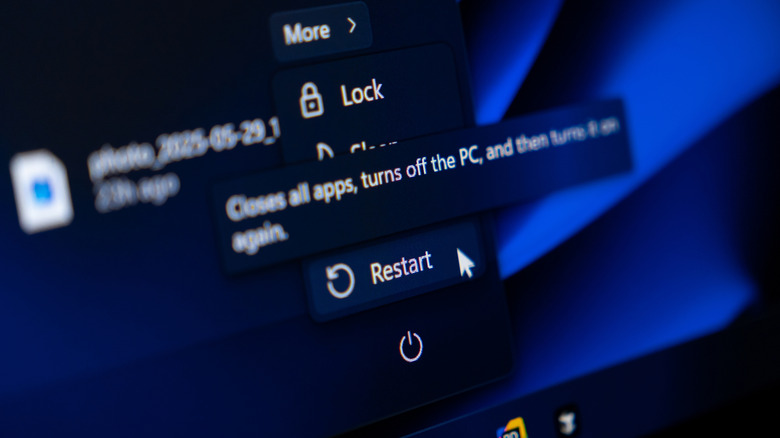

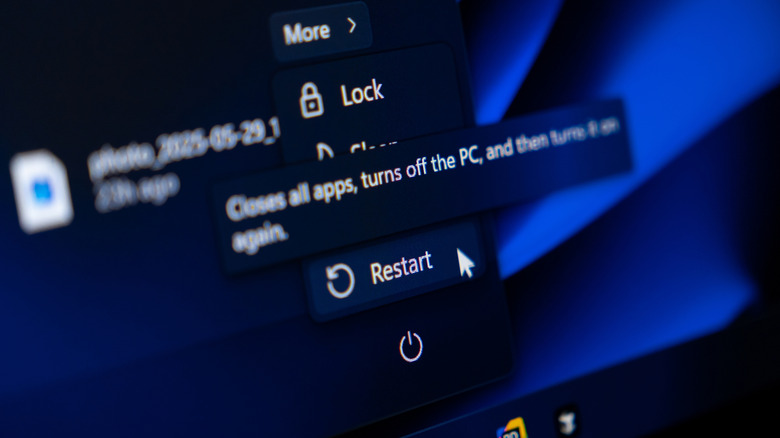
It’s safe to say that the efficiency of modern computers has spoiled most of us. Operating systems can implement different low power states, like hibernation and standby modes, to keep our devices ready to resume use at a moment’s notice. While that is certainly a feature most of us wouldn’t want to live without now, perpetually relying on low power modes and never fully restarting a laptop can lead to sluggish performance or even unexpected shutdowns.
In the same way that you should restart your smart TV on a regular basis, the same is true for your laptop. While finding a balance between closing the lid and actually restarting will vary based on your use habits, the prevailing wisdom dispensed by experts is that a regular reboot once a week is the sweet spot. Weekly reboots are also one way to make your laptop last longer.
For heavy users who rely on their laptops for work twice a week may be better. Of course, if you don’t plan on using your device for a prolonged period of time –- even just over the weekend –- powering it down is ideal.
Regular reboots keep the OS running smoothly and can prevent common slowdowns

Regardless of the device, fully restarting or rebooting it has the same benefits: it clears cache and memory, reinitializes the operating system, and ensures updates are applied correctly. For computers specifically, it also ensures that driver updates are applied and that drivers are restarted properly, which can prevent common hardware or software glitches. Many OS updates also require a full reboot to be applied correctly.
Memory leaks stemming from applications that are suspended in the background for too long are another concern when over relying on sleep or hibernation modes. Memory leaks occur when an app allocates memory, but then fails to release it, which can eventually exhaust system memory and lead to crashes. Regular reboots can prevent this from happening.
Depending on your schedule and use cases, you may be able to incorporate automated restarts. There’s a few ways to do this in Windows 11, but the Task Scheduler is going to be the most straightforward. With macOS, you can use the “pmset” command in Terminal to schedule your Mac to restart or shutdown on a set schedule.
You should always restart when your laptop feels sluggish or if you’re noticing hang-ups, but making a regular restart a habit is part of a broader device maintenance pattern can make your laptop last longer.

Stephan is the sports journalist for the Maple Grove Report.