
Follow ZDNET: Add us as a preferred source on Google.
ZDNET’s key takeaways
- Pixel users are seeing battery issues after the March update.
- Google hasn’t acknowledged the source of the problem.
- I tried some temporary fixes that helped my phone’s battery life.
The March Pixel Drop introduced a number of useful additions, such as live location sharing in Messages, but it also seems to have created serious issues. Since the drop, users on Reddit and the official Google support forums have complained that their phones’ batteries are dying much more quickly than usual.
I’ve been seeing these issues on my Pixel 9 Pro XL. Since the update, I’ve had to charge my phone around 3 p.m. every day, when it usually lasted all day. Today, for example, it’s a little before 11 a.m., and my battery is already close to 50%, or about 10% an hour — and that’s with only about 45 minutes of screen time.
Also: The latest Pixel Drop arrives with 8 useful upgrades for your Android phone – what’s new
Google hasn’t acknowledged the issue (I have reached out), and I didn’t see anything out of the ordinary in my phone’s battery usage info, so there’s no official fix yet. Users have speculated about different causes, but nothing has been confirmed.
What I did to conserve battery life
In the meantime, here’s what I’m doing to conserve battery. ZDNET’s Jason Howell put together a list of 8 ways to prolong your Pixel’s battery life, and while none of them specifically target the current issue, they will help your phone last a little longer. I implemented a few of these, and from 11 a.m. to 2 p.m., my battery only went down 20%, or about 5% an hour, with about the same usage.
Here’s what I did.
1. Use Battery Saver
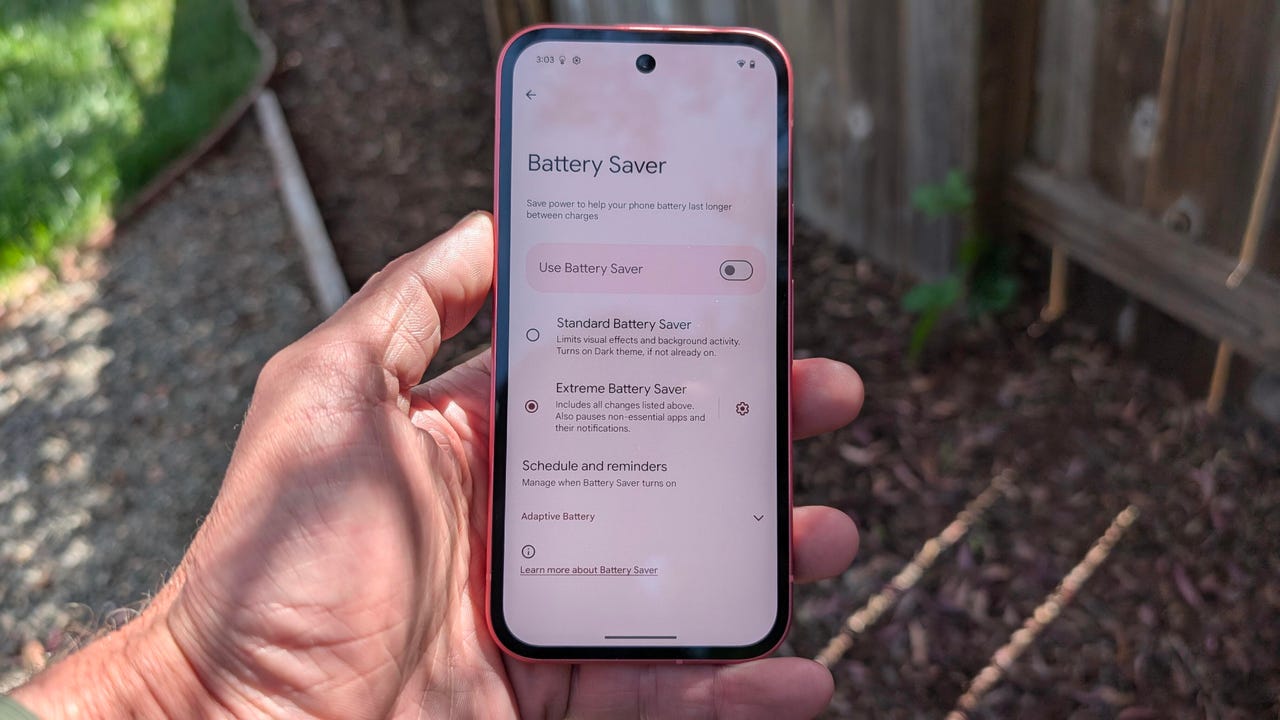
The most obvious option is to enable Battery Saver. This limits background activity on your phone, reduces your screen brightness, and slows the CPU, among other things. You don’t lose much functionality, and you get a much longer battery life. There is also Extreme Battery Saver, which turns off more features and pauses most apps. This is under Settings > Battery > Battery Saver.
Also: How to use Google Messages’ new Trash feature to recover texts you accidentally deleted
2. Turn on Adaptive Battery
Adaptive Battery is “one of Google’s most effective battery-saving tools,” Howell said, explaining that it determines which apps you are likely to use most and when, limiting background power to less important apps and adding hours to your daily battery life. This might not be an immediate help since it takes a little while to learn your habits, but it would be beneficial over time. You’ll find this under Settings > Battery > Battery Saver.
3. Use Adaptive Brightness (or manual dim)
Another feature that changes settings for you on the fly, Adaptive Brightness learns your preferences and habits and adapts your screen’s brightness accordingly. Your display is one of the biggest battery drains, so keeping your screen dimmer when you don’t need it will prolong your battery life. This is under Settings > Display > Adaptive Brightness. If you’d rather not do that, just dimming your phone screen to where you can still see it, but it’s not blaring, will help too.
Also: Own a Google Pixel? 8 settings I changed to prolong the battery life by hours
4. Turn off ‘Mobile Data Always Active’
Even when you’re on Wi-Fi, your phone keeps mobile data active, Howell explained, so the transition is quicker when you leave Wi-Fi. Working from home all day, I’m always near my Wi-Fi, so I don’t mind if my phone is a little slow to change to mobile data when I leave. You’ll need to dig into developer settings to find this one. Go to Settings > About Phone and tap Build Number seven times. That unlocks Developer Options. From there, go to Settings > System > Developer Options, find “Mobile data always active” and switch it off.