
Lincoln’s Navigator L May Not Have A V8, But Don’t Doubt Its Commitment To Excess


For a long time, the Lincoln Navigator name has been synonymous with large luxury. The hulking three-row SUV has been around for nearly 30 years, and it’s forged a path wide enough for other SUVs to follow behind it. Capable of pulling a large trailer while also transporting a large family, the Navigator L (or the long/extended version) is one of the top choices for families who want to combine space, utility, and luxury. And in 2026, it’s still at the top of its class.

The 2026 Navigator L has a giant and well-organized interior, loads of the latest tech, and robust power from a twin-turbo V6. Interior quality is excellent, the stereo has enough speakers to pump sound through every bedroom of a palatial estate, and enough cargo space for just about every suitcase you own. 

There are some drawbacks to a big vehicle like the Navigator, but they’re drawbacks that span basically the entire class of high-end, three-row luxury SUVs. It’s expensive, generally inefficient, and a bit difficult to maneuver in tight spaces – and isn’t that what sizable family-hauling SUVs are all about?

Well-equipped and unsurprisingly expensive

To test out the latest Navigator, Lincoln sent me the mid-level trim, in its biggest size; we’ll get to that in a moment, but let’s talk about how to get there first. There are two main versions of the Navigator and three trim levels to choose from: The standard-length Navigator and the longer Navigator L are the two versions, while the Premiere, Reserve, and Black Label cover the bases as far as trim levels are concerned.

At the base Premiere trim, in the standard length, the Navigator will cost you $95,715 (including $2,895 destination fee and $825 acquisition fee). The L version adds $3,000 to that price tag, and it carries that premium all the way up the ladder of the other trims. 

Standard equipment includes stuff like heated and ventilated front seats, heated second-row seats, tri-zone climate control, Lincoln’s expansive dashboard-dominating screen system, a 14-speaker stereo, 14 USB ports throughout the cabin, and a number of high-tech driving aids like adaptive cruise control, lane-keep assist, and a 360-degree parking camera. There’s no poorly-equipped version of the Navigator, but if you don’t need the ultra-plush add-ons, the Premiere is where it’s at.

This as-tested model has a lot going for it
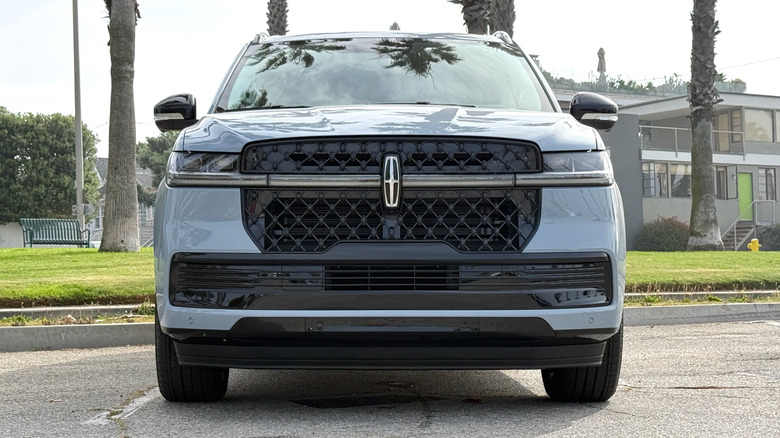
The mid-level trim known as the Reserve is what I tested, and it comes with all sorts of gear. It starts at $105,715 and adds equipment like a panoramic sunroof, and a 28-speaker stereo. With a few options, like second-row seats with heating, ventilation, and massage, as well as a trailer-tow package, and a Jet Appearance package, the as-tested price for the larger Navigator L Reserve I drove was $115,985.

You can still go up from there, with the Black Label trim going well into the $120-130k range, but it mostly adds cosmetic changes and ownership differences like free car washes. Some premium paint jobs will run you an extra $2,000, while specialized wheels and “Atmospheric” packages can put the Navigator L around $140,000.

Those prices, while a bit shocking at first, do include quite a bit of equipment. The Reserve L I tested, for example, came with power deployable running boards, power folding third-row seats, adaptive suspension, and a 28-speaker Revel stereo. That’s on top of all the standard gear and a full suite of driver aids available via Lincoln’s Co-Pilot and BlueCruise features. The Navigator also gets some pretty impressive power.

Sure, it’s a V6, but there’s nothing wrong with that
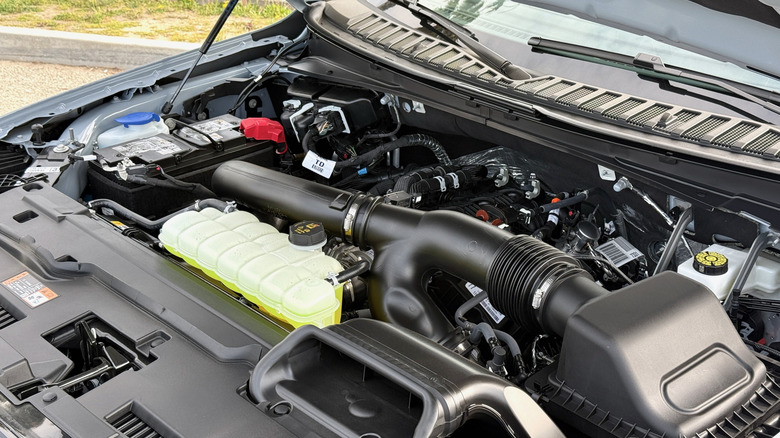
Providing every trim level of the Navigator with forward thrust is a twin-turbocharged 3.5-liter V6 that produces 440 horsepower and 510 lb-ft of torque. It’s paired with a quick-shifting 10-speed automatic transmission, and all Navigators come standard with four-wheel drive. 

The Navigator falls behind when compared to three-row luxury SUVs like the Mercedes-Benz AMG GLS 63 and the BMW X7 M60i, both of which have turbocharged V8s and offer outsized performance for the class. There might also be some ultra-niche-occupying Navigator purists out there that will bemoan the lack of an available V8 in this Uber-XL-sized-SUV, but even said-purists should likely be impressed by the power output of the V6 under the hood.
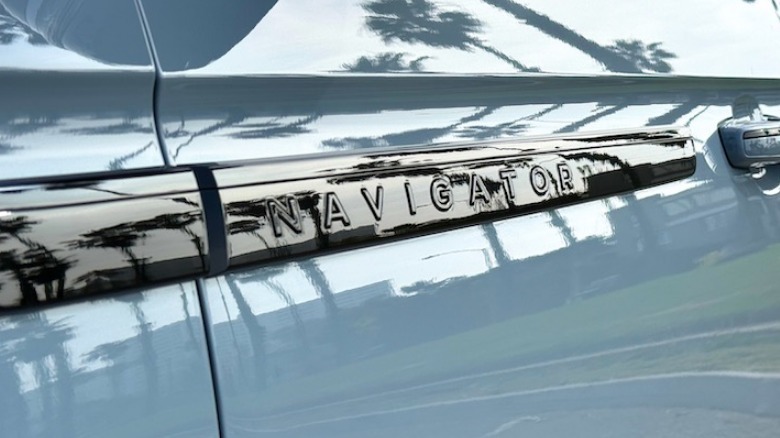
It’s certainly more than enough for quick merges on the highway and easy passing maneuvers, and if you’ve paired a boat purchase with your new Lincoln, it can handle that, too: the Navigator can tow as much as 8,700 lbs with the Heavy-Duty Trailer Tow Package. According to the EPA, the Navigator will return 17 mpg combined (15 city/22 highway) – an estimate I was able to beat with a bit of light-footed mixed driving. 

Stay in boost while you’re scooting your Navigator around town with a heavy right foot, and you’ll pay the price at the pump, but it’s adequate fuel economy for the class. It’s certainly better than the 16 mpg and 13 mpg combined estimates that the Cadillac Escalade (in standard and V trims) gets.

It’s big, but not unmanageable

Driving something as large as the Navigator isn’t an exercise in sportiness, like it might be with M- and AMG-branded competitors. Instead, it’s a discovery of how well (or how poorly) an automaker has been able to manage the vehicle’s weight and mask it in daily driving scenarios. With all the years of experience under their belts making the Navigator, Lincoln has done a pretty solid job with these tasks.
The Navigator’s height and driving position made it feel a bit like I was driving the world’s plushest bus, but the steering felt relatively well-weighted and accurate, the brakes responded quickly to inputs, and when I took it on a few tight roads, it wasn’t too much to handle. Parking it in tight spaces was a squeeze, no surprise there, but the large mirrors and high-res parking cameras made it easy to spot the vehicle’s corners and keep all the body panels scratch-free. As long as you aren’t expecting something nimble, the Navigator shouldn’t be a let-down.

Impressive space and comfort

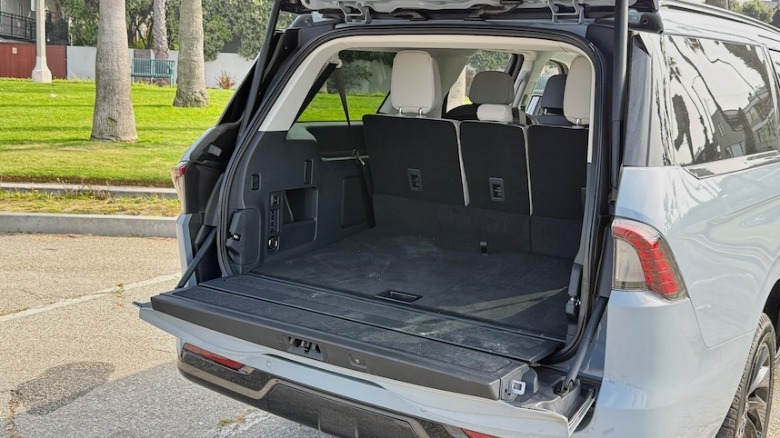
To go along with the big exterior, the Navigator L feels massive on the inside. It’s a hallmark of the body-on-frame truck-based SUVs that dominate this class, but there’s something in particular about the Navigator L that feels extra airy and spacious. There are lots of small cubbies, tons of cupholders, and USB ports everywhere you look. It’s not just big enough for lots of passengers, it has all the creature comforts for anytime you pack the Navigator L to the brim. Behind the third-row seats, there are 37.4 cubic feet of cargo space, which is nearly 15 cubic feet more than the standard model (22.9 cubes).
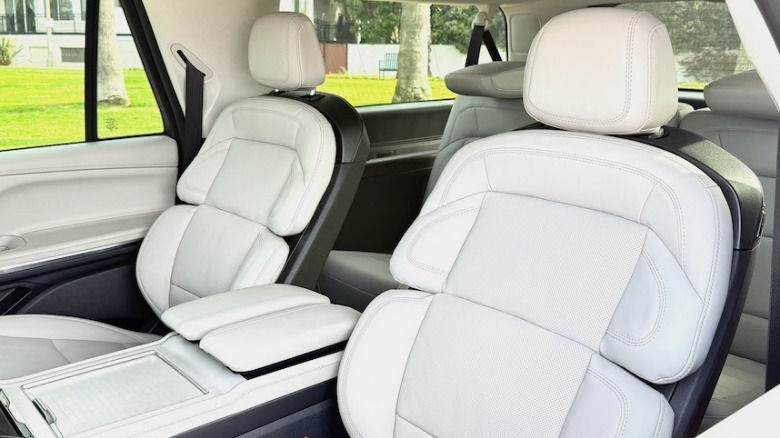
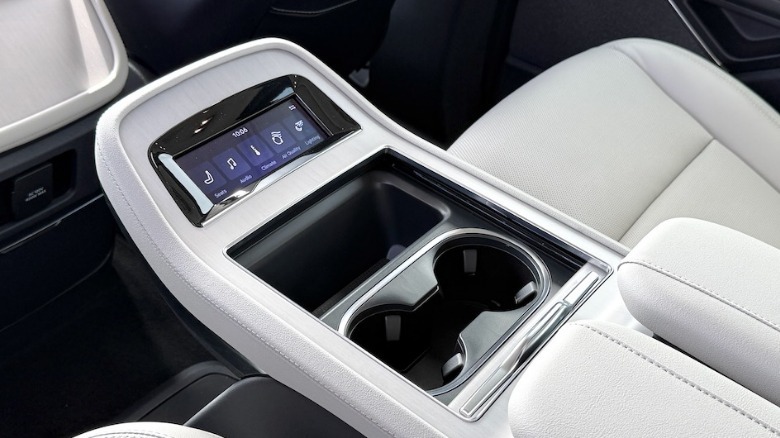
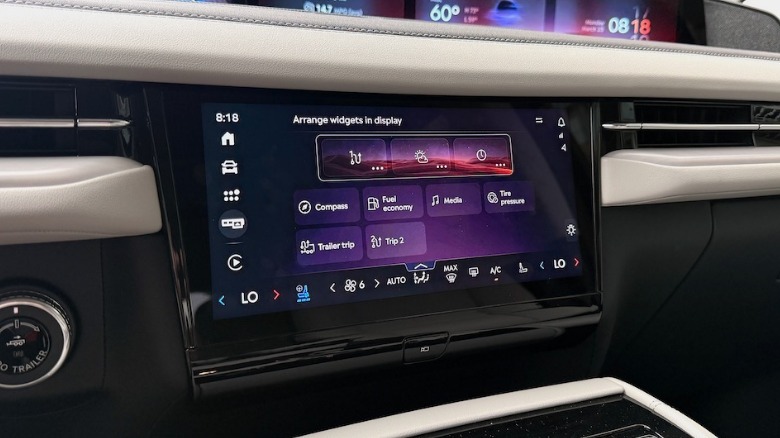
In all three rows, the seats are comfortable. Up front, for the driver and passenger, the 24- and 22-way power adjustable seats give you more than enough range to create the perfect seating position for any body size or shape. Messing with the seating position and the seat heating/ventilation functions is a bit distracting on the low-mounted center touchscreen, but once the seats are set up for you, there shouldn’t be much more adjusting required.
Ride quality on the highway is impressive, even with the 22-inch wheels, though I’d caution buyers away from the available 24-inch wheels that’ll probably absorb only minimal impacts. The Navigator’s adaptive suspension does a bang-up job of balancing comfort and stable on-road characteristics, managing the weight through corners and over rough roads. The ride is quiet, too. Even at highway speeds there’s only the mildest hum from the tires and a small amount of wind noise — an admirable set of traits for something that’s not exactly shaped for maximum aerodynamics.

Problems with the steering wheel
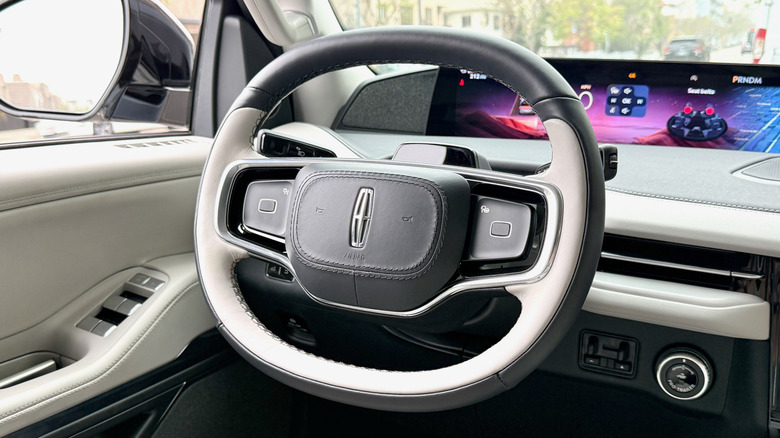
One of the biggest drawbacks in the Navigator is its oblong steering wheel. The same way I feel about this piece in its sibling, the Expedition I tested a few months back, I can’t quite mentally get past the steering wheel’s shape, or the functionality challenges with the steering wheel buttons. It feels like the top of the wheel is flattened for maximum screen-viewing potential, but in my mind, that’s not a big enough reason to justify the drawbacks. 

The steering wheel feels awkward to turn in my hands, it looks strange every time I slide into the driver’s seat, and it feels impossible to do multiple-rotation turns in the Navigator without missing a grip or feeling like I’ve done something wrong.
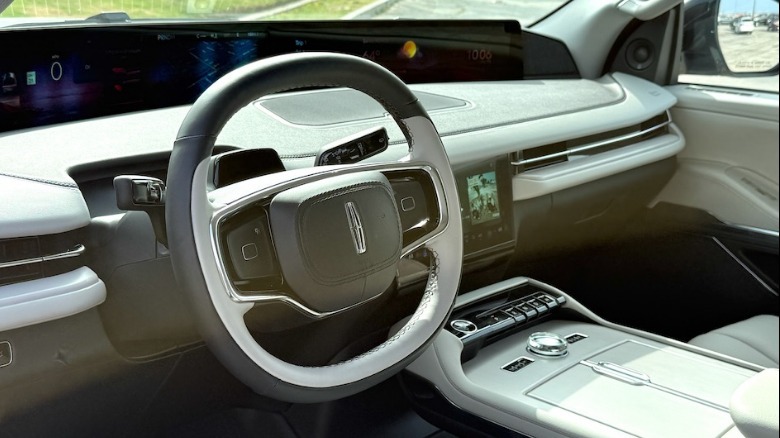
The steering wheel buttons, which Lincoln calls steering wheel control pads, are also a struggle. Their functions are hidden, but if you lightly hover your finger on top of the button interface, they activate, and you can see the functions being controlled on the big touchscreen. Then, you can select the next song or turn the volume down. More than once during my test, I had to press the same button twice just to get it to do one action (and because I hadn’t learned the proper order of operations just yet). It might be aesthetically pleasing to see a steering wheel that isn’t overwhelmed with little icons, but it’s not functionally pleasing at all.

Getting used to the big screen takes some time
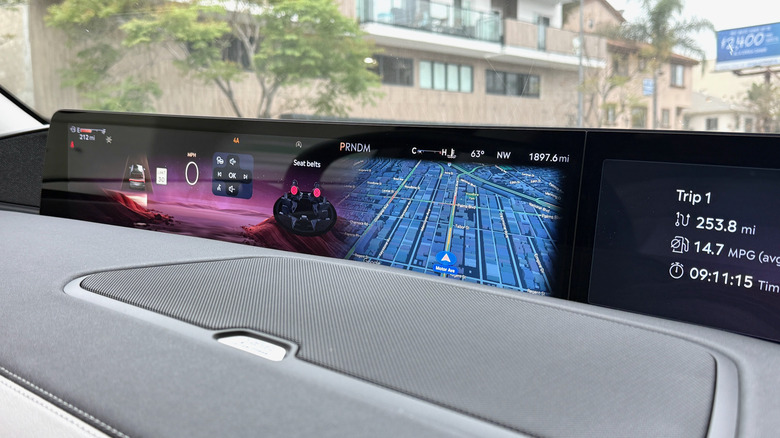
The screen in the Navigator is so big, there’s almost no point in even using measurements any more. Sure, there’s an 11-inch touchscreen on the lower portion of the dashboard that allows you to input certain commands, but the big screen above it stretches nearly the entire width of the Navigator’s windshield. If you must know, it’s a 48-inch screen that stretches nearly from door to door; if you look closely, you can see that it’s actually two panels, separated in the center of the dash. Digitally, each of those two panels is separated up into segments of their own.
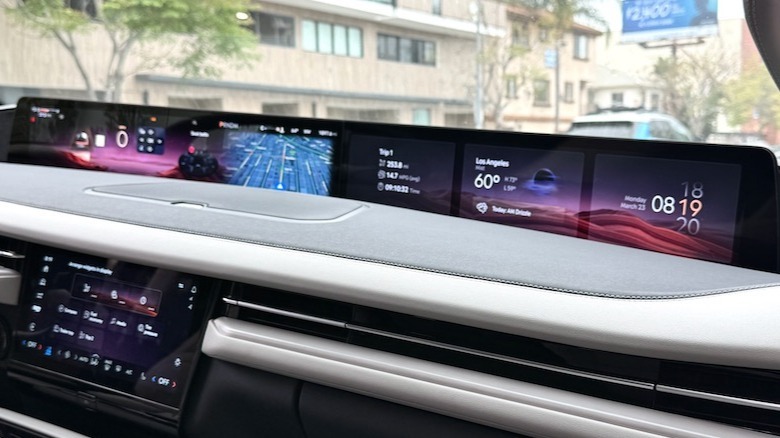
The screen is super crisp, with excellent contrast and high-resolution graphics, but it does take some getting used to. At first, it’s easy to be distracted by the big display, but after a while, you realize that certain bits of information (like the weather and trip computer, both displayed on the passenger side) can be ignored while you drive along. 
From the relatively high driver’s seating position, it’s easy to see over the screen and down the hood. The Revel stereo system that comes standard with the Reserve trim uses 28 speakers to provide some pretty impressive sound quality that audiophiles will appreciate, and more-than-adequate levels of volume.

2026 Lincoln Navigator L verdict
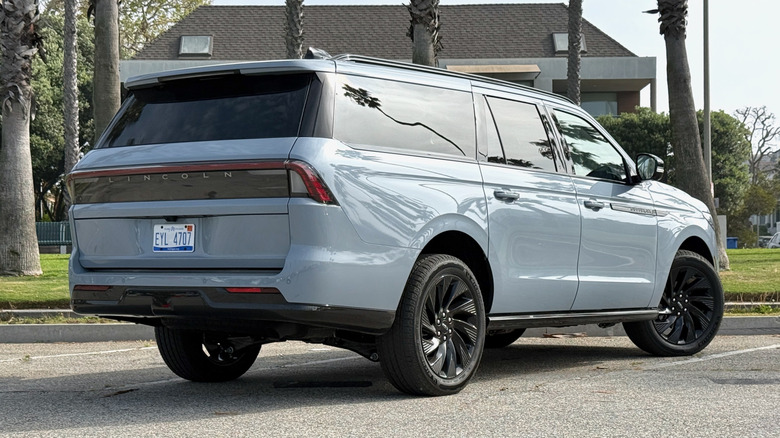
There’s a specific set of needs that have to align for a Navigator (and, more specifically, a Navigator L) to be on your shopping list. The big Lincoln and its rivals, like the Cadillac Escalade — and to a lesser degree the GMC Yukon Denali — all offer maximum luxury paired with maximum utility. The Lincoln feels a bit more premium than the GM offerings in this class, but it’s not head and shoulders above them. It’s also hard to justify the Lincoln’s premium over its platform sibling, the Expedition.

The Lincoln also doesn’t quite rise to the level of refinement of some German rivals, but Navigator and its contemporaries are true towing machines, and the Lincoln in particular is impressively modern. The Mercedes-Benz GLS is one of the most upscale options in this class, but it is even more expensive than the Navigator and has a lower maximum towing capacity.

A number of the features and technologies in the Navigator’s cabin take some getting used to (and I’d replace the steering wheel entirely if it were possible), but living with the Lincoln on a daily basis would be an easy and enjoyable experience. If your needs include towing, wrangling half a dozen humans, and being surrounded by high-class materials, this big SUV should be on your short list.


Source link

Leave a Reply

Subscribe to Our Newsletter

Get our latest articles delivered straight to your inbox. No spam, we promise.

Recent Reviews


For many small business owners, QuickBooks is the first accounting software they turn to when starting out. It’s affordable, user-friendly, and handles basic bookkeeping needs well. 

However, these early benefits can transform into frustrating limitations as businesses grow—especially those in manufacturing or inventory-heavy industries.

If your company feels constrained by QuickBooks—juggling spreadsheets, add-on tools, or workarounds—it might be time to consider a cloud-based Enterprise Resource Planning (ERP) system. Unlike standalone accounting software, a cloud ERP integrates all your business operations in one place: accounting, inventory, sales, customer management, and more.

Let’s explore the five key reasons small businesses are making the switch from QuickBooks to cloud ERP systems and how you can make this transition smoothly.

1. Too Many Separate Tools (No All-in-One System)

The QuickBooks Pain

QuickBooks focuses primarily on bookkeeping, forcing companies to rely on separate systems or spreadsheets for other critical functions:

  • Inventory tracking
  • Order management
  • Customer relationship management (CRM)
  • Project management
  • Human resources

This disjointed approach means data gets re-entered multiple times in different places—a major productivity killer. Teams often export data from QuickBooks into Excel for analysis or to manage tasks that QuickBooks can’t handle. Unfortunately, this manual patchwork leads to errors, from duplicate entries to missed updates.

Why Cloud ERP Helps

An all-in-one cloud ERP connects your entire business in a single system, eliminating the need for multiple applications. Your accounting, sales, customer information, inventory, and even HR can live in one platform.

When a sale is made in an integrated ERP, the inventory is automatically updated and accounting records are adjusted in real-time—no more exporting and re-keying data between separate software. 

This not only saves effort but also improves the accuracy and consistency of information.

Real-World Example

One small distributor that left QuickBooks for a cloud ERP was able to combine their core business processes in one system and saw their sales conversion rate increase by 200%. 

2. Limited Inventory Management (Especially for Manufacturers)

The QuickBooks Pain

QuickBooks was not designed for complex inventory or manufacturing needs. It can manage simple product lists and stock counts but lacks advanced inventory features that growing manufacturers and distributors need:

To compensate, businesses end up using separate inventory software or manual methods to track these details, which is cumbersome and error-prone.

Additionally, forecasting demand or managing supply chain complexity is beyond QuickBooks’ scope. Many companies try to plug the gaps by layering on third-party inventory tools or add-ons, but without proper integration, this creates more problems than it solves.

Why Cloud ERP Helps

Cloud ERP systems like Striven are built with robust inventory and manufacturing management capabilities out of the box. For example, modern ERPs provide tools for:

  • Complete inventory control across multiple locations
  • Warehouse management with real-time updates
  • Multi-level bills of materials (BOMs)
  • Work order creation and production tracking
  • Lot and serial number traceability
  • Supply chain management
  • Automated low-stock alerts

Inventory-related tasks that were tedious become much more manageable. 

Need to know the exact quantity on hand, allocated to orders, and on order from suppliers? An ERP can show it in one dashboard. 

Want automatic alerts when stock is low or when production is delayed? ERP can automate that.

Real-World Example

Imagine a small electronics manufacturer using QuickBooks: they might list parts in QuickBooks but manage assembly instructions and component tracking in spreadsheets. This often leads to confusion over which parts are used in which product version.

After moving to an ERP, that manufacturer can store their bill of materials and production steps directly in the system, ensuring everyone from purchasing to production is working from the same information.

3. Hitting Limits as Your Business Grows (Scalability Issues)

The QuickBooks Pain

QuickBooks works well for small transaction volumes and a few users, but many businesses eventually hit the ceiling of what it can handle. You might experience:

  • Sluggish performance
  • File size warnings
  • System crashes as your data grows
  • User limitations (often capping out around 30 users in Enterprise)
  • Slow report generation
  • Risk of file corruption with large data sets

Multi-location businesses or those expanding into new product lines also struggle, as QuickBooks lacks support for multi-entity consolidation or advanced multi-warehouse operations. And while QuickBooks Online lifts the physical file size issue by being cloud-based, it introduces its own limitations.

Another growth-related limitation is user permissions and controls. QuickBooks offers only basic user roles, which can cause security or compliance concerns as your team expands.

Why Cloud ERP Helps

Modern cloud ERP systems are built on enterprise-grade databases that can handle much larger transaction volumes, datasets, and concurrent users. There’s no heavy local data file to maintain, and you won’t need to “close the year” or truncate data to keep the system running smoothly.

Cloud ERPs support unlimited users (with appropriate pricing plans) without a hard cap like QuickBooks has, so you can add new team members as your company expands. 

The cloud infrastructure also means you get global access: whether your team grows into multiple offices or remote work, everyone can use the ERP in real-time from anywhere.

In terms of raw capacity, an ERP can manage hundreds of thousands of inventory items or transactions without performance issues. This scalability ensures you won’t outgrow the system in a few years—a key point since migrating software is an investment and you want a long-term solution.

Real-World Example

A family-run manufacturing business had five users on QuickBooks to start, but as they grew to 20+ users across accounting, sales, and warehouse teams, they constantly ran into user lockouts and slow performance. 

They switched to a cloud ERP, allowing everyone to work concurrently without downtime. They noticed that tasks like monthly financial closes and inventory valuation (which used to strain QuickBooks and take days) were completed in a fraction of the time.

4. Lack of Real-Time Visibility and Reporting

The QuickBooks Pain

QuickBooks provides standard reports (P&L, balance sheet, basic sales reports, etc.), but offers little flexibility or real-time insight beyond the basics. 

It doesn’t have custom dashboards to monitor key performance indicators (KPIs) live, so you’re often stuck exporting data to Excel or running separate reports and combining them to get the information you need.

If you want to see a combined view of data—say, financial metrics alongside inventory levels or sales pipeline information—QuickBooks alone can’t do that, because it doesn’t manage those other areas fully. Many businesses find themselves making decisions on outdated or incomplete data.

Drilling down into data or generating specific custom reports (e.g., profitability by product line or sales by region and industry) is cumbersome in QuickBooks. You often have to export and manually manipulate data, which is time-consuming and prone to errors.

Why Cloud ERP Helps

Cloud ERP systems excel at providing a holistic, real-time picture of your business. Because an ERP ties together different functions, you can get combined reports and live dashboards that show data from across the company.

ERP reporting tools are usually more powerful, with the ability to slice and dice data by various dimensions (by product, by department, by customer, etc.). Rather than being limited to canned reports, you can get answers to specific questions.

Another benefit is real-time data access. With cloud ERP, that information is visible in reports as soon as an invoice is posted or a production batch is completed. No end-of-day sync is required between systems. This immediacy means you’re always looking at current data, not last week’s numbers.

Real-World Example

A small wholesale firm using QuickBooks had to wait until the end of each month to truly understand its profitability and inventory status because its accountant would finalize the books, and then management would review the reports.

By adopting an ERP, they moved to continuous reporting—managers could check dashboard metrics daily to see if they were on track. They set up alerts (such as if weekly sales drop below a threshold or if any invoice is overdue by 30 days) so they could act immediately.

5. Manual Work, Errors, and Lack of Automation

The QuickBooks Pain

Because QuickBooks handles only part of your operations, there’s often a lot of manual work and duplicate data entry involved in running the business. Consider the process of fulfilling an order: an employee might take an order in a CRM or via email, then manually create an invoice in QuickBooks, then separately update a stock spreadsheet. Each manual step is an opportunity for errors.

QuickBooks has minimal workflow automation. It can automate recurring invoices or bills, but it can’t do things like:

  • Automatically routing a purchase order for approval
  • Triggering a production job when an order is entered
  • Generating pick lists for the warehouse
  • Enforcing proper approval workflows

Businesses end up developing workarounds, such as using email to ask a manager to approve expenses or maintaining checklists to ensure steps are followed. This adds to management overhead, and sometimes, things slip through the cracks.

Lack of internal controls is another facet—QuickBooks’ simplicity means it doesn’t enforce the separation of duties well. Any user with enough permission can backdate or edit transactions without a clear audit trail, which can be problematic for catching errors or fraud.

Why Cloud ERP Helps

A good ERP allows you to automate and streamline many processes, reducing manual intervention. You can set up workflow rules:

  • When a sales order is entered, the system automatically creates a pick list for the warehouse
  • When inventory falls below a threshold, it can auto-generate a purchase order draft or send an alert
  • When a bill is entered over a certain amount, it can be forwarded to a manager for approval before payment

These automations ensure nothing is forgotten and employees don’t have to remember every little step—the system guides them.

Another advantage is role-based controls and audit trails. In most ERPs, every transaction can be tied to a user and you can see a log of changes. Permissions can be finely tuned so that, for example, one person can create a purchase order, but it requires a separate person to approve it, enforcing a checks-and-balances system.

By automating routine tasks and removing manual double-entry, your team can focus on more valuable activities—like serving customers or improving products—instead of administrative busywork.

Real-World Example

A services company using QuickBooks was manually tracking project hours in a spreadsheet and then entering summary invoices into QuickBooks. They switched to an ERP that had time tracking and project management built-in.

Now, consultants log hours directly into the ERP, and invoices are generated with one click from those hours, eliminating multiple manual steps. 

They also set up an approval workflow for timesheets and expense reports in the ERP—replacing a clunky email-based process—which ensured nothing got paid without the right checks.

How to Switch from QuickBooks to Cloud ERP Successfully

Transitioning to a cloud ERP doesn’t have to be overwhelming. Once you have done your research and selected your best fit from the leading ERP systems. Follow these streamlined steps:

1. Plan and Prepare

Identify your key requirements and pain points with your team. Set a realistic timeline that avoids your busiest periods. Assign an internal project lead and work with your vendor’s implementation team.

2. Clean Your Data

Before migration, remove duplicate entries, archive inactive records, and standardize your data formats. Don’t bring years of accumulated junk data into your new system.

3. Migrate Strategically

Import in stages: master records first (customers, vendors, items), then open transactions, and finally, essential historical data. Test with small batches before full migration and always back up your QuickBooks data.

4. Train Your Team

Provide hands-on training in a test environment, focusing on demonstrating the benefits and efficiency gains. Create simple procedure guides and identify internal champions who can support their colleagues. Schedule training sessions with your vendor or use online tutorials (Striven, for example, has the “Striven University” resources for new users transitioning from QuickBooks). 

5. Go Live and Refine

Launch at the start of a financial period with support ready. Expect a learning curve and work closely with your ERP’s support team. Once stable, gradually explore advanced features and continue optimizing the system to match your evolving needs.

Final Thoughts: A Strategic Decision for Growth

Making the jump from QuickBooks to a cloud ERP is a significant move for a small business, but it comes with significant benefits. You’ll be able to run your business with far greater efficiency, accuracy, and insight than before—whether it’s knowing exactly what your inventory levels are, automating routine tasks, or getting financial reports at the click of a button.

The five reasons above are the most common drivers: businesses crave an integrated system, more robust features, scalability, better information, and automated workflows. 

Cloud ERPs deliver on those needs, helping even small companies operate with the sophistication of a much larger enterprise. With a careful, well-planned implementation, you can make the transition without disrupting your operations. 

In the end, moving to an ERP isn’t just an IT upgrade—it’s a strategic decision to upgrade how your business works.

About the author: Christina is the founder and executive director of Top10erp.org, with over 20 years of experience in online technology platforms. After five years as general manager for prominent accounting software research platforms, she recognized manufacturers needed specialized resources for their complex ERP needs. In 2008, she founded Top10erp.org to streamline the challenging ERP selection process for manufacturers through advanced product indexing and comparison technologies.

The post 5 Reasons Small Businesses Switch from QuickBooks to Cloud ERP appeared first on Striven.


Source link