
Follow ZDNET: Add us as a preferred source on Google.
ZDNET’s key takeaways
- PowerToys now lets you control your monitor’s display from the taskbar.
- The latest version also helps you easily move and resize windows.
- The Keyboard Manager Editor and ZoomIt tool have also been enhanced.
I sometimes want to change the brightness or contrast on my desktop PC monitor. For that, I have to find and press the right buttons on the monitor itself or dig into Windows settings to get to the correct controls. Now a new tool available through Microsoft’s PowerToys lets me adjust the monitor settings without leaving the taskbar.
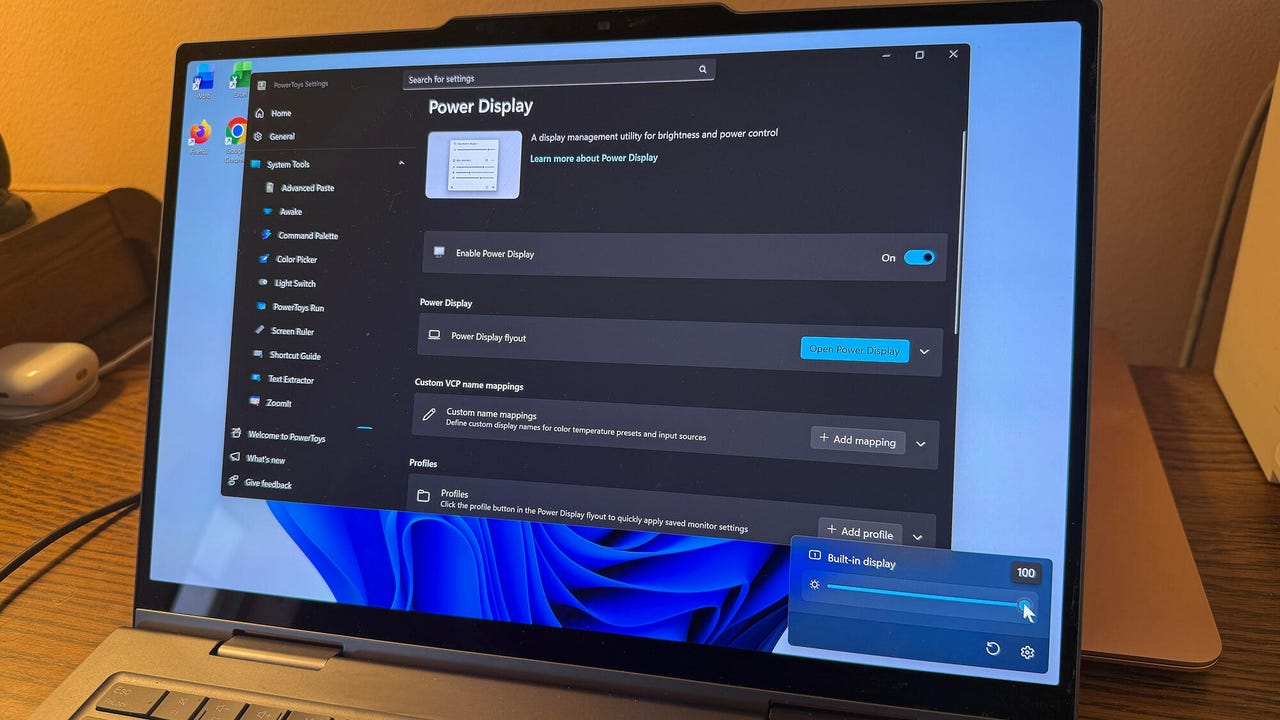
Introduced with PowerToys version 0.99.1 is a new tool called Power Display. With this one enabled, Windows detects your desktop or laptop monitor and provides any supported screen settings via an icon that rests in the system tray.
Also: Yes, you can get Microsoft 365 free – here’s how
The actual controls vary based on your monitor. At a minimum, you’re able to increase or decrease the brightness by moving the appropriate slider. But you may also be able to tweak the contrast, color temperature, rotation, and volume control. Plus, Power Display can even display individual slider settings for multiple monitors.
How to use Power Display
If you already have PowerToys in Windows 10 or 11, just open the program and check for updates. If you don’t yet have it, head to its Microsoft Store page or its GitHub page to download and install the latest version.
In PowerToys, you can then control and customize the Power Display. Head to the specific Settings page for the new tool to turn it on or off. Here, you’re also able to change the activation shortcut, create and save custom profiles, and enable or disable each setting depending on which ones you want to see and access.
‘Grab and Move’
And there’s more with the latest update to PowerToys. Another new tool called Grab And Move helps you more easily move and resize windows. Sometimes moving a window can be challenging as you have to grab it by the title bar. Likewise, resizing a window isn’t always easy as you have to move your mouse to the edge of the window.
With Grab And Move enabled, you’re able to move and resize a window by pressing the activation key and then clicking anywhere on it. By default, holding down the Alt key and pressing the left mouse button allows you to move a window around the screen. Holding down the Alt key and pressing the right mouse button allows you to resize the window horizontally, vertically, or diagonally.
Also: These 5 critical Windows Defender settings are off by default – turn them on ASAP
At the Settings page for Grab And Move, you can change the activation key from Alt to the Windows key, make sure it doesn’t run when Game Mode is on, and exclude the windows for specific apps from being moved or resized this way. Microsoft touts Grab And Move as ideal for large monitors or windows that have moved off-screen.
What else is new in PowerToys
PowerToys v 0.99.1 also enhances a few existing tools.
The Command Palette, which displays common Windows commands and features when you press the keyboard activation shortcut, now lets you pin your favorites. The Keyboard Manager Editor, which allows you to create and map keys to different functions, now makes it easier to edit a recorded key. The ZoomIt tool, which can capture screenshots, now supports scrolling shots so you’re able to capture a long screen.
To learn more about the new and enhanced features in the last version of PowerToys, check out the GitHub page for the latest version.