Whether you’re looking to buy or already own a Hisense TV, you may be wondering how to get the best possible picture quality. The Hisense settings menu offers a surprisingly wide range of options to play with to get the best picture for your space. You can tweak everything from basics like brightness and contrast levels to more advanced options like color space and Calman calibration (if you have the equipment).
Your changes can be applied across all media sources or to a single one, making it easy to set up multiple custom picture modes you can quickly switch among. And don’t worry, if you mess up or change your mind, there’s a handy reset button at the bottom of the picture settings menu that restores each option to its factory default.
To help walk you through the process, I’ve written out a menu map for setting up various picture settings so you can spend more time actually using your Hisense TV and less time getting lost in a sea of sliders and checkboxes.
One and done options
If you simply want to make a few selections and start watching your favorite shows and movies, or play a video game, new Hisense TVs offer plenty of “set and forget” picture options. There are seven picture mode presets: Standard, Sports, Energy Saving, Theater Night, Theater Day, Filmmaker, and Vivid. Each offers different brightness, contrast, color processing, and refresh rates to suit a variety of media, making it easy to switch from movies to games on-the-fly.
To get even more out of the presets, you can toggle on a few more options.
Settings > Picture > Auto Picture Mode/Content Type Detection/Intelligent Scene/Automatic Light Sensor all toggled ON
Picture > Brightness > Active Contrast ON > HDR Enhancer ON
Color > Low Blue Light ON > Dynamic Color Enhancer MEDIUM
Clarity > Super Resolution ON > Motion Enhancement STANDARD > Motion Clearness OFF
By toggling on all these options, your Hisense TV will automatically detect the type of content you’re watching, switch picture modes, and optimize settings for smooth motion, clear details, and bold colors, without you having to lift a finger.
For live TV
If you primarily want to use your Hisense TV for watching live news, sports, and entertainment, setting it up for the best picture only requires a few tweaks:
Settings > Picture > Sports
Brightness > Local Dimming HIGH > Brightness 100 > Contrast 75 > Black Level 25 > Dark Detail ON > Gamma 2.2 > Active Contrast ON > HDR Enhancer ON
Color > Color 50 > Hue 0 > Color Temperaturre STANDARD > Low Blue Light ON > Color Space DCI-P3 > Dynamic Color Enhancer MEDIUM
Clarity > Sharpness 25 > Smooth Gradient Medium > Super Resolution OFF > Noise reduction MEDIUM > MPEG Noise Reduction Medium > Motion Enhancement STANDARD > Motion Clearness OFF
For streaming
Kerry Wan/ZDNET
If you’ve cut the cord with your satellite or cable provider and switched to exclusively streaming your content, you can get a cinema-quality picture with changes in a few key areas:
Settings > Picture > Filmmaker Mode
Brightness > Local Dimming MEDIUM > Peak Brightness HIGH > Brightness 50 > Contrast 40 > Black Level 10 > Dark Detail ON > Gamma BT1886 > Active Contrast OFF > HDR Enhancer ON
Color > Color 50 > Hue 0 > Color Temperature Warm1 > Low Blue Light ON > Color Space DCI-P3 > Dynamic Color Enhancer LOW
Clarity > Sharpness 3 > Smooth Gradient OFF > Super Resolution OFF > Noise Reduction MEDIUM > MPEG Noise Reduction> MEDIUM > Motion Enhancement FILM > Motion Clearness OFF
I felt that Hisense’s Filmmaker Mode preset was a bit dark, so I bumped the brightness to 50 and changed the Local Dimming option from low to medium to improve my chances of actually seeing what’s going on in dark scenes.
For gaming
Hisense TVs make great screens for dedicated gaming spaces or for TVs that have to pull double duty as the family entertainment box. And while Hisense smart TVs don’t have a specific picture mode for gaming, you can create your own with some quick adjustments:
Settings > Picture > Vivid mode
Brightness > Local Dimming MEDIUM > Peak Brightness MEDIUM > Brightness 100 > Contrast 75 > Black Level 10 > Dark Detail ON > Gamma 2.2 > Active Contrast OFF > HDR Enhancer ON
Color > Color 55 > Hue 0 > Color Temperature Warm 2 > Low Blue Light OFF > Color Space DCI-P3 > Dynamic Color Enhancer MEDIUM
Clarity > Sharpness 25 > Smooth Gradient LOW > Super Resolution OFF > Noise Reduction MEDIUM > MPEG Noise Reduction MEDIUM > Motion Enhancement STANDARD > Motion Clearness OFF
The Vivid picture mode gives you bright, bold colors that suit a variety of art styles across different game genres, and by bumping up the black levels and enabling Dark Detail, you can boost contrast to make characters and interest points pop against landscapes.
For control freaks
New Hisense TVs offer a wide range of options for users who prefer to control every aspect of their TV’s picture quality. If you navigate to Settings > Picture, you’ll see the Picture Calibration Settings option all the way at the bottom.
This gives you access to sliders that let you fine-tune white balance, adjust the hue and saturation of individual colors, run a 20-point gamma calibration test to adjust contrast, and even use Calman calibration. Be warned, the gamma and Calman tests require professional equipment to properly measure your TV’s picture quality.
Spyware can track you, record calls, and steal phone data.
Watch for odd behavior, data spikes, unknown apps, and battery drain.
Use antivirus software, update regularly, and avoid untrusted app sources.
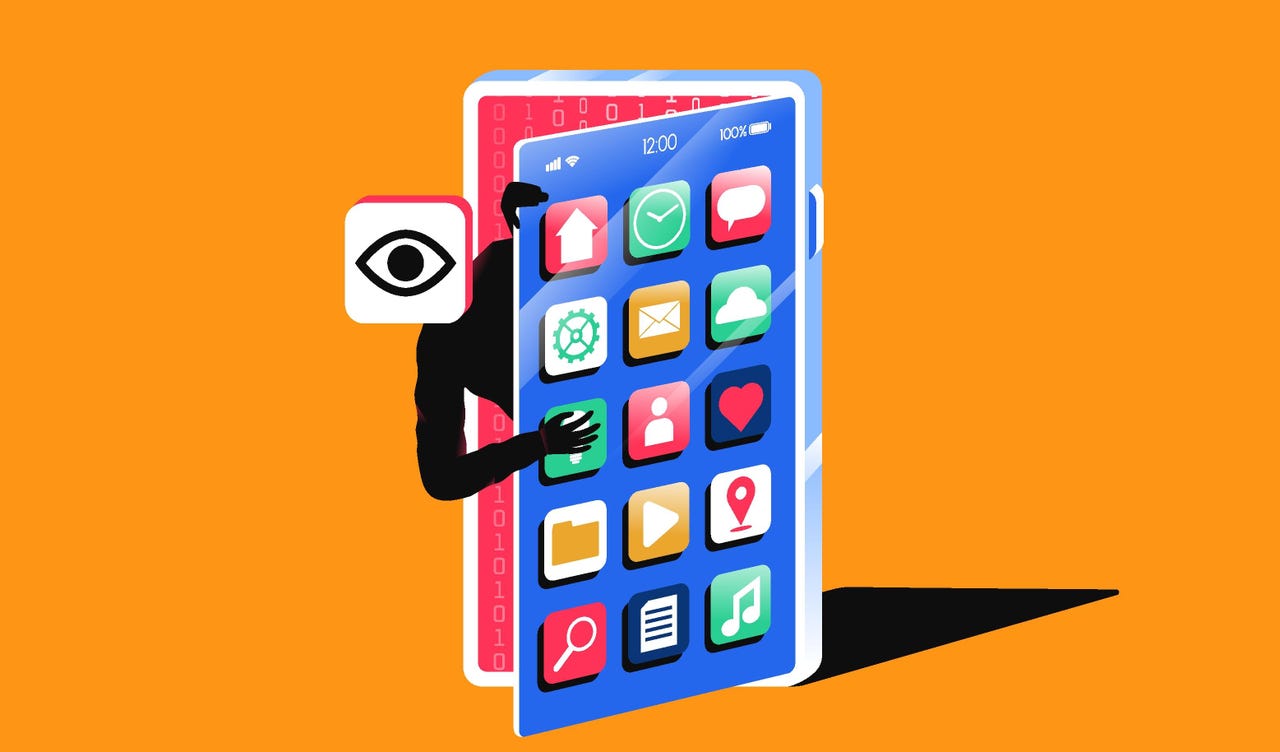
Spyware is one of the biggest threats to your mobile security and can severely impact your phone’s performance if you are unlucky enough to become infected. It is a type of malware that typically lands on your iPhone or Android phone through malicious mobile apps or through phishing links, emails, and messages.
While appearing to be a legitimate software package or useful utility, spyware will operate quietly in the background to monitor your movements, spy on your activities, and may also record your conversations, whether they are phone calls or social media threads. You may find your actions screenshotted, your call records logged, and even your physical location tracked via GPS.
This information is then sent to a remote server and into the hands of someone else without your permission.
Similarly, a remote monitoring app promoted for parental use or work purposes could be abused and become a privacy invader rather than a legitimate service.
Let’s explore the different types of spyware you might encounter, the warning signs of infection, and how to quickly remove it from your smartphone.
Spyware explained
It’s helpful to know the basic differences among types of spyware before you tackle infections on your handset.
Nuisanceware is bundled with mobile apps. It interrupts your web browsing with pop-ups, changes your homepage or search engine settings, may try to force you to watch videos, and may collect your browsing data to sell to ad agencies and networks. Although considered malvertising, it is generally not dangerous, as it focuses on generating illicit revenue by forcing ad views or clicks.
There’s also generic mobile spyware. It steals operating system data, clipboard data, and anything of value, such as cryptocurrency wallet data or account credentials. Spyware isn’t always targeted and may be used in spray-and-pray phishing attacks.
Spyware may land on your device through phishing, malicious email attachments, social media links, fraudulent SMS messages, or physical device tampering.
Advanced spyware, sometimes also classified as stalkerware, is a step up from basic spyware. This malware is unethical and dangerous. It is sometimes found on desktop systems but is now more commonly installed on handsets. Stalkerware is typically used to spy on an individual and monitor what they do, say, and where they go, and is often linked to cases of domestic abuse.
Spyware and stalkerware may be used to:
Monitor emails, SMS, MMS messages, and other forms of communication sent and received, including Facebook and WhatsApp.
Intercept live cellular calls or Voice over IP (VoIP) applications.
Hijack camera functions to take photos and videos.
Screenshot mobile device screens and send them to a controller.
Track victims via GPS.
Conduct keylogging, account compromise, and data theft.
Finally, there’s government-grade commercial spyware, with Pegasus among the best-known variants. Unless you’re part of a group of specific interest to ethically challenged governments, it’s unlikely that it will impact you due to the expense of targeting victims.
Spyware warning signs
There aren’t always indicators of an infection attempt in real time, but the following scenarios could be warning signs that you are being targeted:
Strange permission, download, or software installation requests appear on your handset.
If your phone goes missing or is out of your possession for a period of time and then reappears with settings or changes you do not recognize, this may indicate that your device has been tampered with.
When it comes to stalkerware, initial infection messages may be more personal and tailored to the victim. Physical access to a handset may be necessary.
There are also signs you can watch for that may indicate your phone has been compromised. The most common are:
Power: You may experience unexpected handset battery drain, overheating, or sluggish performance.
Behavior: Strange behavior, such as GPS or camera functions turning themselves on and off without your input, or random reboots and unexplained crashes.
Pop-ups: If you are being bombarded with pop-ups, it’s likely that some form of adware is hidden on your handset. You may also find that your preferred search engine has been changed.
Increased cellular data usage: Information exfiltrated from your smartphone or hidden, active remote connections will use data.
Distortion: You may hear unusual noises or distortion during phone calls. Although this could simply be due to poor reception, it may also be a sign of interception.
On and off: You may also have trouble completely turning off your device, as more advanced spyware might prevent you from doing so.
Financial transactions: If spyware has obtained sufficient permissions, it may have signed you up for services or premium SMS plans you didn’t ask for.
Android
One telltale sign on an Android device is a setting that allows apps to be downloaded and installed outside of the official Google Play Store. If this setting is enabled, it may indicate tampering or jailbreaking without your consent. Not every form of spyware and stalkerware requires a jailbroken device, however.
This setting is found in most modern Android builds in Settings > Security > Allow unknown sources. (This varies depending on the device and vendor.) You can also check Apps > Menu > Special Access > Install unknown apps to see if anything is unfamiliar.
Some forms of spyware also use generic names and icons to avoid detection. For example, they may appear to be useful utility apps such as calendars, calculators, utilities, or currency converters.
iOS
iOS devices that aren’t jailbroken are generally harder to infect with malware than Android handsets, unless a spyware developer is exploiting an unpatched vulnerability.
However, the same principles apply. With the right tool, exploit, or software, your device could be compromised either with physical access or remotely. You may be more susceptible to infection if you have not updated your iPhone’s firmware to the latest version and you do not run frequent antivirus scans.
How to remove spyware from your smartphone
Spyware is often hard to detect and can be difficult to remove. It is not impossible in most cases, but it may take some drastic steps on your part.
When spyware, especially stalkerware, is removed, operators may receive an alert indicating that the victim’s device has been cleaned. Should the flow of your information suddenly stop, this would be another clear sign to the attacker that the malicious software has been removed. Do not tamper with your device if doing so would risk your physical safety.
Instead, reach out to law enforcement and supporting agencies. Otherwise, here are some removal options:
Run a malware scan: There are mobile antivirus solutions available that can detect and remove spyware. This is the easiest solution available, but it may not be effective in every case. Cybersecurity vendors, including Malwarebytes.
Use a dedicated spyware removal tool: You can also use software specifically designed to detect and remove spyware. However, be careful to download tools only from reputable firms and official sources, as one of the most common ways to distribute malware is to disguise it as antivirus software. Check out the spyware removal apps offered by Bitdefender, Avast, and Malwarebytes.
Delete suspicious apps: Examine the list of installed apps on your handset and remove any you don’t recognize.
Check device administration controls: In advanced security settings, you can see if any suspicious apps have admin permissions. If so, you can try removing them, although this may require restoring your handset to factory settings.
Reboot in Safe mode: Restarting your smartphone in Safe mode prevents third-party software from running. On Android handsets, you can usually do this by long-pressing the power-off button and selecting Safe mode. This can allow you to safely uninstall apps — but it is not a failsafe solution against advanced spyware variants.
Update your operating system: It may seem obvious, but when an operating system releases a new version, which often includes security patches and upgrades, it can — if you’re lucky — cause conflicts and problems with spyware. Keep it updated.
If you have found suspicious software on your handset, consider changing your passwords and enabling biometrics.
If you suspect account compromise, change the passwords for every important account you have. Many of us have one or two central “hub” accounts, such as an email address linked to all of our other services. Remove access to any such hub services you use from a compromised device.
For added security, consider changing your account passwords on a PC, forcing a logout on other devices, and enabling biometric authentication to prevent physical handset tampering.
An important point to mention is that sometimes spyware or other forms of malicious software might end up on your device via an initially benign app. There have been cases of developers releasing a genuine, useful app in official repositories, such as a currency converter or weather app, and then, after a large user base has been gathered, the developers twist the app’s functions into a Trojan through a software update.
If you recently downloaded a mobile app and now your phone is displaying odd behavior, consider removing it and running a malware scan.
Keeping spyware and stalkerware off your device
Unfortunately, no mobile device is completely protected against the scourge of spyware. However, we have provided some tips below to mitigate the risk of future infections:
Protect your device physically: Your first line of defense is to maintain adequate physical controls. Modern smartphones let you set PIN codes and patterns or use biometrics such as fingerprints or retina scans to prevent your handset from being physically tampered with.
Update your operating system: Install OS updates as soon as they are available. They contain security fixes and patches and are one of the most important lines of defense against malware.
Use antivirus software: Mobile antivirus solutions can detect and remove spyware. Running frequent scans will help protect your handset.
Only download apps from official sources: Most spyware and malware are found outside Google Play and the App Store, so be cautious about installing apps from third-party websites. Sometimes, malicious apps still slip through the net, so check reviews and app descriptions before installing anything new.
Enable app security: Enable built-in scanners that check any new app installs. On Android, you can find this setting in Security and privacy > App security.
Check permissions: You should monitor what permissions have been issued to which apps and when. If you haven’t used an app with extensive permissions for a while, consider deleting it. If any apps appear more intrusive than necessary, remove them and refuse to provide permissions on install.
Watch out for malicious links: Mobile malware is often spread through phishing and malicious links. These links may urge you to download apps from outside Google Play or the App Store and may be disguised as everything from antivirus software to streaming services.
Do not jailbreak your device: Jailbreaking not only voids your warranty but can also allow malicious apps and software to gain a deep foothold in your operating system, making removal extremely difficult.
Enable multi-factor authentication (MFA): When account activity and logins require further consent from a mobile device, this can also help protect individual accounts. (However, spyware may intercept the codes sent during 2FA protocols.)
If all else fails: Factory reset
Performing a factory reset and clean install on the device you believe is compromised may help eradicate some forms of persistent spyware. Make sure to back up important content first, as this process can’t be reversed.
On Android platforms, the reset option is usually found under Settings > General Management > Reset > Factory Data Reset.
On iOS, go to Settings > General > Transfer or Reset Phone.
Google’s guide to factory resetting your device can be found here, and Apple has also provided instructions on its support website.
Unfortunately, some malware may survive factory resets. Failing that, consider restoring to factory settings and then disposing of your device.
Parental control or employee monitoring apps: spyware?
There are cyberthreats around every corner, and while children often want a smartphone and to be on social media at a young age, parents want to monitor what they are viewing and who they are interacting with online in order to protect them.
This is a responsible position to take, but at their core, parental control apps are designed for surveillance — as are many “employee productivity” apps.
The main issue is the potential for abuse, turning what may have been a product developed with good intentions into invasive software used for purposes beyond protecting a minor or ensuring employee time is used wisely.
A balance between a right to privacy and protection has to be maintained. With this in mind, both Apple and Google have introduced parental controls for their devices. These features focus on restricting screen time, locking and unlocking devices, managing permissions lists, restricting web content and app downloads, and approving purchases.
Regarding employee monitoring apps, don’t install them on your personal handset. If your employer insists on using them, then it should issue you a work laptop and phone.
Most common consumer monitoring apps
As we mentioned earlier, many apps may be advertised as parental control monitors or simple trackers, but their use can be unethical. Other app developers freely market their products for full device control and surveillance.
Apps often use the phrases ‘spy,’ ‘monitor,’ or ‘parental control,’ but they may also disguise themselves on a device as a utility, a game, or otherwise as an innocent piece of software.
Are Google and Apple protecting devices from spyware?
Google and Apple are generally quick to remove malicious apps that manage to evade the privacy and security protections in their respective official app stores. When individuals are considered particularly at risk, you can enroll in Google’s Advanced Protection Program, which provides additional security for your Android device.
Google has also banned spyware and stalkerware ads, and the firm’s Threat Analysis Group is constantly publishing research on new commercial spyware strains and their potential targets.
Apple has cracked down on parental control apps, citing privacy-invading functions as the reason for removal. The company offers its own parental device control service called Screen Time for parents who want to limit their child’s device usage.
Furthermore, the company does not allow sideloading — that is, installing third-party apps from sources other than Apple’s App Store — and is quick to remove any iOS apps that exhibit privacy-eroding functionality.
Apple also provides Lockdown Mode, an optional setting you can enable on your iOS device for extreme security. However, unless you don’t mind a heavily restricted smartphone, you should only consider this option if you are worried about commercial-grade spyware.
To provide the best experiences, we use technologies like cookies to store and/or access device information. Consenting to these technologies will allow us to process data such as browsing behavior or unique IDs on this site. Not consenting or withdrawing consent, may adversely affect certain features and functions.
Functional
Always active
The technical storage or access is strictly necessary for the legitimate purpose of enabling the use of a specific service explicitly requested by the subscriber or user, or for the sole purpose of carrying out the transmission of a communication over an electronic communications network.
Preferences
The technical storage or access is necessary for the legitimate purpose of storing preferences that are not requested by the subscriber or user.
Statistics
The technical storage or access that is used exclusively for statistical purposes.The technical storage or access that is used exclusively for anonymous statistical purposes. Without a subpoena, voluntary compliance on the part of your Internet Service Provider, or additional records from a third party, information stored or retrieved for this purpose alone cannot usually be used to identify you.
Marketing
The technical storage or access is required to create user profiles to send advertising, or to track the user on a website or across several websites for similar marketing purposes.