
We may receive a commission on purchases made from links.
If you’ve searched for a new television any time in the past year or so, you likely felt your head spinning at the number of options available from the major manufacturers. Most average buyers were probably also a bit flummoxed trying to discern the tangible differences between models bearing tags like LCD, LED, OLED, QLED, 4K, and Ultra High Definition, among others.
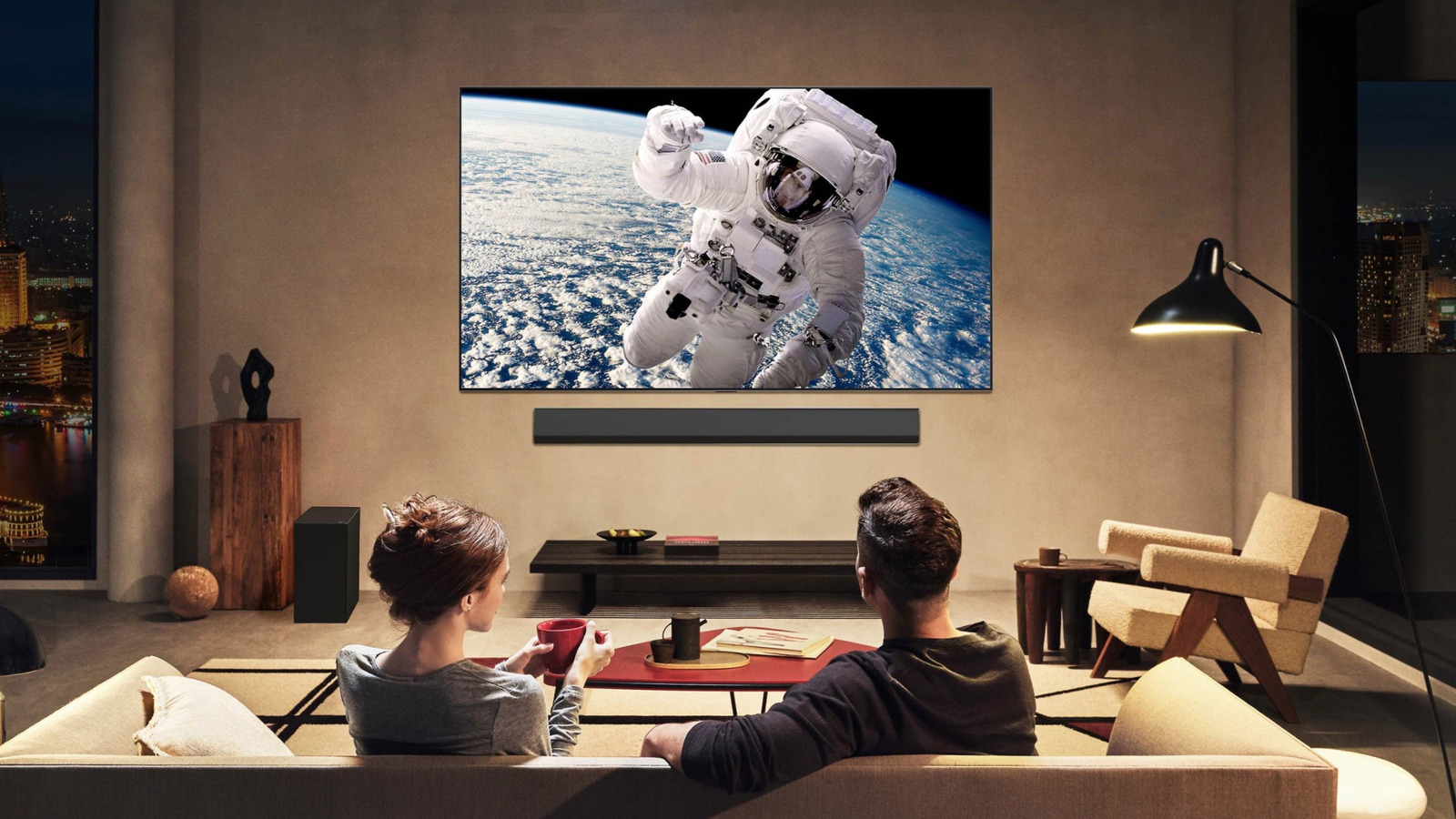
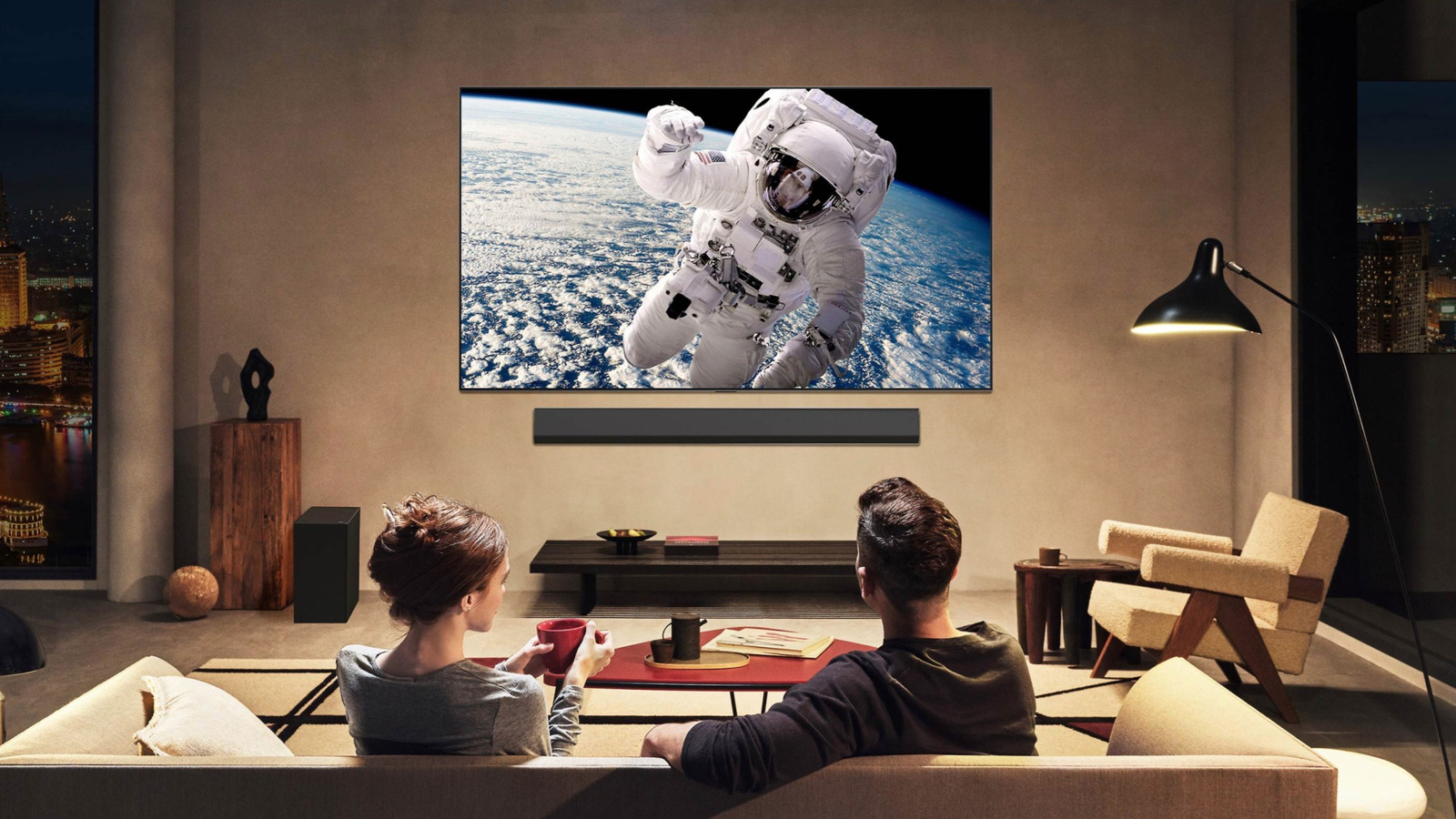
If you’re confused by the acronyms, OLED TVs are widely considered the best you can buy today. That acronym stands for Organic Light-Emitting Diode, and the reason the televisions are so well regarded is that OLED screens use technology in which individual pixels generate their own light and color rather than relying on traditional backlighting. The OLED method delivers excellent picture quality with perfect blacks and more vibrant colors than other modes.
Even as TVs are generally cheaper these days, OLEDs can still be pretty pricey. There are, however, several solid OLED options available to consumers who are shopping on a budget. Here are a few of the best OLED TVs on the market that you can currently scoop for under $1,000.
1. Samsung – 65 Class S84F OLED – $899.99
It is pretty much impossible to shop for a television these days without at least glancing at models bearing the Samsung insignia. There’s good reason for that, as the brand is not only regarded as one of the best TV manufacturers but also generally offers prices that most consumers can afford.
Given that last fact, it should hardly come as a surprise that Samsung indeed offers a budget-friendly OLED television. In fact, Consumer Reports recently crowned one 65-inch Samsung OLED the best you can buy on a budget. That model is the S84F OLED 4K UHD, and if you’re in the market, you can buy one for $899.99 from Best Buy. And just for the record, more than 1,100 Best Buy shoppers have reviewed the television through the site as well, awarding it a solid user rating of 4.8 stars out of 5.
As for what you get for that price, picture quality is arguably the most important factor, with the Samsung OLED model delivering Ultra High Definition 4K resolution at 2160p. That should be more than enough to handle your movie, streaming, and sports viewing, as well as gaming habits if you’re into that scene. The TV is also fitted with Motion Xcelerator Turbo and the NQ4 AI Gen2 Processor, the latter of which brings powerful AI to your viewing experience. So too does the built-in Bixby voice assistant.
2. LG OLED C5 – $899
Like Samsung, LG has spent the past decade or two establishing itself as one of the preeminent names in the home appliance and electronics arena. And just like Samsung, LG has excelled at producing high-quality televisions that are financially accessible to folks who don’t have a lot of money to burn on such luxuries. That includes even some of the brand’s OLED offerings, which can cost you less than $1,000, depending on the size you choose.
According to the crew at Popular Mechanics, you can count LG’s C5 OLED TV on that list, with the publication tabbing it as the best on the OLED scene available to consumers. Consumers tend to agree about the LG C5, and you can currently purchase the OLED TV direct from the source for as little as $899.99. For the record, that is the 42-inch model, though a 48-inch will only cost you $100 more at the point of purchase. If you’re not flinching at those numbers, LG is also selling the 55-inch model for just $1,099.99.
Whichever size you choose, there may be a drawback or two to consider, with Tech Radar noting the television may not wow in terms of sound, and that it is not equipped for HDR10+ viewing. It does, however, support Dolby Vision, HLG and HDR10, so there’s little reason to expect anything but excellent 4K picture quality, with its Alpha 9 Gen 8 AI Processor providing further enhancements whether you’re streaming or gaming.
3. LG OLED B5 – $599.99
If you are shopping on a tighter budget than some other consumers, you should know that LG does offer an even more budget-friendly television in the sub-$1,000 corner of the OLED market. In fact, the brand’s B5 OLED model was recently named the best budget model available in that particular sector by Tech Radar. The “budget” part of that claim seems pretty spot on, as Best Buy is selling the 48-inch B5 for just $599.99. Even upgrading to a 55-inch model feels sensible, with the retailer selling that version for just $799.99.
It should go without saying that shoppers might need to expect a few downgrades in this general price range. To that end, even Tech Radar and Wired, in their mostly positive reviews, note that the television may lack overall brightness. Ditto for overall sound quality, and like the C5, this LG is not HDR10+ compatible.
Despite the perceived drawbacks, price point is not the only positive of the LG B5 OLED TV, which boasts picture quality that Tech Radar notes as “detailed and punchy,” with solid color quality and 4K resolution. It’s also equipped with all manner of smart TV functionality and comes with a handful of gaming features, including a 120 Hz refresh rate, FreeSync and G-Sync, HGiG, HDMI 2.1 ports, and ALLM. So, if nothing else, this could be a great option for gamers looking to upgrade their screen on a budget.
4. Samsung S90F OLED 4K Vision AI Smart TV – $798
As so few manufacturers are making OLEDs under $1,000, it’s hardly surprising that LG and Samsung are the main players on this list. According to Tom’s Guide, Samsung’s S90F is another top pick among budget OLEDs, with 48-inch models and 55-inch models selling for $797.99 and $997.99 through Amazon and Crutchfield, respectively.
For the record, Consumer Reports recently named the 65-inch version of this TV the best you can buy in 2026, though an S90F will run you well over $1,000 in that size. Even so, the smaller, under-$1,000 models should deliver just as much visual punch. And yes, based on the number designation assigned to the TV by Samsung, you’d be right in assuming that there are some notable upgrades here over the equally revered S84F OLED.
In particular, both CR and Tom’s Guide note that the S90F offers incredible off-axis contrast, meaning the picture quality shouldn’t suffer much when viewed from an angle. The picture itself is also a common point of praise, with TG calling its contrast “near perfect,” while claiming its color accuracy and volume are “incredible.” They also appreciate the screen’s thin-frame design and the fact that the Tizen 9-equipped OS includes plenty of gaming features. While the TV supports HDR10, HDR10+, and HLG, its lack of Dolby Vision and audio punch is noted as drawbacks. Still, this OLED delivers incredible value for under $1,000.

Stephan is the sports journalist for the Maple Grove Report.