
Follow ZDNET: Add us as a preferred source on Google.
ZDNET’s key takeaways
- Google AI Plus now includes 400GB of storage for $4.99 a month.
- Downgrading from AI Pro to AI Plus could save $180 a year.
- Google One plans can be changed from the web or mobile app.
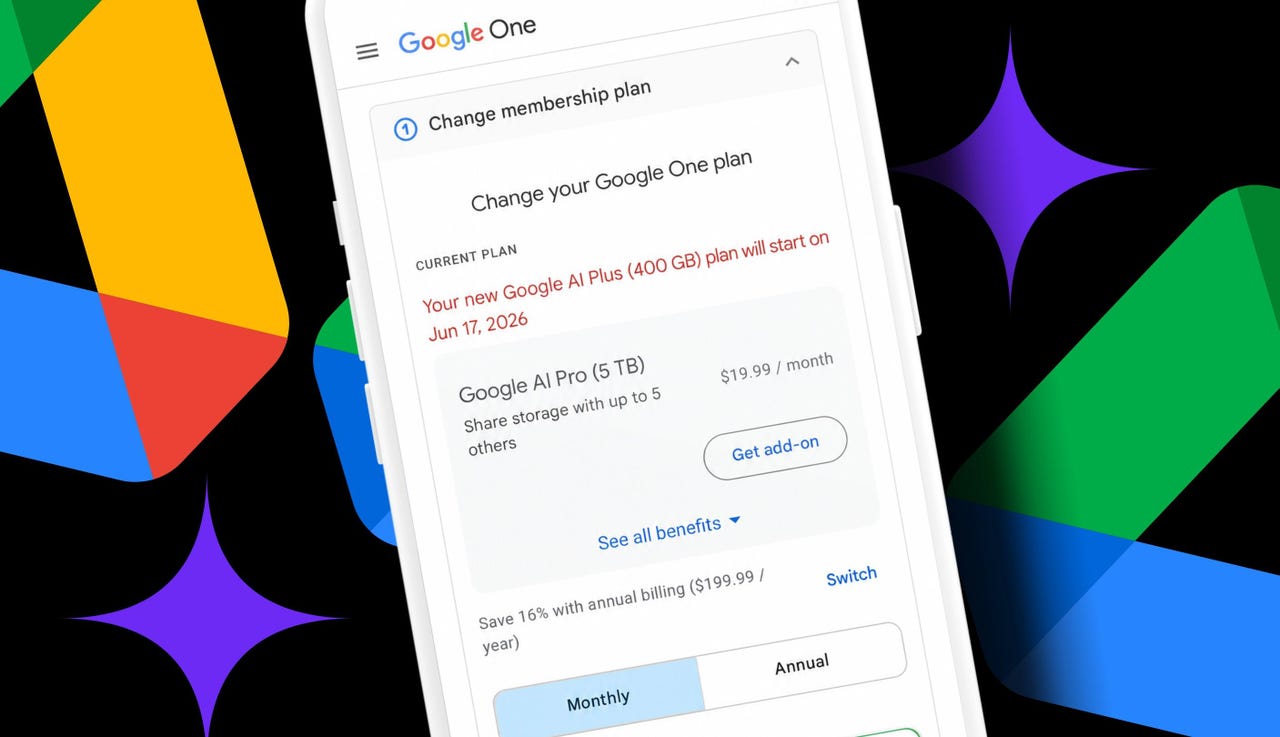
I don’t love paying for Google Drive. But after 14 years of using Docs, Sheets, Slides, Photos, and uploading random files, I now have about 340GB of digital junk sitting in Google storage. That’s far beyond the free 15GB given to every account. So, I need to shell out $20 a month for Google AI Pro, which gives me 5TB of storage and access to the Gemini 3 Pro model in the Gemini app.
The issue? I want to whittle down my subscriptions, and I barely use Gemini enough to justify the AI part of the bill. I need storage.
Also: I tried Google Drive’s new AI cleanup tool to fix 14 years of clutter
So, when Google dropped its AI Plus plan to $4.99 a month and bumped the included storage to 400GB, my cheap little ears perked up. Suddenly, Google had a plan that covered my current storage needs, with Gemini access included, if I wanted it.
There are heavier usage limits, but Google said they’re “twice as high” as the free tier. The plan also includes access to NotebookLM, Proofread and AI Inbox in Gmail, and more. The choice here is obvious for a person trying to save money.
How to switch Google One plans
What you’ll need: A Google account with a Google One plan (which some people call a “Google AI” plan because several of the options include Gemini) and access to your Google One membership settings either on the web or via the mobile app.
Before changing anything, go to the Google One dashboard in a browser or open the Google One app on a phone. Make sure the Google account tied to the paid storage plan is signed in. From there, look for the storage breakdown.
- On the web, Google shows the current plan up top and then how much space is being used across Drive, Gmail, and Photos.
- In the mobile app, storage appears at the top of the Home screen, and the current plan appears at the bottom.
In my case, I’m using 6% of the 5TB given to me in the AI Pro plan. So, the 400GB AI Plus plan would cover me.
Also: I tested ChatGPT Plus vs. Gemini Pro to see which is better
While managing a Google One plan, it may be necessary to click or tap “See more plans” to view the AI Plus options, especially when planning to downgrade. I had to, because they were hidden for me. Be sure to expand all the benefit details and read through each plan carefully to see what would be lost by switching to a cheaper option.
Google now has seven options, ranging from Basic (with 100GB of storage and no AI) to Google AI Ultra (with 20TB and Gemini Pro). I also noticed Google has another $9.99 option for AI Plus. It has all the same benefits, but with 2TB of storage. Tempting.
When ready to choose, just click or tap the button on the plan to downgrade, upgrade, or subscribe.
Also: Everything we saw at Google I/0 2026
For me, by downgrading to AI Plus with 400GB, I’d lose higher Gemini AI usage limits and access to the 3 Pro model. I’d also lose YouTube Premium Lite Individual, Google Home Premium, and Google Health Premium. But I don’t really use them now. I would get to keep NotebookLM and Google Flow, plus the 400GB of Drive, Photos, and Gmail storage to share across five family accounts.
How much I’ll save by downgrading
Honestly, before now, Google AI Plus was easy to ignore. It cost $7.99 a month at launch and only included 200GB of storage. That’s nothing. Today, it’s $4.99 a month and comes with double the storage. It’s something I can consider, as a longtime Workspace user.
If I were to move from my current AI Pro plan with 5TB of storage to AI Plus with 400GB of storage, I would have only about 60GB of space left. That’s not much when factoring in Gmail attachments, Drive uploads, and Photos backups that keep piling up over time.
Also: Google’s AI features just got more confusing
I looked it up, and if my account should ever go over its quota, Google said I might lose the ability to upload files to Drive, back up photos and videos, create new Google Workspace docs, and use Gmail normally. Still, I do have room to spare. The math is easy.
Dropping from AI Pro at $19.99 a month to AI Plus at $4.99 a month would save me $180 a year. And don’t forget, AI Plus also has a 2TB option for $9.99. That would save me $120 a year. Even that’s a real subscription cost cut, if you ask me.
Hey, in this economy, every little bit helps.