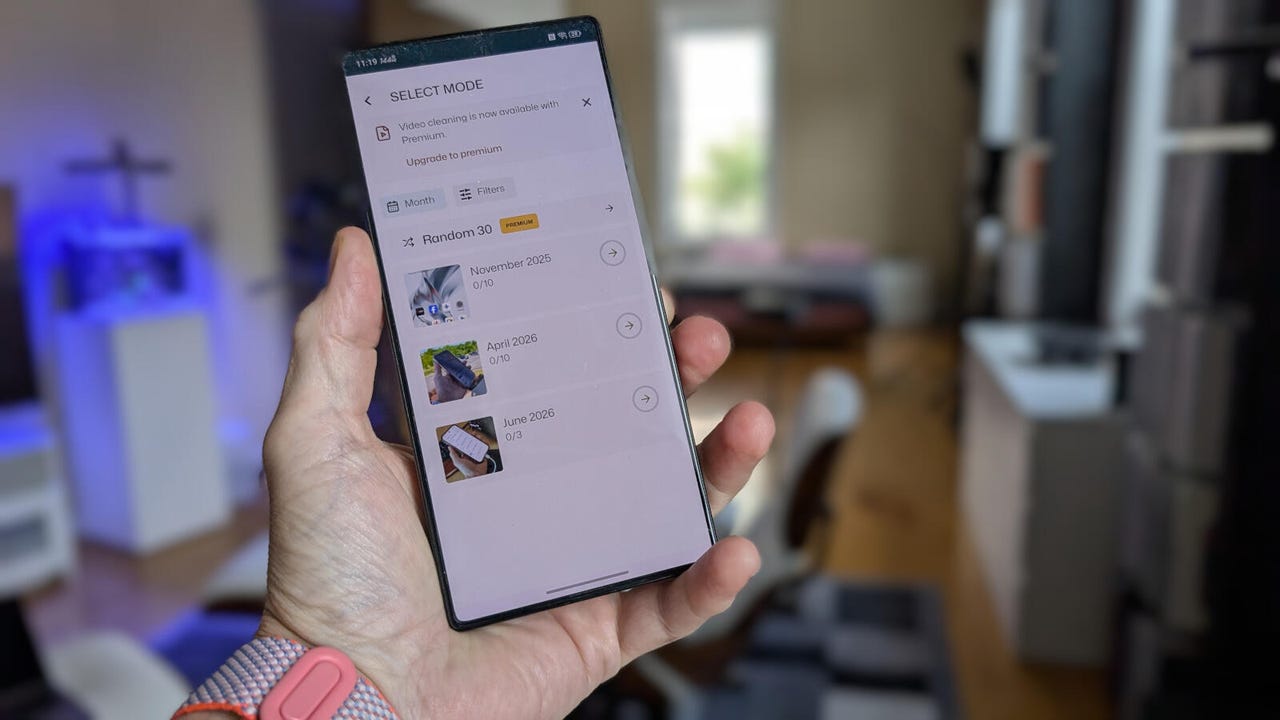
I found a free Android app that makes deleting photos as easy as swiping left


Sponge

Jack Wallen/ZDNET

Follow ZDNET: Add us as a preferred source on Google.


ZDNET’s key takeaways

  • If you need to clear space on your phone, Sponge has you covered.
  • This app makes deleting old photos so fast and easy.
  • The app is free, unless you need to delete videos and/or collections.

I don’t know about you, but my phone — a Pixel 9 Pro — is chock-full of photos and videos I’ve taken over the years, and they take up a lot of space. Vast amounts of space. Star Trek Discovery-levels of space.

Every once in a while, I realize that it’s time to clear out the cruft, which means going through the tedious task of deleting photos using the Google Photos app.

Aaack! (IYKYK.)

I’ve done this countless times, and it never fails to take much longer than I have any patience for.

Until now.

Also: 7 apps I use to lock down, encrypt, and store my private files – and most are free

I recently discovered an app with one purpose: to make deleting photos and videos as efficient as possible. In fact, the Sponge app takes a rather Tinder-like approach to deleting photos: swipe left to delete, swipe right to keep.

But Sponge takes this one step further by letting you delete individual photos, photos by date, or photos by collection.

With a single swipe, you can clear away those photos and/or videos that you no longer want. It’s so easy that the first time I used it, I couldn’t help but laugh. I’d been so accustomed to the Google Photos way of removing pics that having something exponentially faster and easier was a breath of fresh air.

On top of that, you can configure Sponge to remind you to delete photos.

Sweet.

One thing to keep in mind is that Sponge only deletes photos from your local device, not those in your Google Cloud account. This is good because it means you’ll always have a backup of the photos you delete.

Another caveat is that the free version can only delete photos, and only by the month. If you need to add video deletion (and photo deletion by collection), you have to pay for the Premium version, which is a one-time (in-app) payment of $3.49.

Also: Your Android phone is getting agentic powers with Gemini Intelligence – here’s how and when

By using Sponge in conjunction with emptying your Android Recycle Bin, you can save some serious storage space on your device.

Getting Sponge

Sponge is found on the Google Play Store and is free to install. To install it, open the Play Store app, search for Sponge, tap the entry (its official title is Sponge – Gallery Cleaner), then tap Install. Sponge is installed in seconds and ready to go.

Are you ready to “Sponge” clean your phone of photos and videos you no longer need?

Let me show you how.

Using Sponge

Open the app, then tap “View all” near the middle. You’ll see your photos listed by month, starting with the oldest. Start by tapping a month to reveal the photos contained within.

Sponge

If you purchase the Premium version, you can also delete by collection.

Screenshot by Jack Wallen/ZDNET

For each photo, swipe left to delete it or right to save it. As you swipe, you’ll be presented with the next photo. When you finish that month, you’ll see a page asking whether you want to delete the photos permanently now or decide later. Tap “Delete forever,” and you’ll be presented with a Mission Accomplished page, which shows you how many images you reviewed and how much space you saved.

Also: Google quietly confirms ChromeOS-Android merger – here’s what it means for you

Sponge

Huzzah! Photos deleted and space saved.

Screenshot by Jack Wallen/ZDNET

Move on to the next month and continue the process.

I deleted hundreds of photos in less than a minute, and it felt really good.

After using Sponge for just a couple of days, I decided it was a must-have app, as it made clearing space on my Android phone so much more efficient.

Monthly reminders

If you’re one who tends to forget to do such tasks, you’ll be glad to know that Sponge can remind you (via a pop-up in your Notification Shade) every month to purge photos.

Sponge

Sponge won’t let you forget to purge those old, unwanted photos.

Screenshot by Jack Wallen/ZDNET

Also: This free Android launcher made my phone and tablet look like Windows 11 – here’s how

To enable this feature, tap the three-line menu button at the top left corner of the app, tap Settings, and then tap the On/Off slider for “Monthly reminder.”

Sponge

You can also upgrade to the Premium version from here.

Screenshot by Jack Wallen/ZDNET

If you regularly need to delete old or unwanted photos on your Android phone, you will not find an easier way to do so than Sponge. Install this app, use it, and save yourself a lot of time and effort.





Source link

Leave a Reply

Subscribe to Our Newsletter

Get our latest articles delivered straight to your inbox. No spam, we promise.

Recent Reviews


Apple CarPlay wasn’t center stage at the WWDC 2026 keynote on Monday, which leaned heavily on the new Siri AI, Apple Intelligence expansions and upgraded parental controls

But buried in a dense list of changes and the developer-facing sessions, iOS 27 delivers a meaningful set of CarPlay updates. None of them is earth-shattering on its own, but collectively they’re a genuine quality-of-life improvement for daily drivers.

I scrubbed through the patch notes and poked around the developer beta to see what’s new and coming soon.

Better audio controls

The Now Playing interface is at last getting audio scrubbing. Touch and drag the progress bar to skip the boring part of a podcast, find the next chapter of an audiobook or get to the beat-drop faster. It’s the kind of thing you’d assume was already there. Previously, you’d have to tap and hold the skip-forward or skip-backward button to achieve a similar result, which I always found unintuitive.

More useful still is the new Audio MiniPlayer: a pill-shaped floating control in the upper right corner (in left-hand-drive vehicles) that keeps play/pause and skip controls accessible even when you’re running the map fullscreen. It’s a small change, but anything that reduces the need to tap around while driving is a win in my book.

Darkened iOS screenshot highlighting the new MiniPlayer

The new MiniPlayer (upper right) keeps play/pause and skip controls available wherever you are.

Apple/Screenshot by CNET

Android Auto also recently introduced floating audio controls to its navigation display, though the widget Google presents is much larger.

CarPlay can collaborate with your car

CarPlay and CarPlay Ultra navigation apps running on iOS 27 will soon be able to share route data with and receive data and waypoints from the host vehicle’s onboard software. This unlocks some interesting possibilities for driver assistance and autonomy down the road, but could also improve EV route planning more immediately.

It works like this: The navigation app — Apple Maps or even third-party apps like Waze or Google Maps — generates a route and passes that info to the host car. The EV looks at the proposed route, compares it against the available range, finds a compatible charging station and passes a waypoint back to the app, maybe with an estimated charge time to complete the trip. The navigation app sees the updated route, and you get a more accurate ETA and a charging stop you didn’t have to search for yourself.

All of this passing waypoints back and forth may sound convoluted, but I can see how this method protects driver privacy and data: The app only gets the information it needs when necessary. 

Whether route or location data flows from the app to the host vehicle, vice versa or neither at all will depend on the developer, the automaker and, ultimately, the driver’s chosen privacy settings.

iOS 27 Route sharing demo

In iOS 27, your car and CarPlay apps will be able to exchange information while giving you control over your data privacy.

Apple/Screenshot by CNET

New Siri hits the road

Siri AI is coming to CarPlay as part of iOS 27, bringing the new conversational, context-aware version of Siri from the phone to the dashboard. The new Siri visuals use the Liquid Glass design language introduced in iOS 26 and further evolved in iOS 27. 

Apple Maps is getting natural language route search, coming — eventually — as part of the Siri AI rollout. Soon you’ll be able to ask Apple Maps, for example, to “navigate to that sushi place that Nicole recommended last week,” and have Siri pull the relevant information from text messages, emails or notes on your phone. 

While we wait for the new Siri to arrive, Apple Maps will also see an enhanced Flyover mode using aerial imagery and 3D scans for a more realistic look, improved Visited Places accuracy with broader market availability, and more Local Guides coverage. Offline Maps improvements are in the mix too, though specifics are thin.

Demonstration video app in apple carplay

Developers will be able to build video apps for CarPlay that seamlessly transition to audio-only when it’s time to hit the road.

Apple/Screenshot by CNET

Video apps with sensible guardrails

Apple is letting developers build CarPlay apps with video browsing capabilities for vehicles that support the feature. Think about catching up on a show while waiting at the airport or during an EV charging session. Additionally, any iPhone app that supports AirPlay video streaming will also automatically be able to cast to a compatible CarPlay display. 

With either method, video via CarPlay will feature an automatic audio-only fallback mode: If a car doesn’t support video, or conditions change (say, you unplug and start driving again), playback will transition seamlessly to audio-only, so you can keep your eyes on the road while you listen to the rest of that podcast you started.

Developer tools and widgets

On the developer side, iOS 27 adds new app templates across categories, plus support for Live Activities and widgets from any app — so you could have a live sports score widget running on your CarPlay display without the app being open. 

Meanwhile, developers will gain access to new APIs for building conversational voice apps, including AI chatbot integrations, into CarPlay. There’s also a new CarPlay simulator built into Xcode 27’s Device Hub, letting devs test across different aspect ratios and configurations without needing hardware.

Apple CarPlay Simulator running in MacOS

With the new CarPlay Simulator, developers can test their apps across a variety of aspect ratios without buying a bunch of cars.

Apple/Screenshot by CNET

Reliability, accuracy fixes and other automotive bits

Improved wireless CarPlay reliability and better GPS heading accuracy at the start of navigation round out the lower-profile but welcome fixes. The former promises fewer dropped connections while driving, while the latter should mean less of that awkward spin-the-car-around-the-block moment while the app figures out which direction you’re pointed.

Outside of CarPlay, Proactive Car Key setup is listed in the iOS 27 patch notes — Apple hasn’t fully detailed it, but the likely scenario is a simplified pairing flow for phone-as-key, similar to how easy it is to pair AirPods. Improved Bluetooth power management is also on the list. It’s not a CarPlay feature per se, but relevant for anyone relying on wireless CarPlay, hands-free calling or audio streaming.

iOS 27 is now in developer beta, with a public beta to follow in July and general availability expected in September.


Source link