
Whether you’re for it, against it or indifferent to it, the social media ban for under-16-year-olds is due to come into force next year.
Regardless of how that might work, the ban is not a substitute for parental controls on devices and your home network. With two kids of my own, here’s what I’ve learned.
Talk to your kids
Parental controls are there as a safeguard to protect kids from the harms that the internet has to offer. As kids get older, the number of restrictions you have will reduce, but you’ll still most likely want something in place.
All restrictions should be clearly stated and you should talk to your kids about why restrictions are in place and what you expect from them when they’re using devices. Then, you can put restrictions in place.
Use the provided parental controls
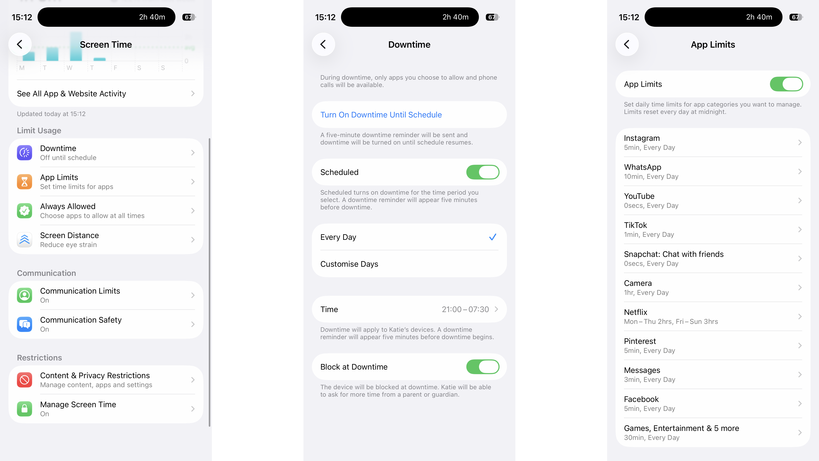
Whether or not your kids have Apple or Android phones, there are free parental controls available for both platforms: Screen Time for iOS and Family Link for Android.
These both need to be tied to a child’s account, but once installed, they both give a similar set of controls: you can make kids request apps before installing them, you can set app time limits, control the contacts they can add, and you can put phones into downtime to prevent use (either manually or scheduled).

Family Link for Android phones is available on iOS and Android, but for Screen Time you need another Apple device.
If your kids have Amazon tablets or Kindles, then parental controls are available there, too, controllable through the parents’ dashboard online. Again, you get a similar level of control, including time limits.
The one thing that’s annoying about Amazon’s parental controls are that they stop a child joining a different Wi-Fi network, and you have to do this with a parent’s profile on the device itself. On the one hand, this is a safety feature, but if a child goes off to stay with grandparents, for example, they can’t connect to Wi-Fi without you being present.
Windows has its own controls, with Microsoft Family Safety. MacOS devices can use Screen Time, just like the phones.
Game consoles have their own set of controls that you need to set up individually.
Most social networks have parental controls of varying quality, but require that any account your child sets up be monitored by you as a parent using the provided controls.
My advice is to always set every device up with the controls available, but to try and restrict the number of manufacturers you have.
For example, if your child has an iPhone and an iPad, the same settings and time limits apply to both; if they have an Android tablet, a Windows PC, and an iPhone, you have to set limits and controls on each.
Invest in a router with proper parental controls
It’s essential, in my view, to have parental controls running on your home network. I use Eero at home and have Eero Plus. With this, I can create profiles for each child and associate their devices.
Each profile can have its own scheduled downtime, turning off at bedtime, for example, and you can filter the internet in an appropriate way for different-aged children. Eero also allows me to block specific services across all devices, say turning off Discord, YouTube or Snapchat.

But be careful. To identify a device, Eero (and other routers) use a device’s MAC address. Phones and tablets can create a private MAC address, which can change frequently. It’s for privacy to stop public hotspots spying, but when a MAC address changes, your router thinks it’s a new device.
Disable this setting on your child’s devices (turning it off or setting it to Fixed, rather than Rotating) and, if your router supports it, turn on notifications for new devices. That way, you’ll get a pop-up on your phone if the router spots a new device, which covers MAC address changes and any children bringing other unlocked devices home.

Also be aware of devices with more than one network connection. A PC with Wi-Fi and Ethernet will appear as two different devices, and you need to add both to a profile for full protection.
Home network controls should not be used in place of on-device controls, but alongside them. When your child leaves home with a device, such as an iPhone, they’re no longer protected or restricted by the home network. Make sure mobile devices are set up with restrictions similar to those on your home network, so your kids remain protected when they’re using a mobile connection or on another network.
Protect your passwords and PINs
Most parental controls will require a PIN or password when you want to make changes, so don’t use the same ones that you’d use on your own phone, as your kids probably know what this is. I use random PINs and passwords, and save them in a secure note on my phone.
Be aware of different access routes
Just because a phone’s locked down or restricted in a certain way, it doesn’t mean that your kids can’t get around the controls you have. Take Snapchat, for example: kids can simply log in on someone else’s phone or via a web browser, bypassing time limits that you might have set.
If a service that your child has access to has the option of two-factor authentication (where you need a code to login), set this up, but add the code to your phone, such as through the Google Authenticator app. Sign out of all sessions on the service on your child’s phone, and then sign them back in. They’ll need the authentication code to do so, so it’s fine to give out that one-time code.
However, now if they try and log in via another phone or the web, they’ll need a code that they can’t get, so you can ensure that they’re safe. This doesn’t stop them from creating new accounts on many services.
It’s also worth blocking web access to services on their phone and your home network, just for safety. For example, if you have time limits on WhatsApp, you’ll want to block WhatsApp.com, as the web version allows a child to pair their account and switch to a web browser when they run out of time.

Blocking social media sites’ web addresses prevents kids from bypassing time controls in apps or creating new accounts to circumvent restrictions.

Stephan is the sports journalist for the Maple Grove Report.