
Follow ZDNET: Add us as a preferred source on Google.
ZDNET’s key takeaways
- Claude Code finally has a Linux desktop app.
- The app works swimmingly if you play by the rules.
- Trying to make it work locally was an exercise in futility.
As a hard-core Linux user, I’m always on the lookout for apps that enable Linux to keep pace with competing platforms. You might be surprised that, even in this age of AI, competitive open-source options are not hard to find. For example, I’ve been using both Alpaca and Moose for some time without issue. Both of these apps serve as GUIs for instances of locally installed Ollama (which is how I typically like to roll with AI). They offer well-designed GUIs, the flexibility to work locally or in the cloud, and efficient use of system resources.
But sometimes, I yearn to work with a more mainstream option.
Such is the case with the newly released Claude Code Linux desktop app, which offers all the features found in the MacOS and Windows versions, and even lets you enable developer options to expand the feature set.
Also: I quit ChatGPT for a free, private, and local AI called Ollama – here’s why
Before I get into this, it’s important to understand that when I use AI, I almost always use it locally. I’ve installed Ollama on most of my machines I have. Why? I’m not straining the power grid or compromising my privacy. I will always choose local AI over cloud-based.
That said, I still wanted to kick the tires of the Claude Code Linux desktop app to see how it compared to the competition.
Here are the important bits for me:
- The app has to have a well-designed GUI that makes interacting with models simple.
- The app needs to easily connect to locally installed AI (such as Ollama).
- The app needs to function exactly as it does on other operating systems.
- The app needs to use system resources wisely.
Does the Claude Code Linux desktop app live up to that checklist? Let’s find out.
Installing Claude Code on Linux
First things first: Install Claude Code on Linux. With many GUI AI apps, I can open the app store of my distribution, search for the app (such as Alpaca or Moose), and install. With Claude Code, I had to add the necessary repository before installation. One thing to keep in mind: Currently, Claude Code desktop is only available for Debian and Ubuntu-based distributions.
Also: How to install and configure Claude Code, step by step
Here are the commands required:
Add Anthropic’s signing key: sudo curl -fsSLo /usr/share/keyrings/claude-desktop-archive-keyring.asc https://downloads.claude.ai/claude-desktop/key.asc
Add the repository: echo “deb [arch=amd64,arm64 signed-by=/usr/share/keyrings/claude-desktop-archive-keyring.asc] https://downloads.claude.ai/claude-desktop/apt/stable stable main” | sudo tee /etc/apt/sources.list.d/claude-desktop.list
Update and install: sudo apt update && sudo apt install claude-desktop
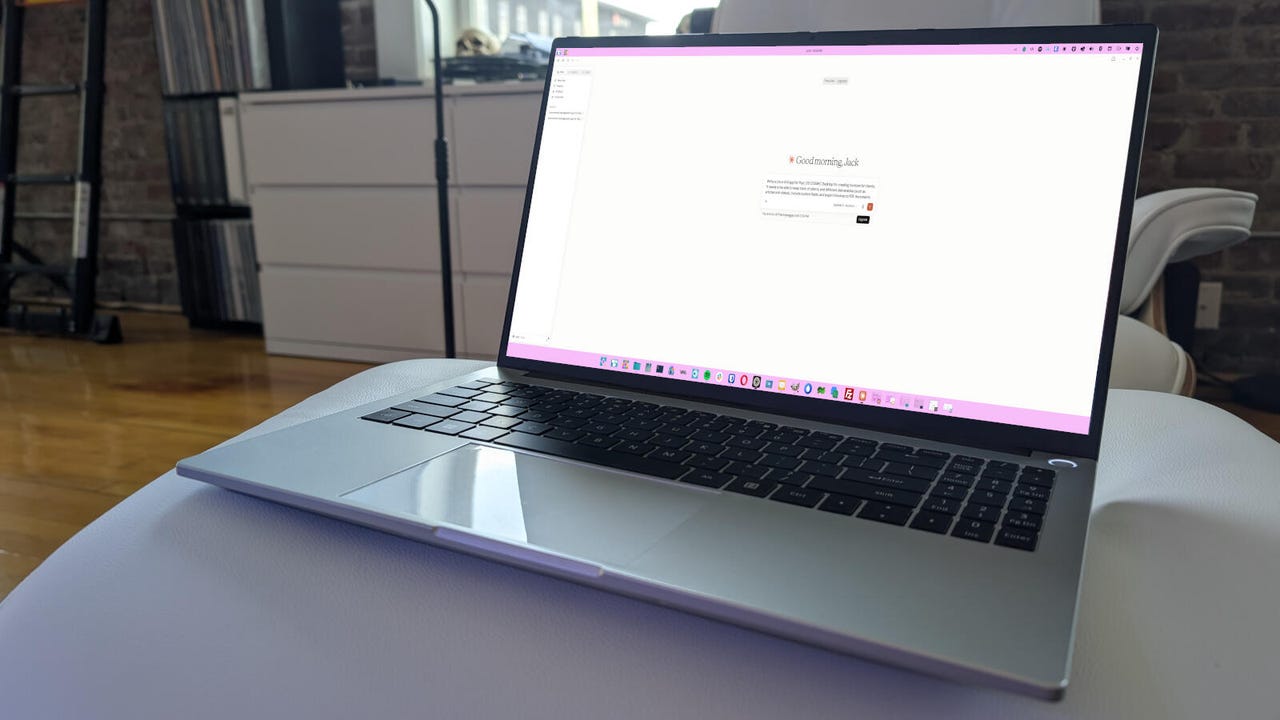
With the installation complete, I opened the Claude Code app from my desktop menu and was greeted — you guessed it — by a well-designed GUI.
The Claude Code Linux desktop app has a well-designed GUI.
Screenshot by Jack Wallen/ZDNET
It’s time to dive in.
Connecting to locally installed AI
This is where things got a bit bumpy (which wasn’t that surprising). I’ve set up plenty of local AI for various desktop clients, but (sadly) Claude Code was not the easiest. In fact, it was rather complicated, and I wouldn’t have been able to make it work without also installing Claude Code from within Ollama itself (with the ollama launch claude command, which allowed me to select an LLM to download and use with Claude Code).
I downloaded the Qwen6 LLM, which is 15 GB, so be careful what you wish for. Until you pull a model, the GUI won’t be able to find one.
Also: Want local vibe coding? This AI stack might replace Claude Code and Codex – for free
With that taken care of, I had to enable Developer options in Claude Code (Help > Troubleshooting > Enable Developer Options. After a relaunch, I could then go to Developer > Configure third-party inference. This is where things should have made it possible to connect to my locally installed AI. The settings look like this:
This should work as expected. Unfortunately…
Screenshot by Jack Wallen/ZDNET
Once you’ve done that, click Apply changes. You’ll then need to select a model for use. Scroll down to the Models section and click Add model. This is where I ran into what looked like an insurmountable hurdle. Even though I instructed Claude Code to use a local gateway base URL, it refused to see any of the models I’d pulled, and no matter how I tried to configure it, the Claude Code desktop app refused to comply.
What this means is that I’m stuck with using a free Anthropic plan, which is pretty limited (especially when you try to get Claude Code to write an app for you). In the end, you cannot reliably use the Claude Code desktop app with local AI. Bummer.
Does the app function as on other operating systems?
This is where we get some good news. I tested the Linux app against the MacOS app, and they are identical. Feature for feature, you won’t find any difference (other than slight UI changes) between the two.
Also: 5 reasons why I still prefer Perplexity over every other AI chatbot
Huzzah.
Does the app use system resources wisely?
This would have been a much more revealing test had the Claude Code desktop app functioned with locally installed AI. As is, it relied mostly on cloud-based resources, so using the desktop app didn’t put even the slightest dent in my machine.
Here’s the query I used for my testing:
Write a Linux GUI app for Pop!_OS COSMIC Desktop for creating invoices for clients. It needs to be able to keep track of clients and different deliverables (such as articles and videos), include custom fields, and export invoices to PDF documents.
Even though my free account couldn’t finish the query, while it worked, my machine continued performing fine. When I tested that against a locally installed AI desktop app that would function with local AI, the query brought my machine to a temporary halt while it ground away at the task.
Also: I’ve tested so many desktop AI tools, but Hermes with Ollama is my new favorite – here’s why
In the end, I was disappointed that I was unable to connect the Claude Code desktop app to my locally installed AI, but I can still say this: If you have an Anthropic account and are looking for a tool to simplify using Claude Code on your Linux desktop, this is definitely the way to go. I’ve launched Claude Code through Ollama (which does work quite well), but going that route is not for the faint of heart.
If you want simplicity, this new Claude Code desktop app for Linux is a good option. Just make sure your Anthropic account is paid for and ready to go. If you want to use local AI on Linux, however, I’d suggest sticking to Alpaca or Moose.