
Verdict
Excellent value, the Ecovacs GOAT O1200 LiDAR Pro can cut lawns up to 1200m2 and has an integrated TruEdge trimmer for proper boundary cutting. The trimmer can be loud, and the map may need some adjustment to make sure it cuts everywhere, but it does reduce the amount of manual maintenance you need. With electronic cutting height adjustment and excellent obstacle avoidance, this is a great mid-range robot lawn mower.
-
Great value
-
Easy to set up
-
Excellent navigation with no wires or reference station
-
Trimmer is loud
-
Trimmer can miss sections, particularly in corners
Key Features
Introduction
As easy as robot lawn mowers make life, they all still struggle, to one degree or another, to adequately deal with edges. The Ecovacs GOAT O1200 LiDAR Pro is here to fix that, with its TruEdge Trimmer.
With automatic setup and navigation that uses the cameras and LiDAR, is this the perfect no-fuss robot lawn mower? Read my full review to find out.
Design and features
- Uses its cameras and LiDAR for navigation
- Electronic cutting height adjustment
- TruEdge trimmer
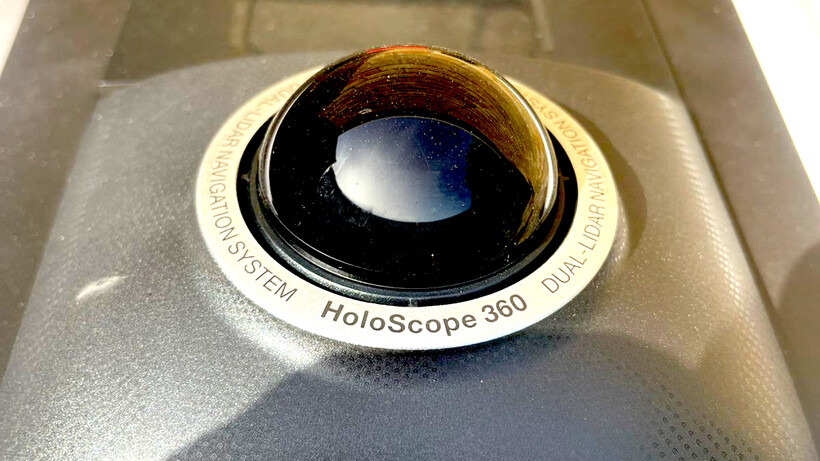
As you can probably tell from the name, the Ecovacs GOAT O1200 LiDAR Pro uses LiDAR (and its front-facing camera) for navigation and mapping, rather than the RTK system that a lot of rivals use.

I’ve seen previous robots that use similar systems, such as the simple and cheap LawnMaster OcuMow 18 Autocharging Vision Robot Mower and the more expensive Eufy Lawnbot E15, but the GOAT O1200 is the most advanced that I’ve tested.
First, you might want to know what the difference is between LiDAR and the GPS-based RTK, particularly the network variant of RTK that doesn’t need a reference station, as with the Segway Navimow i205 AWD. Both are wire-free, but the core difference is that network RTK needs an internet connection (mobile or Wi-Fi), and LiDAR uses its sensors.
RTK can be more accurate and better suited to complex environments and larger lawns, but LiDAR works where GPS or network coverage is poor. And, LiDAR is quicker to get started with.
Aside from the LiDAR dome on top, the thing that really stands out with the Ecovacs GOAT O1200 LiDAR Pro is the TruEdge Trimmer on the side. Covered by a brush, the underneath holds a proper trimmer line for actual edge cutting: it’s effectively the same tech as used by a regular manual grass trimmer.

This is the first edge trimmer that I’ve seen on a robot lawn mower, with the Ecovacs GOAT O1200 LiDAR Pro built to run parallel to your boundaries and trim that way. The only other robot that I’ve seen that’s built to deal with edge cuts is the Husqvarna Automower 305E Nera, which has a smaller cutting deck at the front. Once the Automower reaches a boundary, it swings around to cut with the smaller deck. It works surprisingly well, but edges are slowly nibbled away rather than tackled in one go.
Underneath the robot is the standard cutting deck, which houses three individual blades for grass cutting. You’ll need to keep an eye on these and replace them when they start to get blunt.

To set up the Ecovacs GOAT O1200 LiDAR Pro I just needed to put its charging station on the floor. This can be placed on a hard surface, such as a patio (the robot can then drive to its cutting location), or you can use the provided screws to secure it to your lawn.

Once paired to the app, the Ecovacs GOAT O1200 LiDAR Pro needs to map your garden. I found this easy to do, with the option of manually creating a map, using the app to drive the robot around your boundaries, or you can use the auto option and let the robot build the map itself.
Which option is best will depend on the type of garden you have. If you have a relatively simple layout with clean boundaries, then automatic will work well; if you’ve got a bit of complexity to deal with, you might want to take the job on manually.
With the map built, you can set no-go zones for any troublesome areas, and configure the perimeter for the TruEdge system, and then you’re ready to go.
Mows can be started manually, or you can schedule the robot to go out regularly, making it largely hands-free.

Mowing can also be started using the control panel on top of the robot, in front of the large red Stop button that you can hit in an emergency.

It’s nice to see electronic cutting height adjustment built-in. Typically, at this kind of price, cutting decks have a manual adjustment, so the app control is welcome, making it easier to tweak during a season. Cutting height is between 3cm and 8cm in 0.5cm increments.
That’s not bad, although a slightly lower cutting height would have been appreciated if you want that bowling-green look.
Performance
- Excellent navigation
- Trimming is impressive (but loud)
- Some areas can be missed
General navigation is excellent, with the Ecovacs GOAT O1200 LiDAR Pro able to easily find its way around my test lawn. Its front-facing camera does a brilliant job at spotting obstacles and gently manoeuvring around them, whether that’s a person walking across the grass or a ball left on the lawn.

Cutting performance is as good as you’d expect. Over time, as the grass is cut and mulches down, you’ll see a real improvement in your lawn.
General movement was good, with two large wheels at the back used to push the robot forward. It has two smaller trolley-style wheels at the front. These are good on flat, well-maintained lawn, but if you’ve got a bumpier lawn or rougher terrain, a robot with AWD may suit you better.

Of course, the real difference here is the TruEdge Trimmer. When the trimmer fires up, the robot goes from being near silent to very loud – much like using a traditional trimmer.
For safety, if the robot picks up motion near it, the trimmer stops working immediately, although the regular blades keep cutting. For that reason, it’s best to leave the robot unattended when you want to use its edge cut ability.
Generally, TruEdge works very well, but it may need some tweaking. With the automatic map set up, I found that a few parts of the border weren’t touched, and the Ecovacs GOAT O1200 LiDAR Pro didn’t venture into the corner of the garden holding the water butt. Some adjustment may be necessary, and you may still need a trimmer for the odd patch of grass; but, overall, the TruEdge system works well.
Should you buy it?
You want a robot that can deal with edges
With its TruEdge system, this robot uses a trimmer line to cut grass right up to boundaries.
You have rough terrain or a very large garden
For very bumpy terrain, a robot with AWD may be better, while those with large spaces should look for a larger model.
Final Thoughts
The Ecovacs GOAT O1200 LiDAR Pro is quite different to a lot of other robot lawn mowers that I’ve reviewed thanks to its clever TruEdge system that largely takes away the need to tidy up with a manual trimmer. If you have a simple garden and want a well-priced, fully featured lawn mower, then the Ecovacs GOAT O1200 LiDAR Pro is great value; if you’ve got bumpy terrain or a much larger space to cut, check out the guide to the best robot lawn mowers.
How We Test
We test every robot lawn mower we review thoroughly over an extended period of time. We use standard tests to compare features properly. We’ll always tell you what we find. We never, ever, accept money to review a product.
Find out more about how we test in our ethics policy.
- Used as our main robot lawn mower for the review period
- Used on a variety of grass lengths to see how well the mower cuts
- Tested with any smart app and compatible smart systems
FAQs
No, it uses its camera and LiDAR for navigation.
Full Specs
| Ecovacs Goat O1200 LiDAR Pro Review | |
|---|---|
| Manufacturer | Ecovacs |
| Size (Dimensions) | 479 x 600 x 304 MM |
| Weight | 13 KG |
| Release Date | 2026 |
| First Reviewed Date | 02/06/2026 |
| Model Number | Ecovacs GOAT O1200 LiDAR Pro |
| Smart assistants | Yes |
| App Control | Yes |
| Lawn Mower Type | Robot |
| Blade Type | 3x razor blades, edge trimmer |
| Cutting width | 22 cm |
| Max lawn size | 1200 m2 |
| Cutting heights | 3-to-8cm |

Stephan is the sports journalist for the Maple Grove Report.