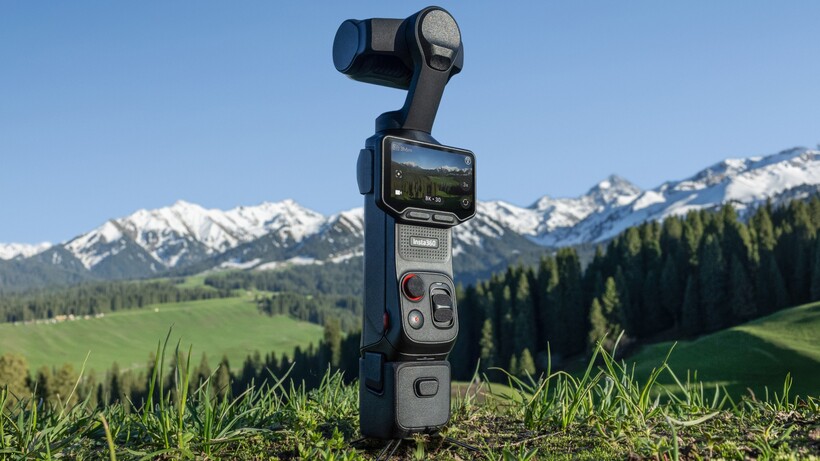

After weeks of teasers, the Insta360 Luna Ultra is official – but how does it compare to the stalwart of the handheld gimbal camera market, the DJI Osmo Pocket 4?
While both share the same broad design, sporting a gimbal-enabled camera system with integrated touchscreen and controls to make recording videos much easier, the two differ in key areas like video resolution, storage and even design – and that can make it tough to decide which is best for your needs.
While we’ve not yet gone hands-on with Insta360’s latest handheld camera, here’s how the Luna Ultra compares to the Osmo Pocket 4 on paper.
Pricing and availability
The Insta360 Luna Ultra retails at $769 in the US, and it’s available to buy right now following today’s announcement. UK availability is expected – Insta360 has a big UK presence, after all – but that’s not available right now.
The DJI Osmo Pocket 4 has the opposite problem; with DJI’s ongoing issues in the US, it’s not actually on sale in the region. In the UK, however, it’ll set you back £445, with a creator kit available with accessories at additional cost. It’s also available to buy now, following its release in April.
The Insta360 Luna Ultra has a detachable screen and controls
While both the Insta360 Luna Ultra and DJI Osmo Pocket 4 share the same broad design, Insta360’s latest gimbal camera system pulls away with a feature we’ve not seen before – a detachable 2in OLED screen and controls.

While the screen and controls are baked into the stem of the camera by default, you can remove them and use them as a remote control, giving better control of the shot when you’re in front of the camera. It works up to 20m away too, making it especially handy for single-person content creators who want to do more in front of the camera than just stand and talk.
The Osmo Pocket 4, on the other hand, has a 2-inch OLED touchscreen that can flip between horizontal and vertical orientation to quickly change the aspect ratio of the footage you’re capturing – again, ideal for social media content – along with controls to quickly zoom and move the camera, but the screen and controls both stay securely connected to the camera’s stem.

Which is better for your needs will depend on how you want to shoot content, but there’s no debate that the Luna Ultra’s removable tech makes it more versatile.
The Insta360 Luna Ultra offers a zoom lens system
Comparing the main sensors from the Luna Ultra and Pocket 4, the two are pretty evenly matched.
Both offer a 1-inch CMOS sensor to capture plenty of light and bolster low-light performance, and support for 37MP stills and 10-bit video recording. Insta360’s camera does pull away with Leica co-engineered optics, which usually means a bump in overall sharpness – though we’ll need to see how it performs in real-world conditions first.

Where the Luna Ultra truly stands out is in its secondary telephoto lens – and with a 1/1.3-inch sensor, it’s not much smaller than the main camera’s. It offers up to 6x lossless zoom and up to 12x digital zoom, making for a much more versatile shooting experience – especially compared to the Pocket 4.

The Pocket 4 doesn’t have a secondary lens at all, so it relies solely on digital zoom to get closer to the action or tighten the frame – and that caps out at just 4x.
The Insta360 Luna Ultra offers higher-res video capture
Intent on showing up the Pocket 4 wherever possible, the Luna Ultra tries to one-up its main competitor by offering 8K video capture – albeit at a slower 30fps frame rate than the 4K@60fps it also offers. While 8K is somewhat of a gimmick, it does provide high-res video that you can crop into and still get 4K footage from.

Instead, DJI seems to go all in on frame rate. While it doesn’t match the lofty 8K resolution of Insta360’s option, it does offer up to 4K@60fps video recording and a special 4K@240fps mode for those buttery-smooth slow-mo shots.

Both also offer support for LOG recording – 10-bit I-Log on the Luna Ultra and 10-bit D-Log on the Pocket 4 – with the same aim of capturing a flatter image that can be colour-graded in post-production, though that only really applies to those who use pro-level video editing software.
The Insta360 Luna Ultra boasts versatile tracking
The Insta360 Luna Ultra ships with the company’s latest version of its Deep Track tracking tech, now on version 5, with various shooting modes on offer.
The handiest for most will no doubt be the auto-tracking that’ll keep you in frame if you move around, though it also supports active zoom tracking, group tracking, and what Insta360 calls smart framing, which helps keep the subject not only in frame but positioned properly, even when moving around.

DJI has its own equivalent of the tech, of course, dubbed ActiveTrack 7.0, and it’ll similarly keep you in shot as you move, and it’ll zoom in too – though without a zoom lens like the Luna Ultra, this is more limited in scope. There are also Spotlight Follow and Dynamic Framing modes, along with gesture control to trigger recording.
Both seem pretty evenly matched on paper – the proof, as always, will be which performs better in real-world use, especially in busier environments with plenty of people around to confuse the systems.
The DJI Osmo Pocket 4 has more built-in storage
If the Osmo Pocket 4 takes a win in any area, it’d be built-in storage.
While the Luna Ultra only offers 47GB of storage – something that’s likely to get filled pretty quickly with 8K footage on offer – the Pocket 4 offers a more capacious 107GB. If you want to get lost in the numbers, that’s a not-insignificant 128% more storage than Insta360’s option.

That said, both camera systems offer support for up to 1TB of external storage via microSD, so both can be increased dramatically depending on your needs – it’s just that you won’t need to do that quite as soon with DJI’s option.
Early thoughts
On paper, the Insta360 Luna Ultra looks like the more ambitious of the two, with a more versatile camera setup, higher-resolution video capture and that clever detachable screen giving it a bit more flexibility for solo creators.
The DJI Osmo Pocket 4, however, seems like the more straightforward and arguably more practical option, with more built-in storage and a less experimental design that could appeal to those who just want to pick it up and start shooting.
Really, it looks as though the Luna Ultra could be the better fit for those after maximum versatility and more creative shooting options, while the Pocket 4 may well suit people who value simplicity and a more established shooting experience – but we’ll wait until we’ve tested side-by-side to deliver our final verdict.

Stephan is the sports journalist for the Maple Grove Report.