iPadOS 27 Brings More Intelligence to Apple’s iPad Line


At its Worldwide Developers Conference Monday, Apple introduced iPadOS 27, which will infuse more AI features into the system running its iPad and iPad Pro tablets.

In addition to long-awaited advancements to the personal assistant Siri, the main improvements in the iPad’s operating system focus less on big feature additions and more on smoothing out your everyday activities. Many of these enhancements are being added throughout Apple’s product lineup, from iPhones to Macs.

They include a Spotlight expansion that brings the system-level search feature in line with Spotlight on MacOS and the new Siri AI features, the ability to hand over organization of tabs in Safari to AI, and a method of creating automations in the Shortcuts app by writing or speaking requests using natural language dictation.

Apple is expected to release the iPadOS 27 developer beta today, and the final version will ship in September or October if the company follows its traditional release schedule.

Spotlight search gets a Siri boost

Spotlight, the search bar that appears when you swipe down from the middle of the iPad screen, is due to get smarter in iPadOS 27, getting closer in features to what currently exists in MacOS. In addition to locating apps, files and documents stored on the device, the new Spotlight search will let you type natural-language requests for Siri AI to process. Apple also says it has rearchitected the index of what’s on your device, and new information is indexed more quickly. 

It also becomes a place to ask Siri to act on information, such as delivering the latest weather and adding calendar appointments. Siri’s Visual Intelligence can be activated by taking a screenshot or pointing the camera at objects around you.

Let AI organize your tabs in Safari

How much time do you spend trying to track down a website’s tab in Safari that you’re sure you’ve opened but can’t locate? It’s all too easy to accumulate dozens of tabs when shopping or researching topics. The new Organize Tabs feature in Safari, which will be implemented across Apple’s devices, is designed to do the sorting for you, making it easier to bring up tabs more quickly.

It resembles the Use Stacks feature on MacOS, where a mess of document icons on the Desktop gets sorted into groups based on file types like images or PDF documents, or other criteria such as modification date.

Create Shortcuts without feeling like you’re building flowcharts

The Shortcuts app on the iPad, iPhone and Mac is a powerful way to automate actions, but it always requires that you think like you’re building scaffolding. That makes sense for an app that’s based on logic — for instance, take a photo, resize its longest dimension to 2,048 pixels and save it as a highly compressed JPEG. But that approach has, ironically, made creating shortcuts labor-intensive and time-consuming.

In iPadOS 27, building on the natural-language capabilities of Siri AI, you’ll be able to be more conversational about what you want Shortcuts to do.

You might need to get a new iPad to run iPadOS 27, though

Apple made a big deal about keeping support for iOS 27 all the way back to 2019’s iPhone 11, but that doesn’t apply to the iPad line. To run the latest operating system, you’ll need one of the following models:

  • iPad Pro (M4 and later)
  • iPad Pro 12.9‑inch (4th generation and later)
  • iPad Pro 11‑inch (2nd generation and later)
  • iPad Air 13-inch (M2 and later)
  • iPad Air 11-inch (M2, M3, and M4)
  • iPad Air 11-inch (4th generation and later)
  • iPad (A16)
  • iPad (9th generation and later)
  • iPad Mini (A17 Pro)
  • iPad Mini (6th generation and later)

Be sure to check all the breaking news from the conference at CNET’s WWDC live blog.


Source link

Leave a Reply

Subscribe to Our Newsletter

Get our latest articles delivered straight to your inbox. No spam, we promise.

Recent Reviews


angry-birds-android-auto

Artie Beaty/ZDNET

Follow ZDNET: Add us as a preferred source on Google.


ZDNET’s key takeaways

  • Several mobile games are compatible with Android Auto.
  • The games all have simple touch-screen controls.
  • These are slow-paced, short-burst games. 

If you spend downtime in your car waiting for school pickup or during a lunch break, there’s a good chance you pass the time with mobile games. Here’s what you probably didn’t know: You could be playing some of those games on your car’s screen instead. A handful of popular mobile games are compatible with Android Auto, meaning you can play them in your car.  

Also: 4 Android Auto developer settings that make driving so much easier – how to enable them

You might have browsed your Android Auto apps and already seen the Gamesnacks app, which hosts several dozen light games that are not unlike early internet flash games. However, these games are more robust; they’re the same games you’d play on your phone, just on a bigger screen.

The catalog of Android Auto-compatible games isn’t huge, but it’s worth a look. None of these titles has complex controls or a steep learning curve, and all are perfect for short sessions. 

How to get started

To play on your car’s screen, you will need to install these games on your phone and have your vehicle in park. The good thing is, though, when you’re connected to your car and open the app on Android Auto, you can still use your phone for other things. This is ideal when you have a child in the car with you and need to pass the time, but don’t want to hand over your phone. 

Also: 4 Android Auto apps I highly recommend for your next road trip – beyond Maps and Spotify

I tried a quick run-through of the available games; while they didn’t run as smoothly as on my phone, they’re enough to play comfortably. Here’s a rundown of my favorites.

angry-birds-android-auto

Artie Beaty/ZDNET

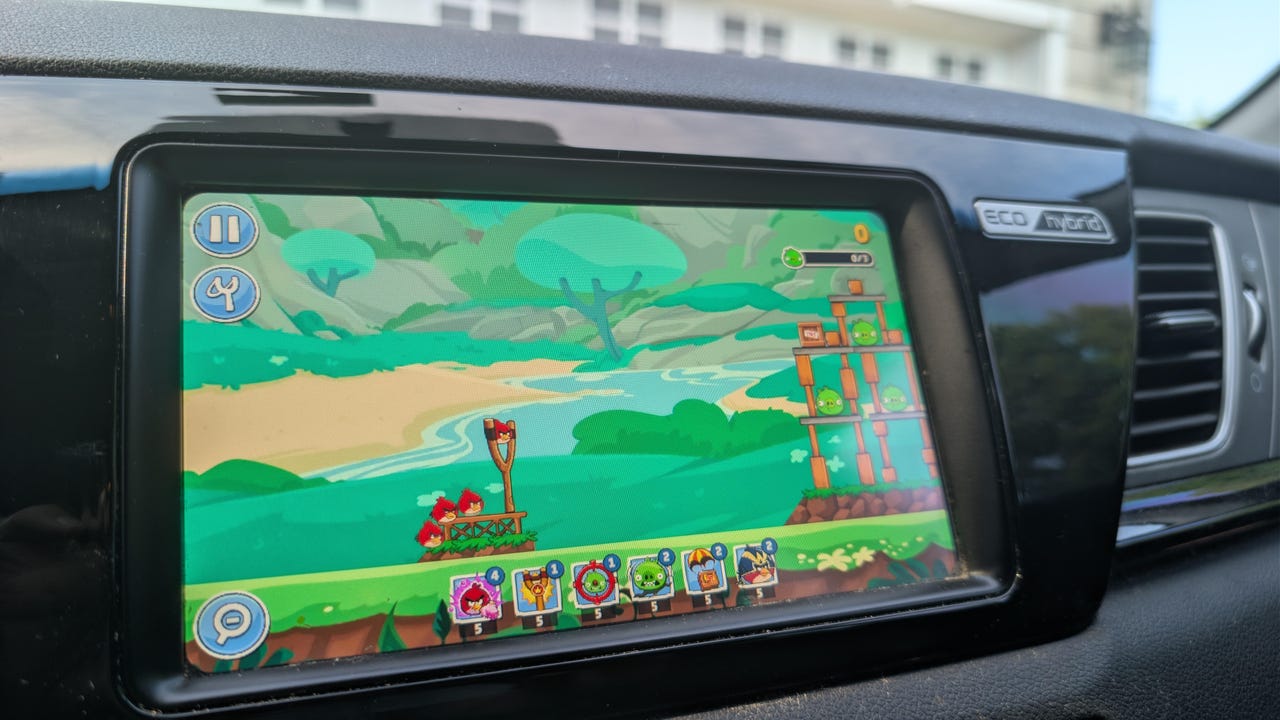
Angry Birds Friends: I hadn’t played Angry Birds in years, but the slingshot-style gameplay was easy to pick back up. It works well on a car touchscreen, and the levels go by quickly. Since the game is actually on your phone, your progress saves, so you can keep going across multiple sessions. I enjoyed not just beating levels, but immediately replaying a level I had just beaten to get a higher score. 

beach-buggy-racing

Artie Beaty/ZDNET

Beach Buggy Racing (1 and 2): Both versions of this cart-racing game feature colorful racers with very simple controls, making them the perfect games to kill 5 or 10 minutes. The tracks are filled with powerups, shortcuts, and other racers to beat (computer players, not online). I feel like this game takes more advantage of the bigger screen than any other on this list, and it’s the one that feels most like a “real” video game.

candy-crush-android-auto

Artie Beaty/ZDNET

Candy Crush Soda Saga: I’ve never been a fan of Candy Crush or its many versions or clones, but this is probably the most popular game available for Android Auto. The match-three gameplay is easy to pick up and play in short bursts, and it is relaxing to just zone out for a few minutes. Since the action is slower, it’s easy to play on a car screen than are games that require more movement.

farm-heroes-android-auto

Artie Beaty/ZDNET

Also: I saw the future of Android Auto, and now Google has me dreading my own car

Farm Heroes Saga: This game is from the same developers as Candy Crush and functions the same way, you’re just matching fruit, vegetables, and water instead of candy. This game goes a bit beyond the standard match-three format, as it sometimes requires you to collect a specific number of a particular piece. I still enjoyed this game, I just gave the more popular name the nod first.


Source link