MacPaw Is Launching a Next-Gen AI Assistant Soon. What to Know About Eney


You might already be familiar with MacPaw’s existing lineup of user-friendly Mac software — CleanMyMac, Setapp and ClearVPN are a few standouts. But with Eney, MacPaw has set out to create an entirely new kind of daily productivity app, one that combines all the AI technologies available today into a proactive AI assistant designed to fix scattered workflows.

MacPaw placed Eney on Setapp, MacPaw’s unified software marketplace, for its beta launch, and since then the company’s developers have been collecting user feedback to help evolve Eney into a potent AI assistant that adapts to you and your work habits rather than forcing you to adapt instead.

AI-powered assistants and chatbots may be the future of productivity, but for them to be useful, they need to anticipate where and how you might need help with day-to-day tasks. Here, we give an overview of Eney’s forthcoming features and why it might be the perfect companion for your future Mac workflow.

Bridging the gap between people and tech

Studies have found that the cognitive cost of AI is increasing while our attention spans are shrinking. Basically, AI is exhausting users by offering too many options, clicks and outputs. According to MacPaw’s internal research, users also want “infinite interfaces” that adapt based on their inputs, and an AI experience that turns complex tasks into intuitive processes. Users want proactive, adaptive tools that effortlessly navigate digital environments and reduce cognitive load. 

That’s why, over the course of Eney’s beta testing, MacPaw has launched numerous skills and integrated third-party tools to improve and streamline the user experience. Feedback has shown that while people are eager to create personalized vibe-coding tools by utilizing various AI solutions, many find the process to be time-consuming, preferring a plug-and-play solution. Eney has evolved into just that. 

Eney can get it done without brain drain

Users will be able to offload tedious tasks to Eney or allow the assistant to manage a schedule, tidy up files and handle the busywork that’s usually a time suck. 

Here’s a small sampling of Eney’s capabilities to date:

  • Create a morning briefing: Open your Mac and Eney will scan your calendar and provide you with a briefing of your tasks for that day. Eney can also collect the latest world news as you sip your coffee, synthesizing it into a digestible summary to keep you informed in less time, without having to weed through sources yourself.
  • Open and complete tasks in your tools: Eney can launch your Gmail, browser searches and the work apps you already use and get your day running from one unified interface.
  • Accelerate your workflow: Eney can quickly summarize long videos and PDFs, create meeting notes, upload and forward files to your team, translate documents, convert files and more.

But it isn’t so much the individual tasks Eney can accomplish that will impress you as the fact that Eney never stops learning. 

A proactive AI assistant that adapts 

Perhaps the most exciting aspect of Eney’s development process is that it’s being specifically designed to adapt to your habits and workflow over time. Using Eney feels personal and smooth, never clunky or generic. 

For example, Eney is capable of offering you help before you even ask for it. While other AI assistants sit and wait for you to think through and type out your next prompt, Eney provides ready-to-use prompts to keep your work flowing at a fast clip. 

For example, if you tell Eney to organize your computer’s desktop, you’ll be given a breakdown of the existing files, organized by size or file type or how much space they’re taking up, before Eney offers multiple further suggestions: should it organize by file type? Should it leave any files where they are? Once you confirm the next step, you’ll be presented with more options, ranging from simple tasks like deleting duplicate files to more complex ones like extracting archived files and organizing their contents. 

In other words, Eney acts proactively, always showing you its progress when completing a task and asking for permission before performing major actions.

Try Eney today

But if you don’t want to wait, you can try Eney today and see how it surfaces what matters and keeps work moving. 

Click here to learn more about Eney and how an AI assistant can help you save time and get more done.


Source link

Leave a Reply

Subscribe to Our Newsletter

Get our latest articles delivered straight to your inbox. No spam, we promise.

Recent Reviews


Google Drive Organize My Files

Elyse Betters Picaro / ZDNET

Follow ZDNET: Add us as a preferred source on Google.


ZDNET’s key takeaways

  • Gemini can suggest Drive file moves and new folders.
  • Organize My Files requires Workspace or Google AI access.
  • The tool is useful but still feels limited and unfinished.

I’m an Apple person. I’ve owned an iPhone since 2007 and a Mac since before that, so of course I’m also a longtime user of iCloud Photos and iCloud Drive. I pay $10 a month for the 2TB iCloud+ plan because I have 488GB of data sitting there, including nearly 40,000 photos. Don’t judge me. The real problem is that I’m also a heavy Google user, specifically Workspace apps.

Also: I tested ChatGPT Plus vs. Gemini Pro to see which is better

After 14 years of using Google Drive, I have 340GB of data stored there from all the Google Docs, Sheets, Slides, and Gmail messages I’ve created, not to mention file uploads. So I pay $20 a month for Google AI Pro, which gives me 5TB of storage and access to Gemini AI. And because, apparently, I need all the subscriptions, I also pay $20 a month for ChatGPT Plus.

I need to cut subscriptions

I know… I need to cut subscription costs somewhere. I’ve wondered whether I should cancel ChatGPT or somehow, some way, reduce my Google usage enough to stop paying for extra Drive storage. Realistically, I do not think I could ever get my data down to the 15GB Google gives me for free. My Drive has become so daunting that I’ve mostly stopped trying to manage it.

The funny part is that I am hyper-organized. My pantry has coordinated glass jars with labels. My daughter’s toy room has a place for everything. My Google Drive, though? A dumping ground. What can I say? Pre-parenthood Elyse was not so organized.

Also: Tired of AI Overviews? I found 9 Google Search alternatives

Because my Drive has never been in a good place, I have let files, photos, screenshots, PDFs, tax documents, drafts, downloads, and random digital debris accumulate with no real oversight for years. I keep putting off cleaning it.

Recently, I had the idea that some AI service could connect to my Drive and help me quickly organize it with a few clicks. Then I remembered my Drive includes things like my house deed, a copy of my will, and my LLC business details, and suddenly giving a random third-party company broad access to my personal data felt like too much to bear.

So here we are. My Drive is still messy, and my subscriptions are still multiplying. Joy. I sure do love that in this economy.

Can ‘Organize My Files’ declutter my Drive?

But today I spotted a quiet little launch from Google: its “Organize My Files” feature is now available. Can Gemini actually, truly help me declutter, organize, and simplify my Drive now? Apparently, it uses Gemini AI to suggest moving loose files in Drive into existing folders or creating new folders for related files. And I get to review everything before anything moves.

Also: I tried Gmail’s new Gemini AI features, and I want to unsubscribe

If this works, maybe one day I can move my data out of Drive and cancel my Google AI Pro plan for good. Maybe. One day.

How Organize My Files works

What you’ll need: A Google account with a messy-as-hell Drive. Oh, and Google’s “Organize My Files” feature is currently limited to Google Workspace and Google AI subscribers. Workspace smart features must also be enabled for it to appear in Drive.

Open Google Drive

Elyse Betters Picaro / ZDNET

Look toward the top of the file and folder list in My Drive for a new button called “Suggest File Moves.” Google said it will appear in My Drive as well as in parent folders in Drive. 

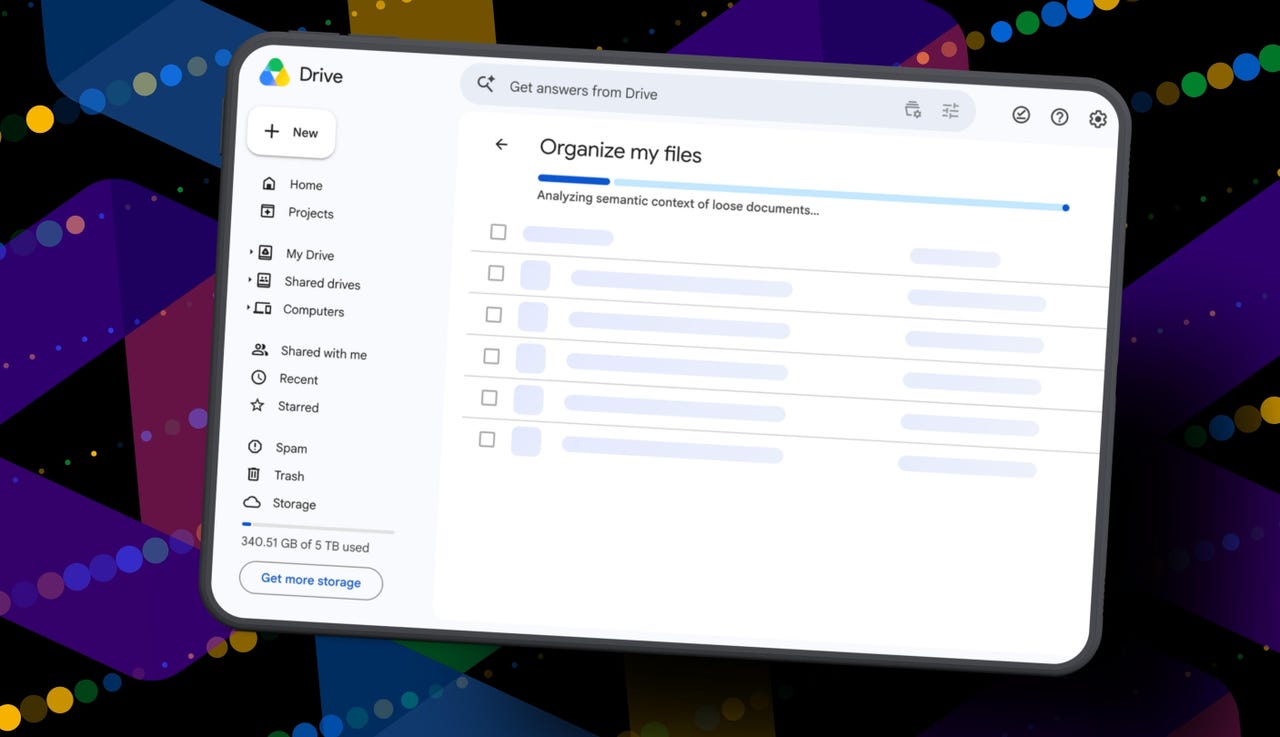
Clicking Suggest File Moves opens a new Organize My Files window, where Gemini will begin analyzing loose files and suggesting ways to clean them up.

Also: This Gemini setting made my AI results way more personal


Show more

Click Suggest File Moves

Elyse Betters Picaro / ZDNET

After a minute or so, Gemini serves up recommendations to review. They’re divided into two main types:

  • Gemini may suggest moving files into existing folders in Drive.
  • Gemini may suggest creating new folders for related groups of files.

All files and folders can be previewed through hovercards or opened in a new tab for a closer look.

Also: Is Google’s AI Ultra plan worth $100/month?


Show more

Review Gemini's suggestions

Elyse Betters Picaro / ZDNET

It’s time to use the checkboxes to select or deselect any file or folder that Gemini served up. 

Also, if a suggested folder name is weird, just rename it. Check destinations for folders, too. If they aren’t right, change the target. Once the suggestions do look right and you’re happy, approve the changes.

Gemini will then perform the file or folder moves in one batch and return to My Drive.

Also: I used Nano Banana 2 to make perfect sketchnotes: 5 lessons


Show more

Approve the changes

Elyse Betters Picaro / ZDNET

My result

After all that, Gemini suggested 19 moves for me. Nineteen. And it mostly surfaced recent files I had created or uploaded.

Some of the suggestions made sense. Gemini wanted to move my resume and a couple of resumes I had helped family members create into an existing resume folder. It also suggested creating a new Family and Real Estate folder for house deed documents, plus a Travel Planning folder for upcoming summer trip itineraries I have stored in Drive. But one of the files it grouped under Travel Planning was literally called “Delete,” because it’s a doc I want to delete. Gemini did not realize that, nor did it suggest deleting it.

To be clear, I have hundreds of gigabytes of data and years of clutter sitting in Google Drive.

Also: How I unlocked another 15GB of Gmail storage for free

Still, I approved the changes Gemini recommended. For the heck of it, I ran the tool again. In about 30 seconds, it suggested the same thing: the same file moves, the same new folders, and the same changes it had just made. This feels half-baked.

It’s not at all the sweeping cleanup assistant for Drive that I was hoping for and need. Maybe it will get better over time. It did just come out of beta, and it’s possible Google will improve how Gemini scans Drive, prioritizes older files, recognizes obvious trash, and surfaces deeper organization suggestions. I just don’t want to have to click it 500 times, hoping it finds something new each time.

Looks like I’m still stuck with a messy Drive and a $20 AI Pro subscription… for now.


Source link