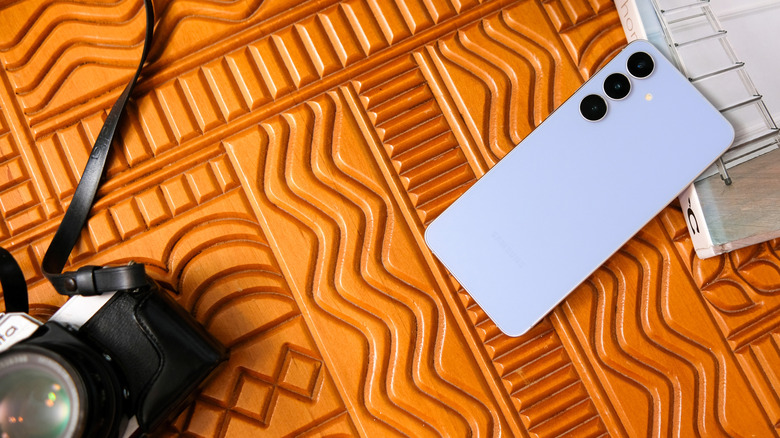

Camera Assistant is Samsung’s app, found in the Galaxy Store, that lets you fine-tune the photo and video capturing experience. It’s been available for Samsung’s Galaxy S, Z, and Note series devices for a while, but has now also made its way to the more budget-friendly Galaxy A and M series devices.
According to Samsung, the Camera Assistant app is expanding support to the Galaxy A34, A35, A36, A37, A57, M34, M35, and M36 smartphones. Tablets, including the Galaxy Tab S9, Tab S9 FE, Tab S10, Tab S10 FE, and Tab S11, are also now supported. To try it out for yourself, make sure your device is running One UI 8.5. These phones and tablets join a long list of devices that already support Camera Assistant, including the Samsung Galaxy S26.
Android phones are generally customizable, but Samsung’s One UI is perhaps one of the most stacked renditions of the operating system. Beyond genuinely innovative features found in Samsung smartphones like the Galaxy S26 Ultra’s Privacy Display, One UI offers a slew of personalization options that let you create an experience that’s truly yours. You can tweak elements like the quick settings panel, add a dynamic clock to the lock screen, or use the rich selection of AI features that modern flagships come with.
Another way to make the most out of your Galaxy device is to explore the Good Lock app. It’s home to several useful and powerful modules that push customization options beyond what your phone can do out of the box.
What can you do with Camera Assistant on Samsung devices?
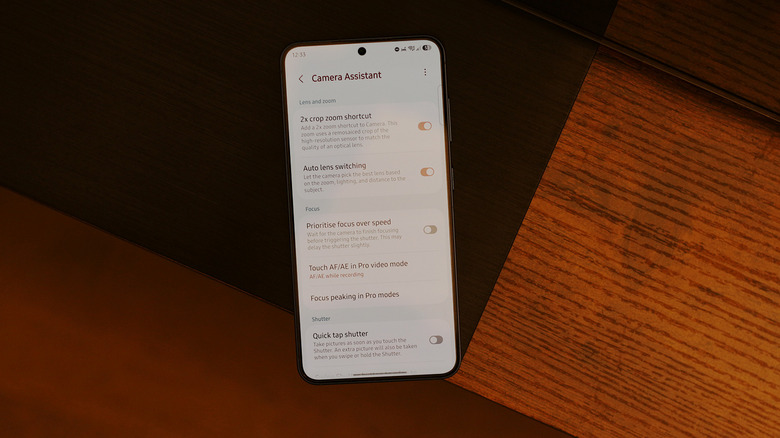
You can access Camera Assistant by launching the camera app, navigating to Settings, and scrolling down until you find it. If you haven’t used it before, you’ll be prompted to download it once you tap it. Once installed, you will be able to access an assortment of options and toggles that let you customize how the camera app functions. For instance, you can disable the “Auto lens switching” option to prevent your phone from switching between the wide and ultrawide cameras while shooting a video.
The “Prioritize focus over speed” toggle is a good one if you don’t mind holding your phone steady for a bit longer — in return, you get a more detailed image. You can also enable “Focus peaking,” which is a visual aid tool that highlights the parts in the viewfinder that are in focus. Shutter button actions can also be customized in a way that allows you to long-press it in photo mode to start capturing a video.
Other controls include HDR10+ support, audio monitoring, and even the ability to disable optical image stabilization (OIS) if you prefer a more authentic look when capturing action sequences with your phone’s camera. Samsung already produces some of the best smartphone cameras, and you can accentuate the experience further by gaining granular control via Camera Assistant. Keep in mind that not every supported device gets the full toolkit, and some of the more demanding options depend on your phone’s camera hardware.

Stephan is the sports journalist for the Maple Grove Report.