
This Is What’s New In Apple’s Latest iPhone Update


It has already been nearly a full year since Apple first unveiled its refreshed Liquid Glass design system at WWDC 2025. The first developer builds of iOS 27 are right around the corner, but Apple is still hard at work pushing out updates like clockwork for its public channel. If you own an iPhone Air or an iPhone 17 series device, the iOS 26.5.1 update comes in the form of an important bug fix.

In late April, 9to5Mac’s Benjamin Mayo reported how their iPhone Air drained completely and refused to boot up even after plugging it in to a wall outlet. Multiple other users have shared the same frustration on Reddit, highlighting how their iPhone wouldn’t even respond to the force restart trick — almost as it were bricked. Fortunately, many of those affected by this bug reported that leaving the phone on a wireless charger or plugging it in for an hour or more seemed to resuscitate their iPhones.

Apple formally addressed this problem in the iOS 26.5.1 update:

This update addresses an issue for a small number of users that may prevent wired charging on iPhone Air and iPhone 17 models when the battery is nearly drained.

To check for updates, navigate to Settings > General > Software Update. The update only seems to be rolling out to iPhone Air and 17 series devices, so if you own a different model, don’t be alarmed if you don’t see a pending update.

Other new features in iOS 26.5
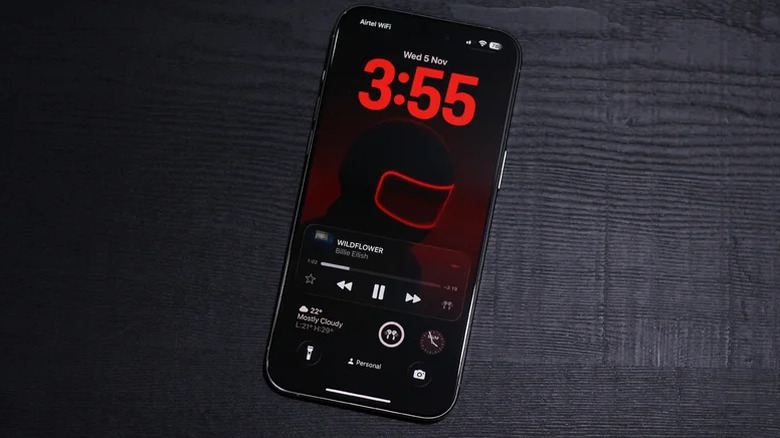
Although we still haven’t received the promised Siri overhaul, there have been a couple of neat additions to the iPhone’s feature set since iOS 26 first debuted. A few notable iOS 26.5 features include end-to-end encryption with RCS messaging and easier connectivity with the Magic Keyboard and Magic Mouse. Apple Maps has also started displaying the Suggested Places section when searching for places, but we’re not sure if integrated ad spots could genuinely count as features.

There seems to be a divide among users who have updated to iOS 26.5. Some have reported faster battery drain and poor performance, while others seem to have no issues whatsoever. If you’ve only recently updated your iPhone, it’s worth giving it a day or two to finish indexing and optimizing things in the background.

iOS 26 hasn’t had the smoothest rollout — there were constant design adjustments in the first few builds, followed by a few updates that ran terribly on older iPhones. Many of the common issues with iOS 26 seem to have been ironed out by now, though. Despite the Fall 2026 public release of iOS 27, Apple will likely continue to push out security updates and bug fixes to iOS 26, so be sure to always keep your iPhone updated.


Source link

Leave a Reply

Subscribe to Our Newsletter

Get our latest articles delivered straight to your inbox. No spam, we promise.

Recent Reviews


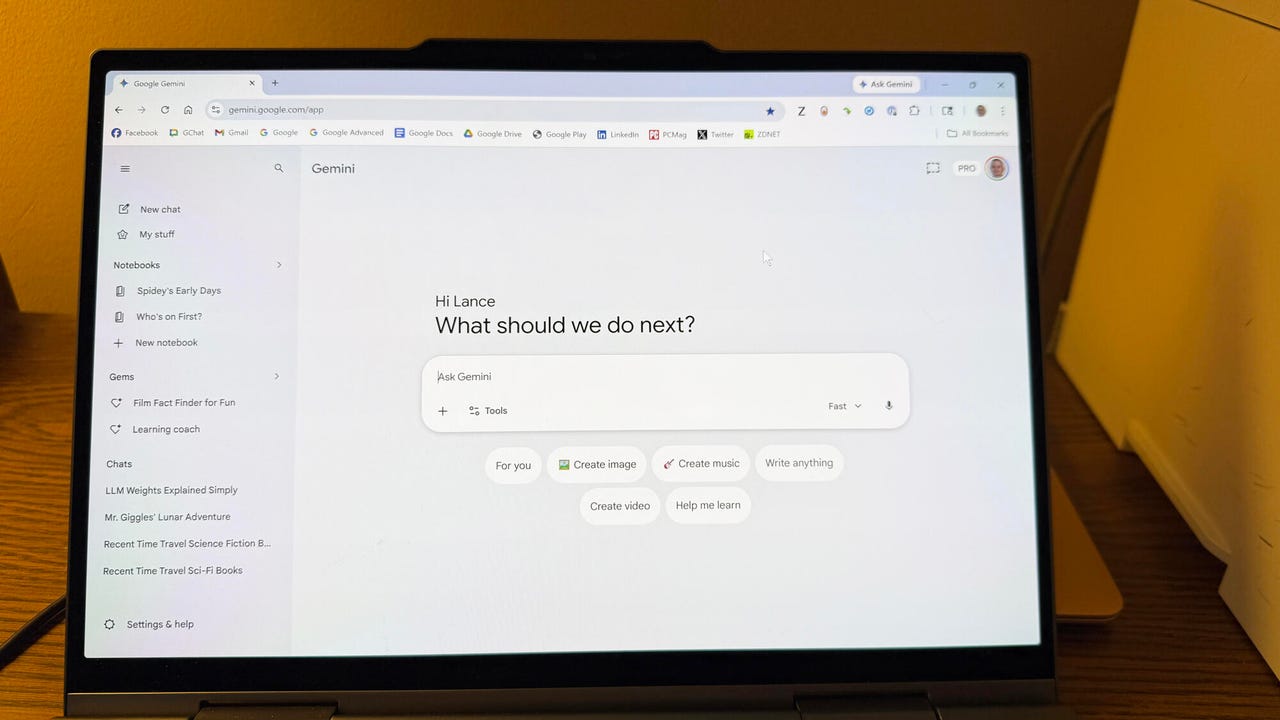
Google Gemini

Lance Whitney/ZDNET

Follow ZDNET: Add us as a preferred source on Google.


ZDNET’s key takeaways

  • Google is downloading a 4GB file to the PCs of many Chrome users.
  • The file is harmless and is used for the Gemini Nano on-device LLM.
  • You’ll see it if you’ve opted into the on-device AI setting in Chrome.

Google is silently saving a Chrome-related file to many computers. That’s nothing earth-shaking. But this file is a hefty 4GB in size, which has caught the attention of some Google watchers. What is the file, why is it being installed, and how can you check for it?

Also: I let Chrome’s AI agent shop, research, and email for me – here’s how it went

In a new blog post, computer scientist Alexander Hanff, aka the Privacy Guy, pulled back the curtain on this mysterious file. Named weights.bin, the file is being downloaded deep within the user data folder of many Chrome users. The file itself is related to Gemini Nano, which Google is using as the on-device AI model for Chrome users.

If you delete the file, it comes back

Though there’s nothing risky or dangerous about the file, Hanff and others have expressed concerns that it’s being downloaded without users’ knowledge or permission. And if you delete the file, it eventually comes back, Hanff said. That by itself is hardly alarming; that’s part of any software update. Rather, some of the criticism centers on the file’s size. If you have ample hard disk space, then 4GB is likely not a big deal. But if you’re running low, that big a file might chew up space you can’t spare.

Traditionally, AI models like Gemini use the cloud to interact with you. Submit a request, ask a question, or kick off a conversation, and the AI taps into its online data and resources to respond. But that method can be slow and naturally requires that you be connected. By traveling between your device and the cloud, your data can also be exposed.

A trend has emerged in which companies are experimenting with locally stored LLMs (large language models). That not only speeds up the process, but it also means you can use the AI offline and more securely. Gemini Nano has already been in play on Google’s own Pixel phones.

That explains why the file is so large; it has to pack in a lot of data. In this case, a weights file contains numbers that measure the level of importance an AI model assigns to your input. The AI uses these values to determine what should come next. For example, let’s say you start typing the phrase “Why did my new phone cost me an arm and a…” at the prompt. The AI assigns weights to your input to help it predict that the next word would be “leg.”

Also: This powerful Gemini setting made my AI results way more personal and accurate

How can you tell if the file has been downloaded to your PC? First, open Chrome, go to Settings, and select System. On the System screen, check whether the On-device AI option is turned on. If so, then you probably have the file or will soon get it.

To double-check, you’ll have to navigate to the user folder on your PC. That location varies based on your operating system. On my Windows 11 PC, I ran a search in File Explorer for weights.bin. The search took a long journey through the following path: C:\Users\lance\AppData\Local\Google\Chrome\User Data\OptGuideOnDeviceModel\2025.8.8.1141. At that final location, the weights.bin file appeared, measuring 4GB.

Since the file is downloaded again if you simply delete it, you’ll have to take an extra step to get rid of it permanently. After you delete the file, go back to Settings in Chrome and select System. Then  turn off the switch for On-device AI.

But as long as you have enough disk space (and if you can’t spare 4GB, then it’s time to clean up your drive), the file is little cause for concern. Just forget about it, especially if you’re keen to try on-device AI, and we’ll see what the future holds for Gemini Nano.


Source link