WatchOS 27 has arrived: How to download the developer beta now


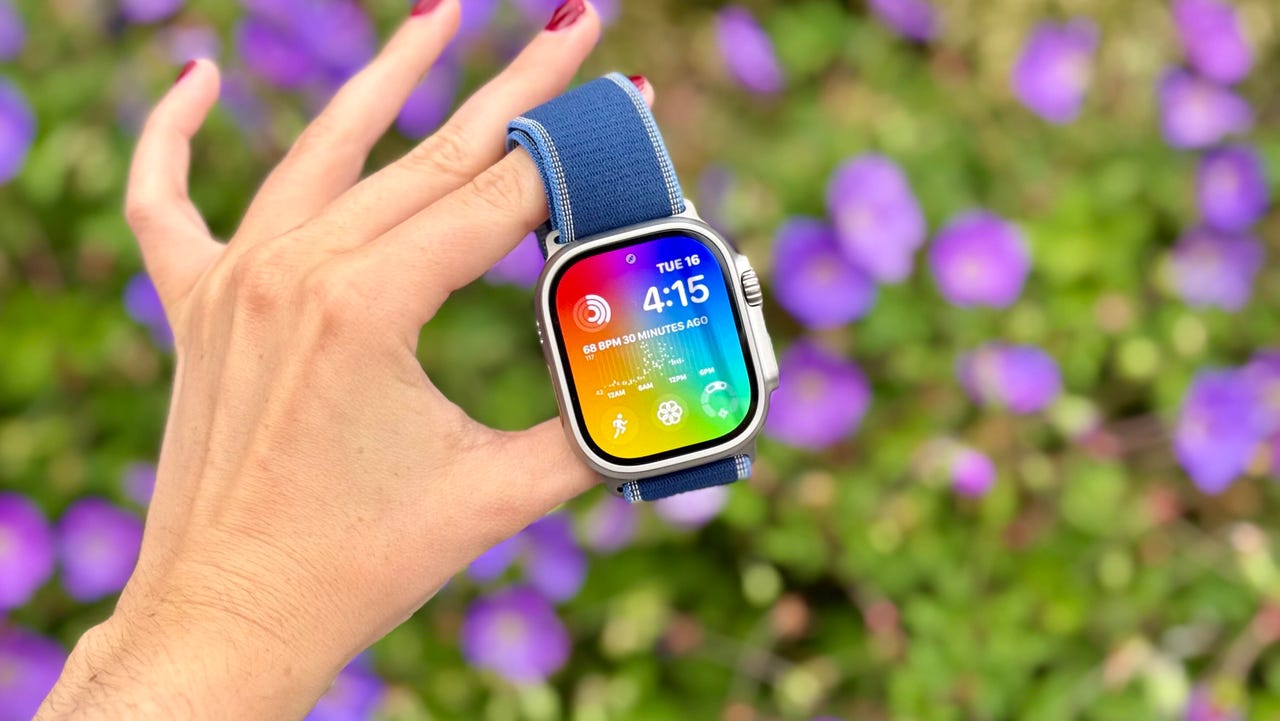
Apple Watch Ultra 3

Nina Raemont/ZDNET

Follow ZDNET: Add us as a preferred source on Google.


After unveiling WatchOS 27 at WWDC 2026, Apple made the developer beta version available to users. While most watch users will receive a free software update to iOS 27 this fall (though availability may vary by carrier, region, and local regulations), you can get access as early as right now in a few simple steps. 

WatchOS 27 is the successor to WatchOS 26, the latest operating system for Apple’s lineup of smartwatches. Notably, the WatchOS 27 software will not be available for the Apple Watch SE (2nd generation), Apple Watch Series 6, 7, 8, and 9, and the first-gen Apple Watch Ultra. 

Also: Apple WWDC 2026: iOS 27, Siri and Tim Cook’s last event as CEO

If you’re interested in being one of the first to test the new WatchOS 27, you can now install the developer beta on your device, followed by the public beta in July. Remember that beta versions always come with bugs or glitches, so ZDNET recommends backing up your data and keeping an open mind. 

This WatchOS won’t be flawless, but it does come with some new upgrades like a dedicated Siri app, a new dynamic app grid, a single-tap gesture to open a Smart Stack widget, more fitness insights with Workout Buddy, enhanced cycle tracking, and more. 

How to install the WatchOS 27 developer beta

  1. Download iOS 27 beta first 

iPhone 17 Pro and iPhone 17 Pro Max

Kerry Wan/ZDNET

To access the latest WatchOS 27, you’ll need to first install the iOS 27 developer beta. Here’s how to do so. 

2. Navigate to the Watch app on your iPhone

Apple Watch Series 11

Nina Raemont/ZDNET

Then, open the Watch app and navigate to General > Software Update > Beta Updates to select the WatchOS 27 beta. Remember that WatchOS 27 is limited to Apple Watch Series 10 and newer.

When will WatchOS 27 be released?

Apple released the WatchOS 27 developer beta during WWDC 2026, and the public beta version will likely be released in July. If past years are any indication, the general release of WatchOS 27 will take place in September, following the iPhone 18 event.

Which Apple Watches are compatible with WatchOS 27?

  • Apple Watch SE (3rd Gen) 
  • Apple Watch Series 10
  • Apple Watch Series 11
  • Apple Watch Ultra 2
  • Apple Watch Ultra 3

WatchOS 27 also requires an iPhone 11 or later, or iPhone SE (2nd generation or later), running iOS 27. As in previous versions, if you’ve got an older Apple Watch, certain features may not be available upon update. 


Show more

Which Apple Watches are not compatible with WatchOS 27? 

WatchOS 27 cuts support for Apple Watch SE (2nd Gen), Apple Watch Series 6, 7, 8, and 9, and the first-gen Apple Watch Ultra.

How do I install the WatchOS 27 public beta version?

To install WatchOS 27 beta, you’ll first need to have iOS 27 beta installed on your iPhone. Here’s a guide from ZDNET expert Maria Diaz on how to do so. After you complete these prerequisites, you can open the Watch app and navigate to General > Software Update > Beta Updates to select the WatchOS 27 beta. WatchOS 27 additionally has tight hardware requirements: it’s only limited to Apple Watch Series 10 and newer.

How do I install iOS 27 when it’s available?

The public release of WatchOS 27 is expected this September. Depending on the carrier, region, and local restrictions, compatible Apple Watch users will be able to upgrade after it’s available. If your device doesn’t automatically push its own update when the time is right, you can always manually begin the process by ensuring your watch has at least 50% battery. Then you can use the Apple Watch app on your iPhone or the watch’s Settings to download and install the update. 


Source link

Leave a Reply

Subscribe to Our Newsletter

Get our latest articles delivered straight to your inbox. No spam, we promise.

Recent Reviews


Google is experimenting with a new policy restricting the amount of free storage provided to some accounts. New Google accounts (including new Gmail accounts) created in certain regions will be limited to 5GB of free storage when they’re first set up. That’s only one-third of the amount of storage that has been typically offered. There is a way of increasing the amount of free storage you get when setting up a new account, though: you can unlock it by linking your phone number.

When approached for comment by Android Authority, a Google spokesperson confirmed that the new policy was being tested to “help us continue to provide a high-quality storage service to our users, while encouraging users to improve their account security and data recovery.” The statement didn’t clarify which regions the policy is being tested in, nor for how long the testing period will last.

Notably, a Google One Help support page about account storage has been updated to state that each Google account contains “up to 15 GB of storage”, as noted by 9to5Google. Previously, the page didn’t say “up to”; it simply stated that accounts come with 15 GB of storage. So far, the experiment doesn’t appear to stretch to pre-existing accounts.

Per a screenshot shared by Reddit user Sungusungu on R/DeGoogle (a subreddit dedicated to finding alternatives to Google services and products) Google is collecting phone numbers to make sure that the full 15 GB of storage is only redeemed once per person. Of course, that’s easily evaded by using a burner phone to set up multiple accounts, should you want to. The pop-up directs users to a webpage to learn more about storage management. However, at the time of writing, the link redirects to the help center landing page instead.

How to link your Google account with a phone number

If you’re in the process of setting up a new Google account in an impacted region, then you might be prompted with the option of unlocking an extra 10 GB of storage using your phone number via a simple pop-up menu. If so, you can go ahead and follow those steps. However, if you want to link your phone number with a pre-existing Google account, then here’s what you need to do. Using your computer, you need to:

  1. Open your browser and head to myaccount.google.com, then navigate to “Security and sign in” on the left-hand toolbar. This should open a list of security options.

  2. Select “Use your phone to sign in” and then “Set it up”. 

  3. Add a phone number using the “Recovery phone” option.

  4. Follow the on-screen steps to verify your number and finish linking it to your account.

Your options might look a little different if you already have a recovery number set up with your account.

Alternatively, you can connect a phone number to your Google account from your Android device, iPhone, or iPad. Much like on a computer, you connect your number by adding it as a recovery phone. First, head over to myaccount.google.com. Then select “Personal info”, followed by “Phone”. From there, you should be able to add or edit your phone number by navigating to the “Recovery phone” section.


Source link