Why Do Some App Icons Look Blurry On iPhone?


Whenever a new iOS update comes out, iPhone users tend to be extra vigilant about spotting cool new features. In the case of iOS 26.5, notable upgrades include RCS messaging with end-to-end encryption, automatic pairing for Magic accessories, and improved Suggested Places in Apple Maps. However, it’s not all sunshine and rainbows — the release of iOS 26 has been riddled with mishaps, including one where some app icons may appear blurry or out of focus to some users.

This likely has something to do with Liquid Glass, Apple’s new design feature that rolled out with iOS 26, which makes user interface elements like app icons appear, as the name implies, glassy and somewhat translucent. You also have an added option of choosing between two Liquid Glass looks for your app icons: “Clear” to make them appear see-through, or “Tinted” if you prefer a bit more opacity and contrast.

If you’ve recently updated your iPhone software to the latest version of iOS 26, your app icons should automatically adapt to the new look. However, some iPhone users online have noted that not all app icons have the glassy aesthetic. If you come across one that appears low-resolution, distorted, or just not like the others, it’s highly likely that it’s a third-party app that has not yet updated its icon to be Liquid Glass-compatible.

Some potential fixes to try
If the glassy appearance of your iPhone app icons is bothering you — especially at night, when eye strain from prolonged iPhone use can be heightened — or if you feel like the app icons you access the most don’t look uniform enough, there are a few settings you can tweak. First, you can pick the less transparent Liquid Glass option:

  1. Launch the Settings app.
  2. Go to “Display & Brightness.”
  3. Tap “Liquid Glass.”
  4. Select “Tinted.”

If this doesn’t improve it enough for you, you can try enabling a few Accessibility features on your iPhone next:

  1. Go back to the main page of the Settings app.
  2. Head to “Accessibility.”
  3. Tap “Display & Text Size.”
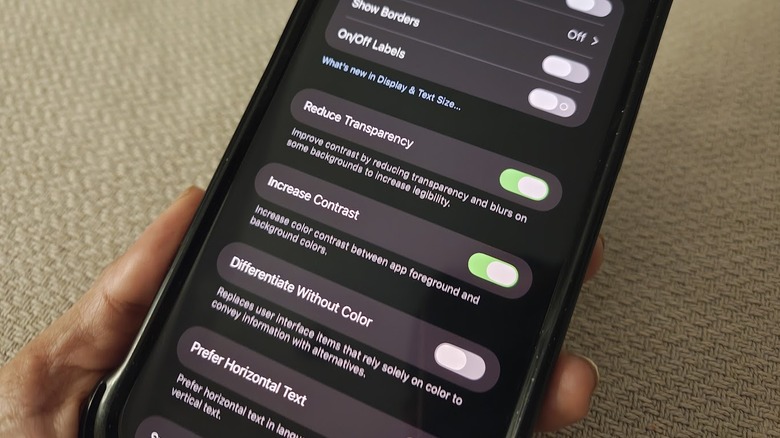
  4. Enable the toggle next to “Reduce Transparency.”

Turning this particular feature on should improve the contrast between the foreground and the background colors. In addition, you can also enable “Increase Contrast” if you need a bit more sharpness around your icons’ edges.

Finally, you can stop your iPhone app icons from moving slightly every time you tilt your mobile device — a built-in effect that probably wasn’t as noticeable before the Liquid Glass rollout — by doing the following:

  1. Go back to the Accessibility page of the Settings app.
  2. Select “Motion.”
  3. Switch the “Reduce Motion” toggle to the on position.

Do note that leaving “Reduce Motion” enabled may affect not just the app icon animations, but also some transitions, animations, and effects within certain apps as well. Based on our testing, there is no direct way of disabling the Liquid Glass feature completely on a compatible iPhone. However, turning on a combination of the settings mentioned above appears to be the closest you can get to a more manageable iPhone app icon appearance that seems less blurry.


Source link

Leave a Reply

Subscribe to Our Newsletter

Get our latest articles delivered straight to your inbox. No spam, we promise.

Recent Reviews


Sony Bravia 2 II TV

Kerry Wan/ZDNET

Follow ZDNET: Add us as a preferred source on Google.


Most TV ports fade into the background once everything is connected — aside from HDMI and USB. But for advanced users, the RS-232 serial port can unlock a surprising amount of control over home theater and smart home systems.

Also: Samsung’s R95H Micro RGB impressed me more than any TV since my first OLED

With some patience and technical know-how, it can be used to build a highly customized entertainment setup, complete with automation, multi-room control, scheduled content, and even diagnostic monitoring.

What is an RS-232 serial port, and what does it do?

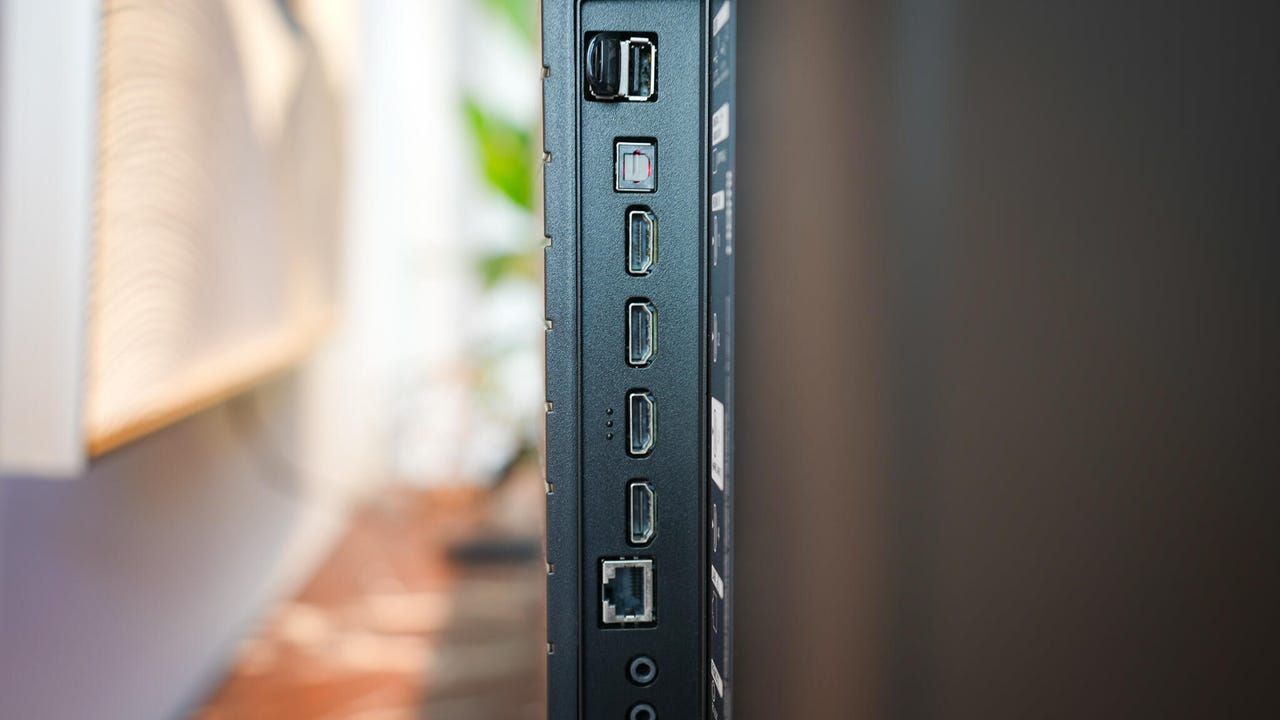
Take a peek at the back of your TV, and you may see — among the familiar HDMI and USB connections — an odd 9-pin port that doesn’t match any cable you have in the house (and may look familiar if you used a printer back in the 1990s). This is your TV’s RS-232 serial port, normally reserved for connecting professional calibration and diagnostic tools. 

Technicians at the factory or in a repair shop have special testing devices that plug into the RS-232 port to test signal transmission strength, debug software, and check for electrical damage. 

9-pin port

ChiccoDodiFC/Getty Images

The RS-232 port can also be used in both smart home and commercial settings by enabling you to connect multiple TVs to a single source for custom broadcasts. Whenever you go to a doctor’s office or an airport where multiple screens show the same reels of advertisements and safety announcements, you’re seeing the RS-232 connection at work. 

Also: The best TVs to buy: Expert tested and recommended

While this port is generally reserved for business use, if you have the money and desire, you can use the RS-232 connection to set up a custom multi-room broadcast system; you can watch the same content in multiple rooms throughout your house in perfect sync, or create custom, curated playlists for your home-based business, kids’ playroom, or your next house party.

Which TVs have an RS-232 port?

While many brands include an RS-232 port in smart TV builds, it’s usually reserved for the higher-end models. Commercial-grade TVs will also include a connection, as they are specifically designed for use in RS-232 broadcast systems. Some midrange models from more established brands like LG may feature an RS-232 connection, but it’s rare to see one on a budget model. 

Using the RS-232 port at home

Using the RS-232 on your TV isn’t for the faint of heart or technology-averse. But if you know how to code, setting up an automated video feed is fairly straightforward. You’ll need either an RS-232 cable or RS-232-to-Bluetooth adapter and a computer. 

Once you’ve got your TV connected to your PC or laptop, you can create code protocols for precision timing, to specify the content to include, and to specify where to broadcast your content. 

Also: I changed 13 settings on my TV to dramatically improve its performance – here’s how

Another device you’ll need will be a Serial Port/HDMI matrix. This acts as the central hub for your system, connecting your PC, main TV, and satellite screens to a single switch box for an all-in-one control solution. Matrix receivers offer a range of connectivity options, with some supporting up to 32 separate HDMI inputs and outputs for setting up commercial systems. 

However, for home use, an 8×8 HDMI matrix will be more than enough to handle a casual system. Many HDMI matrix boxes also have Ethernet and Wi-Fi connectivity, so you can stream web content from apps like Netflix and HBO Max, as well as YouTube and Twitch. You can also find models that support Dolby and DTS audio passthroughs for custom sound systems to augment your TV speakers or play separate audio. 

Finding the right programming language

Since each system is unique, you’ll need to check which programming language your devices use to communicate with one another and process audio and visual signals. These programs are often proprietary and require a fair bit of knowledge to properly modify for your particular setup. 

If you need a jumping-off point, you can find step-by-step coding guides for controlling specific brands and device systems on GitHub; coding languages range from HTML and C# to Python and Java (and everything in between), so you shouldn’t have trouble finding a control module that works for you.

Also: Your TV may be tracking your viewing data – here’s how to stop it (beyond disabling ACR)

If you’re looking to monitor your smart TV’s health via the RS-232 port, you can purchase a signal tester for around $20. Many are compatible with Windows, MacOS, and Linux, allowing you to seamlessly integrate your smart TV into your PC setup, no matter which operating system you use. 

An RS-232 tester will check for dead or damaged connector pins, signal strength, and communication between your TV and PC; if any issues arise, you’ll get detailed feedback on the problem for fast troubleshooting and solutions.  

Bottom line

If you are into Home Assistant, Crestron, or Roomie Remote, the RS-232 port is a goldmine. It is significantly more reliable than IR blasters (which can be blocked) or CEC (which is notoriously buggy). Just understand that setting up the RS-232 port to handle your automations or other personalized tasks will take time and learning. 


Source link