
Follow ZDNET: Add us as a preferred source on Google.
ZDNET’s key takeaways
- Microsoft is previewing a new recovery tool called Cloud rebuild.
- This feature will cleanly reinstall Windows 11 from scratch.
- Cloud rebuild can help if Windows itself is unbootable.
Have you ever run into a serious problem on your Windows PC in which the operating system refused to load? Me too. You probably panicked as you scrambled to figure out what to do. Even with the right recovery tools, coaxing Windows to start properly in this event is often a hit-or-miss affair. Well, now Microsoft is unveiling a new feature that promises to reduce your panic and bring Windows back to life.
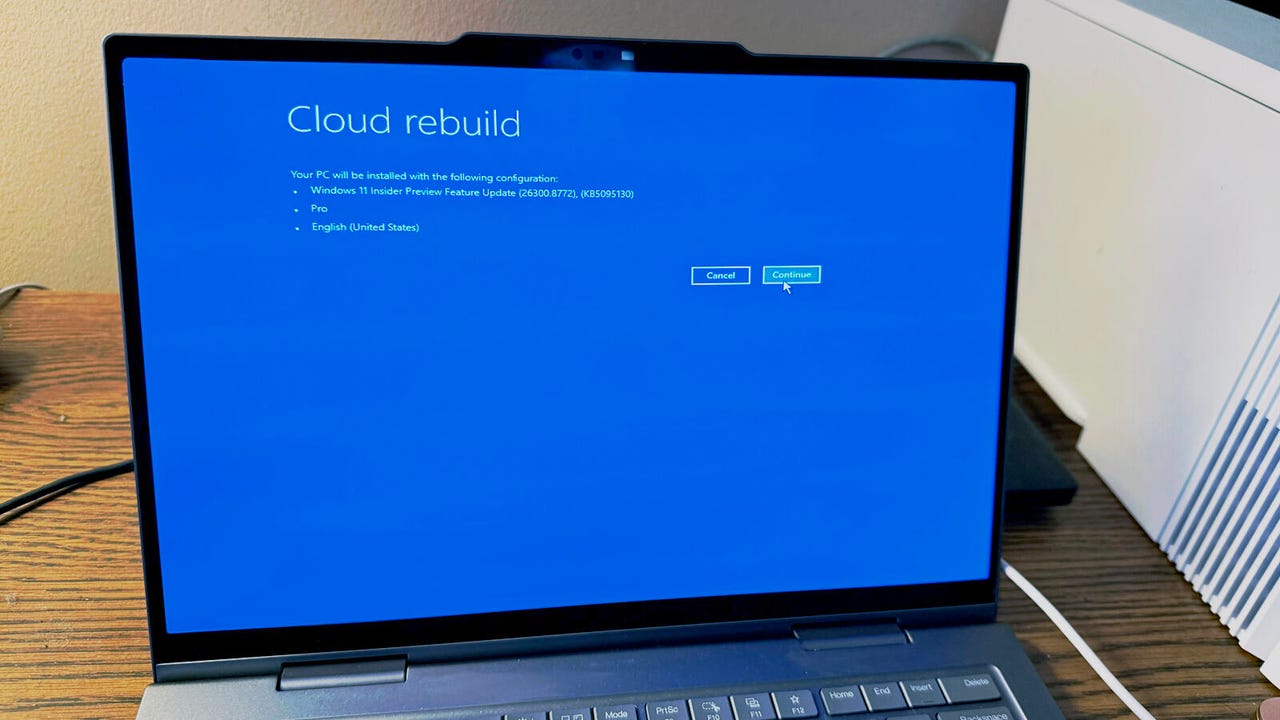
Currently in preview mode, the new Cloud rebuild option aims to restore Windows to a clean state even if the OS won’t boot up. The goal here is to provide a clean version of the OS without the drivers, files, or other items that may have caused the glitch in the first place. But there’s more.
Also: Do you still need third-party antivirus on your Windows PC?
Beyond simply restoring Windows cleanly, Cloud rebuild will add the latest updates courtesy of Windows Update. This ensures the OS is outfitted with the newest security patches and other essential updates so you don’t have to spend time manually installing them.
Windows has long offered an option called Reset this PC, which also brings the OS back to a clean state. But that one requires you to add the latest updates yourself.
“Unlike Reset this PC, Cloud rebuild downloads both the target Windows image and the device’s drivers from Windows Update, so the device comes back fully functional without USB media, without a custom image, and without depending on the health of the currently installed OS,” Microsoft said in a document describing the new feature.
The one downside here is that any personal files, customized settings, or installed applications won’t come along for the ride. You’ll have to add those back yourself. But that’s why it’s important to always back up or sync your PC so that you can easily restore what you need, even if Windows has to be reinstalled from scratch.
How to try Cloud rebuild
With Cloud rebuild in preview mode, you’ll need the latest Windows 11 insider build to try it, specifically Preview Build 26300.8772 or higher. Make sure you’re running the build on a test PC or in a virtual environment so you don’t affect your primary system.
To take Cloud rebuild for a spin in the Windows preview build, make sure your PC is connected to the internet via Ethernet or Wi-Fi. In Windows, head to Settings, select System, and then click Recovery. Under Recovery options, click the button for “Restart now” next to Advanced startup.
Also: My new favorite Windows app made my PC safer and more reliable – and it’s free
At the Windows Recovery Environment (WinRE) screen, select Troubleshoot, click Recovery and uninstall, and then click Cloud rebuild. Review the target Windows build, edition, and language, and click Continue. The next screen tells you that this process will remove all your personal files, accounts, apps, programs, and customized settings. If you’re OK with that, click Install to proceed. After Windows has been rebuilt with the latest updates, you’ll be able to log in to the desktop.
When might Cloud rebuild reach all Windows 11 users? That depends on the testing and feedback. Naturally, Microsoft wants to ensure that the feature is reliable and effective and won’t cause any unexpected glitches itself. If all goes well, it could pop up for everyone in the next few months and certainly before the year is over.
Other recovery tools
Windows 11 provides a variety of other recovery and rebuild methods if the OS isn’t behaving properly. A recovery drive can restore Windows cleanly if it won’t boot, but it won’t restore your files and settings. A reset tries to revive Windows without losing your files and settings. A newer option called Quick Machine Recovery aims to troubleshoot boot-up issues and, if possible, resuscitate your system.
Also: Microsoft announces sweeping Windows changes – but no apologies
Microsoft is also previewing yet another option called Point-in-Time restore. Here, Windows automatically creates snapshots at different points. In case of a system error, the OS will automatically try to recover itself with a previous snapshot. All your applications, files, and settings are also restored from that moment in time.
Which tool you use depends on whether or not Windows can boot up and whether you need to include your own files and applications. But I’m gratified that Microsoft is trying to cover all the bases in the event of any serious Windows glitch.