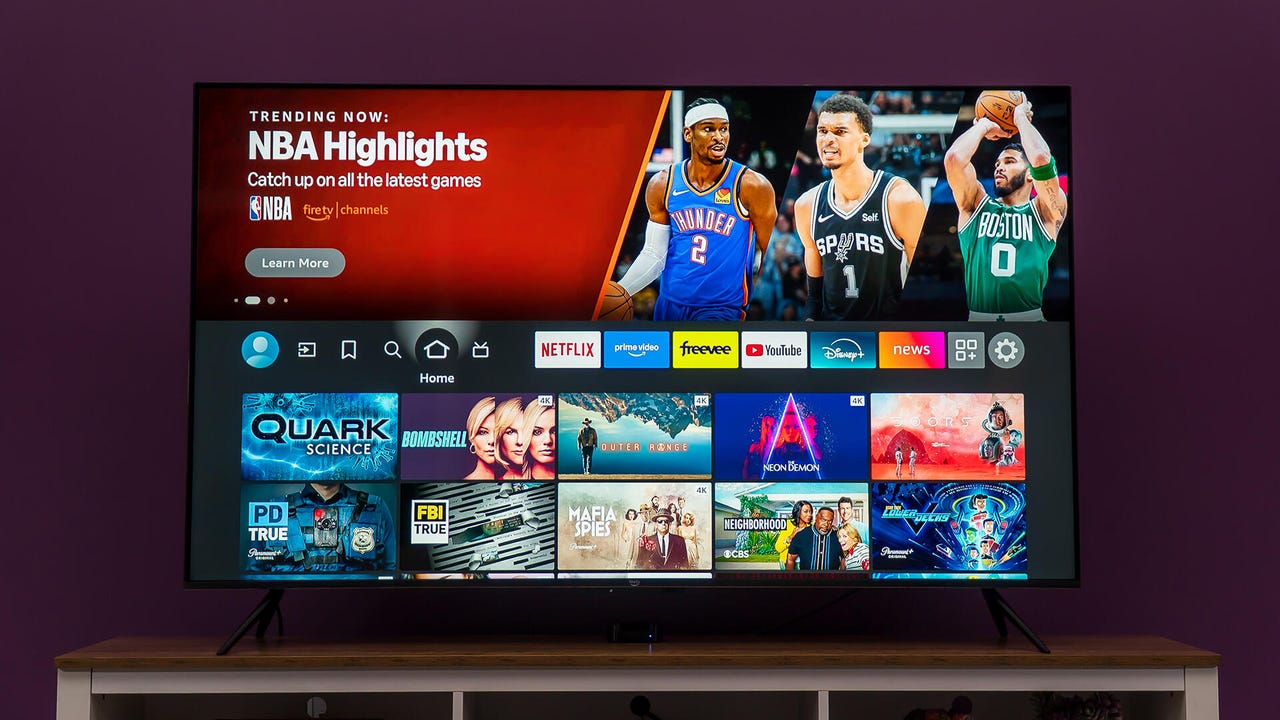
Connecting my TV to a router VPN was one of my smartest home network upgrades


65 inch Amazon Fire 4K Omni Series Mini-LED QLED TV

Adam Breeden/ZDNET

Follow ZDNET: Add us as a preferred source on Google.


As a tech journalist, I am surprisingly hardline about limiting the number of smart and internet-enabled devices in my home. Mostly because I firmly believe that no one should be able to post to social media from their refrigerator, and an oven does not need to integrate Alexa for me to bake a cake.

But another big reason I’m cautious is that the more smart devices you have connected to your network, the easier it is for hackers to access your data. It’s a big security risk that’s more prevalent than you’d think.

Also: The best VPNs for streaming

While many new smart TVs and internet-enabled appliances offer some level of data protection, whether through a dedicated chipset or integrated malware detection, these measures are at best weak and at worst outright ineffective. Thankfully, if you already subscribe to a VPN or are considering one, adding protection to your smart TV is fast and simple.

Why should you use a VPN on your TV

A VPN will encrypt your streaming, web browsing, and download data from end-to-end. This means that unless they have very sophisticated software and eternal patience, a hacker will have a very difficult time accessing your activity and personal data. 

Even if your TV has built-in cyber protection hardware or software, a VPN can help close any potential gaps that bad actors may exploit. This is especially the case if you’ve got ACR turned on, as a VPN proactively masks your TV’s real IP address and encrypts its traffic. The same behavior happens with ISP-based content throttling, with the VPN blocking your provider from seeing exactly what you’re streaming.

Also 10+ VPN tricks I recommend to everyone

And on a more fun note, a VPN can also open up a whole new world of streaming options by letting you access content that isn’t available in your home country. With a single click, you can set your virtual location to just about anywhere in the world to trick streaming services into showing you movies and shows that are otherwise unavailable for you to browse. 

Should you use a free or paid VPN?

Installing the VPN on your router lets you protect multiple devices with just a few clicks in the control app. Many VPN services allow you to protect up to 10 devices simultaneously, providing 24/7 whole-home cyber protection. 

There are both paid and free VPN services available, but beware of free options, as they might still keep logs of your online activity, which could then potentially be leaked in a company data breach. Here’s a breakdown of the key differences between paid and free options.

Free VPNs Paid VPNs
Data Limits Strictly capped (usually 2GB to 10GB per month) Unlimited
Streaming Speeds Throttled or heavily congested servers Optimized high-speed servers (4K capable)
TV App Availability Rarely have dedicated Android TV / Fire TV apps Native apps in almost all major TV app stores
Privacy Model Often sell browsing data to third parties to make money Funded by subscriptions; strict “no-logs” policies
Router Setup Almost never supported Fully supported for Samsung/LG TV network integration

How to protect your smart TV with a VPN

The process for setting up a VPN on your smart TV is virtually identical across all brands and operating systems. Since most new TVs can’t support a VPN app on their own, you’ll have to install your chosen VPN service through your router:

Router installation

  • Select and subscribe to your chosen VPN
  • Download the official app and configuration files from the brand’s website
  • Access your router’s IP settings with the credentials on the sticker that shows the model and serial number for your router
  • Follow your brand’s step-by-step instructions for installing the configuration files
  • Restart your router if needed
  • Connect to the internet
  • Sign in to VPN

Bottom line

Your smart TV is just as prone to security risks as your smartphone or computer, so it never hurts to keep your activity protected with a VPN, whether paid or free. The best part is that you can set up a VPN on virtually any smart TV, since the installation occurs at the router level. And you’ll see benefits to your content consumption, too, as VPNs allow you to browse streaming service catalogs from other countries.





Source link

Leave a Reply

Subscribe to Our Newsletter

Get our latest articles delivered straight to your inbox. No spam, we promise.

Recent Reviews


Google Drive Organize My Files

Elyse Betters Picaro / ZDNET

Follow ZDNET: Add us as a preferred source on Google.


ZDNET’s key takeaways

  • Gemini can suggest Drive file moves and new folders.
  • Organize My Files requires Workspace or Google AI access.
  • The tool is useful but still feels limited and unfinished.

I’m an Apple person. I’ve owned an iPhone since 2007 and a Mac since before that, so of course I’m also a longtime user of iCloud Photos and iCloud Drive. I pay $10 a month for the 2TB iCloud+ plan because I have 488GB of data sitting there, including nearly 40,000 photos. Don’t judge me. The real problem is that I’m also a heavy Google user, specifically Workspace apps.

Also: I tested ChatGPT Plus vs. Gemini Pro to see which is better

After 14 years of using Google Drive, I have 340GB of data stored there from all the Google Docs, Sheets, Slides, and Gmail messages I’ve created, not to mention file uploads. So I pay $20 a month for Google AI Pro, which gives me 5TB of storage and access to Gemini AI. And because, apparently, I need all the subscriptions, I also pay $20 a month for ChatGPT Plus.

I need to cut subscriptions

I know… I need to cut subscription costs somewhere. I’ve wondered whether I should cancel ChatGPT or somehow, some way, reduce my Google usage enough to stop paying for extra Drive storage. Realistically, I do not think I could ever get my data down to the 15GB Google gives me for free. My Drive has become so daunting that I’ve mostly stopped trying to manage it.

The funny part is that I am hyper-organized. My pantry has coordinated glass jars with labels. My daughter’s toy room has a place for everything. My Google Drive, though? A dumping ground. What can I say? Pre-parenthood Elyse was not so organized.

Also: Tired of AI Overviews? I found 9 Google Search alternatives

Because my Drive has never been in a good place, I have let files, photos, screenshots, PDFs, tax documents, drafts, downloads, and random digital debris accumulate with no real oversight for years. I keep putting off cleaning it.

Recently, I had the idea that some AI service could connect to my Drive and help me quickly organize it with a few clicks. Then I remembered my Drive includes things like my house deed, a copy of my will, and my LLC business details, and suddenly giving a random third-party company broad access to my personal data felt like too much to bear.

So here we are. My Drive is still messy, and my subscriptions are still multiplying. Joy. I sure do love that in this economy.

Can ‘Organize My Files’ declutter my Drive?

But today I spotted a quiet little launch from Google: its “Organize My Files” feature is now available. Can Gemini actually, truly help me declutter, organize, and simplify my Drive now? Apparently, it uses Gemini AI to suggest moving loose files in Drive into existing folders or creating new folders for related files. And I get to review everything before anything moves.

Also: I tried Gmail’s new Gemini AI features, and I want to unsubscribe

If this works, maybe one day I can move my data out of Drive and cancel my Google AI Pro plan for good. Maybe. One day.

How Organize My Files works

What you’ll need: A Google account with a messy-as-hell Drive. Oh, and Google’s “Organize My Files” feature is currently limited to Google Workspace and Google AI subscribers. Workspace smart features must also be enabled for it to appear in Drive.

Open Google Drive

Elyse Betters Picaro / ZDNET

Look toward the top of the file and folder list in My Drive for a new button called “Suggest File Moves.” Google said it will appear in My Drive as well as in parent folders in Drive. 

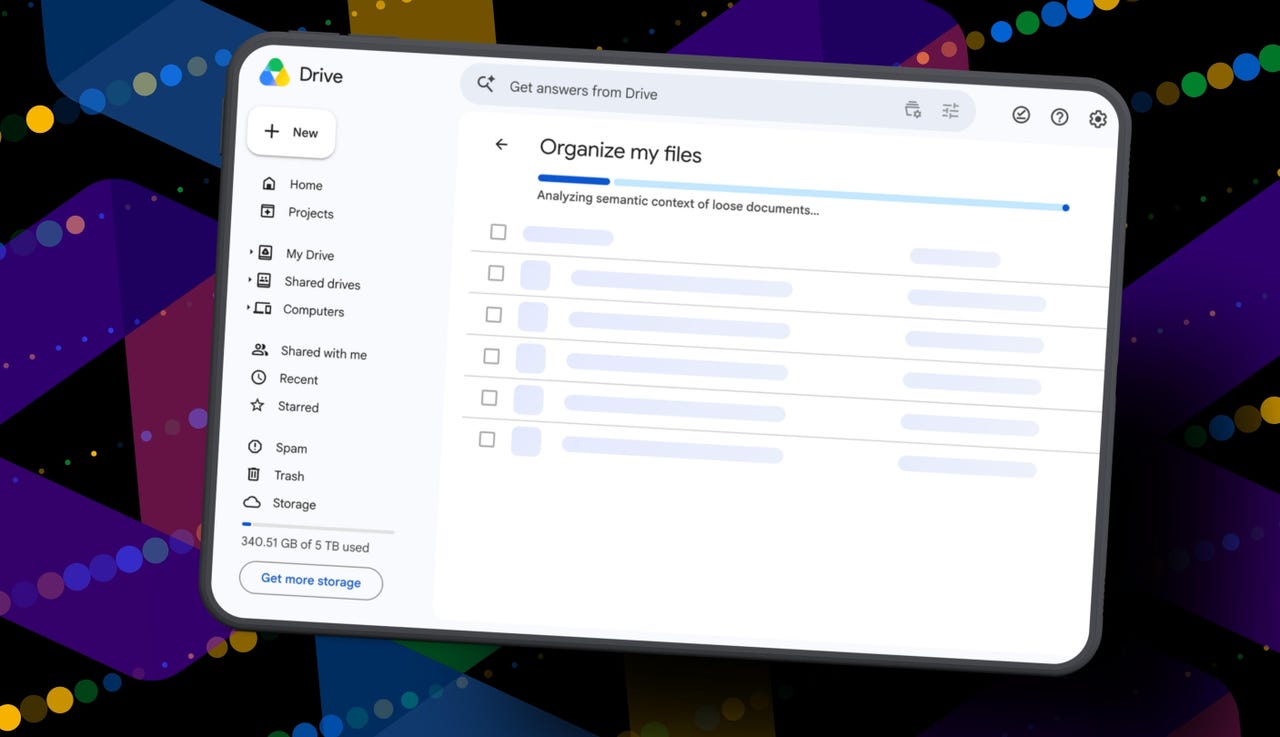
Clicking Suggest File Moves opens a new Organize My Files window, where Gemini will begin analyzing loose files and suggesting ways to clean them up.

Also: This Gemini setting made my AI results way more personal


Show more

Click Suggest File Moves

Elyse Betters Picaro / ZDNET

After a minute or so, Gemini serves up recommendations to review. They’re divided into two main types:

  • Gemini may suggest moving files into existing folders in Drive.
  • Gemini may suggest creating new folders for related groups of files.

All files and folders can be previewed through hovercards or opened in a new tab for a closer look.

Also: Is Google’s AI Ultra plan worth $100/month?


Show more

Review Gemini's suggestions

Elyse Betters Picaro / ZDNET

It’s time to use the checkboxes to select or deselect any file or folder that Gemini served up. 

Also, if a suggested folder name is weird, just rename it. Check destinations for folders, too. If they aren’t right, change the target. Once the suggestions do look right and you’re happy, approve the changes.

Gemini will then perform the file or folder moves in one batch and return to My Drive.

Also: I used Nano Banana 2 to make perfect sketchnotes: 5 lessons


Show more

Approve the changes

Elyse Betters Picaro / ZDNET

My result

After all that, Gemini suggested 19 moves for me. Nineteen. And it mostly surfaced recent files I had created or uploaded.

Some of the suggestions made sense. Gemini wanted to move my resume and a couple of resumes I had helped family members create into an existing resume folder. It also suggested creating a new Family and Real Estate folder for house deed documents, plus a Travel Planning folder for upcoming summer trip itineraries I have stored in Drive. But one of the files it grouped under Travel Planning was literally called “Delete,” because it’s a doc I want to delete. Gemini did not realize that, nor did it suggest deleting it.

To be clear, I have hundreds of gigabytes of data and years of clutter sitting in Google Drive.

Also: How I unlocked another 15GB of Gmail storage for free

Still, I approved the changes Gemini recommended. For the heck of it, I ran the tool again. In about 30 seconds, it suggested the same thing: the same file moves, the same new folders, and the same changes it had just made. This feels half-baked.

It’s not at all the sweeping cleanup assistant for Drive that I was hoping for and need. Maybe it will get better over time. It did just come out of beta, and it’s possible Google will improve how Gemini scans Drive, prioritizes older files, recognizes obvious trash, and surfaces deeper organization suggestions. I just don’t want to have to click it 500 times, hoping it finds something new each time.

Looks like I’m still stuck with a messy Drive and a $20 AI Pro subscription… for now.


Source link