
Follow ZDNET: Add us as a preferred source on Google.
ZDNET’s key takeaways
- Photoshop can generate details that the camera never captured.
- Rotate Object pairs impressively well with Harmonize.
- Great results still require Photoshop skill, judgment, and cleanup.
Adobe is on a roll with AI-enabled Photoshop features. Last fall, I had way too much fun with the Photoshop Harmonize feature, which automatically adjusts an object’s color, lighting, and shadows to match a background. This time, it’s the Rotate Object feature, which rotates a 2D object in 3D space.
Also: My new favorite Photoshop AI tool lets me combine images in one click – and I can’t stop
You have to see it in action, especially in combination with Harmonize, to see what this new bit of magic can do.
Update your Photoshop
This new feature is available in Photoshop v27.6. If you don’t have that version, use the Creative Cloud app to update your version.
Rotate Object interface
Photoshop has always had a rotate capability, but that merely allowed you to rotate an object in 2D space around a point. This new Rotate Object interface lets you rotate an object in three dimensions and generates the part of the image you can’t see.
Rotate Object is a menu command under the Edit menu. It’s also available on the contextual menu bar.
As shown above, there are four main controls. You can rotate an object around the X axis (shown at 1), rotate an object around the Y axis (shown at 2), adjust the object’s perspective (shown at 3), and rotate the object around a center point (on any of the corners, like at 4).
Also: I asked ChatGPT Images 2.0 to redesign my app UIs – and wow
The AI will generate the missing parts of the item. This capability is good, but keep in mind that the AI doesn’t know what everything looks like. It would have been nice if Adobe allowed you to seed the rotation with more than one view of the object, but for now, the AI guesses what to present.
When you choose Rotate Object, the AI presents a lower resolution view of what it thinks the object looks like. Then, once you do all your transforms, it cleans up the image.
Let’s take it for a spin
For our first compositing example, I wanted to show the combination of rotating and harmonizing. I dug through my archives until I found an old photo of a MacBook Pro. I chose this image because of the ultra-warm lighting, which should demonstrate the Harmonize transformation. Next to the original Mac image, you can see a set of AirPods Max. This image is particularly interesting because it’s a cool image and quite different from the laptop’s warm image.
Together, you can see how the headphones were rotated to show the side and bottom of the cans, which you can’t see in the original image. One critique: the AI added the glowing circle, which does not exist on the actual headphones. That said, the 3D rotation and the harmonization of lighting make the composite seem fairly real.
Also: I use Photoshop’s AI tool every day – here are my 5 essential tips for the best results
You could get rid of that spurious ring of hallucinated light using the Photoshop rubber stamp tool or generative fill, so it’s not a deal breaker.
Keep in mind that Photoshop is a tool that expects you to have some skills. While it will complete the heavy work of creating a rotated image, it expects you to discern how much to rotate, how to size the composited image, and where to place it. I am not an expert at these techniques, and my composite image reflects that. Still, it’s close enough for government work.
Back in time
For my next trick, I’m going to take my mid-2010s Dodge Challenger and place it in early 1990s San Francisco. This task requires rotating, scaling, and a few other old-school Photoshop techniques.
As you can see, this output wasn’t just a flip horizontal action. The entire vehicle was rotated, and the AI generated the other side of the car. It also generated the appropriate shadows, which were modified from the original in front of the vehicle, to the side of the car.
Also: I tested ChatGPT Images 2.0 vs. Gemini Nano Banana to see which is better – this model wins
I gave the Dodge a 2-pixel motion blur because the original image was taken with an old film camera, and the other cars were in slight motion (it was San Francisco, so bumper-to-bumper is a lot more common than driving at the limit). I also added 5% noise to compensate for the digital image of the red car compared with the film grain in the rest of the photo.
Throttled
Even though I still have 3,620 of 4,000 generative credits left, I had to stop working on this article because Adobe cut me off. You can see the number of images I created today simply by scanning the article up to this point.
I’ll be honest, I don’t think that’s a lot of images. And when doing production Photoshop work, that’s a pretty harsh cut-off. If my deadline had been approaching, I’d be angry I was cut off, even though I’m only about 10% of the way through my credits.
It’s also 11:30 at night on the West Coast, so it’s not like this is prime time for all the businesses and professionals using Photoshop’s AI. It’s unlikely I’ve been cut off because their servers ran out of capacity, although I guess anything is possible.
Here we go again
It’s now the next afternoon, and Photoshop is once again allowing me to use the Rotate Object and Harmonize tools.
Also: I tried ChatGPT Images 2.0: A fun, huge leap – and surprisingly useful for real work
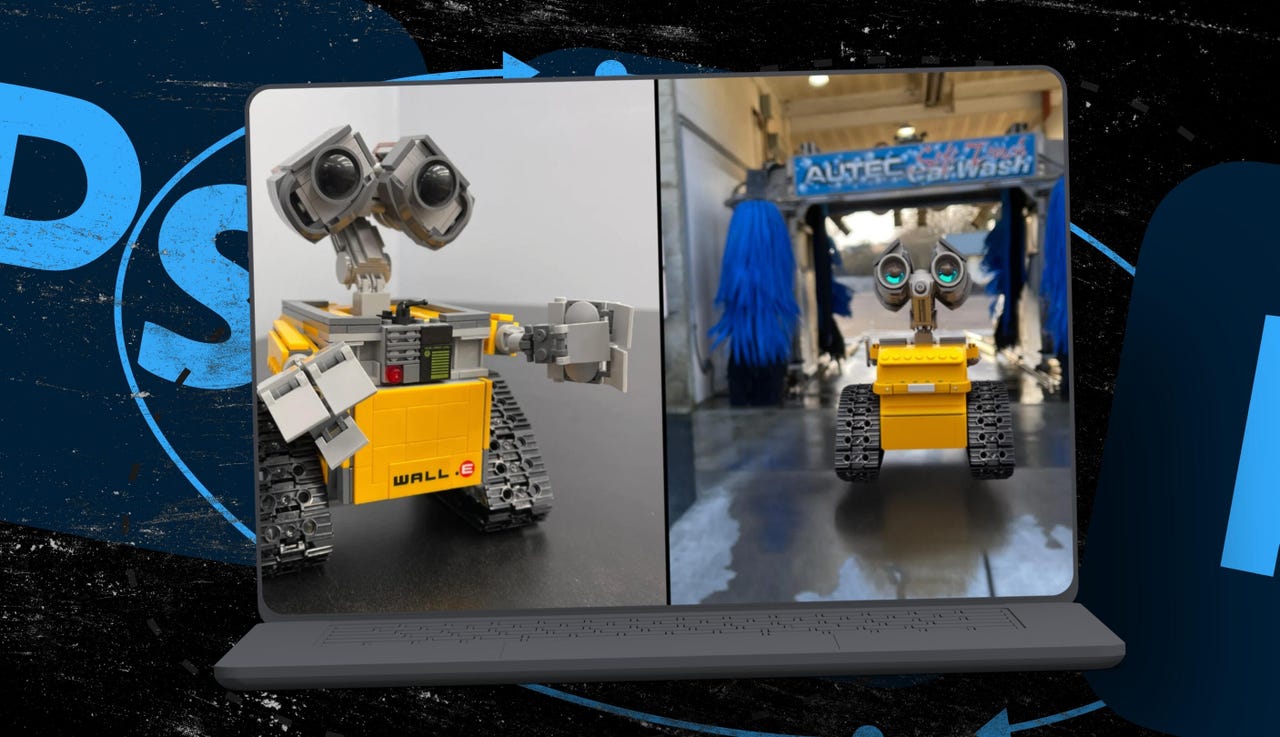
This time, I started with a picture of a local car wash. Don’t ask me why I have such a picture. Anyway, the benefit of smartphones is that you always have a camera in your pocket. I decided to combine it with an image of an off-brand Temu Lego WALL-E I built a few years back.
As you can see, the WALL-E image is a front corner shot. The AI has no reference for what the robot looks like from the back. But the version it generated isn’t bad, except for the eyes in the back of WALL-E’s “head”. By combining the rotation with Harmonize, it’s almost like the robot is in the scene.
Next up, I took a front-quarter view and turned it into a side view, with what I think is a mid-1930s Ford pickup and a barn here in Oregon.
Notice the midday shadow on the front of the barn. That shadow shows that the sun is high up in the sky. On the original pickup image, the light is behind the vehicle, casting a shadow in front. But once composited, rotated, and harmonized, the shadow is now mostly under the truck.
The one that didn’t quite work out
I wanted to end by showing you an image I had some difficulty with. I have a photo of the Dreo air fryer, and another photo of a hotel suite mini-kitchen. I tried rotating the air fryer to place it next to the sink.
While I managed to get the rotation mostly to work, I couldn’t get the perspective right. There’s a Photoshop tool called Perspective Warp that should help with this task, but I couldn’t make it happen to my satisfaction.
On the other hand, when I placed the air fryer on the counter at the lower right, I was able to rotate it. Then I used Perspective Warp to size the device appropriately. And then I applied Harmonize to help blend it in.
Unfortunately, the air fryer’s surface is very reflective. I tried using Generative Fill to fix the excess reflectivity, but either the AI isn’t up to the task, or my skills aren’t.
Do you trust the AI to generate missing details in a composite, or would you rather fix those areas manually? Let us know in the comments below.
You can follow my day-to-day project updates on social media. Be sure to subscribe to my weekly update newsletter, and follow me on Twitter/X at @DavidGewirtz, on Facebook at Facebook.com/DavidGewirtz, on Instagram at Instagram.com/DavidGewirtz, on Bluesky at @DavidGewirtz.com, and on YouTube at YouTube.com/DavidGewirtzTV.