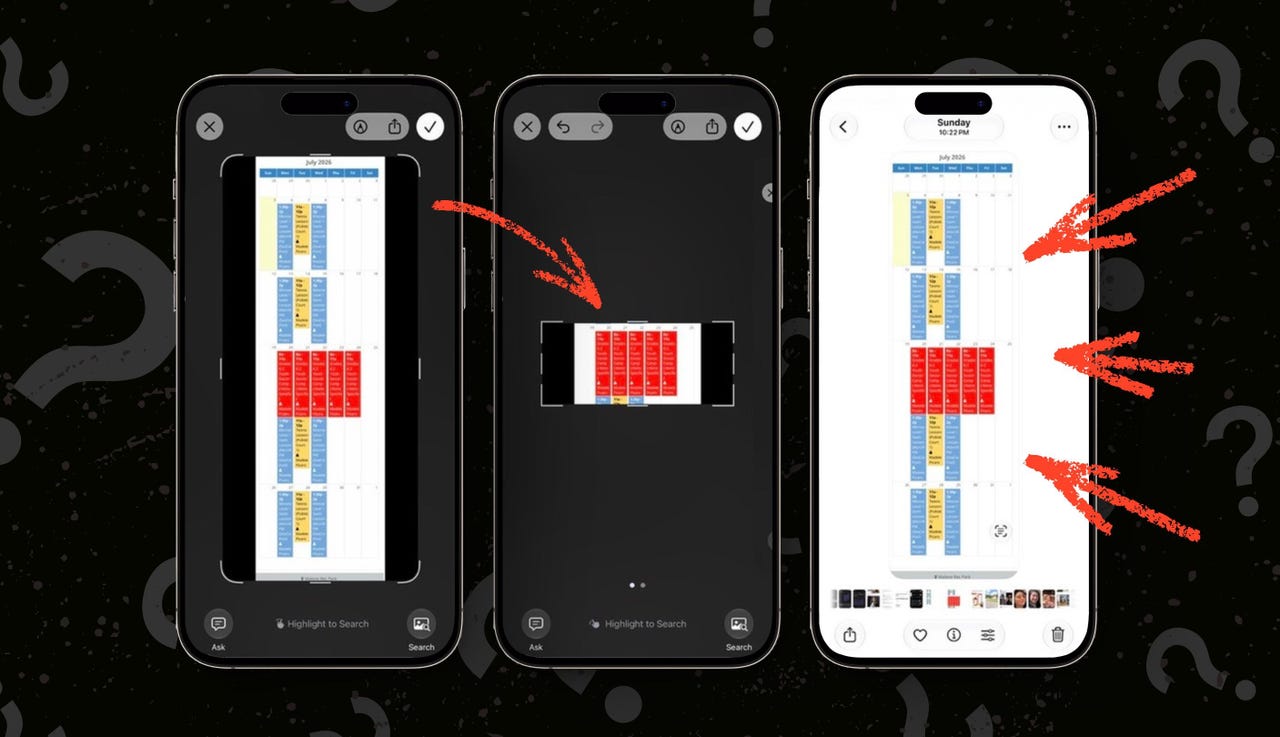
This iPhone bug won’t let me save cropped screenshots – but I found a fix


This iPhone bug won't let me save cropped screenshots - but I found a fix

Elyse Betters Picaro / ZDNET

Follow ZDNET: Add us as a preferred source on Google.


ZDNET’s key takeaways

  • Cropped iPhone screenshots are saved in full after editing.
  • It’s an iOS bug that can expose information I meant to hide.
  • I found one fix, but always check screenshots before sharing.

I started using the iOS 27 developer beta the moment it released, but then I hit an annoying bug: my Roku remote app kept freezing, forcing me to close and reopen it every time I wanted to use it. That was frustrating enough that I reverted to iOS 26.

Also: After a week with iOS 27, I’ve found 5 hidden features that make even older iPhones better

Unfortunately, while running iOS 26.5.2, I noticed an even more annoying bug: My cropped screenshots wouldn’t save.

Cropped iPhone screenshots won’t save

Normally, when I take a screenshot on my iPhone, I tap the crop button on the full-screen preview, drag the handles around the exact portion I want to keep, and hit Done. The cropped version then saves to Photos. But a few weeks ago, that stopped working.

I took a screenshot, cropped it from the preview, sent it to a friend, and only noticed afterward that the full image was shared. Not the crop. I opened Photos and found the original screenshot sitting there, uncropped, with everything I had specifically tried to remove still visible. It was especially irksome because I had cropped out sensitive information that my friend ended up seeing.

Also: 16 Apple Messages settings I change on every iPhone – and why

Not the end of the world, but enough to make me wonder what the heck had happened. Now, it’s occurring every time I try to crop.

I cannot save a cropped screenshot at all. Well, technically, I can open the Photos app, find the full screenshot in my library, tap Edit, crop it there, and then the edited version will finally save. But that’s tedious and not how I typically use my iPhone. Multiple times a day, I take a screenshot, crop it from the preview, and share it immediately. That’s the workflow I like and would prefer to have back.

Note: To see full-screen screenshot previews on iPhone, open Settings > General > Screen Capture > turn Full-Screen Previews on.

Why this iPhone bug is a privacy issue

This isn’t simply an aesthetic issue. When I crop a screenshot, it’s because I want to remove or hide information, whether that’s my address, a phone number, a message preview, a browser tab, a Slack notification, or some other detail that should not be shared.

If the iPhone appears to crop the screenshot but then silently saves and shares the full image, that’s not just a random bug. It’s a privacy issue, especially for someone like me who takes tons of screenshots and even uses them for published stories.

Also: I never use a new iPhone until I change these settings – why they’re such a big deal

I searched to see whether this was a known bug and found several iPhone users complaining about the same problem on Reddit, TikTok, and various other forums. The behavior’s consistent: Screenshots looked cropped in the preview interface, but the image saves as the original full screenshot. Strangely, many users claimed that the first iOS 27 developer beta introduced the bug.

Remember, I installed iOS 27 developer beta 1, but later went back to iOS 26, so it’s interesting that I’m also experiencing the issue.

The only fix I’ve found for now

Digging further, I found some users claiming that installing the second iOS 27 developer beta fixes the cropped screenshot problem. So I installed that beta and immediately tested it. Nope. That didn’t work for me. The crop still wouldn’t save correctly.

Also: How to clear your iPhone cache (and why it’s critical for faster performance)

Then, this morning, my iPhone prompted me to install the third iOS 27 developer beta, which was released earlier this week. I did, and I’m very happy to say that it finally fixed the problem. After the update, I took a screenshot, cropped it directly from the preview, saved it to Photos, and the cropped version actually saved. I tested it a few more times, and the result is consistent. Wonderful.

Even better, the Roku app is working correctly again.

Should you install iOS 27 beta 3?

So, for now, that is the only fix I’ve been able to confirm: installing iOS 27 developer beta 3.

Not everyone should rush to install developer beta software on their main iPhone. You should back up your iPhone before installing it, and know that early iOS betas can break apps, drain battery life, cause problems, and introduce new bugs while fixing old ones. That’s exactly what happened to me after I installed the first developer beta, and my Roku remote app started freezing.

Also: How to free up your iPhone storage almost immediately – 8 easy ways

Still, for anyone dealing with this screenshot crop bug and desperate to fix it, iOS 27 developer beta 3 appears to be the build to try — until Apple rolls out an official fix in a broader release. ZDNET has an entire guide on how to install the iOS 27 developer beta.

I’ve contacted Apple for a comment and will report back if I learn more.


Source link

Leave a Reply

Subscribe to Our Newsletter

Get our latest articles delivered straight to your inbox. No spam, we promise.

Recent Reviews


Apple CarPlay wasn’t center stage at the WWDC 2026 keynote on Monday, which leaned heavily on the new Siri AI, Apple Intelligence expansions and upgraded parental controls

But buried in a dense list of changes and the developer-facing sessions, iOS 27 delivers a meaningful set of CarPlay updates. None of them is earth-shattering on its own, but collectively they’re a genuine quality-of-life improvement for daily drivers.

I scrubbed through the patch notes and poked around the developer beta to see what’s new and coming soon.

Better audio controls

The Now Playing interface is at last getting audio scrubbing. Touch and drag the progress bar to skip the boring part of a podcast, find the next chapter of an audiobook or get to the beat-drop faster. It’s the kind of thing you’d assume was already there. Previously, you’d have to tap and hold the skip-forward or skip-backward button to achieve a similar result, which I always found unintuitive.

More useful still is the new Audio MiniPlayer: a pill-shaped floating control in the upper right corner (in left-hand-drive vehicles) that keeps play/pause and skip controls accessible even when you’re running the map fullscreen. It’s a small change, but anything that reduces the need to tap around while driving is a win in my book.

Darkened iOS screenshot highlighting the new MiniPlayer

The new MiniPlayer (upper right) keeps play/pause and skip controls available wherever you are.

Apple/Screenshot by CNET

Android Auto also recently introduced floating audio controls to its navigation display, though the widget Google presents is much larger.

CarPlay can collaborate with your car

CarPlay and CarPlay Ultra navigation apps running on iOS 27 will soon be able to share route data with and receive data and waypoints from the host vehicle’s onboard software. This unlocks some interesting possibilities for driver assistance and autonomy down the road, but could also improve EV route planning more immediately.

It works like this: The navigation app — Apple Maps or even third-party apps like Waze or Google Maps — generates a route and passes that info to the host car. The EV looks at the proposed route, compares it against the available range, finds a compatible charging station and passes a waypoint back to the app, maybe with an estimated charge time to complete the trip. The navigation app sees the updated route, and you get a more accurate ETA and a charging stop you didn’t have to search for yourself.

All of this passing waypoints back and forth may sound convoluted, but I can see how this method protects driver privacy and data: The app only gets the information it needs when necessary. 

Whether route or location data flows from the app to the host vehicle, vice versa or neither at all will depend on the developer, the automaker and, ultimately, the driver’s chosen privacy settings.

iOS 27 Route sharing demo

In iOS 27, your car and CarPlay apps will be able to exchange information while giving you control over your data privacy.

Apple/Screenshot by CNET

New Siri hits the road

Siri AI is coming to CarPlay as part of iOS 27, bringing the new conversational, context-aware version of Siri from the phone to the dashboard. The new Siri visuals use the Liquid Glass design language introduced in iOS 26 and further evolved in iOS 27. 

Apple Maps is getting natural language route search, coming — eventually — as part of the Siri AI rollout. Soon you’ll be able to ask Apple Maps, for example, to “navigate to that sushi place that Nicole recommended last week,” and have Siri pull the relevant information from text messages, emails or notes on your phone. 

While we wait for the new Siri to arrive, Apple Maps will also see an enhanced Flyover mode using aerial imagery and 3D scans for a more realistic look, improved Visited Places accuracy with broader market availability, and more Local Guides coverage. Offline Maps improvements are in the mix too, though specifics are thin.

Demonstration video app in apple carplay

Developers will be able to build video apps for CarPlay that seamlessly transition to audio-only when it’s time to hit the road.

Apple/Screenshot by CNET

Video apps with sensible guardrails

Apple is letting developers build CarPlay apps with video browsing capabilities for vehicles that support the feature. Think about catching up on a show while waiting at the airport or during an EV charging session. Additionally, any iPhone app that supports AirPlay video streaming will also automatically be able to cast to a compatible CarPlay display. 

With either method, video via CarPlay will feature an automatic audio-only fallback mode: If a car doesn’t support video, or conditions change (say, you unplug and start driving again), playback will transition seamlessly to audio-only, so you can keep your eyes on the road while you listen to the rest of that podcast you started.

Developer tools and widgets

On the developer side, iOS 27 adds new app templates across categories, plus support for Live Activities and widgets from any app — so you could have a live sports score widget running on your CarPlay display without the app being open. 

Meanwhile, developers will gain access to new APIs for building conversational voice apps, including AI chatbot integrations, into CarPlay. There’s also a new CarPlay simulator built into Xcode 27’s Device Hub, letting devs test across different aspect ratios and configurations without needing hardware.

Apple CarPlay Simulator running in MacOS

With the new CarPlay Simulator, developers can test their apps across a variety of aspect ratios without buying a bunch of cars.

Apple/Screenshot by CNET

Reliability, accuracy fixes and other automotive bits

Improved wireless CarPlay reliability and better GPS heading accuracy at the start of navigation round out the lower-profile but welcome fixes. The former promises fewer dropped connections while driving, while the latter should mean less of that awkward spin-the-car-around-the-block moment while the app figures out which direction you’re pointed.

Outside of CarPlay, Proactive Car Key setup is listed in the iOS 27 patch notes — Apple hasn’t fully detailed it, but the likely scenario is a simplified pairing flow for phone-as-key, similar to how easy it is to pair AirPods. Improved Bluetooth power management is also on the list. It’s not a CarPlay feature per se, but relevant for anyone relying on wireless CarPlay, hands-free calling or audio streaming.

iOS 27 is now in developer beta, with a public beta to follow in July and general availability expected in September.


Source link