What’s The Difference Between A Red And Yellow Yield Sign? One Is Nearly Extinct


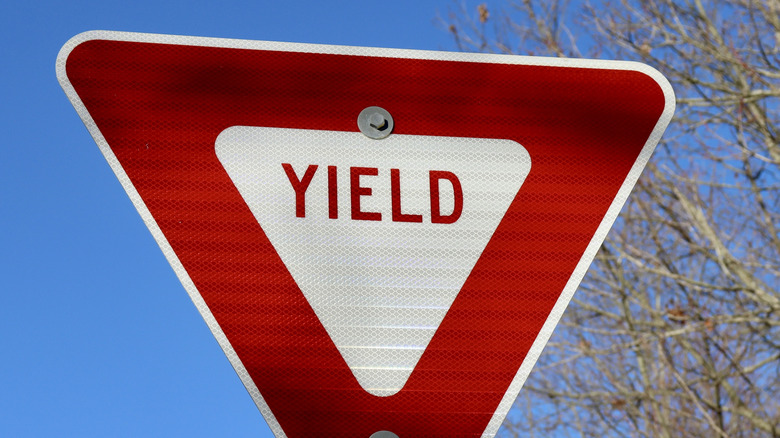
The color and shape of U.S. road signs is a fascinating language all on its own. For example, there are some very interesting reasons why the familiar stop sign is octagonal instead of round or square, and the colors of highway distance signs all signify something unique. If you drive, you should also be aware of the meaning behind the red triangular yield signs often found at intersections or highway off-ramps. However, you might not know that some yield signs used to actually be yellow instead of red. 

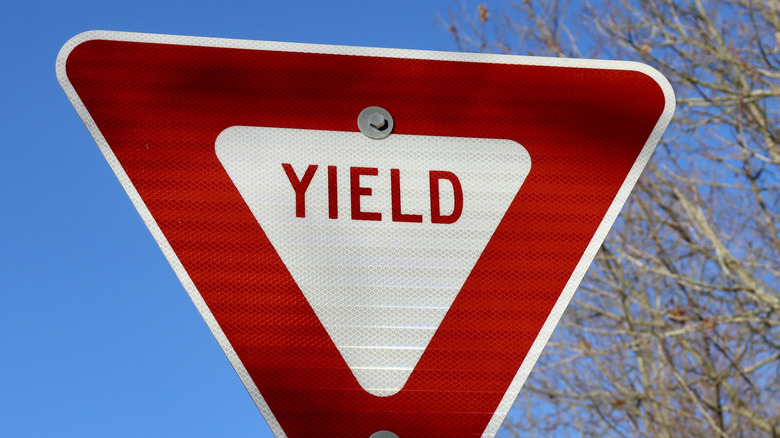
Yield signs were yellow prior to 1971, when a new convention for a white triangle with a red border was established. This became the standard across the United States and, indeed, around a lot of the world. Any yellow ones on the roads today are remnants of rules set down in 1954 by the Manual on Uniform Traffic Control Devices, predated by an early version first placed in Tulsa, Oklahoma four years before. This version bore the legend “Yield Right Of Way,” and was a five-sided shape instead of a triangle. 

For around two decades, drivers would have been familiar with a yellow yield sign. Today, they’re all but unheard of. If any still exist, they would be a very rare occurrence on a road where they may not have been replaced, such as a distant rural area. Their meaning is, or was, exactly the same: You must yield right of way as needed.

Similar yellow road signs mean merge and more instead
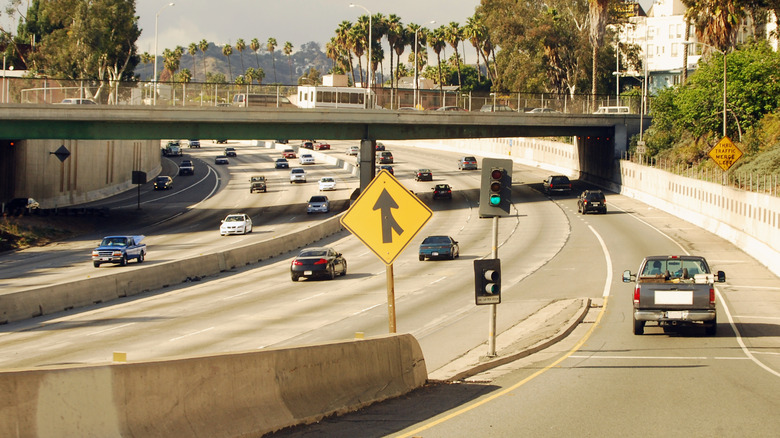
Stop and yield signs are close relatives on the world’s roads, as indicated by their shared red color. While the former mandates vehicles coming to a complete stop before proceeding as appropriate, yield is not so restrictive. Here, drivers must instead slow down, take stock, and then proceed.

However, there are other types of road sign that could easily be confused for the old yield sign that are still yellow. Merge signs and their variants, which are typically yellow, are placed to alert drivers to the fact that there is a merging of two lanes ahead. These are warning signs rather than regulatory ones, which denote legal restrictions such as speed limits. However, these warning signs usually have a diamond shape. 

There are other signs in the same color and shape that also boast a similar design. “Yield Ahead” signs, for instance, shorten the black arrow seen on a Merge sign and places an inverted red triangle with a white border and interior beneath it. Though road signs are designed to be distinguishable at a glance, some have very similar purposes, and so similar designs. You may think you’ve seen a yellow yield sign, but it’s easy to mistake one of these old relics for a modern sign of a different type. 


Source link

Leave a Reply

Subscribe to Our Newsletter

Get our latest articles delivered straight to your inbox. No spam, we promise.

Recent Reviews


Google Maps

You can completely obscure your home from Google Maps’ view if you’re uncomfortable with it there. 

Google Maps

Type almost any residential address into Google Maps, switch to Street View and you’ll find a high-resolution photograph of the front of the property – the door, the windows, the cars in the driveway, the layout of the yard. For most homeowners, that level of detail being publicly accessible to anyone with an internet connection is a privacy concern that doesn’t get discussed nearly as much as it should. Google does offer a way to blur your property out of Street View entirely, the request is free, and once it’s approved the blur is permanent. Here’s how to submit one.

The good news is that you don’t have to just accept this exposure as a fact of life. You can actually force Google to censor your home, permanently blurring it out to protect your privacy from prying eyes. It’s a simple way to take back control of your home’s online footprint and ensure that your driveway and windows aren’t part of a global database.

Here’s how to reduce how much of your home is visible online.

For more, check out essential Google Maps tips for travel.


Don’t miss any of our unbiased tech content and lab-based reviews. Add CNET as a preferred Google source.


How to Blur Your Home or an Object in Google Maps

How to blur your home on Google Maps

You’ll need to do this on your computer since the blurring feature isn’t available in the Google Maps application on iOS or Android. It is accessible through the web browser on your mobile device, but it’s rather difficult to use, so your best option is a trusted web browser on your Mac or PC.

At maps.google.com, enter your home address in the search bar at the top-right, hit return, then click the photo of your home that appears.

Google Maps address

Click on the photo of your home, right above your address, on the top-left part of the page.

Screenshot by Nelson Aguilar/CNET

Next, you’ll see the Street View of your location. Click Report a Problem at the bottom-right. The text is super tiny, but it’s there.

Google Maps location

This is the Street View of your location.

Screenshot by Nelson Aguilar/CNET

Now, it’s up to you to choose what you want Google to blur. Using your mouse, adjust the view of the image so that your home and anything else you want to blur are all contained within the red and black box. Use your cursor to move around and the plus and minus buttons to zoom in and out, respectively.

Street View on Google Maps showing options for blurring the image

If you want to blur more than what’s in the red and black box, use the plus button to zoom in.

Screenshot by Nelson Aguilar/CNET

Once you’re finished adjusting the image, choose what you’re requesting to blur underneath:

  • A face
  • Your home
  • Car/license plate
  • A different object

You’ll be asked to provide a bit more detail about what you want blurred in case the image is busy with cars, people and other objects.

Also, be completely sure that what you select is exactly what you want blurred. Google cautions that once you blur something on Street View, it’s blurred permanently.

Finally, enter your email (this is required), verify the captcha (if needed), and click Submit.

Google Maps options

You are required to provide additional information about what you want to blur, so be thorough.

Screenshot by Nelson Aguilar/CNET

You should then receive an email from Google that says it’ll review your report and get back to you once the request is either denied or approved. You may receive more emails from Google asking for more information regarding your request. Google doesn’t offer any information on how long your request will take to process, so just keep an eye out for any further emails.

For more, take an inside look at how Google built Immersive View for Maps.


Source link